

Adam_Holski
Participating Frequently
February 25, 2018
Answered

How to make a shape outline a letter

  • February 25, 2018
  • 6 replies
  • 3567 views

Hi there!

I have been looking to see how to make a shape outline a letter.

Heres what I'm trying to do:

Please, could someone tell me how I would do this?

also, I'm new to Photoshop

    This topic has been closed for replies.
    Correct answer JJMack

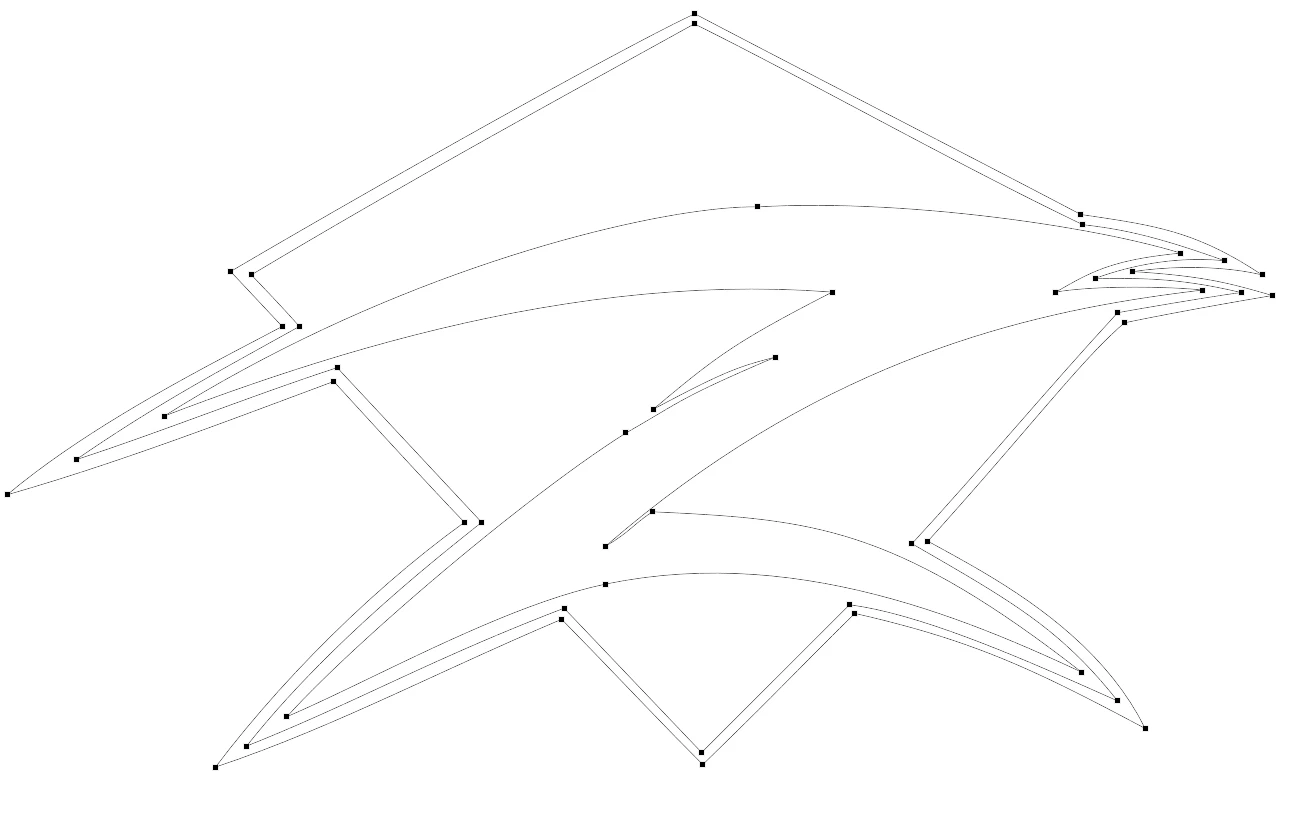
    Shape have vector Paths that can be stroked and closed paths can be filed with a fill color gradient or patter.  That is a singe color, gradient or patten. shape layers can also have layer styles added.  To make your blue and cyan Z logo you would most likely need to make two shapes layers the Cyan shape and the Blue shape layer stacked.   When you create the custom shape paths with the pen tool use the least number of control points possible. Something like this:
    6 replies

    Participant
    February 26, 2018

    Please i have little assingment on photoshop and adobe can you help me?

    JJMack
    Community Expert
    Community Expert
    February 26, 2018

    This is a user forum you are not dealing with Adobe here.  We have been trying to help you.

    Shapes have a vector layer mask there is a little Icon in the layers palette's  Shape layers content thumbnail to indicate its a shape layer. The vector Layer mask is not depicted in the layers palette and is only visible in the Paths when a single shape layer is targeted.  The path can be a single closed path or the Path may contain many subpath and the can overlap and may  combine with other subpaths  in various ways. Add subtract ... in a stack like a layer stack and subpath can be edited and their mode can be change the stack can be merged,

    A Shape can have its  combined path stroked with custom and preset line types.  A Shape area filled with a solid color, a gradient or pattern.  A shape layer can have layer styles added,  A shape layer can be use as a clipping mask. A shape layer can not have multiple fills, strokes or patterns. If you need  multiples you need multiple shapes

    JJMack
    JJMack
    Community Expert
    Community Expert
    February 27, 2018

    JJMack
    Adam_Holski
    Participating Frequently
    February 25, 2018

    Thank you so much its actually a nice feeling to see such nice people in this world despite all the bad things happening around the world at the moment. I truely am blown away from you peoples help. Thank you so much I will have a go at this tomorrow and let you know how I get along. You all deserve such Respect as a king should get.

    JJMack
    Community Expert
    Community Expert
    February 25, 2018

    If you can find a Font you like you can  make a large Text  UL layer center it then have Photoshop convert the text layer to a shape layer.  Get the layer vector  path save to the path with a path name like UL Edit the  U and L paths to stylize the U and L Paths then add  a closed framing Path perhaps by merging two shape layers.

    JJMack
    Adam_Holski
    Participating Frequently
    February 25, 2018

    I got photoshop like 2 days ago and have been using GIMP before so ill probably have to look at some tutorials, Thank you though really appreciate the help!

    Adam_Holski
    Participating Frequently
    February 26, 2018

    I was going to suggest the same thing as JJ, that being to make the Type layer into a Shape layer (in the Type layer menu). There are several reasons for this approach.

    1. With the Type layer now being a Shape layer, select any of the Shape tools which will bring up the Shape options in the Options bar
    2. Give the shape a stroke, which I think defaults to Outside
    3. Click on the Line drop-down, and then on More Options.  You can now change the alignment to Outside, and the corners to Miter.  This is the only way to produce a stroke with sharp corners on both inside and outside corners.
    4. The advantage of this approach is that you now have a template to follow with the Pen Tool to produce your outer shape.

    I'd start with the Polygon tool set to three sides, and to Path in the Options bar

    Incidentally, I like to have all the most used tools in their own group and a double width toolbar, as with the customizable toolbar option, it seems daft not to.

    The trick for breaking into that path is to add new points at the corners.

    Then add a new point in between them, and delete it.

    When you finished the outside path, go back to the UL path (you'll need to set the option bar back to Shape) and turn off the stroke.  This will give you a nice tidy, equally spaced, outline where it follows the UL letters.  You can add the flourishes etc as a last operation.

    Shout if you get stuck.  As you can see, we like questions like this.


    Hi, im struggling with doing this step:

    I don't know how to edit the triangle to go around the "U" like you have done

    JJMack
    Community Expert
    JJMackCommunity ExpertCorrect answer
    Community Expert
    February 25, 2018

    Shape have vector Paths that can be stroked and closed paths can be filed with a fill color gradient or patter.  That is a singe color, gradient or patten. shape layers can also have layer styles added.  To make your blue and cyan Z logo you would most likely need to make two shapes layers the Cyan shape and the Blue shape layer stacked.   When you create the custom shape paths with the pen tool use the least number of control points possible. Something like this:

    JJMack
    Adam_Holski
    Participating Frequently
    February 25, 2018

    Wow. That helps so much as I'm trying to make the same picture but don't want the "Z" as I want to have UL instead

    davescm
    Community Expert
    Community Expert
    February 25, 2018

    Hi

    I might be missing the point of your question, but I would just make that outer shape with the pen tool and set the stroke to a gradient matching the blue. You could then put the letter above it in the layer stack.

    Dave

    JoãoCésar17023019
    Community Expert
    Community Expert
    February 25, 2018

    Hi.

    - Right click the layer of your text;

    - Choose 'Blending Options...' in the context menu;

    - Check 'Stroke' in the 'Styles' list.

    Regards,

    JC