Participant
March 12, 2020
Answered

How to make the background transparent for a mango tree with lots of spaces in between the tree

  • March 12, 2020
  • 5 replies
  • 1514 views

I bought an adobe stock 244670845 mango tree but it has a white background.  Can someone suggest how to easily convert this to transparent background including the spaces in between the leafs.  I did not knwo that the Adobe stock i bought is not tranparent so I will have to spend hours to make it transparent unless there is an easier way to do it,  I am a novice to photoshop.


Any suggestion is helpful.


This topic has been closed for replies.
Correct answer davescm

Hi

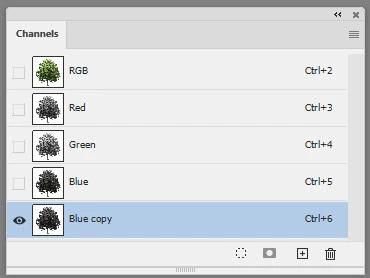
Go to the channels panel and check the channel with the most contrast (in this case blue)

Make a duplicate of the blue channel and select it

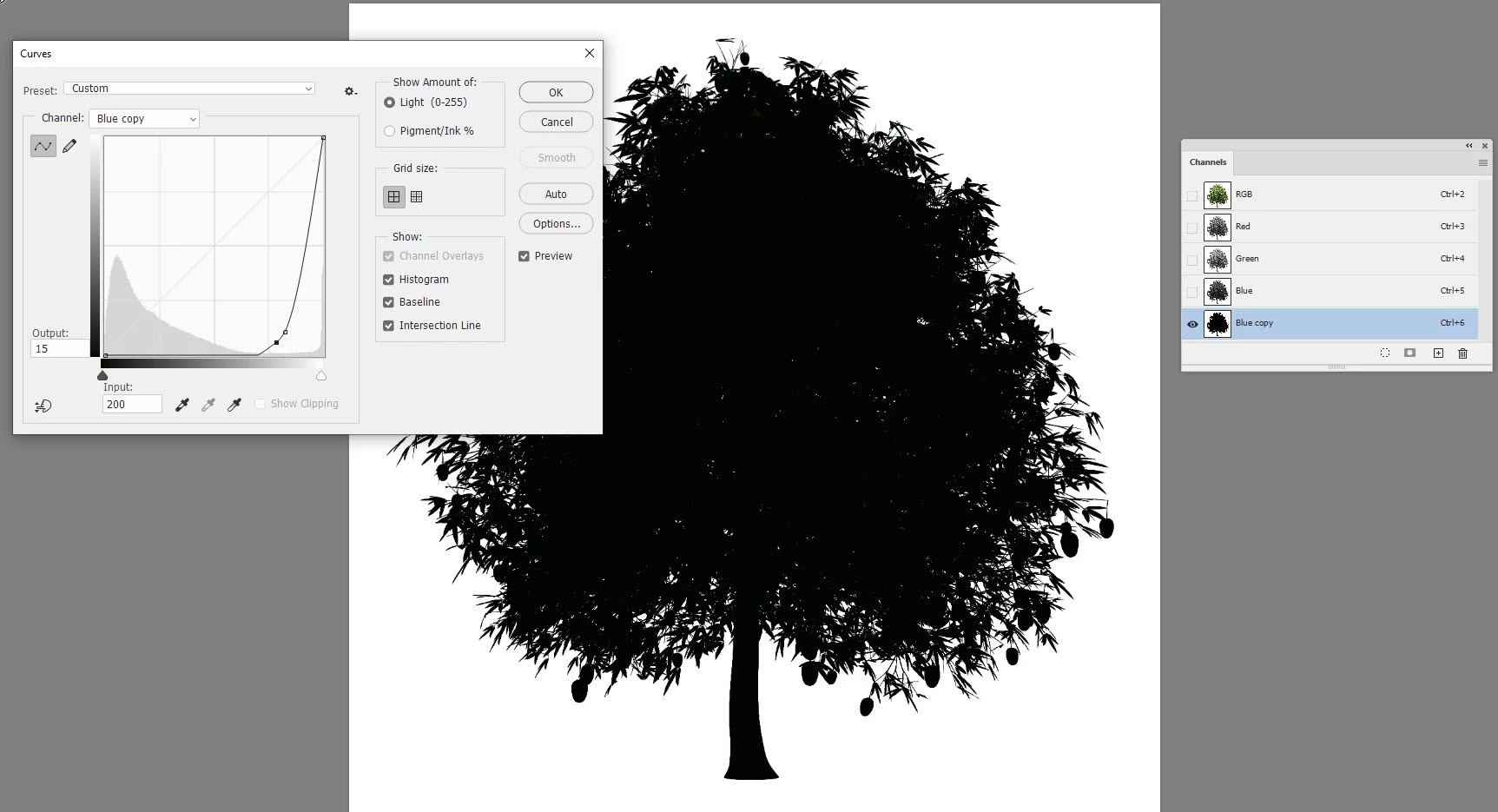
Go to Image >Adjustments >Curves and drag down the curve so you have a nice black and white image

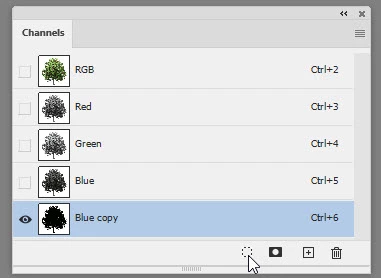
At the bottom of the layers panel click on load channel as selection

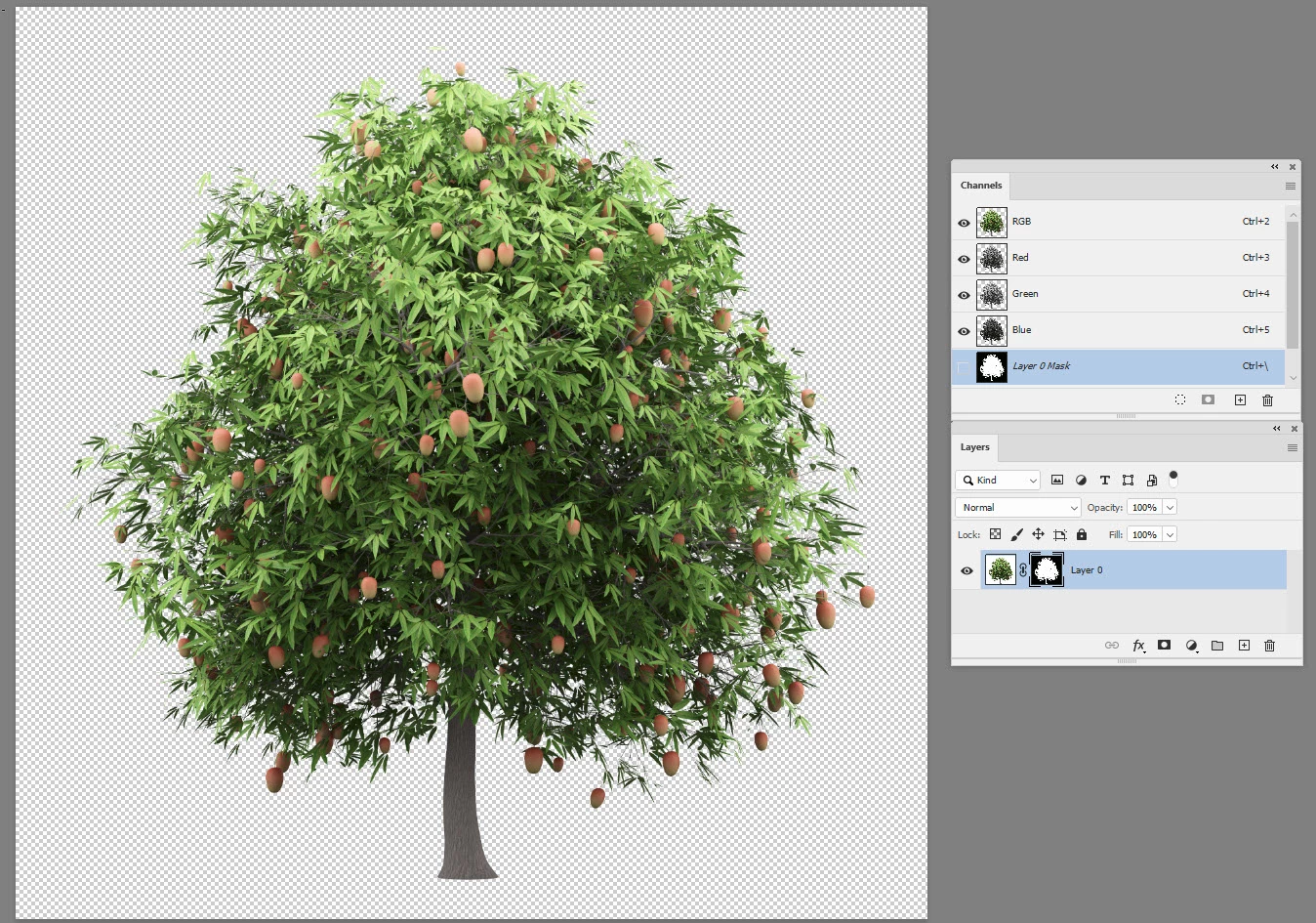
Go to Layer >Layer Mask >Hide selection

That's it -done.


Dave

5 replies

Nancy OShea
Community Expert
Community Expert
March 12, 2020

If you want transparent images, buy native PSD, PNG or AI files.  Do not purchase JPGs.


Nancy O'Shea— Product User & Community Expert
jane-e
Community Expert
Community Expert
March 12, 2020

"I did not knwo that the Adobe stock i bought is not tranparent"


Hi

You have been given a good answer from Dave that won't take long, but just in case you purchase more stock from Adobe or elsewhere, you might want to know that jpegs cannot have transparency. If you see that a file is a jpeg, it will not be transparent.

~ Jane

davescm
Community Expert
davescmCommunity ExpertCorrect answer
Community Expert
March 12, 2020

Hi

Go to the channels panel and check the channel with the most contrast (in this case blue)

Make a duplicate of the blue channel and select it

Go to Image >Adjustments >Curves and drag down the curve so you have a nice black and white image

At the bottom of the layers panel click on load channel as selection

Go to Layer >Layer Mask >Hide selection

That's it -done.


Dave

UPS 137Author
Participant
March 12, 2020

Thanks Dave, I did it.

jane-e
Community Expert
Community Expert
March 12, 2020

Thanks Dave, I did it.


Excellent! I'm just wondering how my reply about the jpegs not being transparent got marked correct instead of the one that answered your question? If you are not the one who marked it, we can change it.

melissapiccone
Community Expert
Community Expert
March 12, 2020

There are a ton of tutorials out there on how to remove backgrounds. My favorite tool is select and mask. Look for tutorials on how to use Select and mask, replacing sky.

Melissa Piccone | Adobe Trainer | Online Courses Author | Fine Artist
Nancy OShea
Community Expert
Community Expert
March 12, 2020

Moving to Photoshop forum.

See this video on the Background Eraser tool.


Nancy O'Shea— Product User & Community Expert