joeh87907460
Inspiring
January 15, 2020
Answered

How to put text inside shape, but only in the shape in Photoshop

  • January 15, 2020
  • 4 replies
  • 15151 views

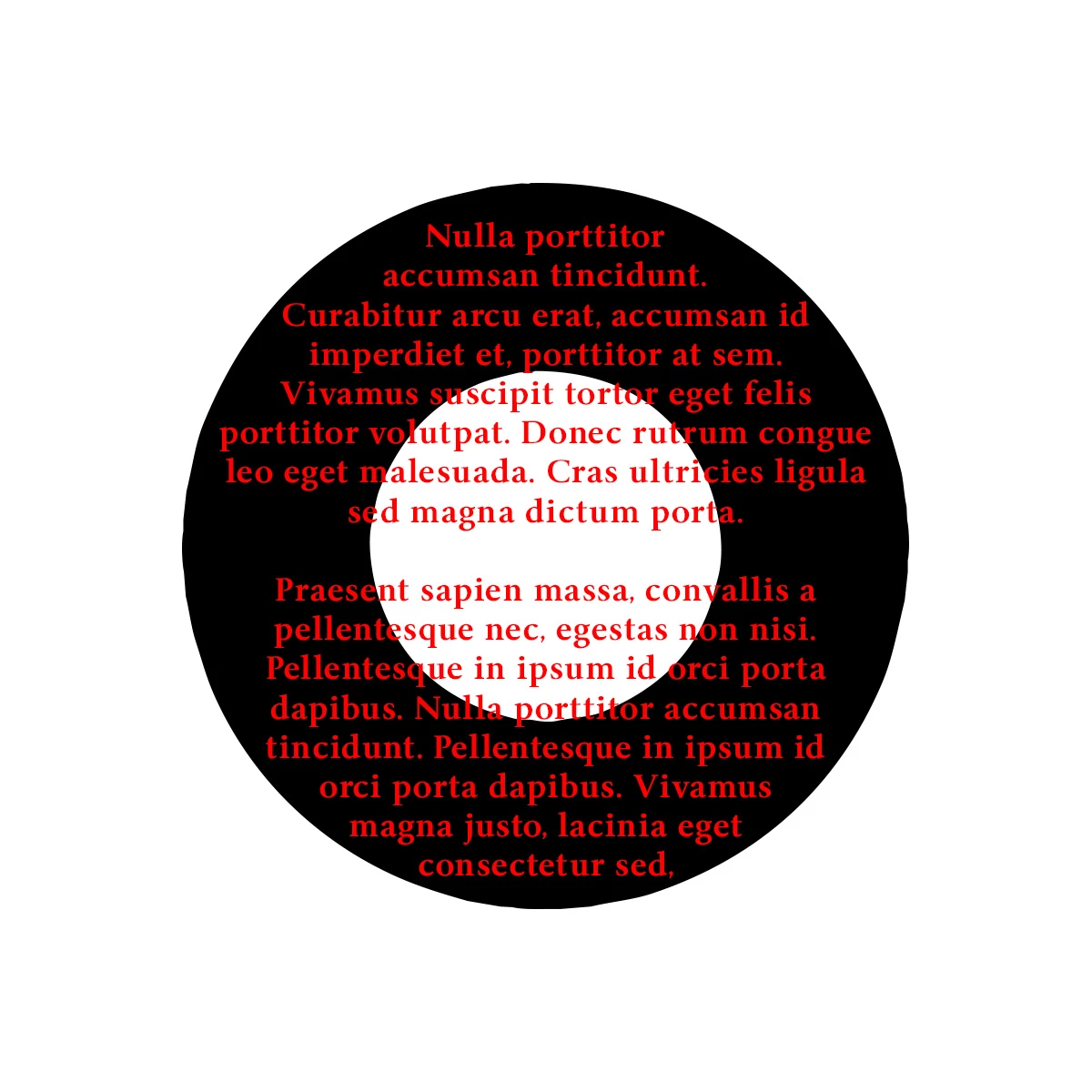
Is there anyway to put text inside a shape but constrained to the actual shape? I would like to be able to make a complex or simple shape, fill it with text and have the text flow throughout the shape without crossing the boundries of the shape. In the example below, the black ring/doughnut is the shape. However when the text tool is selected and the cursor moved over the shape it changes to the circle icon indicating it is placing the text in the shape. But, all it does is place the text in largest diameter and does not flow within the shape at all, it acts as if it is just one big circle. That is not what I want or need. How can I make Photoshop flow the text only in the black shape and not across the hole in the middle of it?

 

This topic has been closed for replies.
Correct answer davescm

You can do it in Photoshop but you have to pull off a little trick.

Add a small rectangle with path operations set to subtract to cut a slot into your circle

Now add your text

Then go to the shape and using the path select (black arrow key) and delete key, remove the slot


Dave


4 replies

Trevor.Dennis
Community Expert
Community Expert
November 3, 2023

I'm thinking that those people who only have Photoshop, but might have an Office 365 subscription, could probably do this in Publisher.

davescm
Community Expert
davescmCommunity ExpertCorrect answer
Community Expert
January 15, 2020

You can do it in Photoshop but you have to pull off a little trick.

Add a small rectangle with path operations set to subtract to cut a slot into your circle

Now add your text

Then go to the shape and using the path select (black arrow key) and delete key, remove the slot


Dave


jane-e
Community Expert
Community Expert
January 15, 2020

This is brilliant, Dave! How did you come up with removing and reinserting a slot?

~ Jane

joeh87907460
Inspiring
January 15, 2020

That makes sense, and it seems to work. Do you think it's easier in PS or AI though?

In AI, you don't have to be careful with the positioning if that's a factor. It's very flexible.

~ Jane


Jane, I've been trying to do this in Illistrator ever since I read your reply with the examples. I can make two circular paths to make the shape, but I can't get text on them like your example. I did get text on it once, but the text went underneath the smaller circle in the middle of the big one. I tried combining them, grouping them ect., to no avail. Now all I get is an error message pop up that says, "You must click on a non-compound, non-masking path to creat text inside a path", which tells me nothing since I'm not familiar with it. I've had that Illistrator program for a couple of years since it came with the CC subscription. Every couple of months I'll start it up and try to learn how to use it but it's confusing and unintuitive and just plain hard to learn. So I give up on it and wait a couple more months then try it again and it's the same thing over and over with that program. 


If you would, please tell me how you did that and maybe a light bulb will come on in my head and I'll learn something new. 🙂 

Chuck Uebele
Community Expert
Community Expert
January 15, 2020

As Jane said, you can do it in Illustrator. You can't have any holes in you shape with Photoshop, however. 

jane-e
Community Expert
Community Expert
January 15, 2020

Chuck, I tried it with a compound path and it failed. The text wrap works.

~ Jane

jane-e
Community Expert
Community Expert
January 15, 2020

Hi

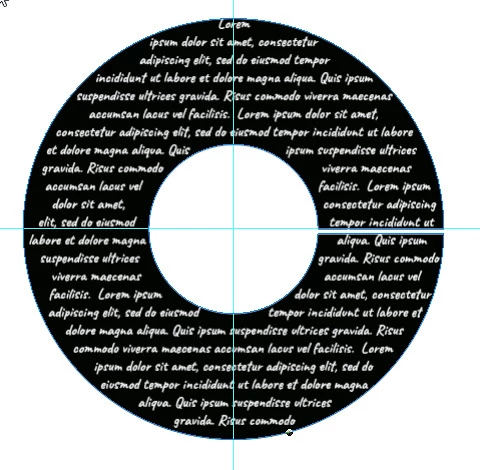
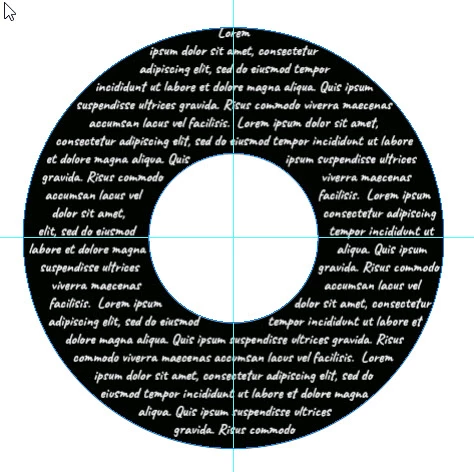
It can be done in Illustrator. Are either of these what you are looking for, and do you have Illustrator?


~ Jane


joeh87907460
Inspiring
January 15, 2020

Thank you Jane for the reply. I do have illistrator but I have no idea how to use it. 🙂 I've tried to learn it but none of the tools work the same as the ones in Photoshop and it's such a headache to switch between the two to do something that should be able to be done in one application. To me, Illistrator is a hard to learn program. In your example, the one on the left is exactly what I'm wanting to do. 

jane-e
Community Expert
Community Expert
January 15, 2020

Hi

I apologize for not getting back to you. I have been out of my office. I was waiting to hear what you were looking for to give instructions.

  • In Illustrator you simply draw a circle, then use the Type tool and hover over the inside of the circle. Confirm there is a circle, not a square around the i-beam and click inside to get the Lorem impsum text, which can be replaced.
  • A second smaller circle has Text Wrap (Object Menu). I used the default of 6 pts, but that can be adjusted at any point.
  • I've just now added a third larger circle in the back and made it black to look more like yours.
  • I did not, however, use red text on a black background, as that is one of the first things that comes up for readability warnings. For some people, the two colors become one. For the rest of us, it's just difficult and that color combination should be avoided.


~ Jane