


Participant
November 2, 2023
Answered

How to resize an image while maintaining its aspect ratio without pressing Shift

  • November 2, 2023
  • 2 replies
  • 54556 views

The Problem: Today I'm sitting inside a project and I insert an image in a new layer, I take my mouse to drag the image to make it bigger. Usually when I do this, the image I'm expanding will expand while maintaining its proportions (ex: If it's a square image, it will stay as a square as I drag its corners to make it bigger) however now, I go to grab a corner and expand it and the image doesn't maintain its proportions and becomes distorted. I now have to hold shift down while dragging for the image to maintain its proportions.


If there's some kind of setting that'll allow me to go revert back to how it used to be, that'd be great. If possible I'd rather not have to hold shift down everytime I want to expand an image/make an image larger withoit its aspect ratio being affected. I'm just not used to it and its just another extra button I have to press.
Correct answer Conrad_C

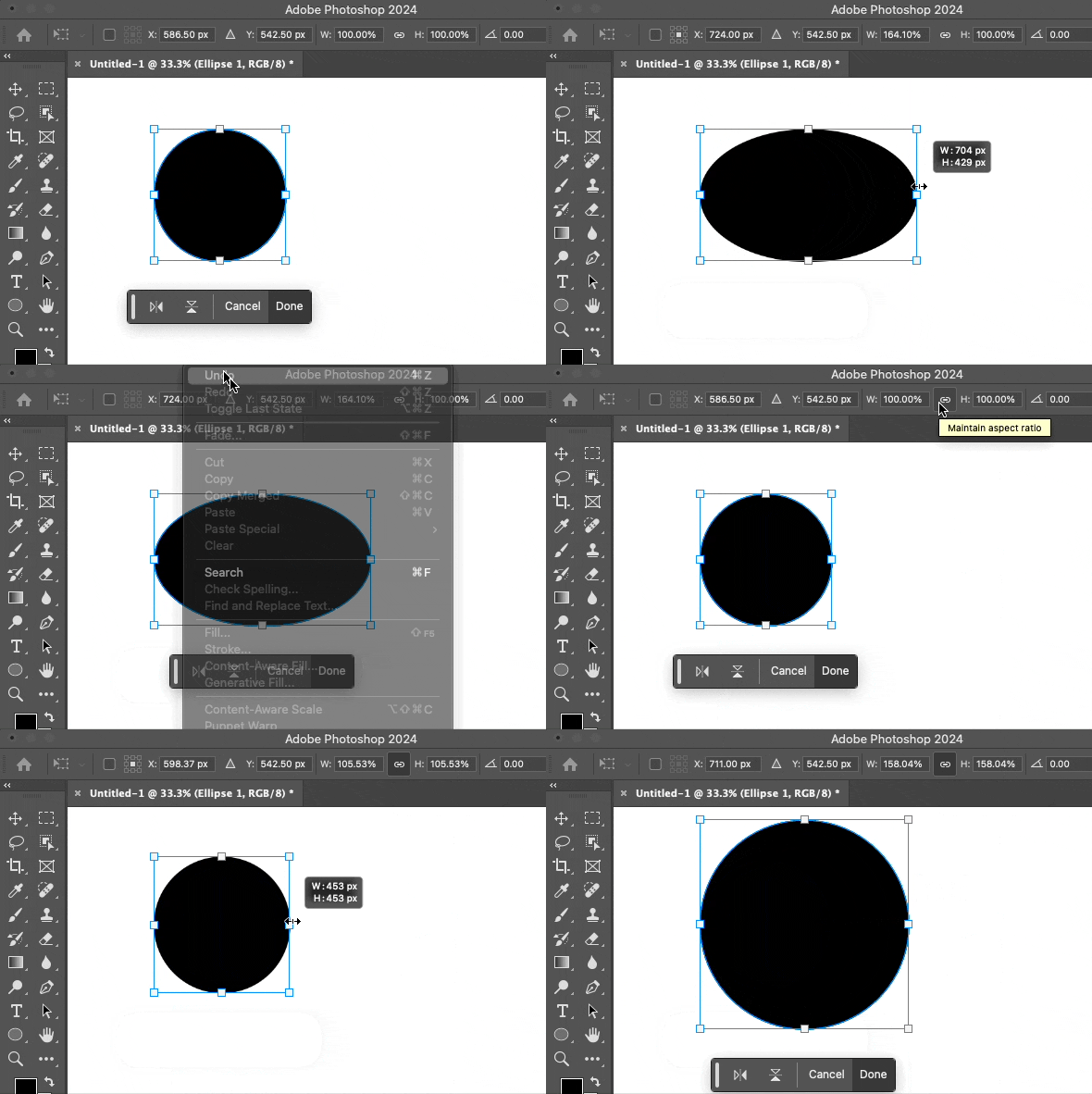
In addition to the preference setting, whenever you use Edit > Free Transform you can switch this at any time using the Maintain Aspect Ratio option. If Maintain Aspect Ratio is enabled, dragging a handle scales proportionally, and you hold Shift for disproportionate scaling. Disabling Maintain Aspect Ratio swaps the behavior: Dragging a handle scales disproportionally, and you hold Shift for proportional scaling.


2 replies

Conrad_C
Community Expert
Conrad_CCommunity ExpertCorrect answer
Community Expert
November 2, 2023

In addition to the preference setting, whenever you use Edit > Free Transform you can switch this at any time using the Maintain Aspect Ratio option. If Maintain Aspect Ratio is enabled, dragging a handle scales proportionally, and you hold Shift for disproportionate scaling. Disabling Maintain Aspect Ratio swaps the behavior: Dragging a handle scales disproportionally, and you hold Shift for proportional scaling.


Participant
November 2, 2023

Thanks Conrad! That link icon to maintain the aspect ratio was turned off on my end. I got it all fixed now, appreciate the visual + response!

John Waller
Community Expert
Community Expert
November 2, 2023

Go to Preferences > General and Uncheck Enable Legacy Free Transform


Historically the default has always been to press Shift to maintain the aspect ratio. Without warning, during CC 2019, Adobe boldly reversed the old default behaviour.


There was an outcry from veteran Photoshop users about the new default of not pressing Shift. So the new preference was introduced by Adobe to give us the choice to set the default to Shift or Not Shift. Sounds like you prefer the new behaviour of not pressing Shift.

kathydannelvitcak
Inspiring
October 21, 2024

Pounding my head on my desk after the latest updates. My fervent desire is to resize a box and have the scale/proportions stay the same without touching the Shift Key. As soon as I get used to holding the Shift Key it will change and my muscle memory will revolt.  I thought I had followed the directions from your post, but I am still getting carnival mirror effects when I resize an image. Here is what my Settings are. Also, do you know of anywhere that the Settings are defined in a concise way? I always THINK I have them reset after updates, but somehow don't. I saved Prefernces to no avail (but, that might be me). THANK YOU!!! 

Participant
November 11, 2024

Lgeacy doesn't change it back for me, the only thing that seems to keep aspect ratio for resizing is the shift button like it was back 6 years ago. Sigh... Adobe really does hate it's own user base (I say this as someone who used Photoshop 1.0 back in the day and has been an Adobe customer since 1991) 


Wait. I'm an idiot. I clicked off the link icon. 


I still standby my last sentence though.