Inspiring
October 15, 2022
Answered

How to save in other formats?? Automate/Scripts Question (CS6)

  • October 15, 2022
  • 3 replies
  • 5646 views

I am trying to batch edit and export using automate/scripts.


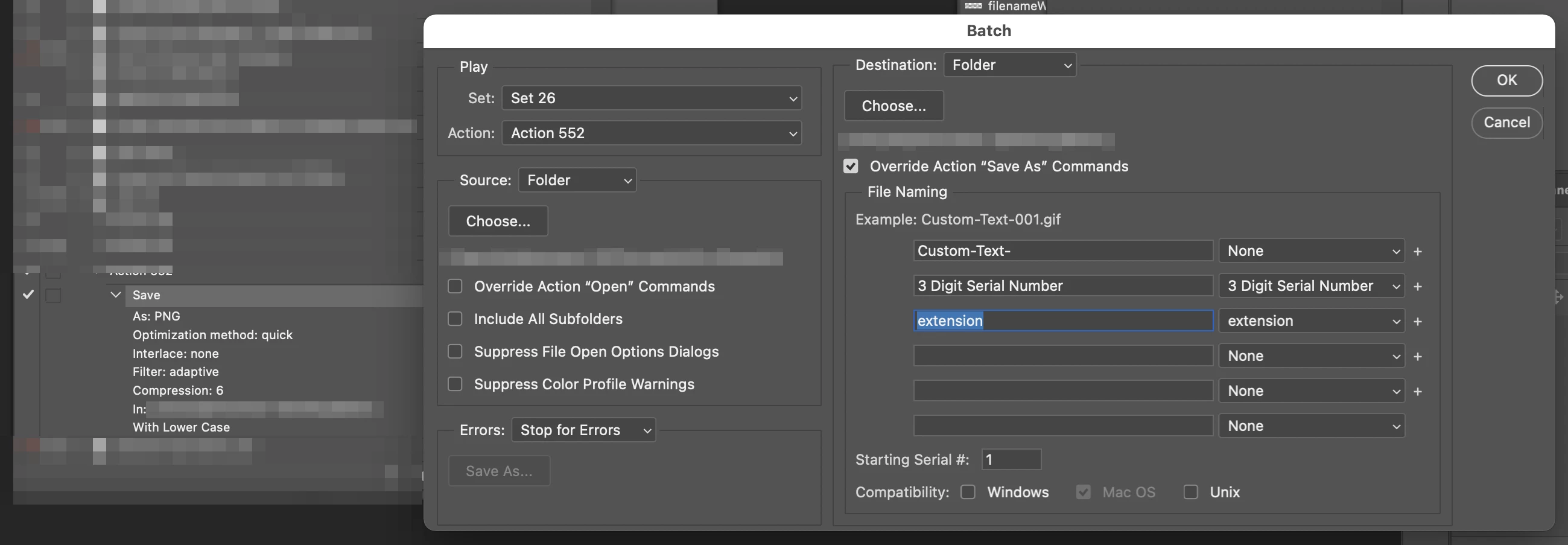
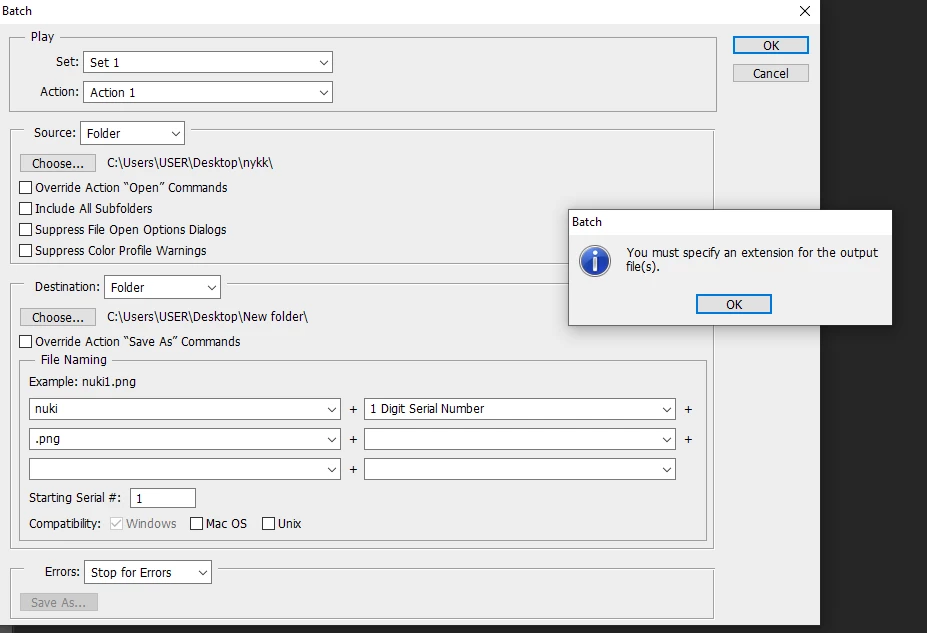
When I go through the automate function, there is no slide down menu where I can select the different file types. Instead, there are three rows of two adjacent bars that I am supposed to use to name my document. The bars are prompts that double as drop down menus, and here there are two options that catch the eye: "EXTENSION" in all caps and "extension"in lowercase letters. I click on one, and it automatically decides for me that it is in the gif format I am going to be saving my file. I tried manually typing in ".png" (because I wanted to save in png) but in trying to proceed the notification pop up kept telling me to specify an extension, so I am guessing that is not how it's done.


In scripts, on the other hand, I am given a much more intuitive interface to work with. Three checkboxes, enabling me to choose among the jpg, psd, and tiff formats. The issue here was the absence of a png option.


Can I recieve some help with understanding how to work this thing?
 

This topic has been closed for replies.
Correct answer Stephen Marsh


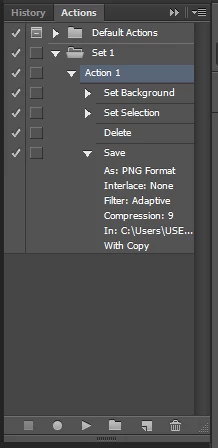
I included saving it as a png in the action but I don't think it is working


You just need to use extension or EXTENSION - not the actual extension, Batch knows that the format is PNG, just ignore the .GIF it is just an example.


https://helpx.adobe.com/au/photoshop/using/processing-batch-files.html#process_a_batch_of_files


3 replies

Stephen Marsh
Community Expert
Community Expert
October 15, 2022

Another couple of options, I hacked these from another script back in 2019... Both scripts convert to sRGB. They are batch scripts that process a selected folder of PSD files. The file type can be changed as required.


This one uses Save As, therefore, it will retain the resolution metadata info.


#target photoshop

// Batch Save As sRGB PNG.jsx

displayDialogs = DialogModes.NO

// raw.githubusercontent.com/jonahvsweb/Photoshop-Automated-Resize-to-Web.jsx/master/Automated%20Resize%20To%20Web.jsx

if (BridgeTalk.appName == "photoshop") {
    app.bringToFront;

    var inputFolder = Folder.selectDialog("Select the source folder that contains the PSD files for save as PNG:");

    if (inputFolder != null) {
        var fileList = inputFolder.getFiles(/\.(psd)$/i);
        var outputFolder = inputFolder;

        for (var i = 0; i < fileList.length; i++) {
            if (fileList[i] instanceof File) {
                var document = open(fileList[i]);
                var documentName = fileList[i].name.replace(/\.[^\.]+$/, ''); // Regex remove filename extension

                while (app.documents.length) {
                    var newFile = new File(decodeURI(outputFolder) + "/" + documentName + ".png");

                    // document.flatten (); // Disable flatten image step

                    /////////////////////////////////////////////////////////////////////////////////////////////////////////////////////
                    function ConvertTosRGBProfile() {
                        app.activeDocument.convertProfile("sRGB IEC61966-2.1", Intent.RELATIVECOLORIMETRIC, true, false);
                    }
                    /////////////////////////////////////////////////////////////////////////////////////////////////////////////////////

                    var pngOptions = new PNGSaveOptions();
                    pngOptions.compression = 0
                    pngOptions.interlaced = false;
                    app.activeDocument.saveAs(newFile, pngOptions, true, Extension.LOWERCASE);
                    app.activeDocument.close();

                }
            }
            if (i == fileList.length - 1) {
                alert("All PSD files have been saved as PNG files!");
            }
        }
    }
}


While this one uses Export Save for Web (Legacy) and will not retain the resolution metadata:


#target photoshop

// Batch Export SfW sRGB PNG.jsx

displayDialogs = DialogModes.NO

// raw.githubusercontent.com/jonahvsweb/Photoshop-Automated-Resize-to-Web.jsx/master/Automated%20Resize%20To%20Web.jsx

if (BridgeTalk.appName == "photoshop") {
    app.bringToFront;

    var inputFolder = Folder.selectDialog("Select the source folder that contains the PSD files for PNG export:");

    if (inputFolder != null) {
        var fileList = inputFolder.getFiles(/\.(psd)$/i);
        var outputFolder = inputFolder ;

        for (var i = 0; i < fileList.length; i++) {
            if (fileList[i] instanceof File) {
                var document = open (fileList [i]);
                var documentName = fileList [i].name.replace(/\.[^\.]+$/, ''); // Regex remove filename extension

                while (app.documents.length) {
                    var newFile = new File(decodeURI(outputFolder) + "/" + documentName + ".png");

                    // document.flatten (); // Disable flatten image step

/////////////////////////////////////////////////////////////////////////////////////////////////////////////////////
                    function ConvertTosRGBProfile() {
                            app.activeDocument.convertProfile("sRGB IEC61966-2.1", Intent.RELATIVECOLORIMETRIC, true, false);
                        }
/////////////////////////////////////////////////////////////////////////////////////////////////////////////////////

                    exportOptions = new ExportOptionsSaveForWeb();
                    exportOptions.format = SaveDocumentType.PNG;
                    exportOptions.PNG8 = false; // false = PNG-24
                    exportOptions.transparency = true; // true = transparent
                    exportOptions.interlaced = false; // true = interlacing on
                    exportOptions.includeProfile = true; // false = don't embedd ICC profile
                    document.exportDocument(newFile, ExportType.SAVEFORWEB, exportOptions);
                    document.close(SaveOptions.DONOTSAVECHANGES);
                }
            }
            if (i == fileList.length - 1) {
                alert("All PSD files have been saved as PNG files!");
            }
        }
    }
}


WOIEJOAuthor
Inspiring
October 18, 2022

Oh WOW this is way beyond my technical boundaries for me to understand, but thank you you're amazing.

Stephen Marsh
Community Expert
Community Expert
October 18, 2022
Stephen Marsh
Community Expert
Community Expert
October 15, 2022

The late Mike Hale modified the Image Processor script, however, when the PS-SCRIPTS site went down and was later resurrected, it appears that the attachment was lost.


https://www.ps-scripts.com/viewtopic.php?f=51&t=10225&p=54270&hilit=Image+Processor+with+PNG+support#p54270


Perhaps somebody has a copy?


WOIEJOAuthor
Inspiring
October 18, 2022

I'll check it out, thank you so much!

Stephen Marsh
Community Expert
Community Expert
October 18, 2022

Sadly, nothing to see...

Stephen Marsh
Community Expert
Community Expert
October 15, 2022

The first option sounds like File > Automate > Batch


This interface batches an Action, the Action would include the file format options.


The second option you mentioned is Image Processor, which as you say doesn't include the PNG option.


 I'll post links for other alternatives later (Image Processor Pro and others).


EDIT: Here are the links to various scripts:


Image Processor Pro:

https://sourceforge.net/projects/ps-scripts/files/Image%20Processor%20Pro/


Picture Processor:

https://github.com/Paul-Riggott/PS-Scripts/blob/master/Picture%20Processor.jsx


Raw Image Converter (a reworking of Image Processor, with PNG saving):

https://github.com/SetTrend/Raw-Image-Converter


Batch Multi Save:

https://www.marspremedia.com/software/photoshop/batch-multi-save


Info on saving/downloading/installing:

https://prepression.blogspot.com/2017/11/downloading-and-installing-adobe-scripts.html


As you use CS6, these scripts may or may not work in such an old version.


WOIEJOAuthor
Inspiring
October 15, 2022

Thank you so much for the reply!

How would I get the action to include file format options? Does this mean I need to record the steps I would take to save the file in the action as well to begin with?


WOIEJOAuthor
Inspiring
October 15, 2022


I included saving it as a png in the action but I don't think it is working