


Participating Frequently
February 4, 2018
Answered

How to scale or resize my workspace?

  • February 4, 2018
  • 2 replies
  • 10222 views

On my new Dell XPS 15, my workspace is tiny. Text, photos and other items are much smaller than they should be. 16px text appears to be 14px, and shapes, images or other objects also appear to be much smaller than normal at 100% zoom.

Here is the difference on my web browser vs. on Photoshop.
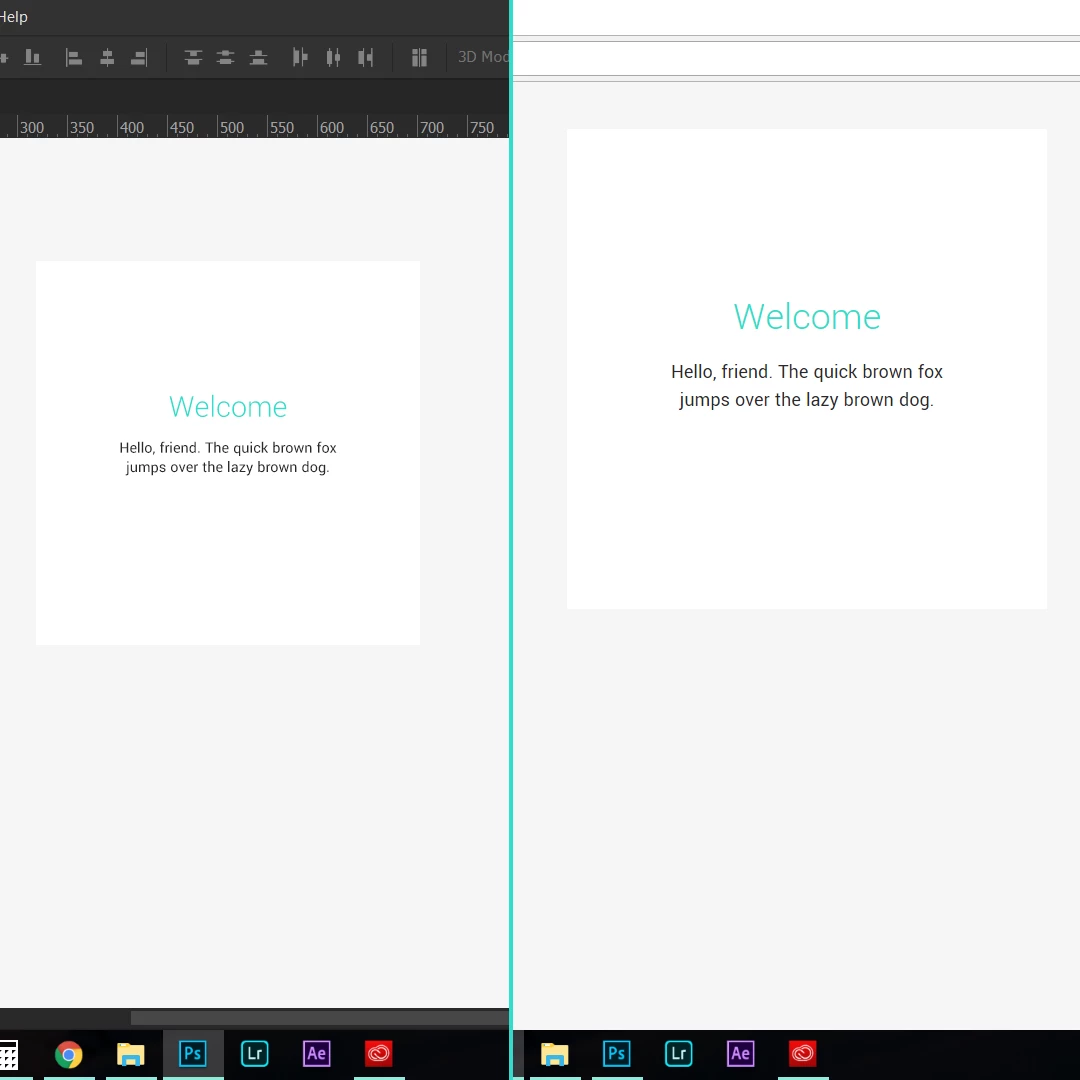
In this case, I am using the font "Arial Regular" with the size of 14px in both Photoshop and the browser. Notice the difference.
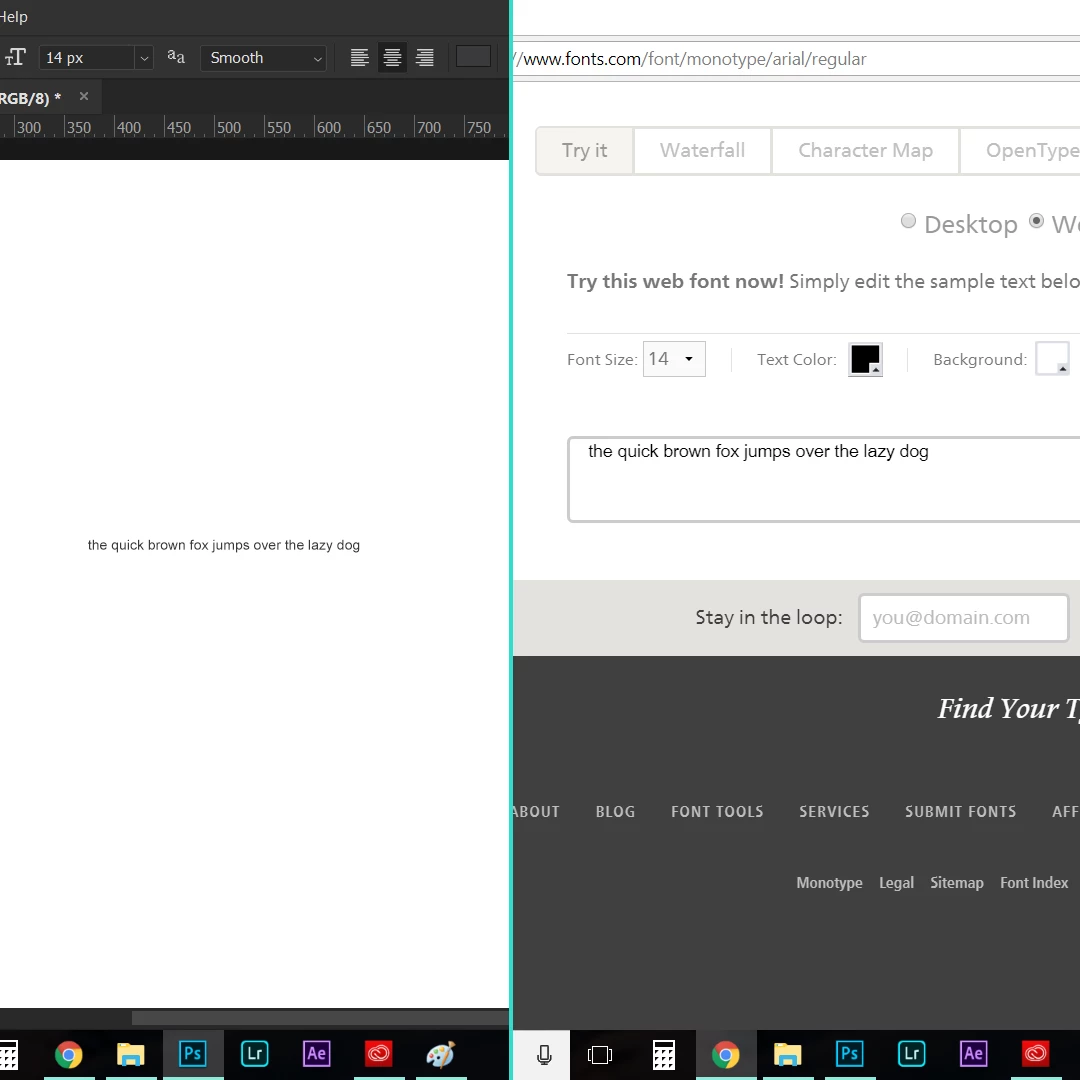

I could be wrong, but this is what I am thinking is the issue.

Windows 10 on my XPS 15 perfectly scales texts, apps, and other items to 125% by default. This makes everything easier to use and to appear "normal", as they do on any other device I use. I believe that Photoshop's UI is being scaled to 125%, as it should, but it's workspace is still at 100%, disregarding my system display settings.

Regardless, how do I change this? I use Photoshop for web design and I just cannot deal with the tiny text and tiny items when Im trying to create accurate designs for a web application.
This topic has been closed for replies.
Correct answer JJMack

What is you windows display settings are the set to run your display at its native resolution like recommended and scale what is displayed? Can you post a screen capture of your Photoshop problem and your windows display settings.  There is someone else complaining about blurred text.  I do not see that one my surface pro 3's 216dpi display 2160x1440 scaled 150%  or my 185DPI 3840x2160 4K display scaled 175%.


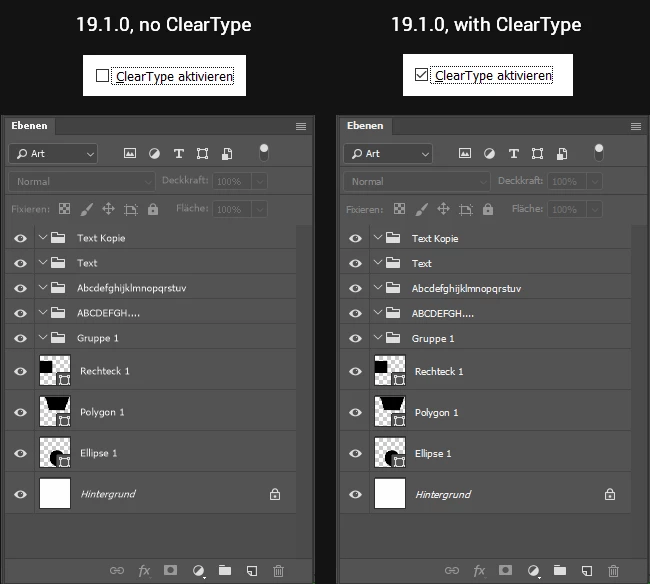
The user that was having a blured text problem found out that their problem was related to their Windows Clear Type setting...

2 replies

JJMack
Community Expert
Community Expert
February 4, 2018

Which version of Windows and which version of Photoshop are you using?

The difference between  Adobe cc 2017 2XUI scaling an windows scaling is windows scaling scales the image areas as well as the Photoshops UI

Adobe UI scaling now works correctly in CC 2018 run one Windows 10 Creator's Edition.

Windows High-Density Monitor Support

With this release, Photoshop CC 2018 version 19.1 on Windows 10 Creator’s Edition now offers a full range of choices for UI scale factors from 100% through 400%, in 25% increments. This means that the Photoshop user interface will look crisp, beautiful, and the right size no matter the density of your monitor. Photoshop will now automatically adjust itself based on your Windows settings, making it simple to set up.

JJMack
Participating Frequently
February 4, 2018

Windows 10 version: 10.0.16299 and I have Photoshop CC 2018. I just downloaded Photoshop from Creative Cloud onto my new Dell XPS 15 a few days ago. So it should be very up to date.

And yes. That is exactly what I need, JJMack! How did you do that?

JJMack
Community Expert
JJMackCommunity ExpertCorrect answer
Community Expert
February 5, 2018

What is you windows display settings are the set to run your display at its native resolution like recommended and scale what is displayed? Can you post a screen capture of your Photoshop problem and your windows display settings.  There is someone else complaining about blurred text.  I do not see that one my surface pro 3's 216dpi display 2160x1440 scaled 150%  or my 185DPI 3840x2160 4K display scaled 175%.


The user that was having a blured text problem found out that their problem was related to their Windows Clear Type setting...

JJMack
davescm
Community Expert
Community Expert
February 4, 2018

Hi

You are misunderstanding 100% zoom in Photoshop.

At 100% zoom, Photoshop maps 1 image pixel exactly to 1 screen pixel. It does not scale at all. It has to be that way for accuracy - all scaling introduces scaling artifacts.

If you want a larger image on screen then you will need to zoom in further.

Dave

Participating Frequently
February 4, 2018

Zooming in 125% or even 150% doesn't make it appear like it should and makes everything blurry