Known Participant
July 27, 2020
Question

How to select an object precisely

  • July 27, 2020
  • 2 replies
  • 1343 views

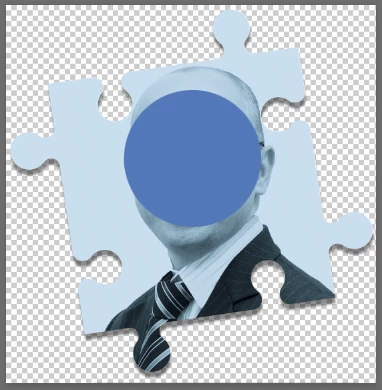
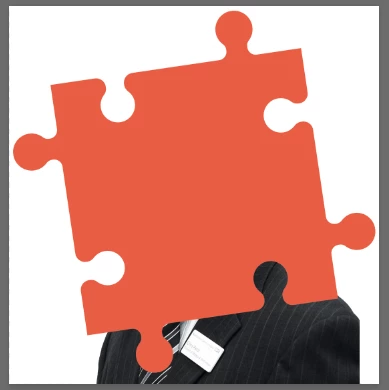
I have a photograph, I'd like to cut the photograph into a jigsaw shape. The way I would do this is to place the jigsaw shape in a layer above the photograph, move it to the correct position and then, on the jigsaw layer select the jigsaw by Cmd - Clicking on the jigsaw piece layer thumbnail, then I would move down to the photograph layer below, Select > Inverse and delete the photo that falls outside of the jigsaw piece (I have attached two photos to show what I mean).


What I'd like to know is, is this a precise way of selecting an object (e.g. I want nice smooth edges to the jigsaw piece, not jagged) I think I remember years ago there was another button you clicked at the same time as cmd that made sure you selected all the required pixels precisely and cleanly to give you as smooth and crisp an edge as possible, is there still a way to do this or is what I am doing fine?


I just tried the new Object Selection tool, this selects the jigsaw piece also but does this select it more or less precisely than Cmd - Clicking or will it achieve the same results?


Just to say, I'm not wanting to mask off the jigsaw piece as the finished jigsaw piece will be made up of three layers as I have effects on all of them and I will then want to add a drop shadow the bottom jigsaw layer (of the three) and don't believe I can do this without cutting the jigsaw piece(s) out. 
 

This topic has been closed for replies.

2 replies

mglush
Adobe Expert
July 27, 2020

Hi!


Command clicking on a layer gives you a selection based on the pixel informatoin in that layer. If the shape on that layer is smooth, it will make the selections smooth, so the key is in making sure you make the smoothest edge possible. I agree with JJ above that the best (and smoothest) selections come from the pen tool. You can use the pen tool to create all your puzzle pieces as separate paths. Save each one in the Paths panel as a separate path, then when you are ready, activate the Path by clicking on it, and choosing Make Selection from the pop-out menu. Once the selection is active, follow the steps you've noted above to complete the effect.


You are headed in the right direction! Let us know if you have any questions.

Michelle

Known Participant
July 28, 2020

Thanks, so the jigsaw piece I have already created in Illustrator (using shapes and the Shape Builder tool to make a precise jigsaw shape) and dropped that shape into Photoshop as a Smart Object, would that object be very smooth and therefore would Cmd - Clicking on the jigsaw layer's thumbnail be a smooth selection?


I would happily use the Pen Tool but I don't think I could get my circular areas on the jigsaw anything like as accurate as Illustrator has by drawing them freehand and I need to do this fairly quickly. 


I haven't really messed with Alpha Layers before so wouldn't be sure what I was doing with that (I use Illustrator most of the time) and as I say, I need to be quite swift with this. 

Known Participant
July 29, 2020

CMD+Click and CTRL+Click are the same thing different Platforms and Keyboards.  And you found the way I thought would be possible to Pass AI's vector path to Photoshop.  You can get you vector path into Photoshop so it would be a snap to define a custom shape in Photoshop.


Cmd+Click and Cntl+Click do different things on my Mac.


Cmd+Click simply makes a selection (marching ants) of the jigsaw piece.


Cntl+Click brings up this dialogue box (pic attached), hence why I asked if I should 'then choose 'Select Pixels'(?)' to accurately select my jigsaw piece? 


You have said that "CMD+Click Mac... Converting the selection to a path will most likely not go so well," I'm getting quite confused, why would this option not go well if it is the same outcome as Cntl+Click on a Mac?


Or are you saying the method I have described above, importing the path and selecting it etc. is the way to go (sorry I'm not sure what it's a snap means)?


Thanks. 


JJMack
Adobe Expert
July 27, 2020

You create puzzle shape shape Alpha channels.  Then add them as layer mask to image layers than add your drop shadow layers style.  Better would be to have puzzle shape custom shapes. You can use use to create vector Paths that you can add as vector layer mask.   Layer mask can be un-linked and the free transform  so you cans rotate, locate,  scale and distort  the  puzzle shape.  Vector Masks will transform better the raster layer mask.


On the web you can most likely find an action or a script to make puzzle out of an image.  Pieces may  be raster pixel layers not mask  layers. With the alpha channels or custom path you can make  selection and use Ctrl+j to create the raster layer you seem to want.


Pen tool for selection 

JJMack