


Participating Frequently
May 7, 2018
Answered

Hue/Saturation Adjustment has no effect -please help

  • May 7, 2018
  • 3 replies
  • 13565 views

For the past few months I've been using the exact same method to achieve a 'glow' effect for my digital art using these steps: (reference The Complete Guide to Self-Publishing Comics by Comfort Love and Adam Withers pages 113 to 116)

Steps (quoted directly from the book):

1. Open up your image. For this exercise, anyone or anything with eyes will do; just make sure your image is at least 200 dpi (dots per inch) and 3 by 3 inches.

2. Set your page's mode to full color by selecting Image>Mode>RGB Color.

3. Make a new layer by clicking on the Create New Layer icon on your Layers window.

4. Click the Foreground Color selector and choose black.

5. Fill your layer with black by using the Paint Bucket tool, or select Edit>Fill and fill with the foreground color (Alt/Option+Backspace).

6. Once your layer is filled with black, go to your Layers window and click on your Blending Modes menu and change the layer's mode to Screen. The black will disappear because the Screen layer mode makes all blacks transparent and all whites opaque.

7. Go back to your Foreground Color and select white.

8. Get your Brush tool and choose a soft-edged brush. Set your brush's Opacity to 100% and Flow 8%.

9. You want to create a glow that's strongest in the center and fades at the edges. To more easily accomplish this, use your bracket keys ([ and ]) to quickly change the size of the brush you're using. Paint your most intense white with a tiny brush in your subject's pupils, and then increase the size of your brush incrementally as you softly increase the glow size outward from that center point.

10. All right, this is the fun part. Click Image>Adjustments>Hue/Saturation (Ctrl/Cmd+U). This is another one of those windows we use all the time, so get comfortable with it. Once the Hue/Saturation window pops up, click on the little box in the bottom left corner that says, Colorize.

11. Move your Hue and Saturation slider bars to get the color you want. Hue changes what color the glow will be; Saturation adjusts how bold and colorful the glow is. Voila! You've just made your first glow in Photoshop!

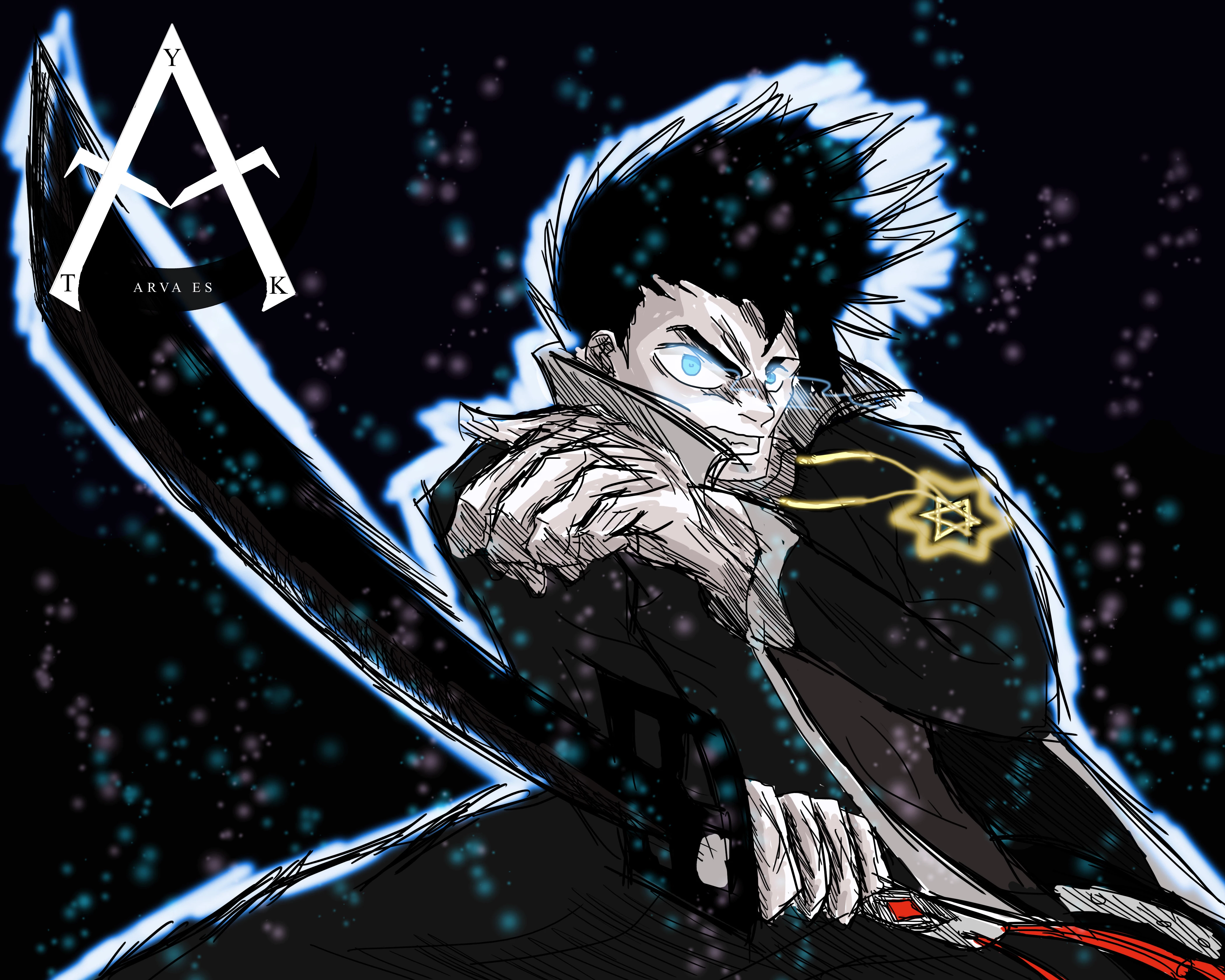
So whether you try this out for yourself for the first time or if you already use this method, you get the point. So my problem is that once I get to the Hue/Saturation step, nothing happens. Nothing is greyed out, it just literally has no effect on the document regardless of what I do. No color difference, not even Lightness has any effect which is the most disturbing part, because if you set it to -100 the screen turns black and at +100 the screen turns white under normal conditions. But as I said, no effect takes place. I've been using this method without problem for several months and all of a sudden I've run into this problem. I spent several hours checking to make sure everything else is correct normally and in relation to the steps. I did it the exact same way I always have, but now it doesn't work. It won't even work on other documents. I would very much appreciate help on resolving this issue as I use this effect in nearly all of my drawings. Below is one of my examples on how it's supposed to look:
This topic has been closed for replies.
Correct answer davescm

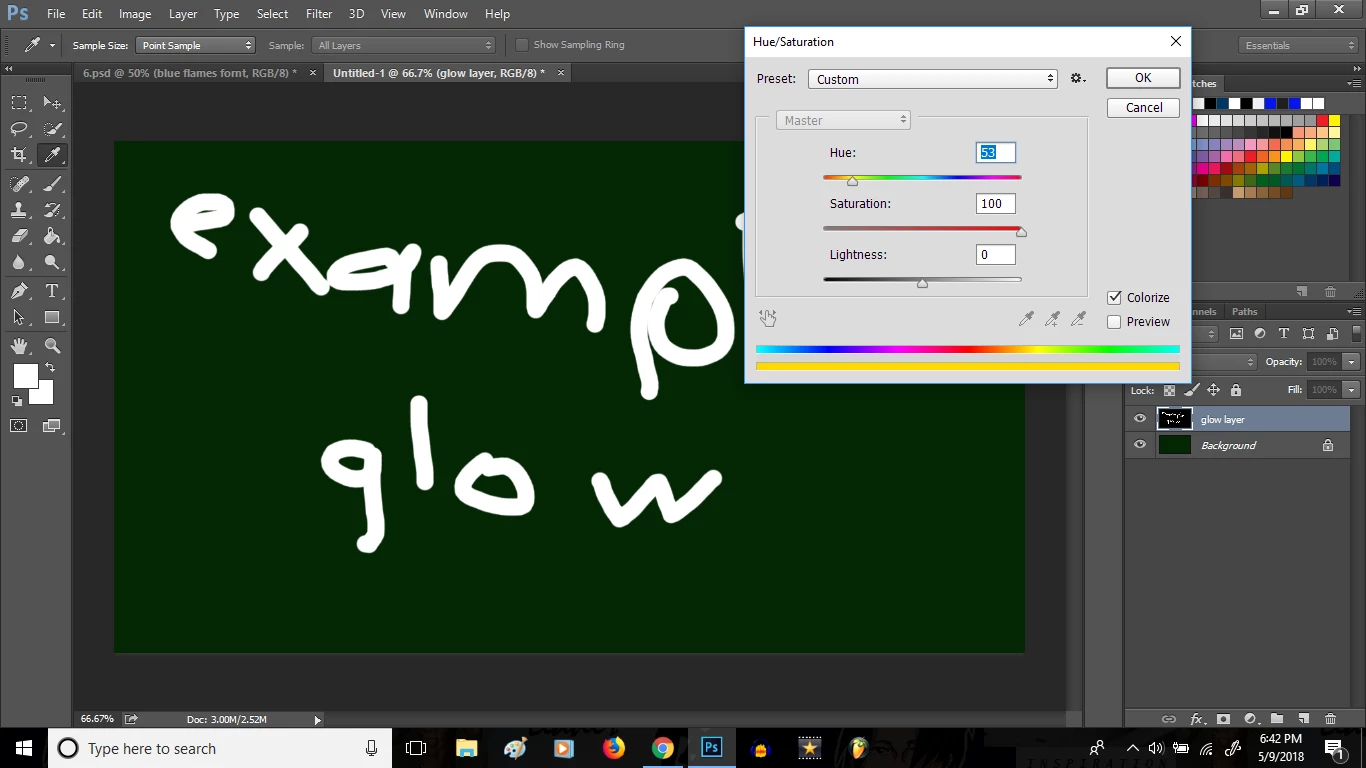
The problem is that I can't get it to glow in the first place. This is what I meant previously by the Hue/Saturation adjustment not having any effect. As you can see below I selected colorize and maximized saturation. At this point it should the same effect in appearance as the very first example image I uploaded^.


Hi you need to use a soft brush. Hue and saturation does not affect pure white or pure black only the intermediate values. A soft brush will give some intermediate values to act on. The luminosity of the pixels remains the same. That is why the glow in your earlier pic went from white, through colour to black.

Dave

3 replies

c.pfaffenbichler
Community Expert
Community Expert
May 8, 2018

Could you please post screenshots taken at View > 100% and with the pertinent Panels (Layers, Channels, Options Bar, …) visible?

melissapiccone
Community Expert
Community Expert
May 8, 2018

What version of Photoshop are you using? I’m not sure why it would stop working. Using the adjustment layer isn’t any different and gives you huge advantages over your original workflow. You can change the colors at anytime. You can also work on different layers and use clipping masks.

Melissa Piccone | Adobe Trainer | Online Courses Author | Fine Artist
Arva_ESAuthor
Participating Frequently
May 9, 2018

I have PS CC 2015

melissapiccone
Community Expert
Community Expert
May 8, 2018

This is an old workflow. Try using the hue saturation adjustment layer, it’s the first icon in the second row in the adjustment panel. the “glow” in your screenshot looks blue to me...

Melissa Piccone | Adobe Trainer | Online Courses Author | Fine Artist
Arva_ESAuthor
Participating Frequently
May 8, 2018

A friend also recommended this method to me, but I found that I'm unable to be as creative with it. The method that I've been using allows me to 'draw' what I want to glow first. For example, in the picture I showed above, I used the brush to draw over the eyes and around the character and the dots then I added in the glow. In the method suggested, I can draw over what I want to have the glow effect but I have to choose a color very close to the color I would like to glow. The other problem is that it doesn't have the same visual effect as you can see here (compare this drawing'g glow effect with that one^)

It looks decent, but not nearly as good as before, also this method is less convenient to me. Is there any solution so that I might get the previous effect again?

Arva_ESAuthor
Participating Frequently
May 9, 2018
In the method suggested, I can draw over what I want to have the glow effect but I have to choose a color very close to the color I would like to glow.

As per melissapiccone’s advice you could clipping mask a Hue/Saturation Layer to your black/white painted Layer and maintain editabiliy while getting exactly the same result as when applying the Adjustment destructively.


I did try to do that, but wasn't effecting what i did in white. It only worked if the color i used for the brush was similar to the Hue that I chose in the adjustment layer. (hence the inconvenience). But really this method is okay to use, I just want to figure out how to achieve the same look (I want my glows to look like pic 1 not pic 2).