
sarinart
Participant
December 30, 2017
Resuelto

I am loading a .tpl file from a js script, how to bypass CC 2018's 'Import compatible tools as brush presets' suggestion dialog box?

  • December 30, 2017
  • 3 respuestas
  • 3533 visualizaciones

I have a script that loads a .tpl file from a specified location

toolPresetFile = new File("/path/to/file");

app.load(toolPresetFile);

This seems to work silently without problems in CS4 up until CC 2017. In CC 2018, when trying to load the .tpl file, I get the following dialog.
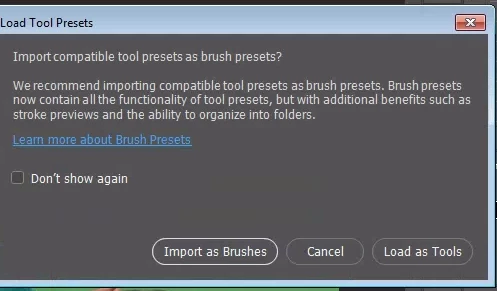
There are 3 presets inside this file, and it is important that they all Load as Tools (and not be imported as brushes), because of something particular to my workflow.

Ideally I would like to prevent this suggestion from appearing at all, and Load as Tools by default.

As suggested in How to avoid modal dialogs from blocking script execution​ , I have tried doing:

app.displayDialogs = DialogModes.NO;

[my code to load the .tpl file]

app.displayDialogs = DialogModes.ERROR;

This did not work, this particular warning/suggestion dialog seems unavoidable and I have not been able to find a way to suppress or bypass it (yes, checking off Don't show again would be a solution, but I want it to be so that a user using the script for the first time never has to deal with any dialog interruption when running the script).

What I am looking for now, is a way to detect this dialog from within the script, and automatically choose Load as Tools without the user having to click on anything. Is this possible?

If not, does anyone know of a way to force a tpl file to load as type 'tool presets' and bypass Photoshop CC 2018's suggestion about brush presets?

Este tema ha sido cerrado para respuestas.
Mejor respuesta de r-bin

And like this? )

toolPresetFile = new File("/path/to/file");  

load_preset(toolPresetFile, true)

function load_preset(file, add)  

    {  

    try  

        {  

        var r = new ActionReference();  

        r.putProperty( charIDToTypeID( "Prpr" ), stringIDToTypeID( "toolPreset" ) );  

        r.putEnumerated( charIDToTypeID( "capp" ), charIDToTypeID( "Ordn" ), charIDToTypeID( "Trgt" ) );  

        var d = new ActionDescriptor();  

        d.putReference( charIDToTypeID( "null" ), r );  

        d.putPath( charIDToTypeID( "T  " ), file );

        if (add != undefined) d.putBoolean( stringIDToTypeID( "append" ), add );

        executeAction( charIDToTypeID( "setd" ), d, DialogModes.NO );  

        }  

    catch(e) { alert(e); }  

    }  

3 respuestas

Participant
May 9, 2018

Here is how I did it in PhotoshopCC 2018:

Edit > Presets > Preset Manager

Choose Tools as Preset Type:

In the Pop up box, DO NOT ‘Import as Brushes’. Click on ‘Load as Tools’ instead:

Your .tpl file will show up in the list of the Preset Manager box, which is still open.

Say “Done”, and you are done.

Legend
December 30, 2017

try this )

toolPresetFile = new File("/path/to/file"); 

load_preset(toolPresetFile)

function load_preset(file) 

    { 

    try  

        { 

        var r = new ActionReference(); 

        r.putProperty( charIDToTypeID( "Prpr" ), stringIDToTypeID( "toolPreset" ) ); 

        r.putEnumerated( charIDToTypeID( "capp" ), charIDToTypeID( "Ordn" ), charIDToTypeID( "Trgt" ) ); 

        var d = new ActionDescriptor(); 

        d.putReference( charIDToTypeID( "null" ), r ); 

        d.putPath( charIDToTypeID( "T   " ), file ); 

        executeAction( charIDToTypeID( "setd" ), d, DialogModes.NO ); 

        } 

    catch(e) { alert(e); } 

    } 

sarinart
Participant
December 30, 2017

Thanks! This actually works quite well in terms of silencing the dialog. The only small issue is that it removes all other tool presets that had been previously loaded in the tool preset panel, i.e. it does something similar to when one clicks on 'Replace Tool Presets...' instead of 'Load Tool Presets...'

Any ideas? I am thinking maybe a slight adjustment to one of the charID values, I will keep researching.

This has definitely pointed me in the right direction, thank you very much!

Kukurykus
Legend
December 30, 2017

Using Action Manager you can't load Brush / Tool presets, only replace them. It's why I proposed you my method. I noticed that some warnings doesn't pop up when you do the same action by scripting. So if there is something done by user in Ps you'll see dialog (and I'm not saying about setting DialogModes. to ALL / NO). I wasn't sure how it's in CC2018 but assumed it works the same like in previous versions, so in some cases you won't be asked of additional stuff when you do the same thing using script.

That ahk script if rewritten a little can be expanded also to cover situation when an user chcecked "Don't show agian" box. So it won't make any harm playing its commands when dialog does not pop up. However there is even better way where ahk checks name of current dialog. Then either it executes those commands of script I wrote or simply exits its process. Let me know you want this functionality if you're not happy with replacing instead of loading...

Kukurykus
Legend
December 30, 2017

Change your code to this:

File((fNp = File($.fileName).path) + '/box.exe').execute(), load(File(fNp + "/tpl.tpl"))

It executes box.exe file that has to be in the same folder your script is. Then it loads your .tpl file (change name to desired) which has to be in the same script folder. It is because $.fileName is a command of full path (including file name) of script you're running.

.exe file is an compiled .ahk file with autohotkey.com Windows OS programming language which I used to wrote this:

sleep 25

send {right}

send {right}

send {Enter}

return

I don't have CC2018, but experienced same problem howerver needed only one automatically pressed right button. In your case that should be two (or {tab} for tabulator). If a time of waiting for loading .tpl file you'll see is to short then you have to play with changing it to higher value about each 25 miliseconds (so 25 / 1000 of one second). Maybe there will be also need to add some micro sleep command between send keys. If so edit the code and compile to exe (you select it right clicking on a .ahk file in your system and then selecting new option 'Compile Script' (2nd from up). To do this all just download newest version of AHK from a site I gave link to. Or you can use DropBox link I attach below to check .exe with the content I posted works for you after all.

Personally I use it in many of my scripts always when sole Ps scripting knowledge can't be of help to achieve my goals. Examplary usage of AHK combined with Scripted Photoshop Dialog and Event you find in ones of my latest posts on this forum: UI set Caret position in editText control and options of info panel. / here you find a file: Dropbox - box.exe