Known Participant
October 4, 2017
Answered

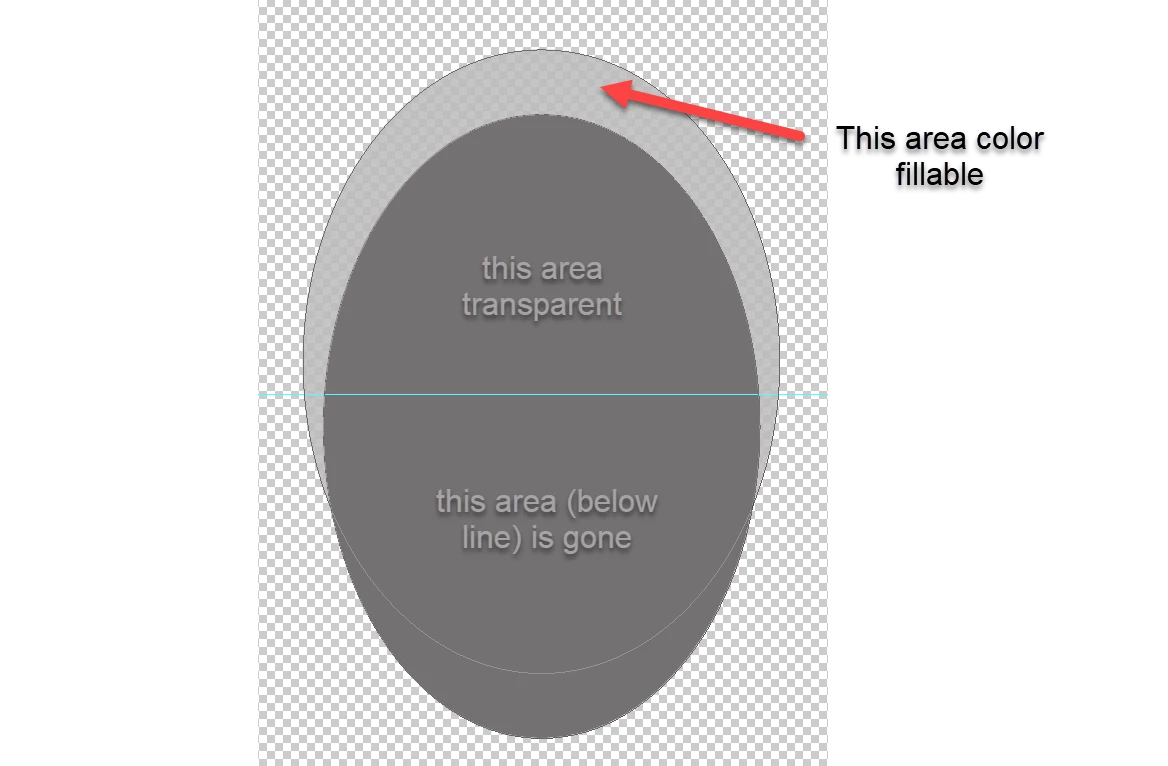
Intersecting shapes - cut out

  • October 4, 2017
  • 4 replies
  • 8065 views

Please HELP!! I'm sure there is an easy way to do this but I've been here and on google for the last 3 hours!

I am a NOOB but I can't imagine this should be hard!?
This topic has been closed for replies.
Correct answer Barb Binder

Ha! I have my screen shots ready to go, but was waiting for the shape confirmation. Similar to yours, Dave, plus one final step:

This would be much easier in Illustrator (and you could add the shape to your PSD file) but in Photoshop:

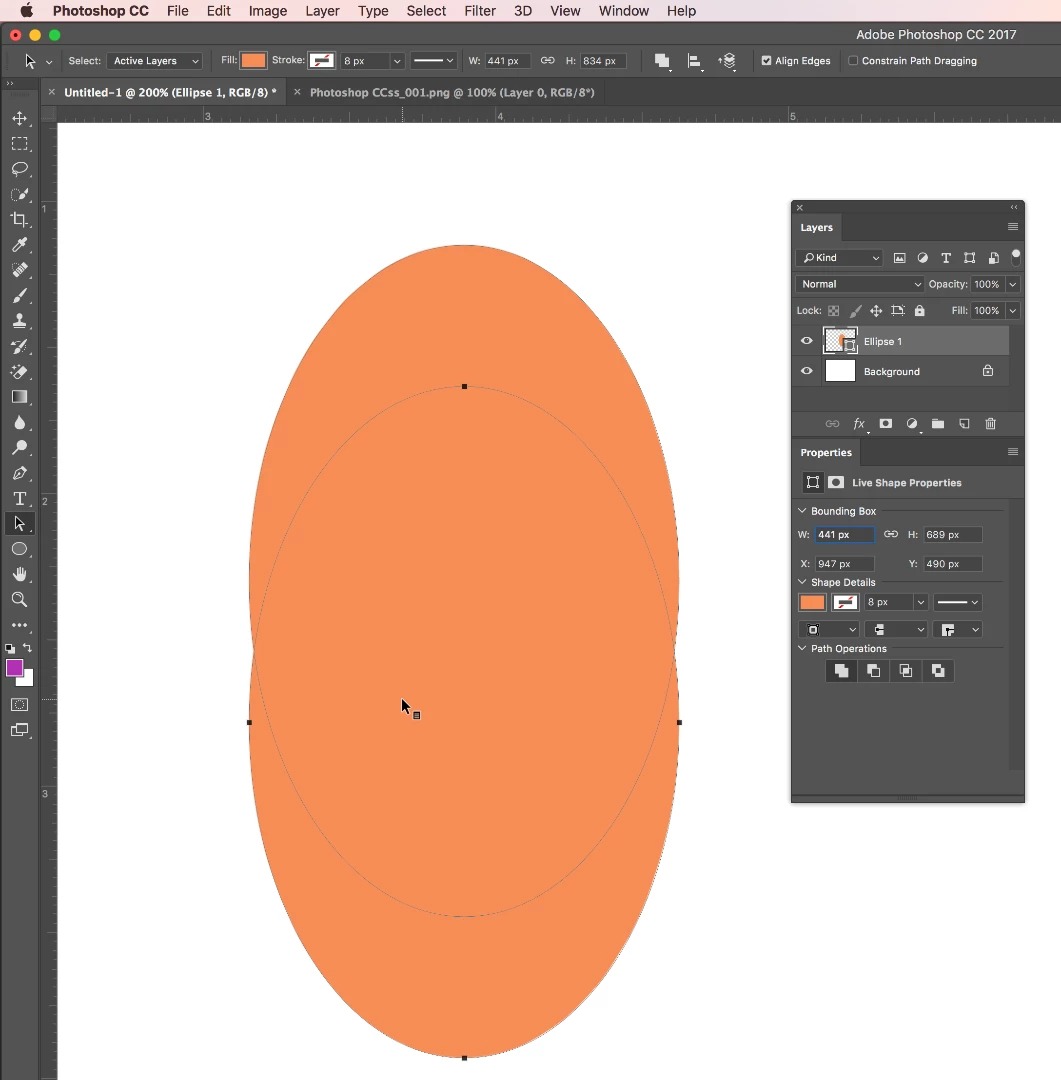
  • Select the Elliptical shape tool. On the options bar, choose Shape and set the fill color. Draw an ellipse.
  • Select the Path Selection tool, hold Alt/Opt and drag down to duplicate the ellipse.
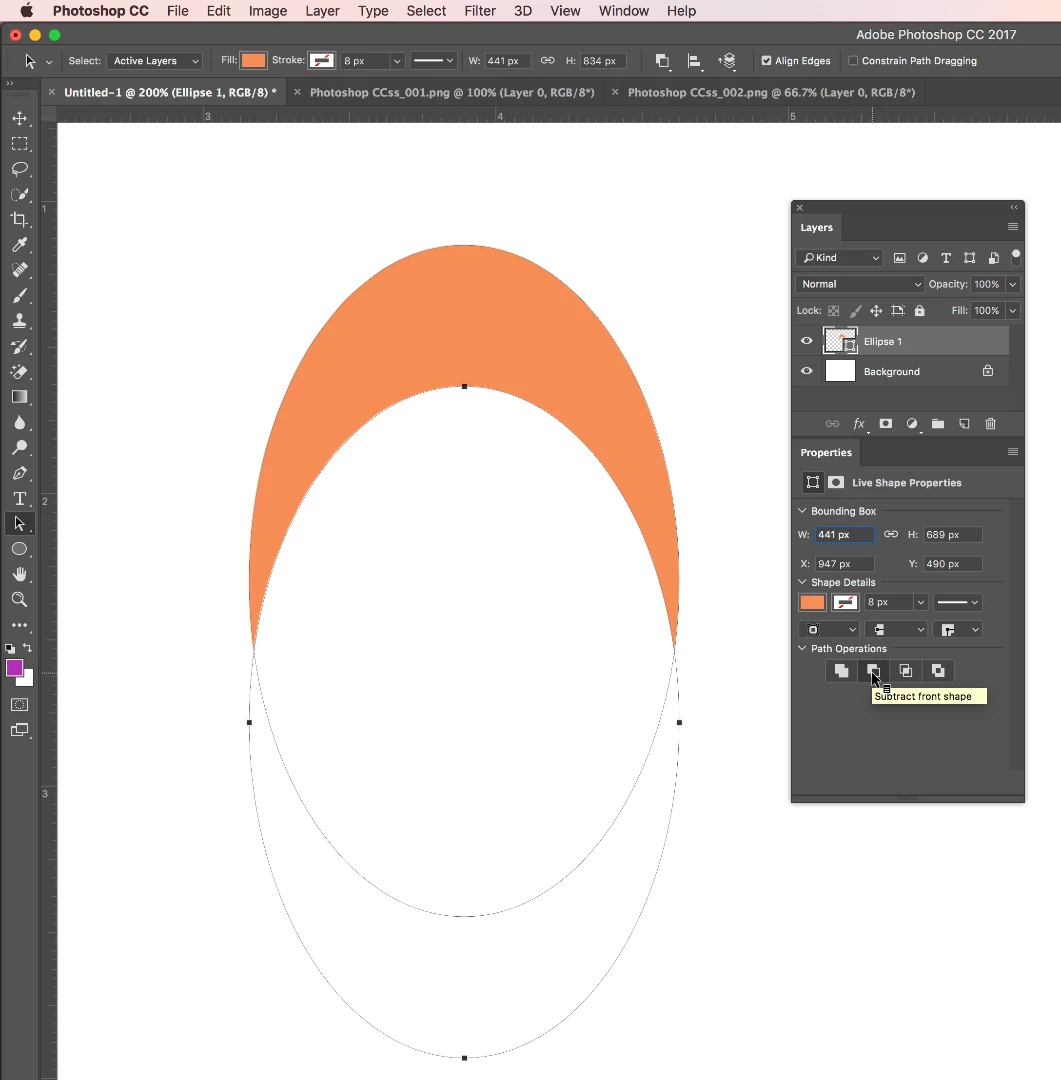
  • In the Properties panel, click Subtract Front Shape.
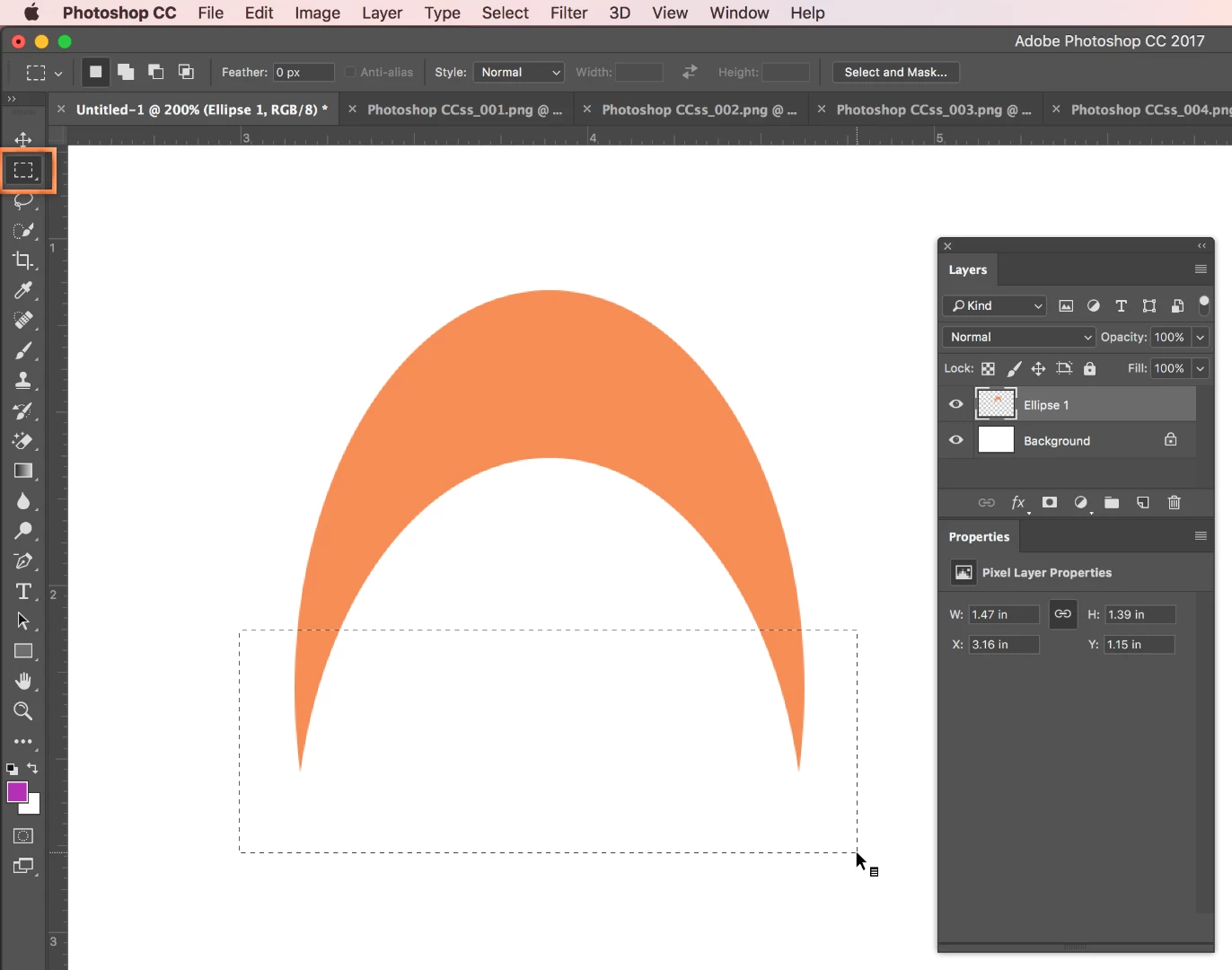
  • These are still editable objects, so you can adjust either as necessary but to remove the bottom part you will have to rasterize. Layer > Rasterize > Shape.
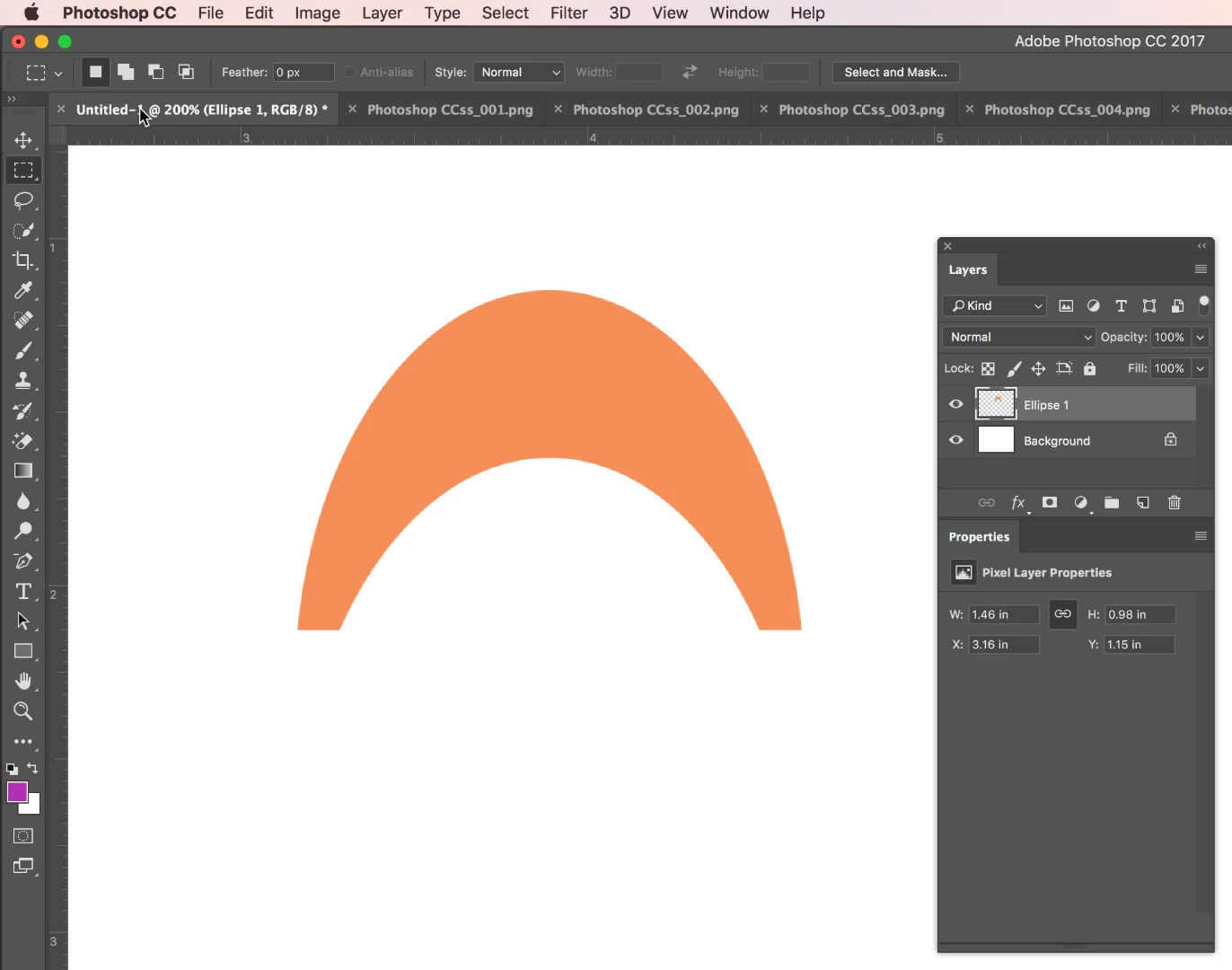
  • Then you can just draw a rectangular marquee over the part you want to remove and press Delete.

4 replies

Barb Binder
Community Expert
October 4, 2017

4. moved my Y cords to where I wanted them

You do have to return to the Eilipse tool if you were just moving your ellipses around with the Path Selection tool to see this option.

~Barb at Rocky Mountain Training
Barb Binder
Barb BinderCorrect answer
Community Expert
October 4, 2017

Ha! I have my screen shots ready to go, but was waiting for the shape confirmation. Similar to yours, Dave, plus one final step:

This would be much easier in Illustrator (and you could add the shape to your PSD file) but in Photoshop:

  • Select the Elliptical shape tool. On the options bar, choose Shape and set the fill color. Draw an ellipse.
  • Select the Path Selection tool, hold Alt/Opt and drag down to duplicate the ellipse.
  • In the Properties panel, click Subtract Front Shape.
  • These are still editable objects, so you can adjust either as necessary but to remove the bottom part you will have to rasterize. Layer > Rasterize > Shape.
  • Then you can just draw a rectangular marquee over the part you want to remove and press Delete.

~Barb at Rocky Mountain Training
davescm
Community Expert
October 4, 2017

Haha

Interesting that you used shapes and I used paths then made a single shape

For the OP the key path  operation in both answers was "subtract front shape"

Actually no need to rasterize to remove the bottom - just use another "subtract shape" with a rectangle

Dave

Barb Binder
Community Expert
October 4, 2017

Right? But I couldn't make it work. I'll go try it with paths...

~Barb at Rocky Mountain Training
davescm
Community Expert
October 4, 2017

Do you mean like this ?:

If so :

1.Set the ellipse shape tool to path, path operations to combine and draw the first ellipse

2. Draw the second ellipse and alter the path operations to subtract front shape

3. Click on Make Shape and set colour in properties

If that is not quite what you are after - please explain a bit further

Dave

HambergAuthor
Known Participant
October 4, 2017

davescm - i'm missing a critical step somewhere (on a PC)...

  1. created a new layer (had a bunch already)
  2. clicked ellipse tool, chose path and combine - click in layer and made it 698 x 913
  3. clicked again, path and subtract - this one is 639 x 913
  4. moved my Y cords to where I wanted them

now what?

HambergAuthor
Known Participant
October 4, 2017

While you are sipping on your vodka, perhaps take a moment to reflect on your opening statement:

I'm sure there is an easy way to do this but I've been here and on google for the last 3 hours! I am a NOOB but I can't imagine this should be hard!?

This is nothing easy or intuitive about drawing that shape in Photoshop. Congrats on getting through it!

~Barb


What I didn't tell you is that I've been "trying" for 2 days in AI & PS!!!

How can something that seems so easy be so hard!?!?

(BTW - I'm a real estate agent, our brains do not function like Artist's )

Here is the finished product

I'll share the file if anyone wants it.

Used on www.REODifferent.com

Barb Binder
Community Expert
October 4, 2017

Is this the final shape?

~Barb at Rocky Mountain Training