Known Participant
December 10, 2019
Answered

Issues with Clipping Path image not showing correctly

  • December 10, 2019
  • 4 replies
  • 1862 views

Hello,

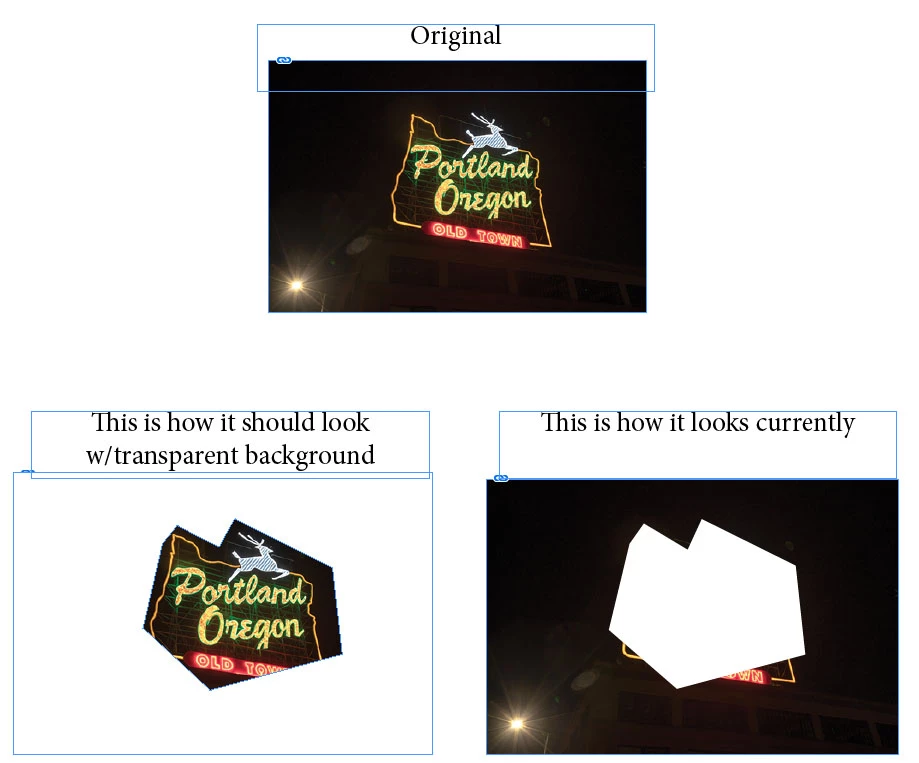
I'm having issues with the clipping path (See attached). It keeps showing the image inverted. I can't figure out why.

I create a new path. I use the pen tool to create the shape around the image. When shape is compleated I select clipping path. This is the way I have always done it. So when I place the image in InDesign 2020 it looks like the image on the bottom right side of the attachment. It should look like the image on the bottom left hand of the attachment.


The picture is a Photoshop .Tiff and has no compression selected. It is 300 dpi, CMYK and 15. MB


Thank you for your help, I greatly appreciate it.

-Chrisappreciate it.
This topic has been closed for replies.
Correct answer barbara_a7746676

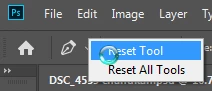
That happens to me accidentally every once in awhile too. I get back to normal by selecting the Pen tool in the Tools panel. Then in the Options bar in the upper right corner, right click on the icon for the Pen tool and choose Reset tool. After that, whenever you draw with the Pen tool it should act as expected.

4 replies

barbara_a7746676
Community Expert
barbara_a7746676Community ExpertCorrect answer
Community Expert
December 10, 2019

That happens to me accidentally every once in awhile too. I get back to normal by selecting the Pen tool in the Tools panel. Then in the Options bar in the upper right corner, right click on the icon for the Pen tool and choose Reset tool. After that, whenever you draw with the Pen tool it should act as expected.

ChrisG66Author
Known Participant
December 10, 2019

Thank you everobody. My pen tool was set to subtract. This is the first time I encountered this. So I did a pen tool reset and selected exclude and it works. Thank you all for the information. I greatly appreciate it. Have a great day.

-Chris

キィィ─!!!
Participating Frequently
December 10, 2019

Did you select “Subtract From Shape Area”?
Please try another option.


(I am sorry, but I am using the Japanese version.)

Chuck Uebele
Community Expert
Community Expert
December 10, 2019

Just to go over things, your image layer is on top of the shape layer, so it should be clipped, correct? Also, are you sure your shape image isn't set to subtract?

Chuck Uebele
Community Expert
Community Expert
December 10, 2019

Try checking "Use Legacy Compositing" in the preferences under performance. 

ChrisG66Author
Known Participant
December 10, 2019

Hi Chuck,


I checked "Use Legacy Composition" in the Adobe Photoshop preferences (performance) and it's not working. Image still looks like same.

Hmmm.

-Chris