New Participant
July 24, 2021
Answered

Layer/ Filter display issue

  • July 24, 2021
  • 3 replies
  • 432 views

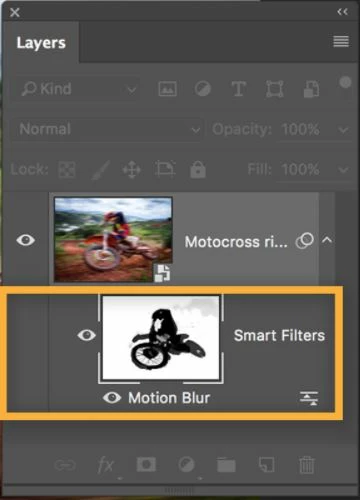
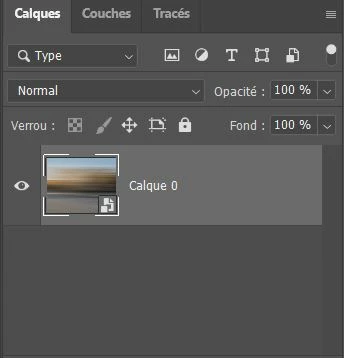
Hello everyone, I am a beginner in Photoshop and hoping i will get help from someone, the issue is that im trying to add a motion blur to my picture, and for this, i was reading one of the post on the Adobe website, but on their Photoshop they have a button that i dont have, ( Watch the pic linked ) this arrow next to the name of the dynamic layer which allows you to scroll down a menu with the filters used, i just dont have it, i link what they have and what i have, hope u got what i mean and waiting for help, because without this button i cant continue my work :'(
This topic has been closed for replies.
Correct answer Ged_Traynor

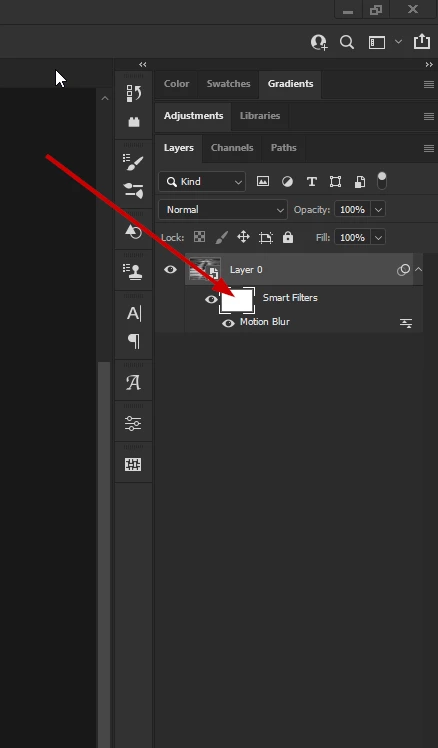
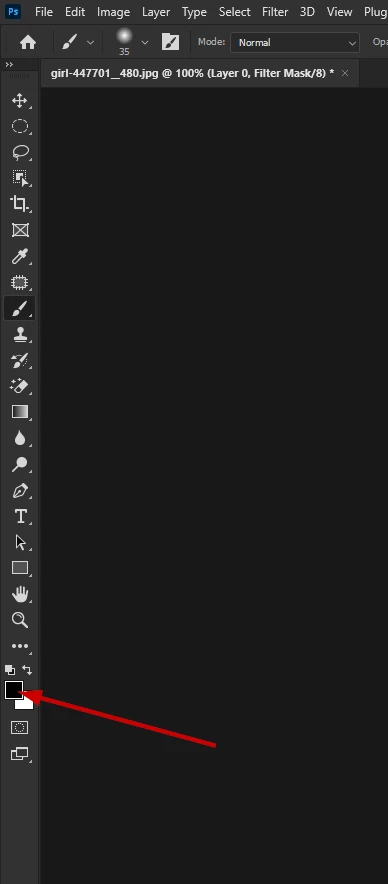
Paint on the mask for the smart filter and change the foreground color to black by hitting the X on the keyboard

3 replies

barbara_a7746676
Braniac
July 24, 2021

 In your screen capture, the layer has the symbol or badge of a smart layer in the lower right corner of the layer thumbnail, therefore the layer should have automatically gotten a filter effects mask thumbnail when the motion blur filter was applied. That leads me to believe that the layer was converted to a Smart layer after the filter was applied. As Mohammad.Harb said, the layer needs to be converted to a Smart layer before the filter is applied.

Teo5E6EAuthor
New Participant
July 25, 2021

I'm sorry, fact is that I'm a newbie to photoshop doesn't help me know the right terms, but with your detailed answers I think I solved this problem thanks anyway!
PS: Now I try to use the brush to remove the blur on part of the image but nothing happens, if you have an idea ...
(Sorry to ask a lot of questions)
I give you the link of the site I use and the image of what I currently have

https://helpx.adobe.com/be_en/photoshop/how-to/add-motion-blur-effects.html

Teo5E6EAuthor
New Participant
July 25, 2021

Paint on the mask for the smart filter and change the foreground color to black by hitting the X on the keyboard


Thanks a lot sir !


barbara_a7746676
Braniac
July 24, 2021

It's not clear to me what you are asking, but I will give it a try.

The Layers panel on the left has a Filter Effects Mask Thumbnail. The areas of the thumbnail that are black are hiding the Motion Blur. The white areas are showing the effects of the filter.

To do the same on your Layers panel (Calques shown on the right), first make a selection of the area where you want the filter to show. Then apply the Motion Blur filter. 

Mohammad.Harb
Inspiring
July 24, 2021

Before applying the filter, go to filter menu -> convert for smart filters