


New Participant
October 7, 2020
Answered

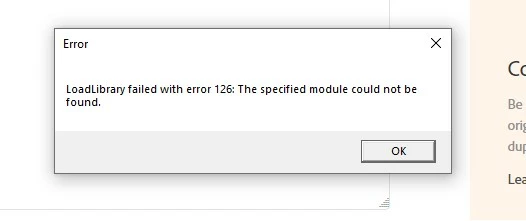
LoadLibrary failed with error 126: the specified module could not be found.

  • October 7, 2020
  • 21 replies
  • 53845 views

I keep getting this error window each time i start any of my Adobe Apps: Photoshop, Illustrator, InDesign. Can't figure out how it's affecting my work yet, 

any thoughts on how to fix this?


Thank you kindly

Andrea
 

Correct answer AbhishekJ

This issue generally found on the systems in which AMD Graphic card is installed.
For Windows 10: Follow the below steps to be double sure if the issue is with AMD.

Please open Run command (Windows key + R key), type devmgmt.msc in the box and press enter -> expand display adapter tab -> right click on graphic card -> update drivers -> click on browse from my computer -> click on the blue option for let me pick from a list.

From there you need to click on Microsoft Basic display adapters and click on next to install them.

For Mac Operating System, contact AMD to reinstall GPU from scratch.

21 replies

Akash Sharma
Brainiac
October 8, 2020

Hi there,


Sorry that your Adobe apps fail to load as you're getting an error message " LoadLibrary failed with error 126: the specified module could not be found


Which version of Photoshop are you using and how long have you been facing this issue?


Would you mind checking the steps below and let us know if that helps?

  1. Go to the command prompt as described below. Run it as administrator.
  • Open Start
  • Right-click the Photoshop icon (anywhere on the menu).
  • Select the More submenu, and click the Run as administrator option.

2. Type in the following command:  C:\Windows\System32\ copy atio6axx.dll .dl

3. Restart the PC, and check again for the issue.


Thanks,

Akash

New Participant
February 15, 2021

Same error in photoshop and illistrator.  Need help ASAP


February 17, 2021
What worked for me after a Win10 update trashed my CS6 (same error message)...

Close Adobe apps
Open Task Manager (right click on Taskbar and select)
Close any open Adobe listings in 'Apps' or 'Background Processes'
Look for processes under "Background Processes"
Find all processes related to Intel
Right click on the process - 'End Task' on each one

You will also see (two?) processes with just letters for the identifier
Right click on the process, go to 'Properties', select 'Details' (tab), if Intel, close (End Task)

Try Adobe

Note: Before this, I did a second Win10 update with a different update package that Microsoft suggested. Whatever difference this made, I cannot know.

Good luck, this is NOT a trivial failure of Microsoft. It is a SERIOUS ISSUE. My Adobe apps simply CANNOT be messed with!

STOP!

Apparently, my previous suggestion here was either incorrect or inadequate. My Adobe apps WERE working again after a disastrous Win10 update and endtasking Intel, but they are not now and it's the same error and all Intel background processes are shut down. Sorry for the miscue...