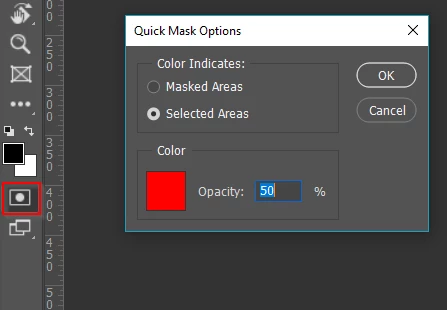
Lucien, it's a better question than you might realise. If you double click the Quick Mask icon at the bottom of the Toolbar, it will open this panel. The default is for the colour to indicate Masked Areas but a lot of people prefer to change it so that it indicates Selected Areas like below. I could only bear to have a very quick look at the video because his voice kind of grates (he sounds like a pre-school TV program) but it looked like he has his set the same as mine.
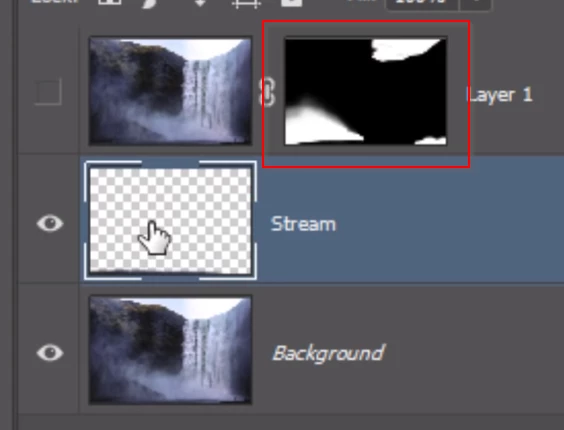
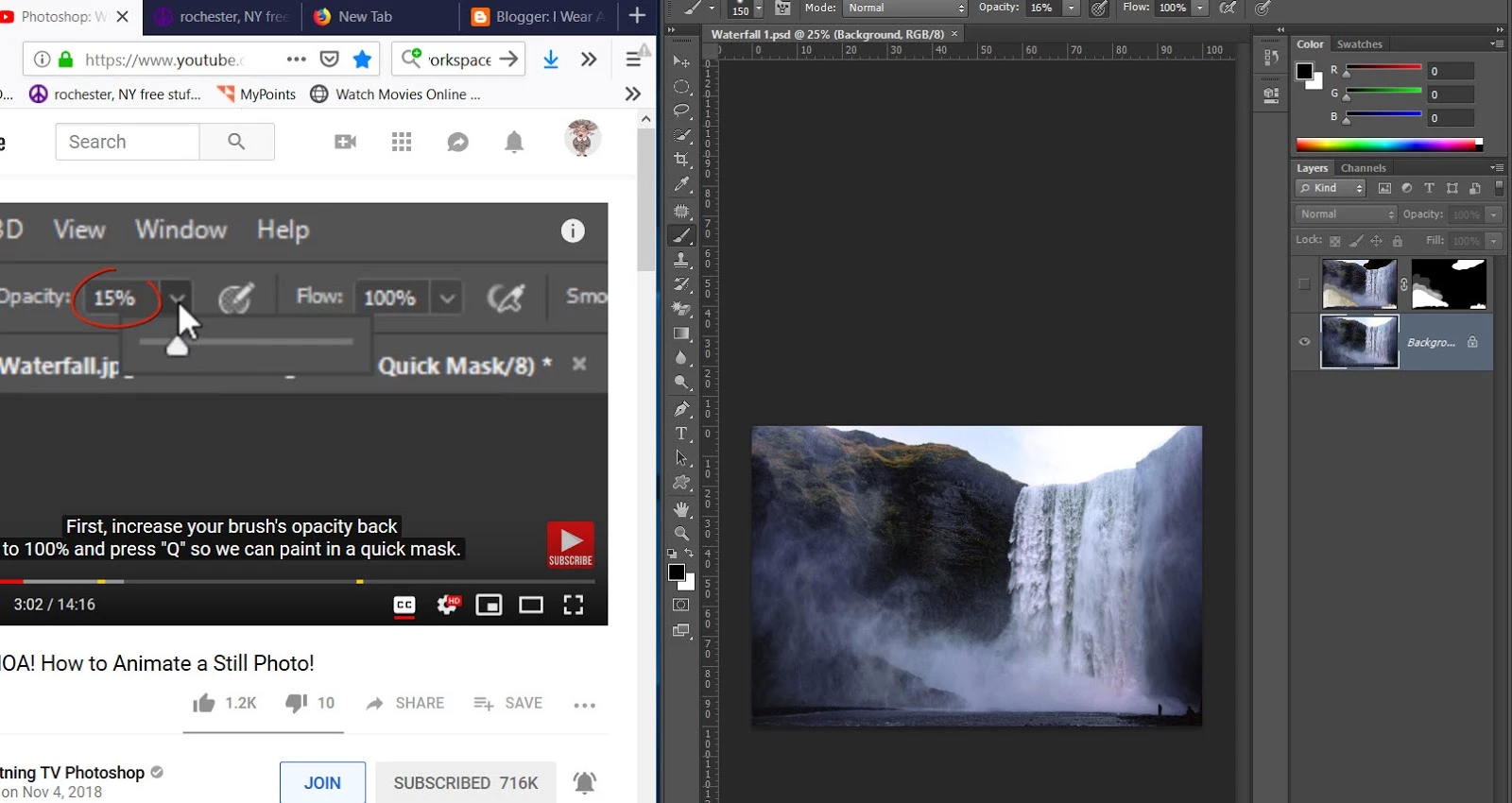
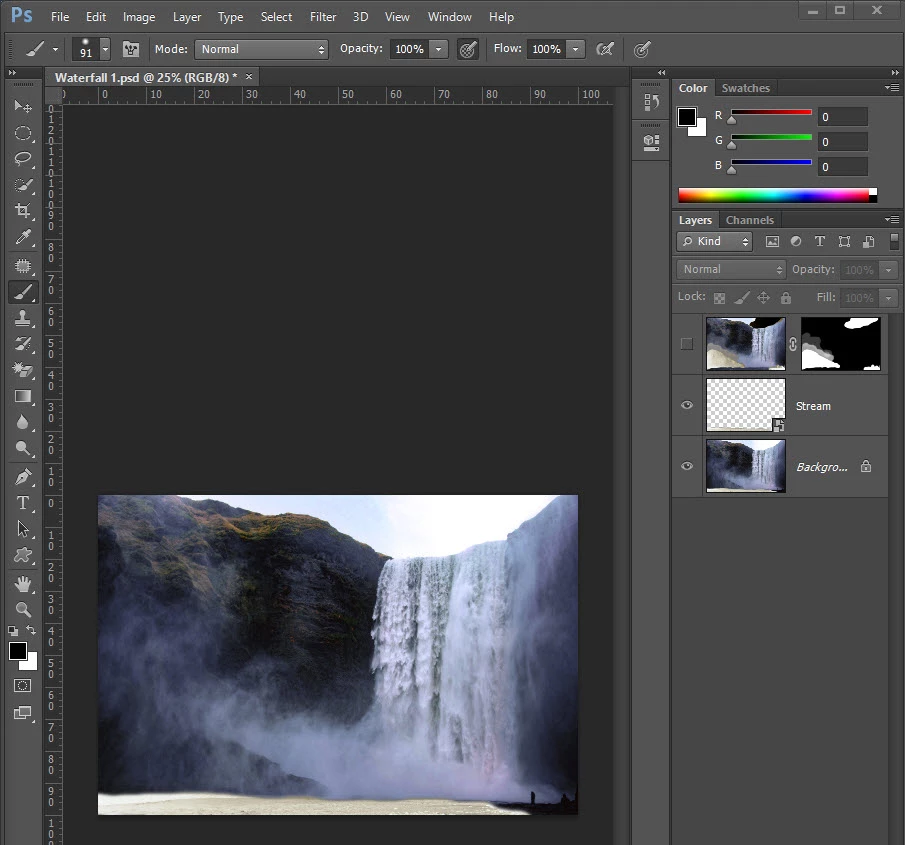
It does not really matter, as it it such a simple matter to invert a layer mask. If your mask does not look the same as his, select the mask (it needs to have a thin white line around it) and use Ctrl i (Cmd i) to invert. Job done.



 AdChoices