


Known Participant
June 20, 2023
Answered

Missing Opacity Option in Gradient Editor

  • June 20, 2023
  • 5 replies
  • 7599 views

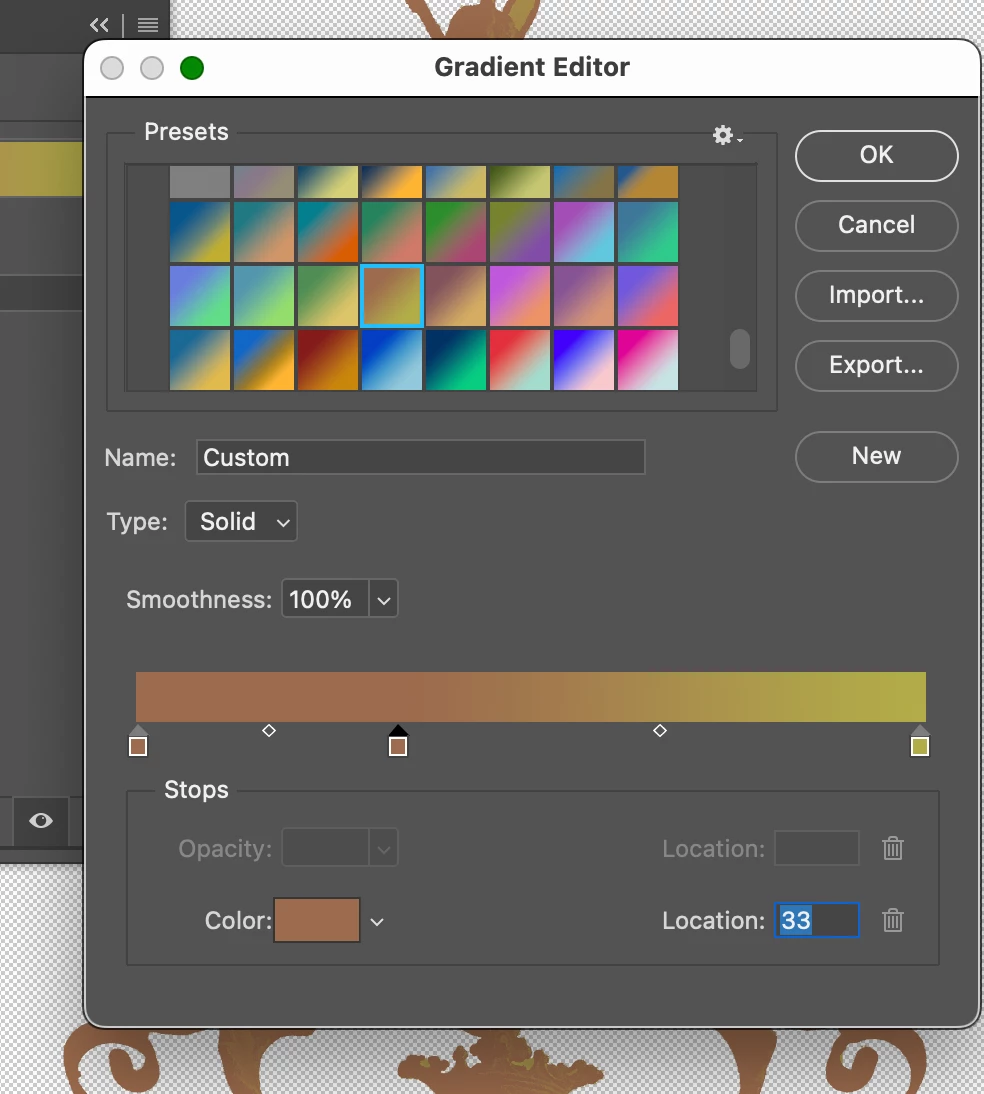
I reinstalled the most current version of PS on my MacBook Pro M2 but I still cannot find the option to change the opacity for any of the nodes in the gradient editor.  I have tried clicking on the upper part of the bar to no avail.  There are no opacity nodes visible even for the default gradients, and the Opacity Slider is grayed out.  Is anyone else having this problem?
Correct answer Trevor.Dennis

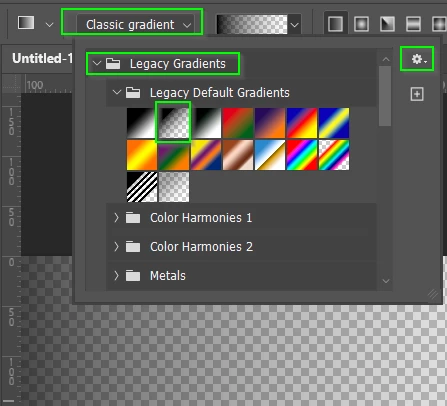
I'm going to add a me too to this thread, because I have had the exact same problem.  I got around it by loading Legecy Gradients, and switching to Classic mode...


... but I have not worked out how use transparency in the gradient editor.  In fact I am finding it pretty nonintuitive.


5 replies

New Participant
March 28, 2024

This may not be the same root cause, but I appeared to be having this issue in 25.6.0.

Foreground → Transparent showed black to black with no opacity option at all (not simply greyed out, but completely missing). I had watched the Adobe video and they seemed to have it, but I actually overlooked something ... he scrolled down very quickly, and in the new version the opacity control is a secondary bar (don't think it was like that before). 

In my case I discovered this when I undocked the panel, and it expanded to its full size (there is a scrollbar when docked, but visually it was hard to see.

Like I said, this may not be the same cause as the one being reported, but thought I'd post here to help out anyone making the same mistake as me! 


tried creating a custom gradient but had no luck there (it saved, but then I couldn't find it

Semaphoric
Adobe Expert
March 29, 2024

Ashley, that is the Properties panel, not the Gradient Editor. Adobe decided the Gradient tool should be able to add a Gradient Fill layer, which can be modified on the fly via the Properties panel. "Classic" Gradients are not adjustable once applied, but don't create a new layer. They're all the same Gradients, of course, bu vary in how they are applied. 


I was able to edit and save a new Gradient via  the Properties panel, but it was like I was wearing boxing gloves. I prefer the Classic editor, because the Color and Opacity stops are on either side of a single bar, which makes it easier to see how they line up. On the Properties version you can't select colors from the Swatches panel, only from the image or the Gradient in the panel.


I know of two ways to access the Gradient Editor: First, with a layer that is not a Gradient Fill layer selected choose the Gradient tool set to Classic Gradient, and click on the Gradient shown in the selection box (not the little drop-down arrow).


For a Gradient Fill layer, double click on the layer thumbnail in the Layers panel, which brings up the Gradient control panel dialog. From there, click on the gradient as above (not the little arrow).

Known Participant
July 15, 2024

So how does it work with a gradient map? As far as I can see you cant add transparency at all in one of those. Seems like a bit of an oversight no?

c.pfaffenbichler
Adobe Expert
June 20, 2023

Could you please post screenshots with the pertinent Panels (Toolbar, Layers, Options Bar, …) visible? 

Jeff Arola
Adobe Expert
June 20, 2023

Are you using a Gradient Map (Image>Adjustments) or Adjustment layer, which does not have Opacity stops by design?

mrholevarAuthor
Known Participant
June 20, 2023

No, I was using the Gradient Tool.  Once I enabled Legacy Gradients as suggested by Trevor, I was able to add Opacity.

Conrad_C
Adobe Expert
June 20, 2023

I wonder what the mystery variable is here. This is Photoshop 24.5, and I am seeing Opacity in both the Gradient Editor, and (when a Gradient Fill layer is selected) in the Properties panel. This is on macOS 12.6.6, but so far both macOS and Windows users are reporting here with missing Opacity.


The Gradient Editor shown is after I clicked the Create New Gradient button at the bottom of the Gradients panel (same as choosing New Gradient Preset from the Gradient panel menu). How did you open the Gradient editor?


Trevor.Dennis
Adobe Expert
June 20, 2023

Ahhh I see it now.  It was greyed out and my old eyes are not what they used to be, and even that was not great. ;-(

Trevor.Dennis
Trevor.DennisCorrect answer
Adobe Expert
June 20, 2023

I'm going to add a me too to this thread, because I have had the exact same problem.  I got around it by loading Legecy Gradients, and switching to Classic mode...


... but I have not worked out how use transparency in the gradient editor.  In fact I am finding it pretty nonintuitive.


Trevor.Dennis
Adobe Expert
June 20, 2023

You could start with Foreground to Transparent from the Legacy gradients, and work with that, but AFAICT there is no way to add a Transparent icon with the editor.