Kapik
Known Participant
July 11, 2021
Answered

My brushes create 'disconnected' lines

  • July 11, 2021
  • 2 replies
  • 6357 views

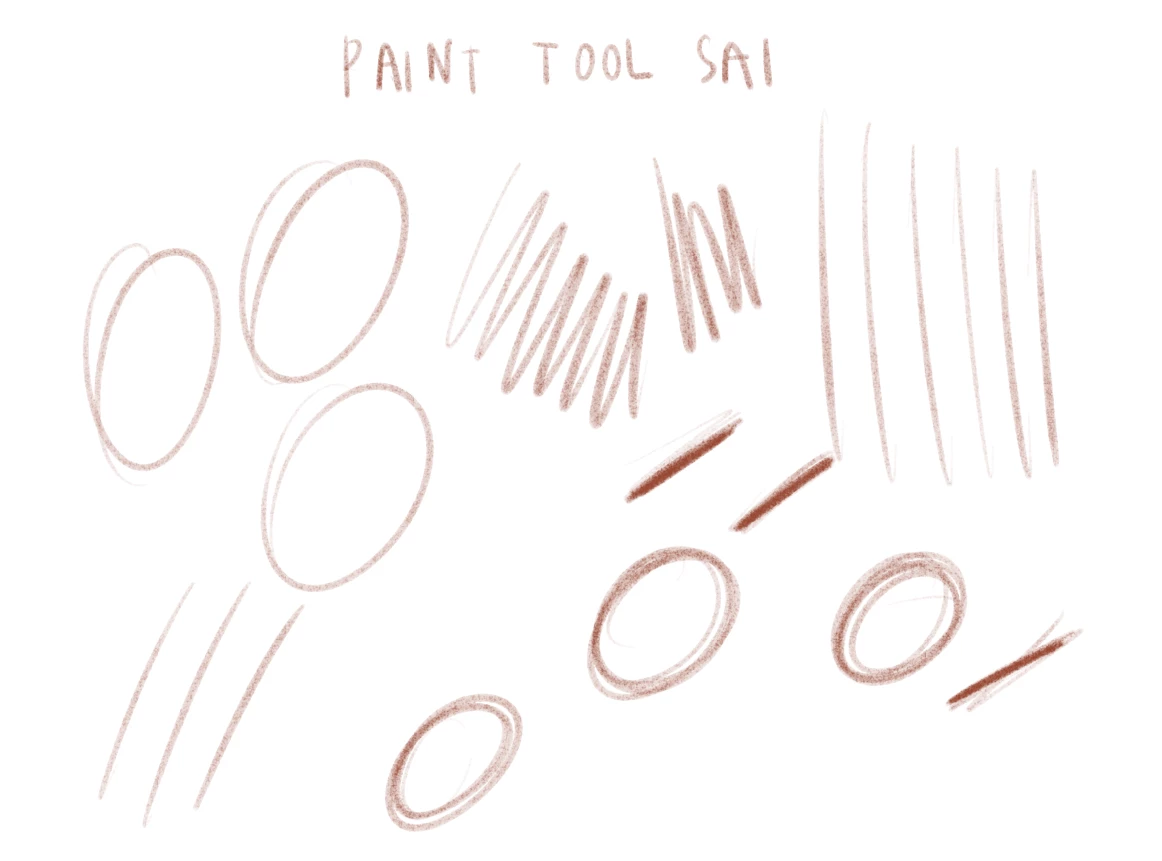
Hi guys, the first two images is what happening to all my Photoshop brushes regardless which brushes do I use. It creates the disconnected lines and its width is not uniform eventhough I draw with the same pressure. I tried to draw in Paint tool Sai and I attached the image here as well. It works perfectly fine. So I don't think my tablet screen or my pen are the issue. Does anyone experience the same thing and how do I fix this? T . T
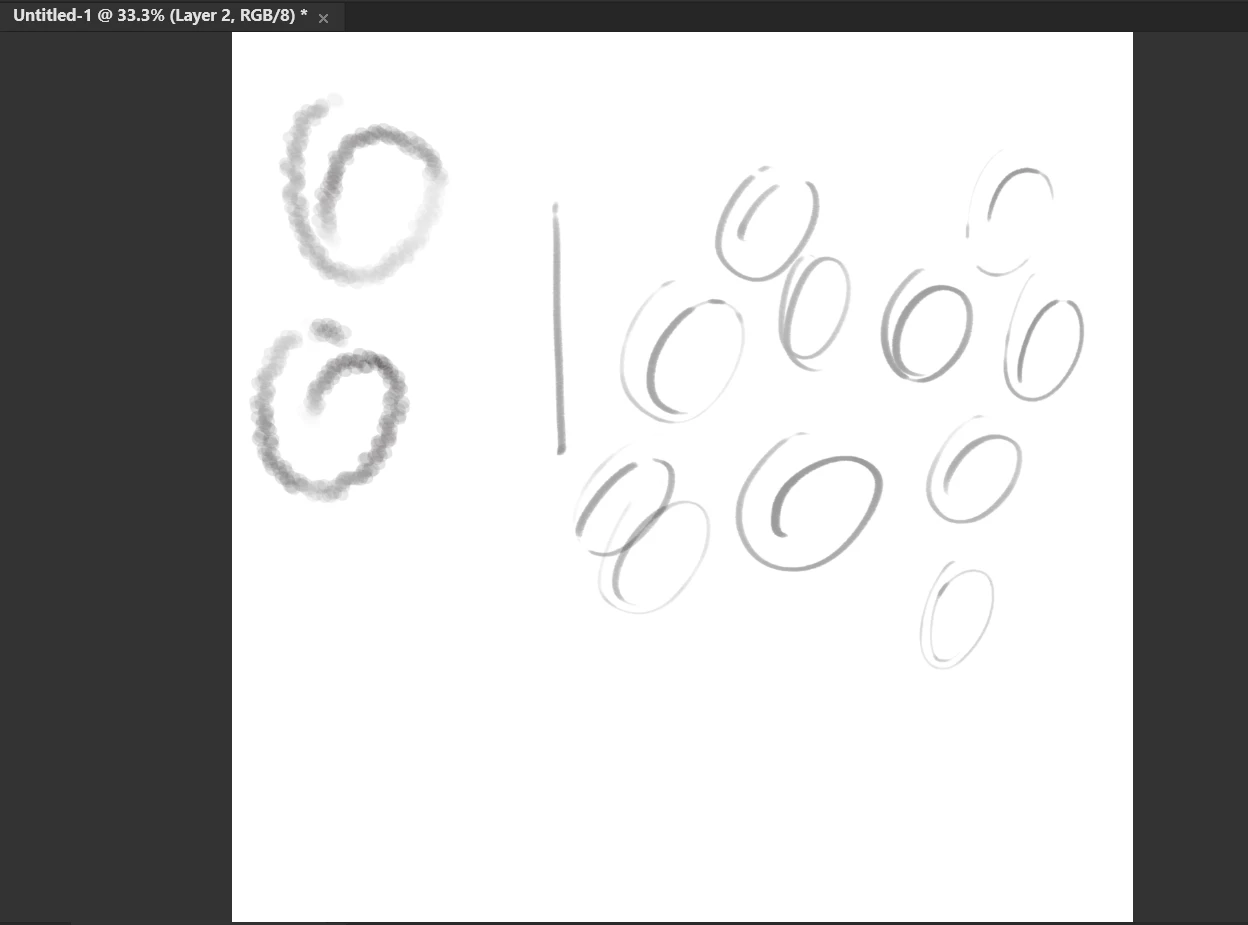
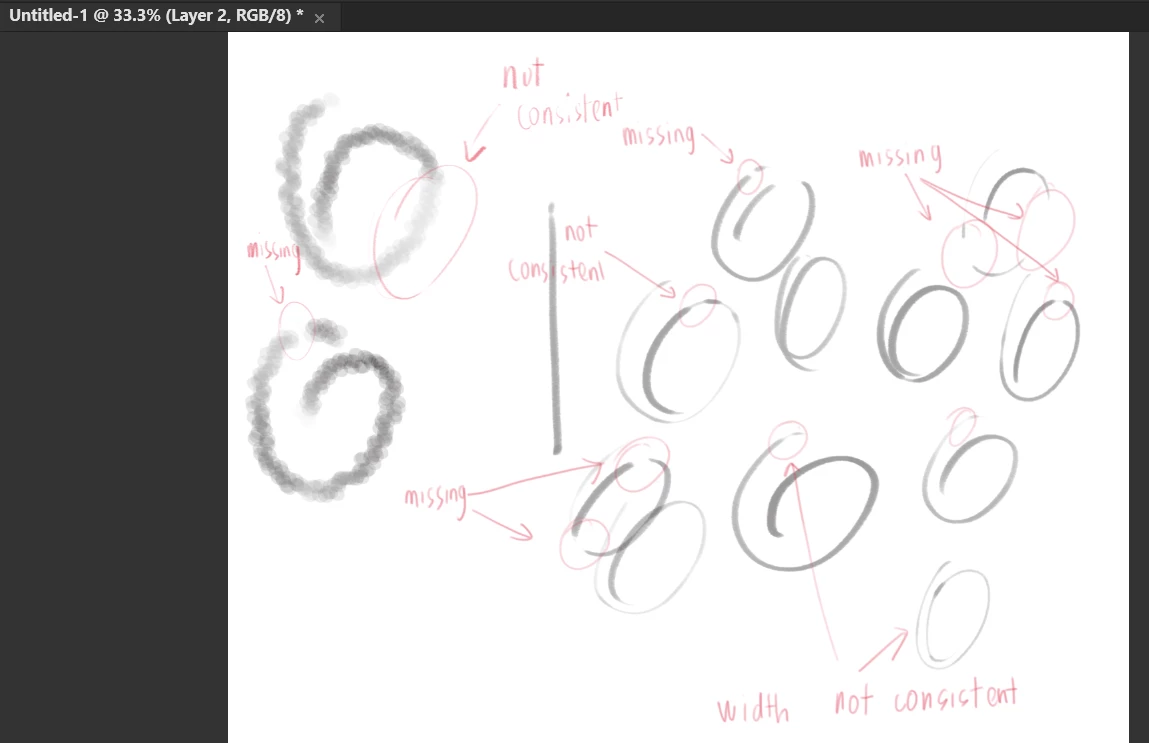


The following are what I'm using:

-Processor Intel(R) Core(TM) i5-10210U CPU @ 1.60GHz 2.11 GHz

-RAM 8.00 GB

-64-bit operating system

-Photoshop version 22.4.2

-Wacom Cintiq 16 Creative Pen Display 16.6x11.2inch tablet

(DTK-1660/K1-CX)


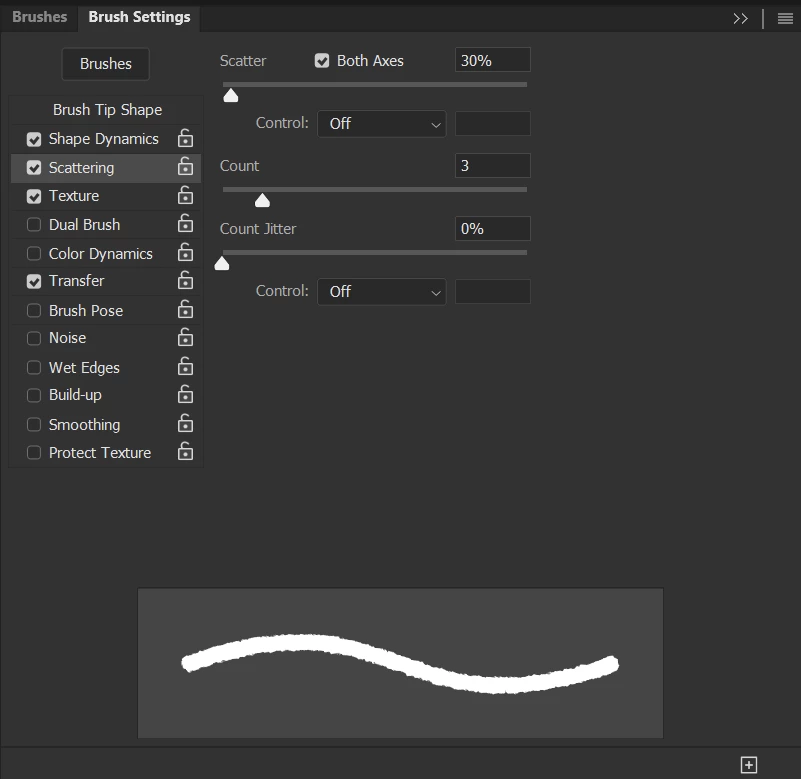
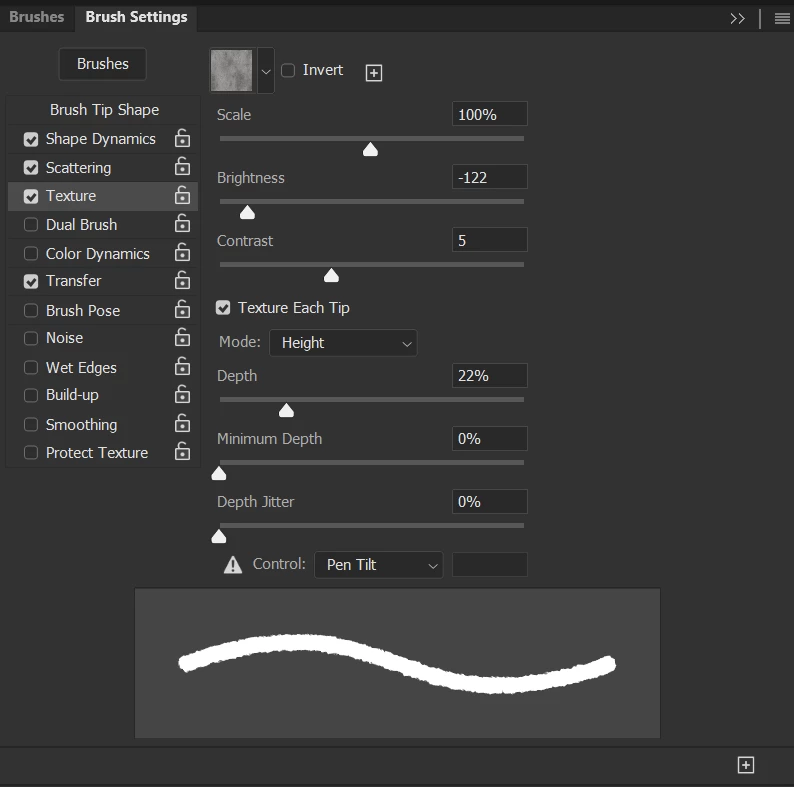
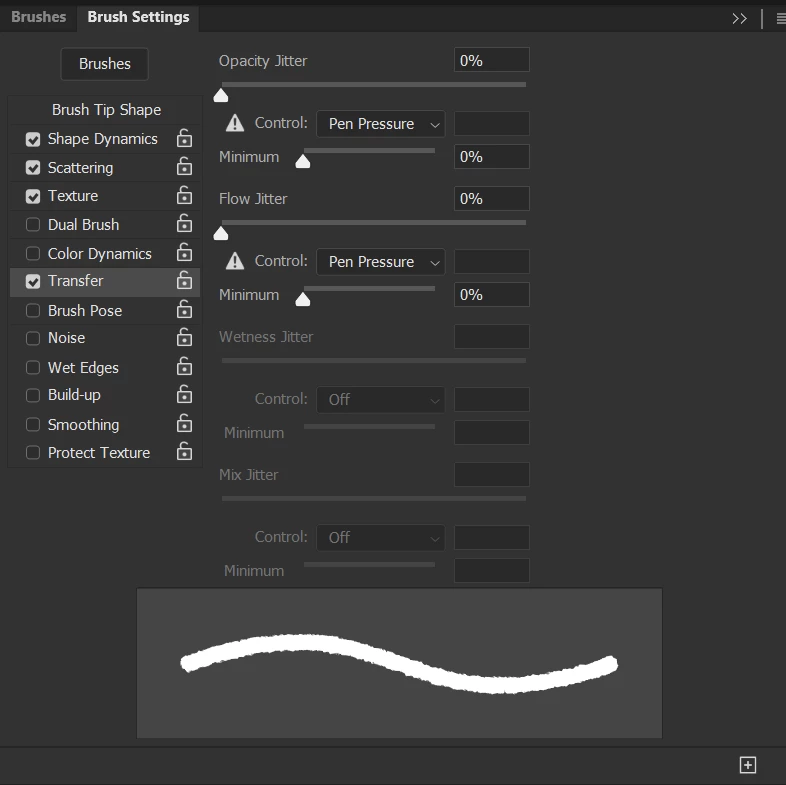
The following screenshots show the setting for one of my brushes. As mentioned previously, the same problem also happened to other brushes. But the brush setting given is what I used the most.

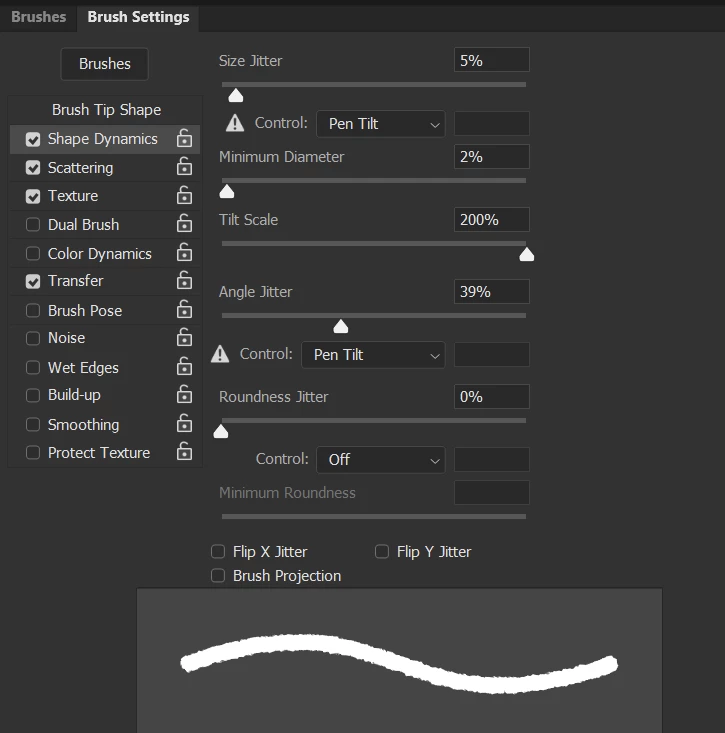
 

Thank you in advance for responding to this issue.

Kap
 

This topic has been closed for replies.
Correct answer Trevor.Dennis

Another thought, have you asked on the Wacom forum?  Questions there are likely to get a response from Wacom engineers. 


One of the first things I suggested was that it might be the pen.  I mentioned being on my forth Wacom pen in 20 odd years of using Wacom tablets and a Cintiq Companion.   This link describes a similar problem to yours, and Wacom support also thought it could be the pen.  The problem here is if we make a suggestion and you are unable to test it, then it remains an unresolved possible cause.


Where do you live?  Is there a local camera club or Facebook page/group, or some way you could make contact with another Wacom user so you could try a different pen?


(3) Pen strokes randomly skipping in Photoshop? : wacom (reddit.com)


Reading further down that thread, the thread starter said that the lines were there but not showing.  That is something I suggested in my previous answer.  That's a GPU glitch and they can totally appear out of the blue.  So try saving one of your test images and opening in another image viewer and see if the gaps have been filled.   If that is the case, then try different GPU preferences in Photoshop as in change the Drawing mode from Advanced to Basic as a forinstance.  Or try different drivers for the MX250, or roll back your Photoshop version.  


Chheck the last post of this thread

Brushes keep 'skipping' or 'making space' between ... - Adobe Support Community - 10376769


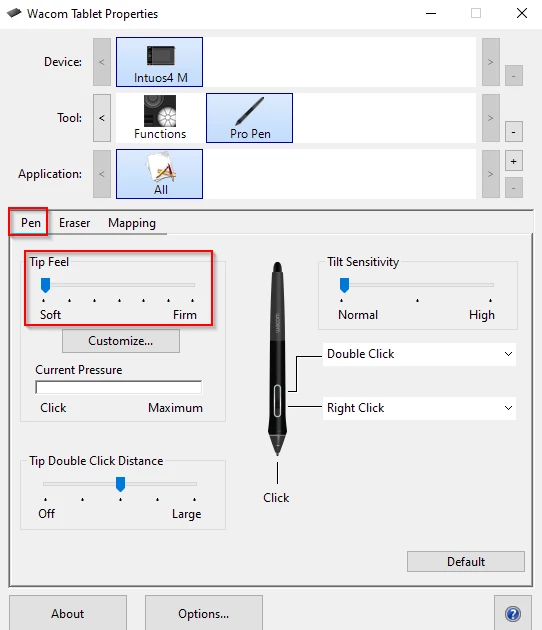
One user solved the same issue by setting pen pressure to its most sensitive position in Wacom Tablet Properties

Tablet skipping strokes when pressing lightly, los... - Adobe Support Community - 9288320


Another way to test the pen is to fill a layer with black, and use the eraser end of the pen. Use a fully hard small preset and use firm and light strokes.  Especially light strokes.  If this works OK then suspect an issue with the drawing end of the pen.


2 replies

Trevor.Dennis
Community Expert
Community Expert
July 16, 2021

Does it only happen when using the tablet?  i.e. does it still happen when using the mouse, and just to make sure, with the tablet disconnected and Photoshop restarted?


Does it happen with all documents? Have you tried with a new document?  I am sure someone with the nouse to supply such useful screenshots would not be drawing beneath a layer that has random white lines on it, but I've done dafter things than that.


You say this happens with all presets?  It would have been better if you'd demonstrated with a plain vanilla preset with minimal, or no settings.  From the screen shots you have provided (well done for that btw) the only one that could cause that effect is opacity jitter which have set to Pen Pressure.  So try again after unchecking Transfer.


Something like this, (and I have never seen anything quite like it) should be approached as simply and with as few variables as possible. i.e. a full hard round brush with no settings.


Looking at your later screen shots, I see you have tried with a round hard brush, so that takes that out of the equation. 

I don't see how smoothing could cause that, and Shape Dynamics are not going to be a problem if no settings are checked.


I'm on my forth Wacom pen after waring out three of them — as in they broke and would not work right.  So can you borrow a pen to rule that in or out?  Do you have Photoshop installed on another computer?


Let's go back to basics. Is your Cintiq a stand alone system, or does it work with another computer?  If the latter...  What operating system are you using.  If it is OSX Big Sure with the M1 CPU then it could be OS/hardware specific and we'd need to look at known issues.  I am a windows user and not familiar with the Big Sur problems with Photoshop, but I believe there are a few.


And just to be sure, you say you have reset the brush tool and reset Preferences?

Try restarting photoshop while holding down the shift key to force all third party add ons not to load

Kapik
KapikAuthor
Known Participant
July 17, 2021

Hi there, thank you for your response. I really appreciate it. So here's my answers/update in respect to your questions.


Does it only happen when using the tablet? Yes. I tried to use a mouse to draw and it worked fine. Here's the look. I use round brush with all boxes unticked and also a tetured brush.

I have tried with multiple new documents as well and drawing with mouse is Ok but not with the stylus.

So, I tried to draw with my stylus in other programs to check if the stylus is the problem.

I drew in Paint, Photopea and Paint tool sai.

My stylus work smoothly in all 3 softwares I tested.

And here's the result when I drew in PSD with a hard round brush (all unticked boxes) and a textured brush. I realised it occcurs more often when I use textured brush.


Unfortunately, I don't have any other computer to test my psd and wacom.

My cintiq does work with my laptop. Here's my laptop specs.

-Processor Intel(R) Core(TM) i5-10210U CPU @ 1.60GHz 2.11 GHz

-RAM 8.00 GB

-64-bit operating system


Last but not least, I tried restarting psd while holding down the shift key as you suggested, but it didn't work out too. Also, I tried to install about 3 previous versions of PSD and the brush problem remains.

It's weird and frustrating since I am very clueless about the source of this issue.


Trevor.Dennis
Community Expert
Community Expert
July 17, 2021

Your laptop spec is definitely marginal.  Especially when you driving a Cintiq with it.

Do you know if you are using the Windows Ink or Wintab API?  Check to see if Windows Ink is checked in the Mapping tab of Wacom Properties

If Windows Ink is checked, turn it off, and follow these instructions:


I have been thinking that Windows ink worked better than it used to with recent Photoshop versions, but I am still using WinTab.


My gut is that your issue is related to your hardware. What sort of file sizes do you work with?  What sort of brush spacing?  What I getting at is if you are using large documents and low brush spacings, it stresses your hardware.  If you suspect that might be happening, test it with a 1000 pixel square document, and a 10 pixel fully hard round brush with 25% spacing.  If the problem goes away then that might indocate your hardware is struggling to keep up.


Does your laptop have two GPUs?  As in a lower powered onboard Intel HD varient for general use while minimising battery usage, plus a higher powered nVidia or AMD GTX### for heavy lifting.  Photoshop tends not to play well with dual GPUs, but you can turn off the Intel GPU


It would help to see what is going on with your system.  Open Photoshop and go Help > System Info > Copy and paste to this thread.


Kevin Stohlmeyer
Community Expert
Community Expert
July 13, 2021

Your smoothing is turned off.

Kapik
KapikAuthor
Known Participant
July 14, 2021

Thank you for your suggestion. But it didnt work out as well.


Heres the outcome with 50% smoothing.


Heres the look with 100% smoothing.


I am really clueless at the moment because I have been struggling with this since the first day I install pds which was around 3weeks ago. Should I install the previous version of psd?

Kapik
KapikAuthor
Known Participant
July 14, 2021

This is the shape dynamic setting if you are wondering about it.
This is the default psd hard round brush and I havent changed any of the setting at all.