


My method for adjusting ink limit (total area coverage)
OK, folks. I've decided to post this suggestion as requested. Some may look at this workflow and decide it's way too much work and that there's an easier way. But, I've done this a number of times and have seen excellent results and after a few times running through it I can do it in my sleep. I also feel that this is the least damaging to my image and keeps the file from changing visually too much.
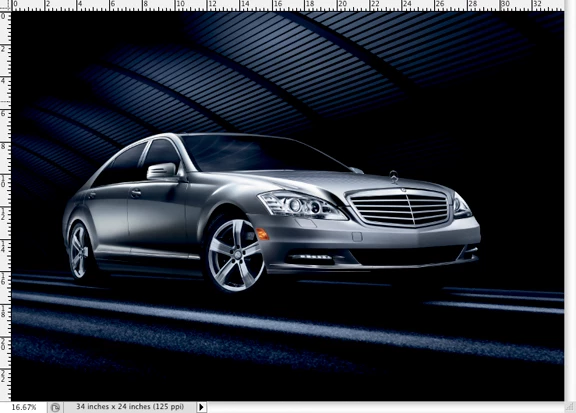
1. First, open the offending image and save as so that you have an original file to go back to if you have to. Here is my example image. I am being informed by the publication I am sending it to that my ink limit should be under 300. But when I check my image with the eyedropper set to "Total Ink" I am seeing 320-350 in many areas.
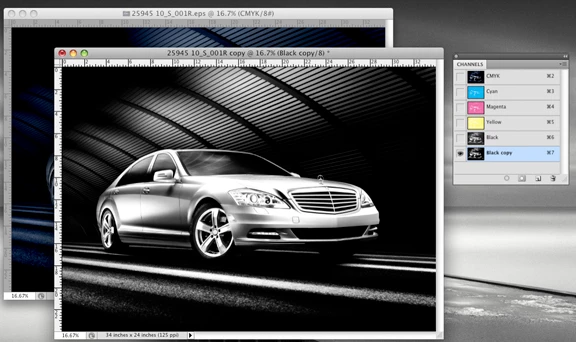
2. With this new file open, duplicate the file so that you now have two images open. In the "copy" select the black channel and duplicate that channel within the file. In most cases, your high total ink areas will be found in the "darkest" parts of your images. By duplicating the black channel, I will be using this as a selection mask.
3. Now on the "copy" image, you want to choose Edit > Convert to Profile. Here you will choose Custom CMYK and in the next dialog box change the Total Ink Limit to the desired amount, in this case 300.
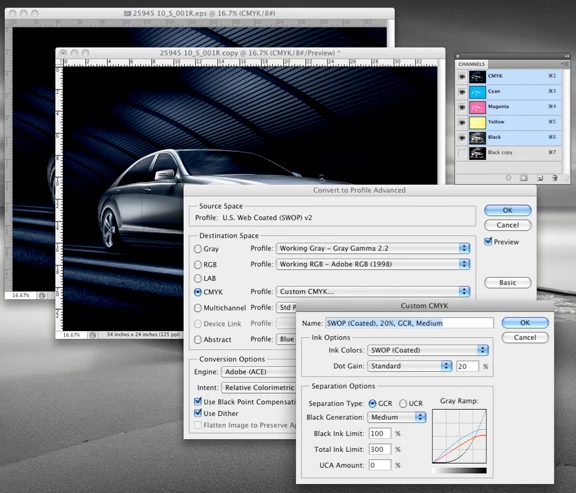
4. After this conversion, use your eyedropper and check the Total Ink in the areas that previously you discovered was too high. You will now see much lower numbers, and actually the numbers may have gone too far and you'll see that your converted image looks very different from your original image. But, not to worry, the following steps will solve that.
5. In the "copy" image, with the CMYK channels active, select all pixels.
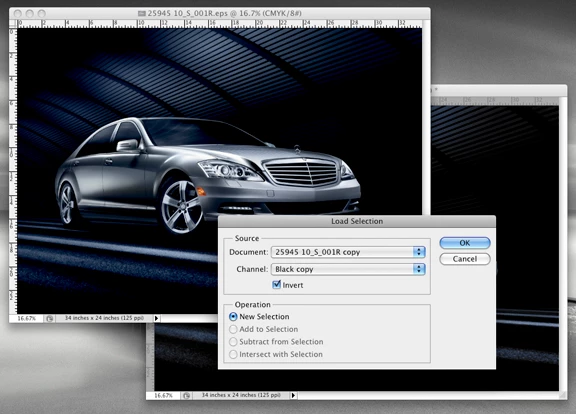
6. Go to your other, "original" image you have open and Select > Load Selection. Choose the "black copy" channel from your "copy" image and also choose invert. This will load a selection mask in your image of just the "darkest" parts of your image.
7. Now with this selection active, you want to Edit > Paste Into. You are now pasting into the selection your converted image, but it will be only affecting the darkest parts of your image. The result will also create a new layer and layer mask. If you turn off the view of your bottom layer, you can see what you have actually pasted into your image.
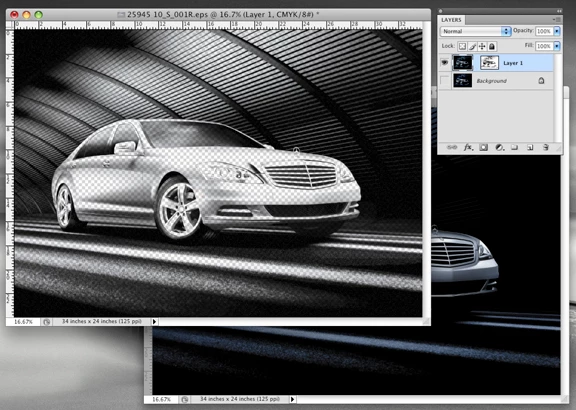
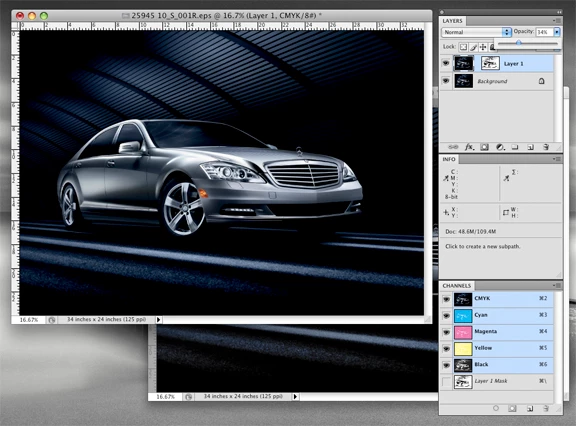
8. Now what I do is use my eyedropper to check the Total Ink with the top layer turned on and then off. I then use the Opacity slider on the top layer to get my image so that the Total Ink meets my desired 300 level. Once it's where I want, I flatten my image and then all is done. Your "copy" image you can just close and no save.
 AdChoices