


Known Participant
July 13, 2023
Question

Need Help Matching the Curve of Scaled Object to Original

  • July 13, 2023
  • 3 replies
  • 790 views

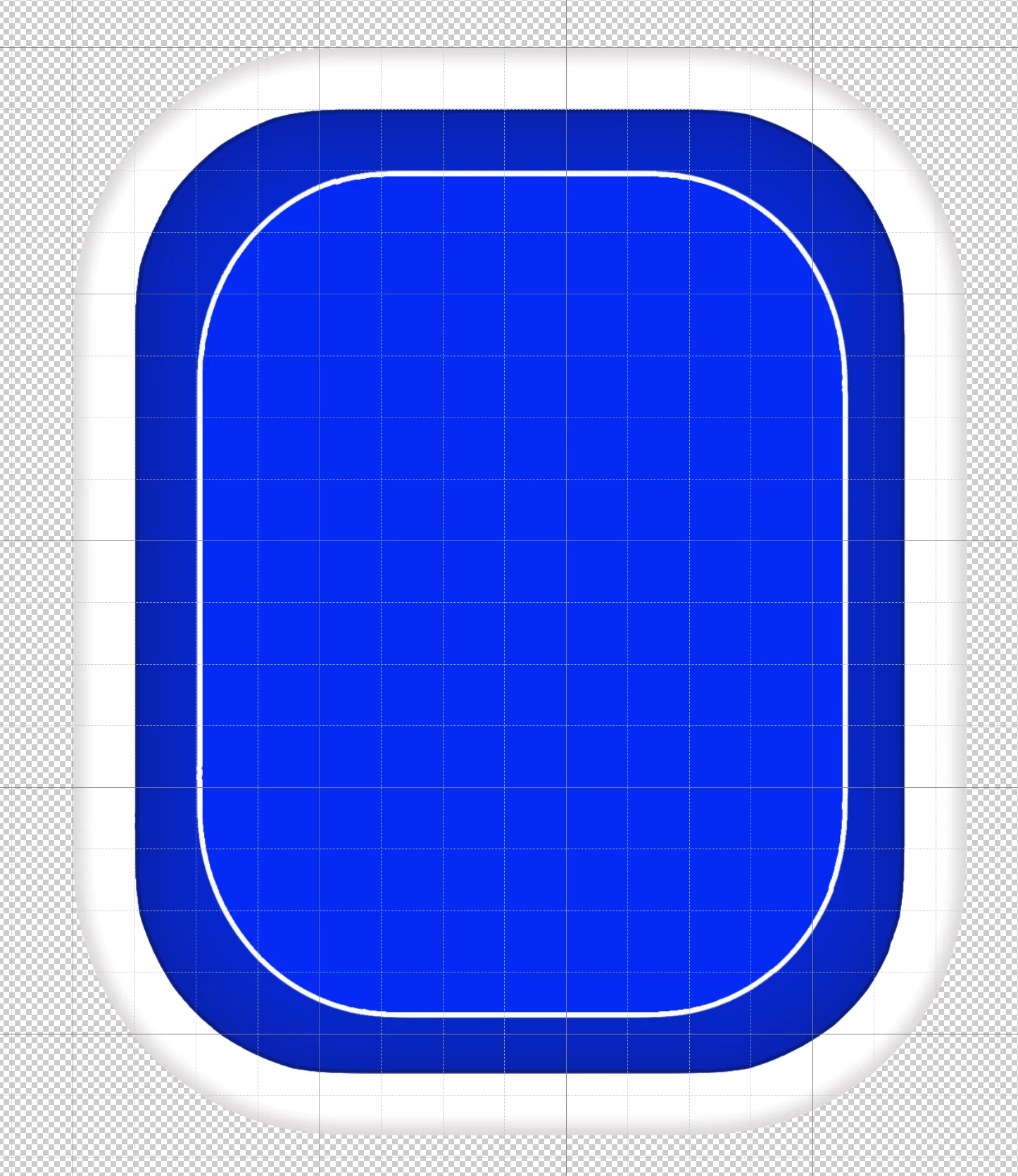
Hi everyone.  I am stumped by this problem and hoping someone can help me as I've searched and can't find an answer.  I'm working in Photoshop and created a rectangle with rounded corners.  I then made a copy of this rectangle and scaled the copy smaller to fit inside.  I'm trying to match the smaller copy's proportions to the original. However, when I scale it, the original and scaled versions' curves don't match up.  On the straight sides, it works great and I can have the same distance from the original to the scaled object all around.  However, I don't have the same result on the curved corners and I find that the angle/radius(?) of the curve changes from the original to the copy and I can't keep a constant distance between the curves of the two objects.  Is there a way to have the scaled object's curved corners match the angles/radius of the original object's curved corners?  I have included a picture of what I'm trying to do.  The scaled object is blue with a thin white border on the outside of it.  I appreciate your help. 
This topic has been closed for replies.

3 replies

pixxxelschubser
Community Expert
Community Expert
July 15, 2023

As I said before:

  • Create preferred in Illu and copy:


  • Paste into Photoshop (Option: Layers):


  • Sort, re-colour and add effects:

Done - vector-based and mathematically correct

😉


Trevor.Dennis
Community Expert
Community Expert
July 14, 2023

Have you tried grouping all of the layers into a single Smart Object before resizing?

Trevor.Dennis
Community Expert
Community Expert
July 14, 2023

Strokes tend to have a regular offset, but the radius is lumpy as.

Trevor.Dennis
Community Expert
Community Expert
July 14, 2023

I tried it from scratch making two layers.  You need to have the rectangle tool selected for the radius handles to show.  


I combined the vector layers into a single Smart Object, and was able to resize up and down keeping the offsets constant.  BTW I did a Ctrl A (select all) and centered the two layers before combining them.


For anyone who dows not know, to get the button effect Bevel & Emboss, you need to increas the altitude to max 90°.  The angle makes no difference with the height maxed like this.

Kevin Stohlmeyer
Community Expert
Community Expert
July 13, 2023

Unfortunately Photoshop does not scale rounded corners properly. You'll need to go into the properties panel and adjust your corners to match visually.

https://helpx.adobe.com/se/photoshop/how-to/edit-rounded-rectangles.html

CoachcasaAuthor
Known Participant
July 13, 2023

Thanks for your reply.  I can't find the corner radius adjustment in my properties panel.  I have the most recent version of Photoshop for 2023 and I was reading that it doesn't have this adjustment anymore and you have to set it before you draw.  That would be why I couldn't find it. 

Mike_Gondek10189183
Community Expert
Community Expert
July 14, 2023

Draw your items as shapes in Photoshop not pixels? The icon in your layers palette will confirm if shape not pixels.