


Participating Frequently
December 19, 2024
Answered

Need scripts for laying out 7000+ 8k files 6 to a page in Photoshop

  • December 19, 2024
  • 2 replies
  • 1915 views

I am doing a photo project that involves outputting images 6 up on a template that is 41,800 x 29,860 pixels.


The area available for the 6 images is 35,000 x 26,000:
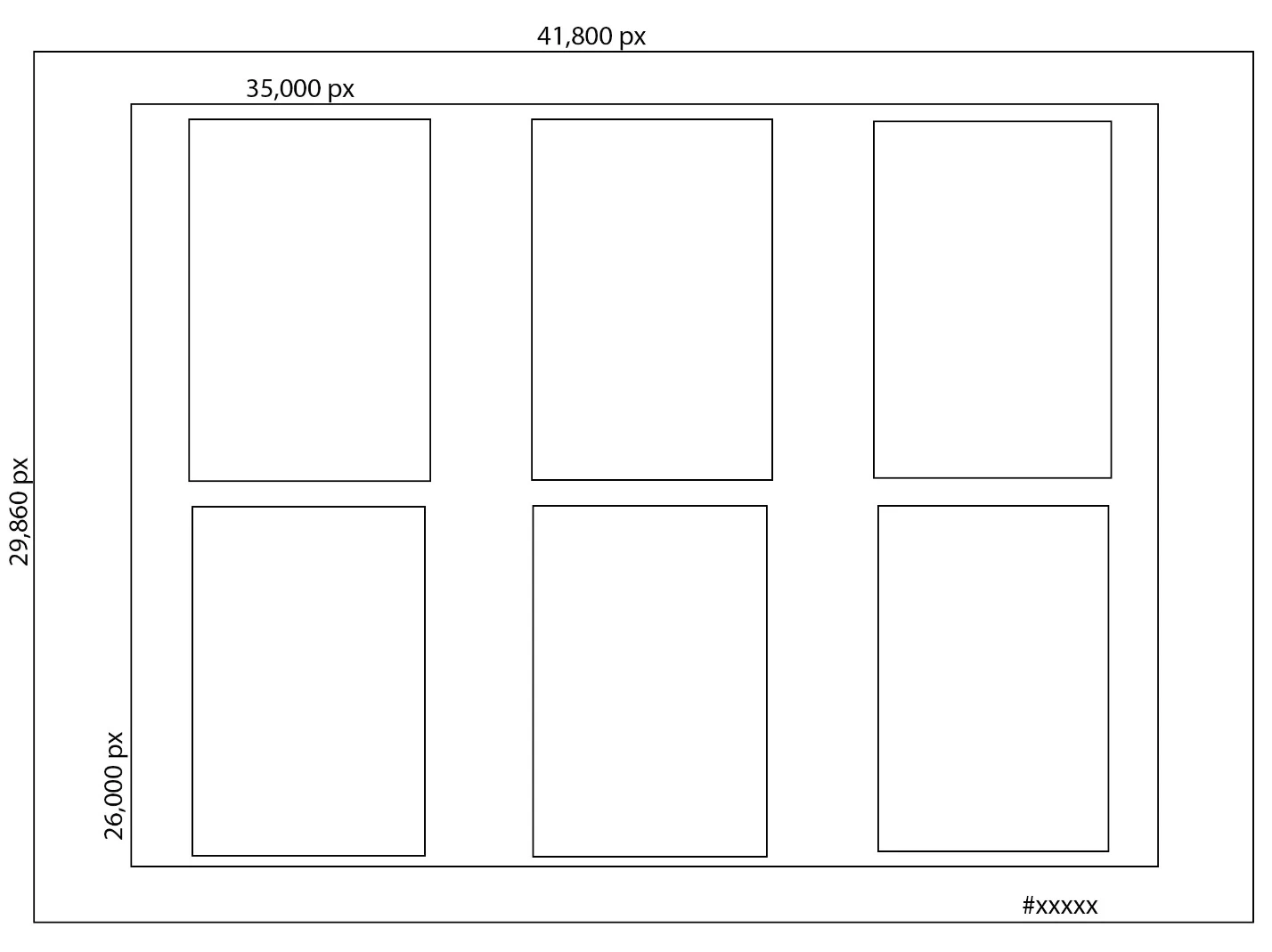
 

The images are scans that are either 6k or 8k sRGB and they need to land on the template at 100% (no resize, 1:1). Some of the images are vertical and some are horizontal. They should all be rotated to be vertical.


 Each page needs to have a serial number but it would be best to be able to state what number to start with when running the script.


And I need a flattened sRGB tif as the output.


I tried Contact Sheet X and ran into a limit of 20000 pixels on the document size. I also tried to add my template to the templates folder as a background but it would not show up as a choice when running the script.


 I tried Contact Sheet II but this has a limit of 29,000 and it also resized the images (made them bigger). And no tif output.


The serial number could come from the Document Title Field in the metadata and I could rotate all the images in Bridge so they are vertical to simplify matters. 


Correct answer Stephen Marsh

Thank you for this and all your help. And sorry for not responding earlier. The email notices I was getting stopped for some reason. I tried the serial number script as the last step of the action and the file will not save - it gives an error on line 500 and that the file name is invalid. Attached is the window that came up. I tried inserting the serial number script and then flattening the file and the script completes but the resulting file is 0 kb. So something is not happy. Let me know what else I should try. Also, the resulting tifs show the correct dimensions but I am used to them being 3.74 gb and with the script it is 660mb. I am not sure why this would be. 


quote

I tried inserting the serial number script and then flattening the file and the script completes but the resulting file is 0 kb. 


Yes, agreed, as I originally wrote it should be the last step before flattening.


I can't reproduce the 0 kb size issue. What file format, TIFF? Does this 0 kb size issue happen with different file format output selections?


quote

Also, the resulting tifs show the correct dimensions but I am used to them being 3.74 gb and with the script it is 660mb. I am not sure why this would be. 


By @kim_1604


You will obviously get different file sizes if the TIFF files are layered vs. flattened.


The TIFF save options are listed at the top of the script for "easy" modification, I don't plan on offering a GUI for the various file format settings. Compare these options to what you use when saving manually and adjust as per the commented instructions. For example, the script uses LZW compression, where you may save uncompressed TIFF files when performing manual saves.


// saveTIFF global variables
var tiffEmbedColorProfile = true; // Boolean: true | false
var tiffByteOrder = ByteOrder.IBM; // ByteOrder.MACOS | ByteOrder.IBM
var tiffTransparency = true; // Boolean: true | false
var tiffLayerCompression = LayerCompression.ZIP; // LayerCompression.RLE | LayerCompression.ZIP
var tiffInterleaveChannels = true; // Boolean: true | false
var tiffAlphaChannels = true; // Boolean: true | false
var tiffAnnotations = true; // Boolean: true | false
var tiffSpotColors = true; // Boolean: true | false
var tiffSaveImagePyramid = false; // Boolean: true | false
var tiffImageCompression = TIFFEncoding.TIFFLZW; // TIFFEncoding.NONE | TIFFEncoding.JPEG | TIFFEncoding.TIFFLZW | TIFFEncoding.TIFFZIP


2 replies

Stephen Marsh
Community Expert
Community Expert
December 20, 2024

Other options would be the late JJMack's collage scripts or using Photoshop's Variables feature, AKA Data Driven Graphics.

Stephen Marsh
Community Expert
Community Expert
December 19, 2024

@kim_1604 


You can create an action to select each of the 6 layers using relative keyboard shortcuts and move each into the required positions.


Then use this script to run the action, setting the number of images per set to 6 (the source folder needs to have the quantity evenly divisible by six):


https://community.adobe.com/t5/photoshop-ecosystem-discussions/script-to-automate-load-files-into-stack/m-p/13499068#U14928257


A recent topic where this method was used for sets of 3:


https://community.adobe.com/t5/photoshop-ecosystem-discussions/batch-placement-looking-for-help-that-place-3-images-on-template-then-auto-to-the-next-3-and-save/m-p/15019669#M842181


Stephen Marsh
Community Expert
Community Expert
December 20, 2024

Just start with a test folder of 6 files.


Once you have the action creating the layout, save a PSD and add a dummy text placeholder for the serial number in the required font, size, colour, position etc.


Share the PSD file, you don't need the six image layers in the shared file as this is just to indicate the exact font specs and positioning required. It might be best to resize the example PSD to 25% size to make it manageable for sharing. I'll resize it to 400% when creating the serial number script.

kim_1604Author
Participating Frequently
December 20, 2024

Thank you for your quick reply. Included is the psb I created sized down to 25%.