


Participant
November 11, 2024
Question

One Image for two or more smart objects?

  • November 11, 2024
  • 1 reply
  • 315 views

Hi all,
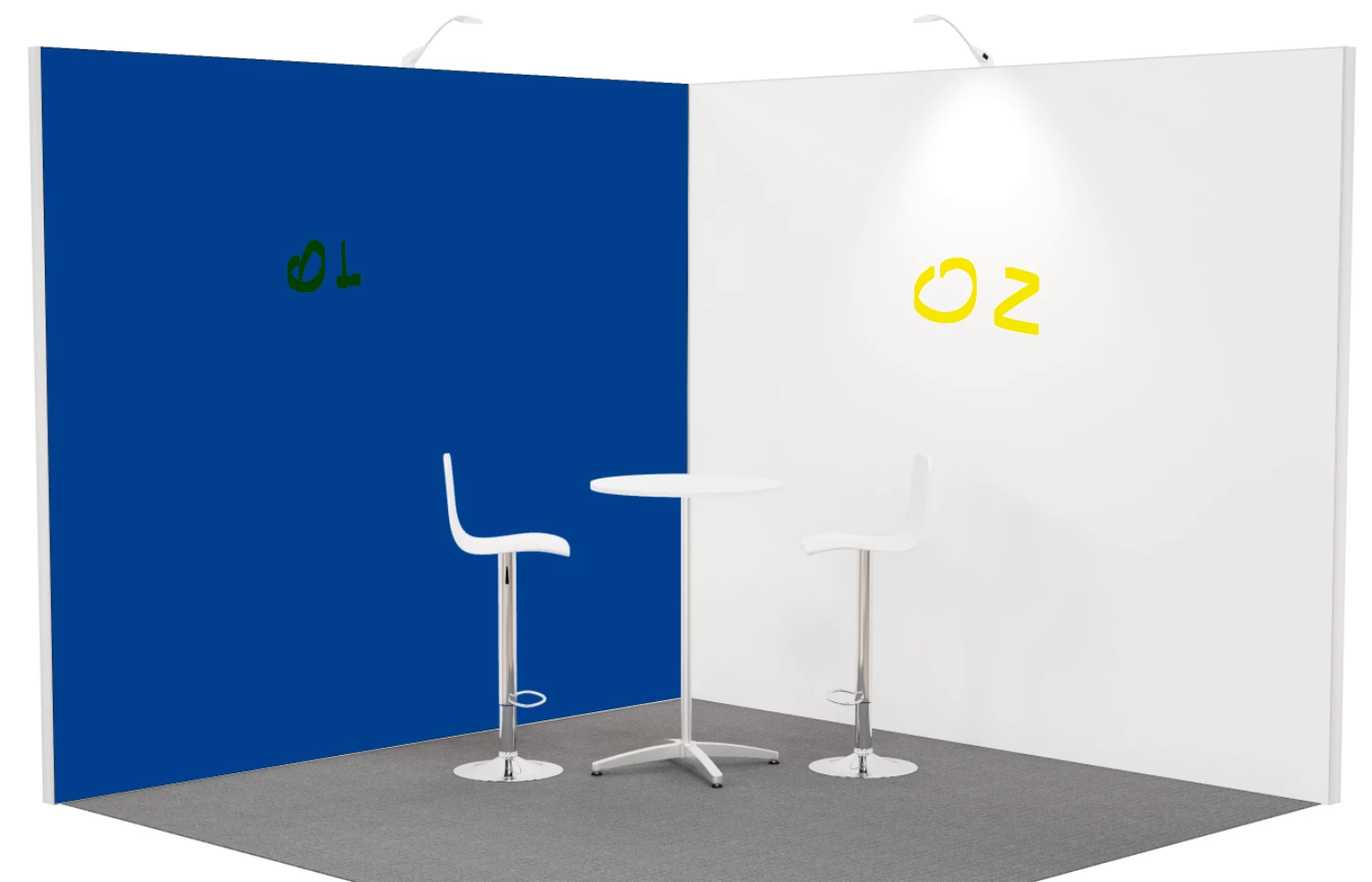
I have this project where I export one jpeg file from illustrator whith two, sometimes three or more images in it, then I map them in Blender and render like image attached: From one unique jpeg I have one image on 01 and another on 02. I want to speed up my process by instead of rendering every time, I would set up the perspectives and masks using one jpeg as smart object on this PS file and whenever I want to change the walls image I'd just replace this unique file for another one and all the walls would update. 
The problem is everythime I create a smart object I need to import the same image inside the smart object and apparently it works for that one smart object only, then I have to do same for the other ones and everytime I bring the image to the smart object I need to position the way I need so I end up not really saving time. 
I hope you can understand my point, I really appreciate any help. 
Thanks


1 reply

Myra Ferguson
Community Expert
Community Expert
November 20, 2024

If the JPEGs in your Smart Objects have been embedded (File > Place Embedded...), then you can save some time by linking them (File > Place Linked...). Then when you want to update the image, right-click on the layer (not on the thumbnail, though) and select Relink to File... and select the new image.


If both Smart Objects contain the same image but you have to update both of them, then it sounds like the Smart Object was duplicated using New Smart Object via Copy. That command creates a new Smart Object that is separate from the original. Even if it references the same content, the 2 Smart Objects are separate.


To make 2 Smart Objects that reference the same content (so that whatever you do inside the PSB file updates every copy of the Smart Object), duplicate the layer that contains the Smart Object (select the Smart Object and drag it down to the + button at the bottom of the Layers panel, go to Layer > New > Layer via Copy, or go ot the Layers panel menu and select Duplicate Layer...

Participant
December 12, 2024

Hi @Myra Ferguson, thanks for your reply. I did exactly what you said there, it keeps giving me this message:

And nothing happens. Apparently it only works with very low quality images like 1080x1080 or lower. But then it won't be useful for me if I have to keep it that low quality. 

Thanks,