Participating Frequently
November 12, 2017
Beantwortet

Paint brush - color burn - colors adding up problem. Fix?

  • November 12, 2017
  • 2 Antworten
  • 1529 Ansichten

Hi everyone,

I'm kinda newbish with photoshop and i ran into a problem with the paint brush in color burn mode. Or should I use a different mode? because i tried some of them.

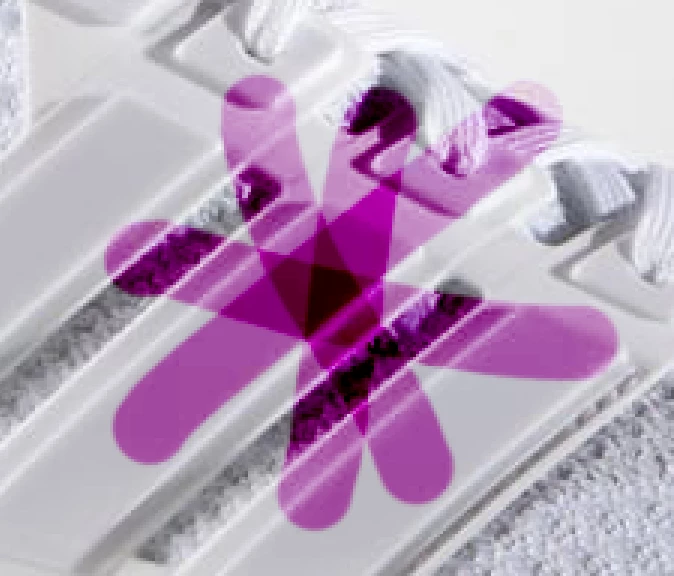
I figured out how to paint this shoe. However, when i'm brushing this shoe and i put some color over the same area again, colors keep adding up. See picture below to clarify.

Also to color the whole shoe in different colors i would seperate the shoe in layers i guess to prevent different colors to run over each other also?

Is that necessary? Because that would be really time consuming?

So how do I keep painting without this happening? Thanks
    Dieses Thema wurde für Antworten geschlossen.
    Beste Antwort von andreamaestri

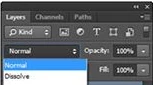
    I would use the pen tool to draw the shape you want to colour, see more on Draw with Pen tools in Photoshop , then when you finished to use the pen tool, change the blend mode from Normal to  Color Burn, see the picture.

    You can learn more here, Blending modes in Adobe Photoshop . This will let you to not do multiple strokes on the brush tool, which it acts like you  did duplicate the layer, and this cause the strong colour. You can use the brush tool and change afterwards the Blend Mode

    2 Antworten

    andreamaestri
    Participating Frequently
    November 13, 2017

    I would use the pen tool to draw the shape you want to colour, see more on Draw with Pen tools in Photoshop , then when you finished to use the pen tool, change the blend mode from Normal to  Color Burn, see the picture.

    You can learn more here, Blending modes in Adobe Photoshop . This will let you to not do multiple strokes on the brush tool, which it acts like you  did duplicate the layer, and this cause the strong colour. You can use the brush tool and change afterwards the Blend Mode

    Participating Frequently
    November 13, 2017

    Thanks a lot guys! Both.

    For now i will just use a normal brush with normal mode and change layer to color burn after i'm done with that layer.

    That works fine for me.

    Thanks again

    D Fosse
    Community Expert
    Community Expert
    November 12, 2017

    Not "Color Burn" - just "Color".

    Participating Frequently
    November 13, 2017

    Thanks for your reply!

    Using color instead of color burn seems to solve the problem.

    HOWEVER: The color seems wayy off from the original color? Very light? Is there any way to change this?

    Perhaps in the brush settings? I don't know

    davescm
    Community Expert
    Community Expert
    November 13, 2017

    Color blending mode applies the Hue and Saturation from the upper layer (or brush) and takes the Lightness from the underlying image. To darken the section you will need to select it and apply a curve.

    Another way is to use a Hue & Saturation adjustment layer above the image and  set it to "colorize". The use the lightness slider. Again though you will need to use a mask to control where the color will be applied. If you paint the mask with white it will apply color and with black it will hide the color

    Dave