Participating Frequently
February 8, 2024
Answered

Pattern grid in photoshop using smart objects

  • February 8, 2024
  • 4 replies
  • 2436 views

Hi everyone, 


I'm trying to figure out how to recreate a similar sort of re-usable pattern grid using four different smart objects. Here is my difficulty:


-To streamline the process, there are four smart objects which will auto-populate the rest of the grid.

-However, each instance of one smart object is a different section of the original image, different size and different rotation. 

-Therefore, copying via a NEW SMART OBJECT VIA COPY would mean that I have to manually populate each instance.

-But, DUPLICATING the smart object does not allow me to adjust the positioning, size and rotation of the source image in each instance. 


It feels like there is a simple solution that I just don't know about. Thanks in advance.
This topic has been closed for replies.
Correct answer c.pfaffenbichler

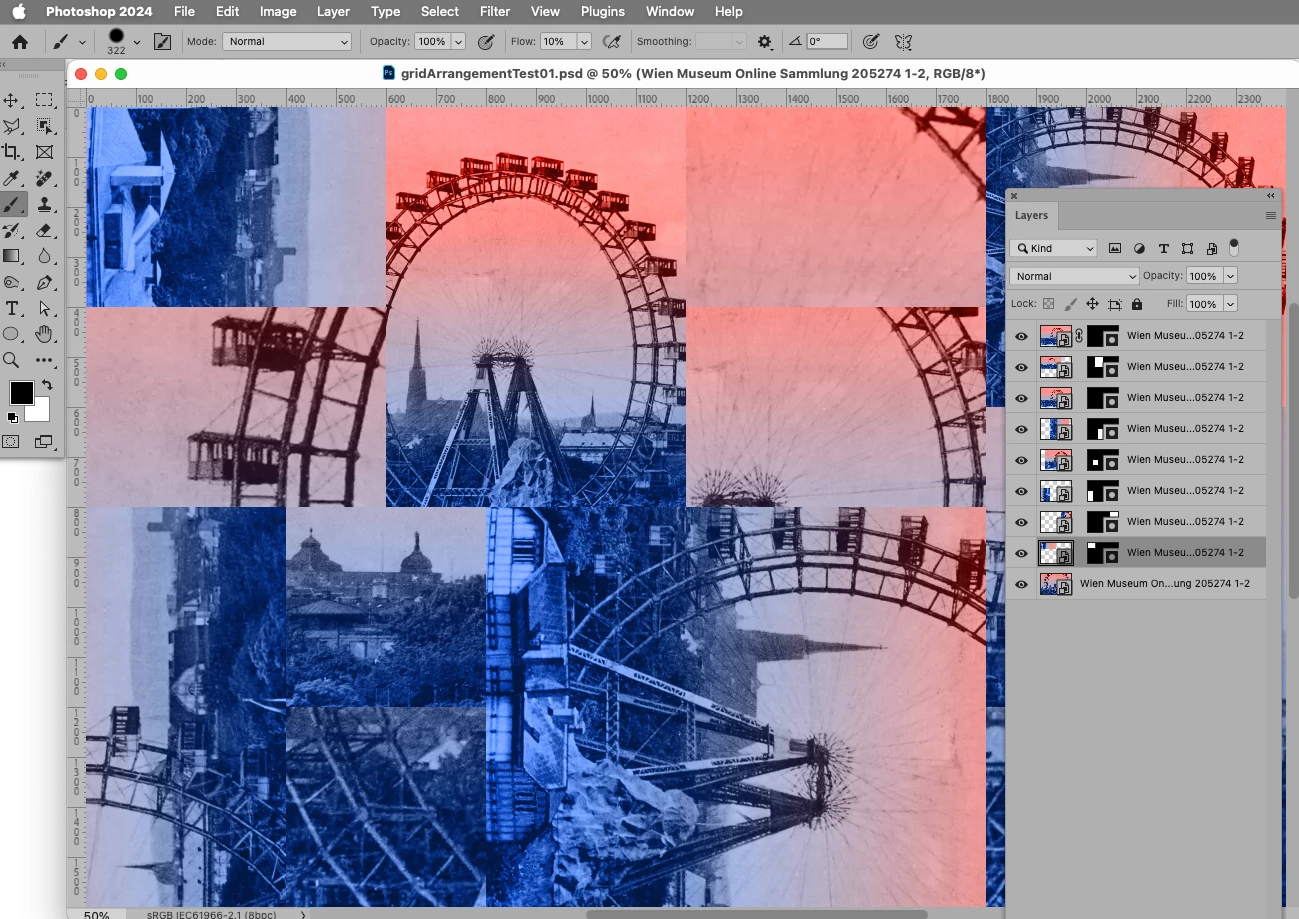
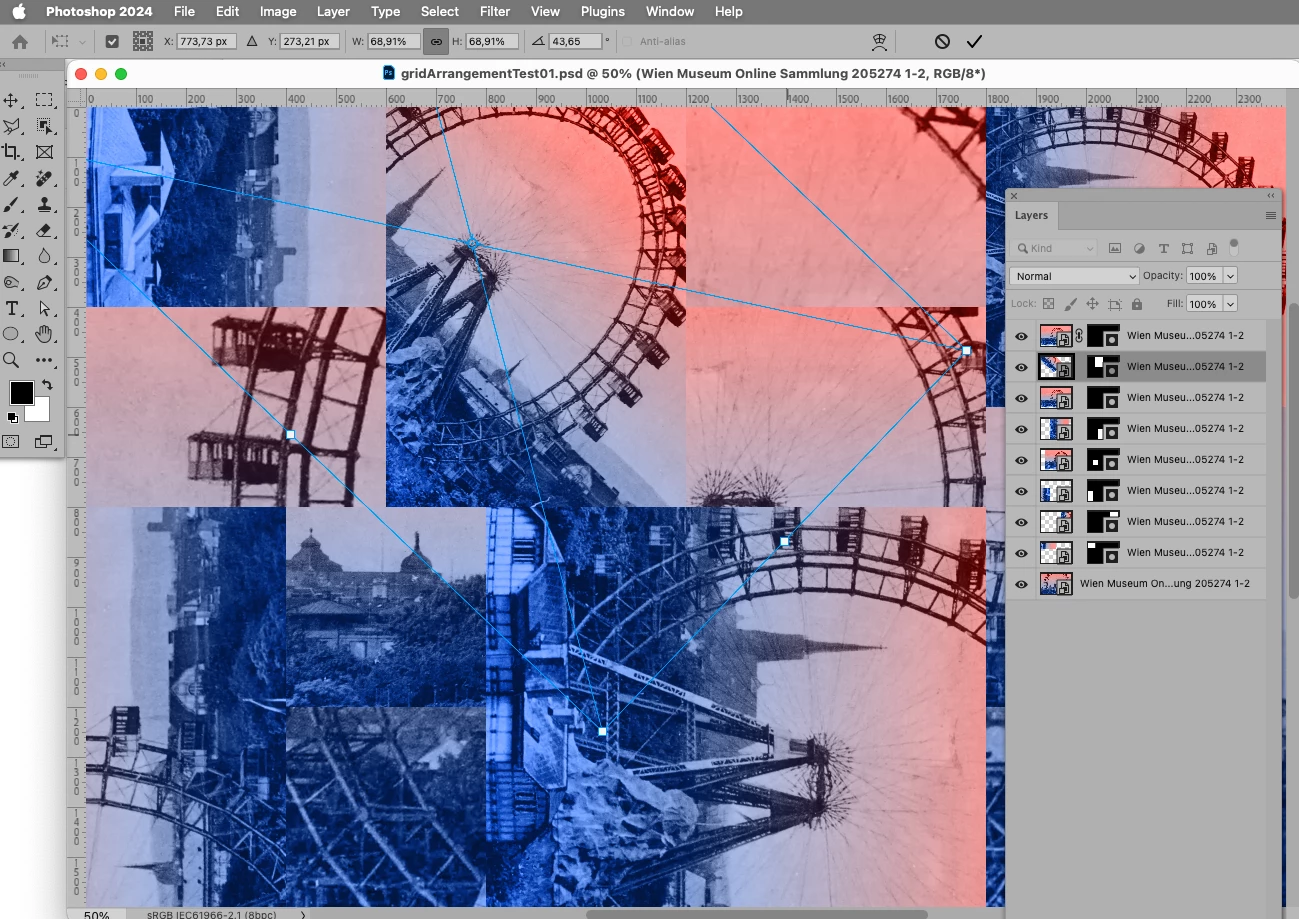
Ok I think I finally figured it out, working off of @didiermazier 's example. Here is a screenshot. I basically create a new frame for each instance in the grid, and then drag and drop a copy of the source image smart object into the frame.


The difficulty was editing each individual instance without unlinking it from the original source image and at the same time not affecting the other instances of the image when one was scaled or rotated.


What about the screenshot in your original post? 

There were Groups that apparently contained the masked Smart Object instances, don’t you have that file? 


In a layerd image one can select a Layer on the Canvas by cmd-clicking it and then, if the Layer Mask or Vector Mask is unlinked, transform it. 

Edit: This example only features instances of one Smart Object, but instances of multiple Smart Objects would not make a relevant difference on the task. 

4 replies

c.pfaffenbichler
Braniac
February 9, 2024

Could you please post screenshots with the pertinent Panels (Toolbar, Layers, Options Bar, …) visible in which the SOs are visible in the Layers Panel? 

c.pfaffenbichler
Braniac
February 9, 2024

I don’t quite understand your workflow. 

Anyway, a Smart Object can feature multiple Layer Comps which can applied to the instances in the containing document via the Properties Panel. 

didiermazier
Braniac
February 8, 2024

I would do the following :

Working with embedded same smart object in frames from the same Photoshop file

This images are smart objects in which you have imported the same base image with a link (not incorporated);  Hereafter one of the smart objects

Adding or changing layers on the base objects will change the embeded images

You will only have to resave the base object to get images changed. The rotation and size in the frames will still be the same…

I add a zip file of the sample

didiermazier
Braniac
February 9, 2024

I worked a little more with this example grey and yellow car…

To update the grid after a change on the base image, juste click, on one of the frames again; Photoshop will update all frames with new populating image. All crop, sizes symetry and rotation will be keep as it in the frames


Participating Frequently
February 9, 2024

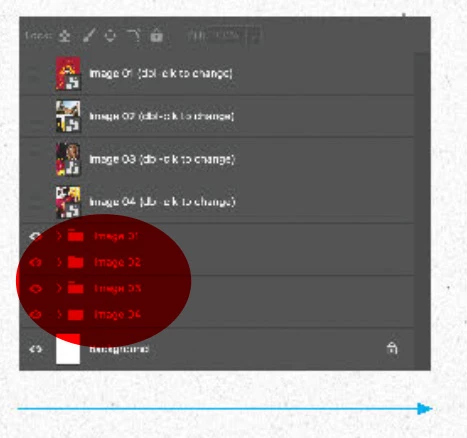
Thank you, I appreciate your ideas! I downloaded the files and understand your logic. Is there a way however to keep the source images easily available and editable in the same .psd file? If you see the image I attached, it seems they may have set up the grid pattern in the way that you suggest here, but they have the four smart objects in the same .psd, and then you can see the four folders with the copied layers. 

Bojan Živković11378569
Braniac
February 8, 2024

Instead of trying to edit the pattern, which won't work, have you tried to transform or rotate the cloned or duplicated smart object? Editing the source of the cloned smart object layers will automatically affect all other cloned instances. However, transforming each of the cloned smart object layers will not change the other clones.

Participating Frequently
February 9, 2024

I think I understand what you are suggesting, but I would like to be able to easily change the source image and have it auto-populate the rest of the grid with the copies. If I understand you correctly, I would have to unlink the copies from the source, so if I wanted to change the source image, I would have to start over and then unlink all the copies as I go.


Any ideas? If I'm misunderstanding you, please feel free to clarify -- thank you!