Known Participant
August 21, 2016
Answered

Photoshop CC 2015: How To Create A Curved Line With Thickness

  • August 21, 2016
  • 1 reply
  • 33210 views

Hours of YouTube videos have brought me to the point of just needing to ask for help.  Here's what I've tried with results:

  1. Pen Tool, drew curves, hit enter to end the curve.
    1. Results = PS created a closed shape even though I had "Path" selected.  I've retried this 100 times.  Same results.
  2. Line tool - drew a straight line with, for some reason, an arrow head attached.  I selected, "Line" but it drew an arrow.
    1. Results = walked outside and considered my life choices.
  3. Free Form Pen - Drew some curves sort of like a rainbow but again, PS closed off the arcs and made a shape.
    1. Results = I can't even remember what happened after this point.
  4. Watched a video about how to draw a curve then stroke the path with the brush tool.  I drew the same curve but my "stroke path" is greyed out and I'm told something about vectoring...no idea.  Here's the video: How to Draw Curved Lines in Photoshop - YouTube
    1. Results = Gave up.  Mowed the lawn.

I would really appreciate some help.  Can someone just explain it like I'm 5 and just tell me what I'm doing wrong?

Tks.
This topic has been closed for replies.
Correct answer Barb Binder

They are all different issues. Let's focus on the first one:

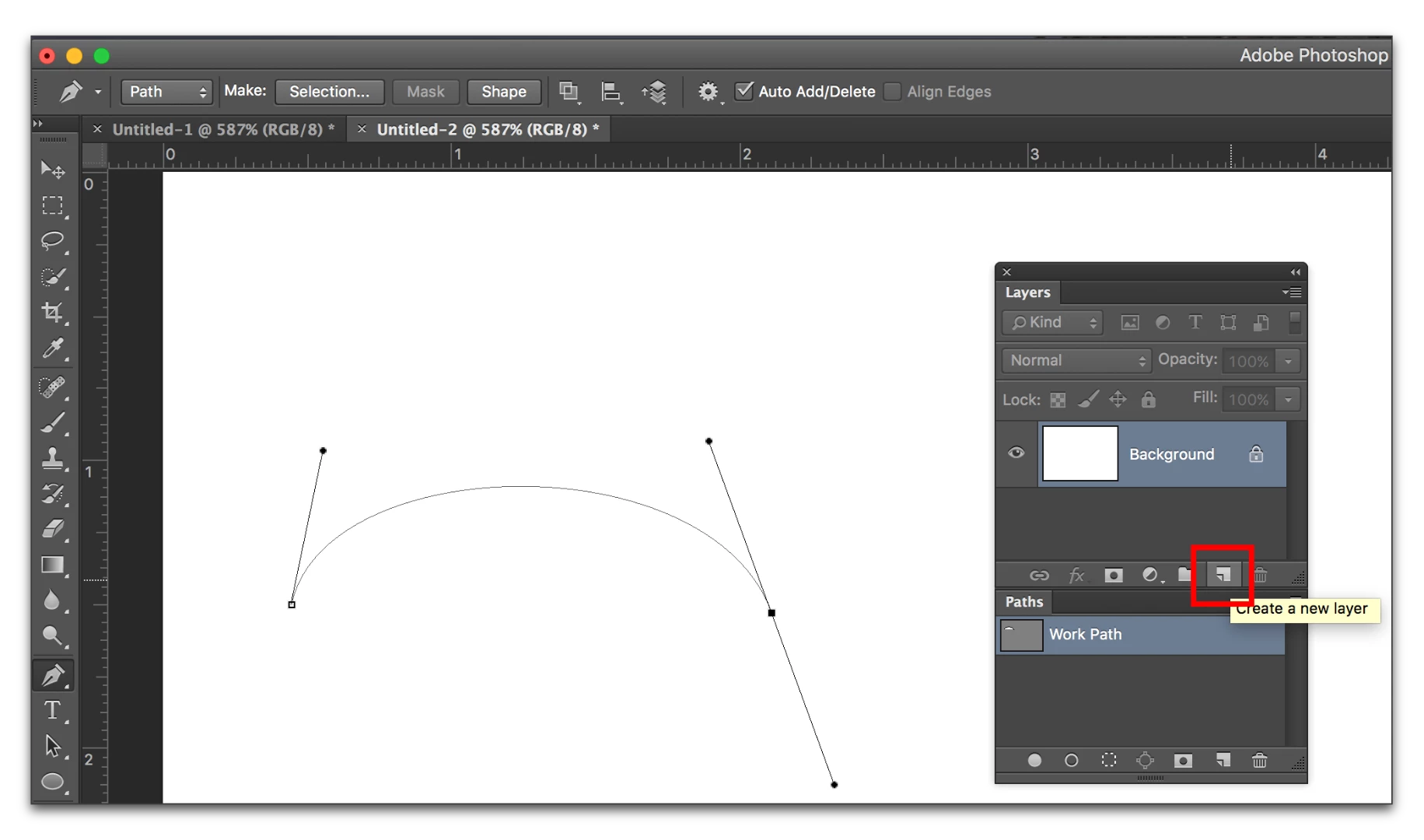
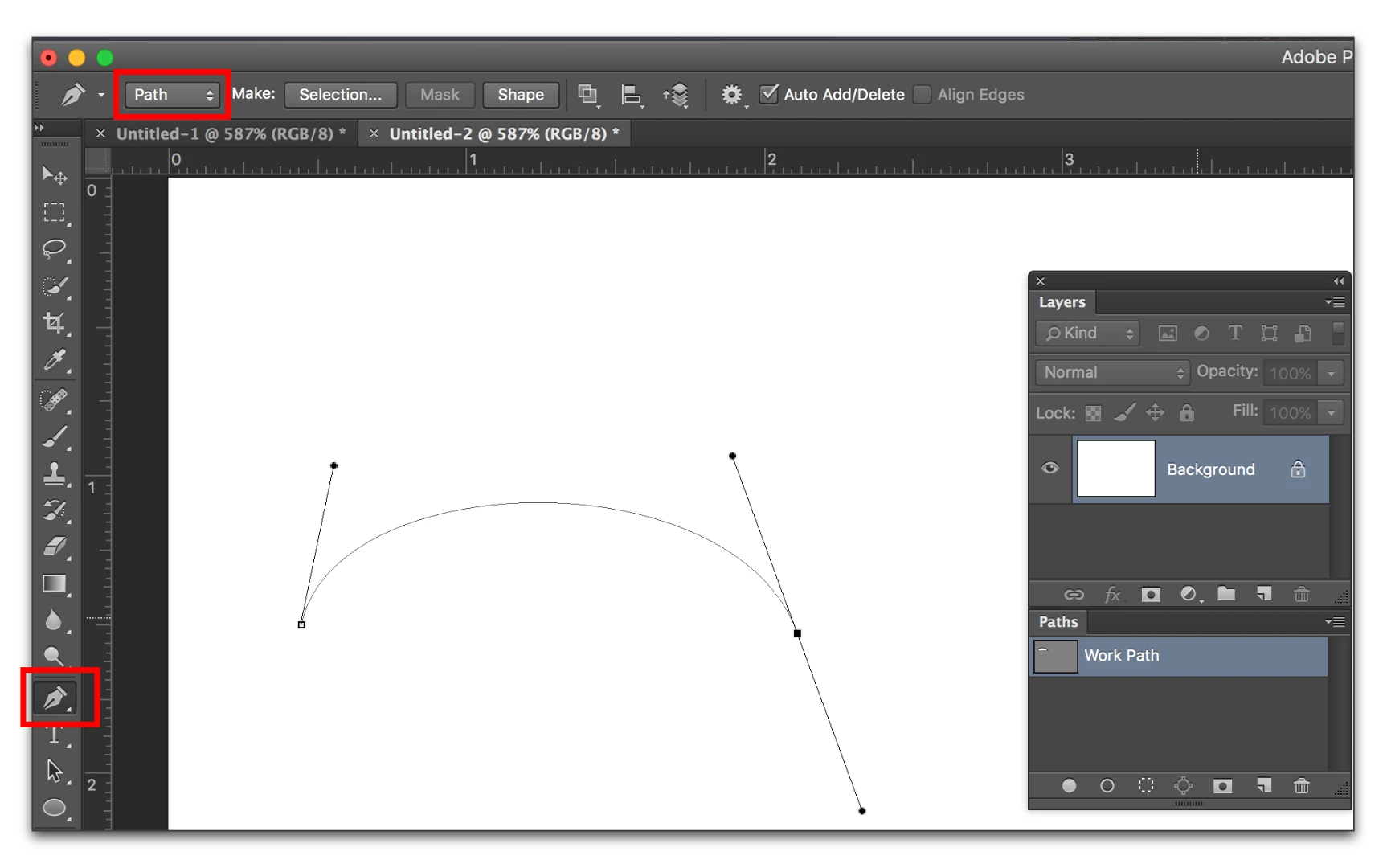
Select the Pen tool, and set the tool mode to Path. Draw the curve.

Create a new layer for the color.

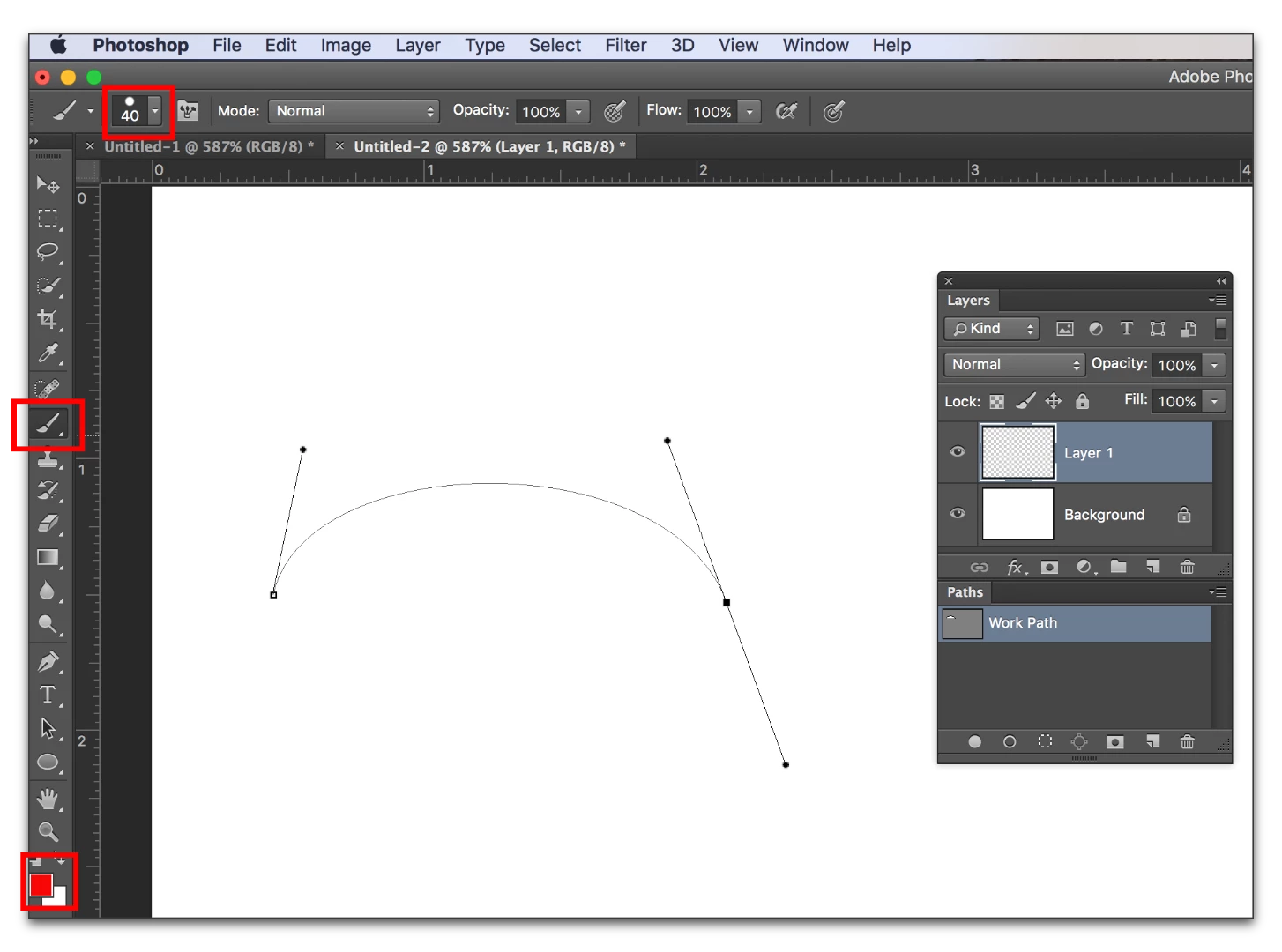
Select the paint brush. Set the color and brush.

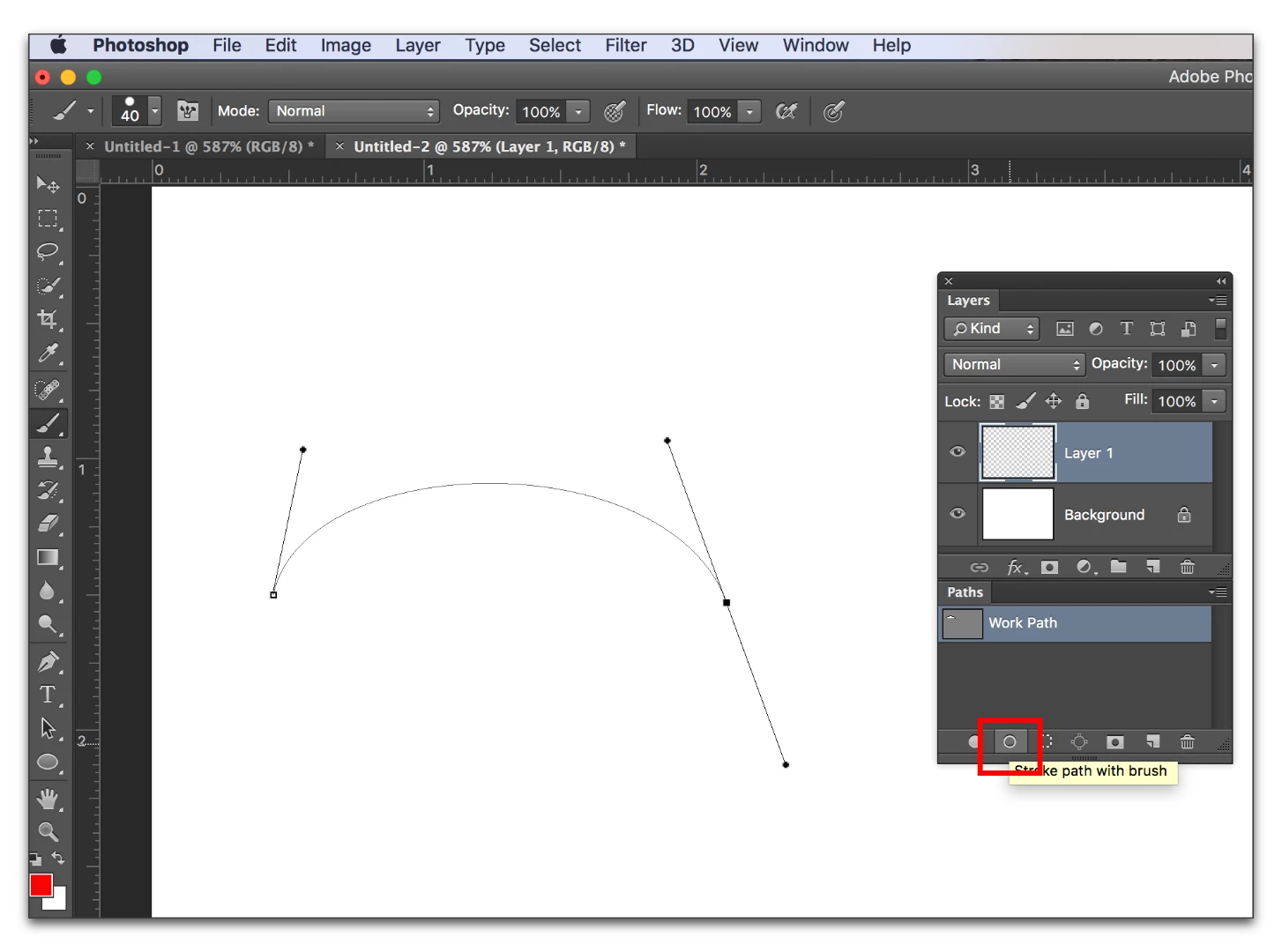
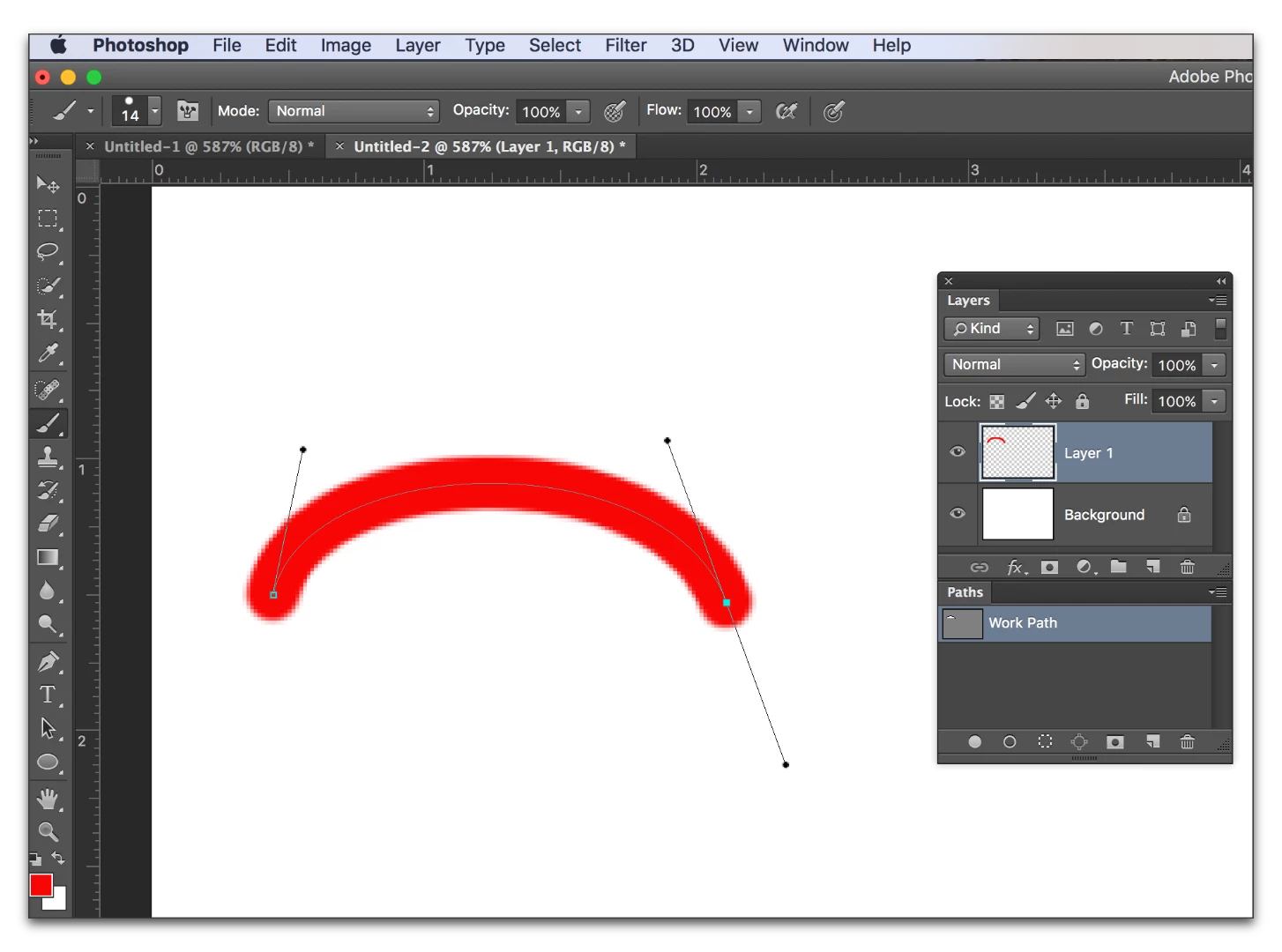
Click Stroke Path in the Stroke panel.

Done. Double Click the words Work Path to rename it—not in the screen cap.

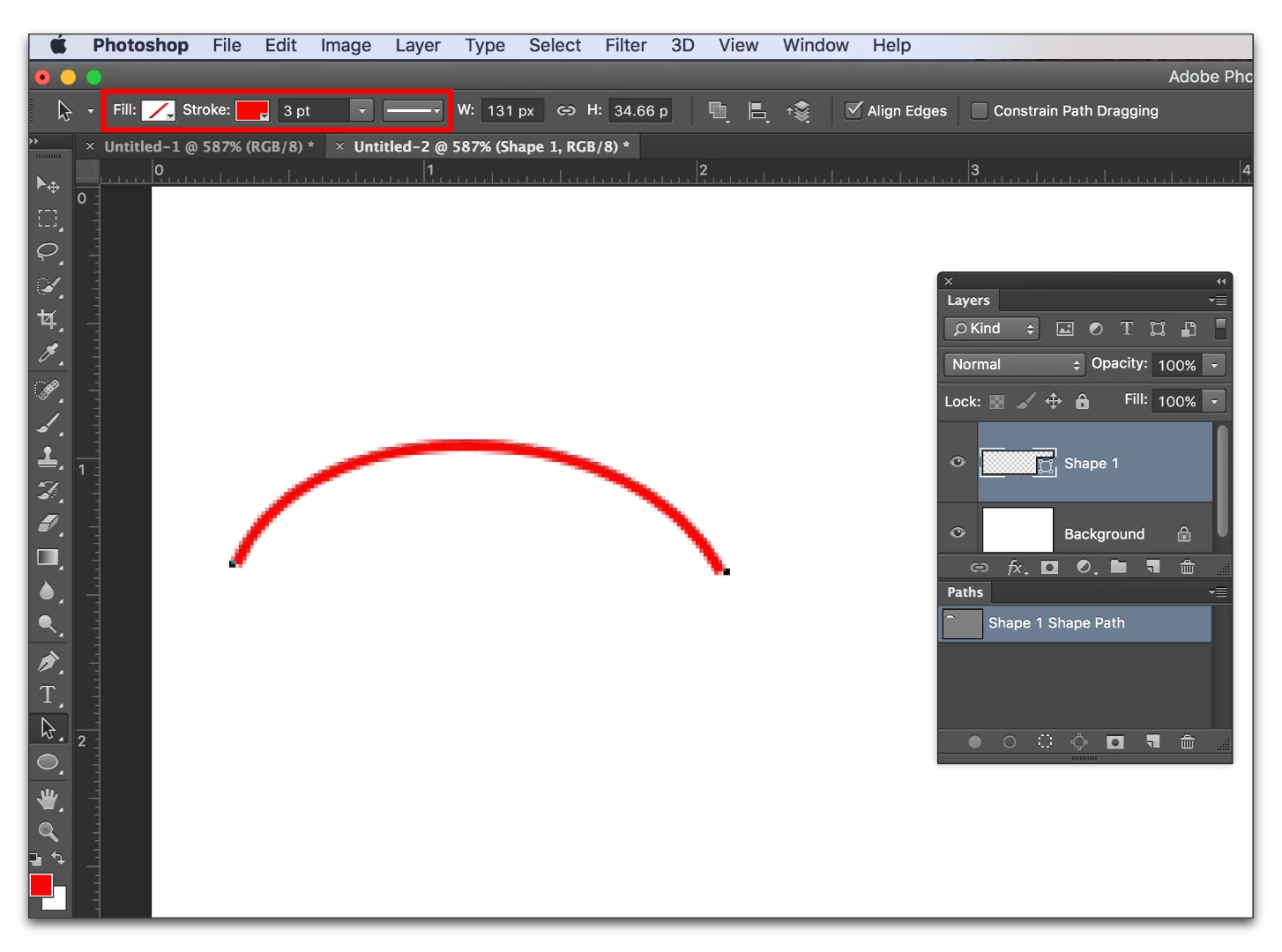
Alternatively, select the Pen tool, and set the tool mode to Shape.
Draw the shape and set the fill, stroke, etc on the Options bar. Easier to work with in the long run.

1 reply

Barb Binder
Community Expert
Barb BinderCommunity ExpertCorrect answer
Community Expert
August 21, 2016

They are all different issues. Let's focus on the first one:

Select the Pen tool, and set the tool mode to Path. Draw the curve.

Create a new layer for the color.

Select the paint brush. Set the color and brush.

Click Stroke Path in the Stroke panel.

Done. Double Click the words Work Path to rename it—not in the screen cap.

Alternatively, select the Pen tool, and set the tool mode to Shape.
Draw the shape and set the fill, stroke, etc on the Options bar. Easier to work with in the long run.

~Barb at Rocky Mountain Training
Known Participant
August 22, 2016

Thank you!

That worked.  I'm bookmarking this for future reference.  Many thanks.

Barb Binder
Community Expert
Community Expert
August 23, 2016

That's great, Mike. Glad you are back on track.

P.S. I thought your post was hilarious, but especially loved "Can someone just explain it like I'm 5"!

~Barb at Rocky Mountain Training