


Participating Frequently
October 26, 2017
Answered

Photoshop CC 2018 B&W Gradient Error

  • October 26, 2017
  • 4 replies
  • 1563 views

Hey,

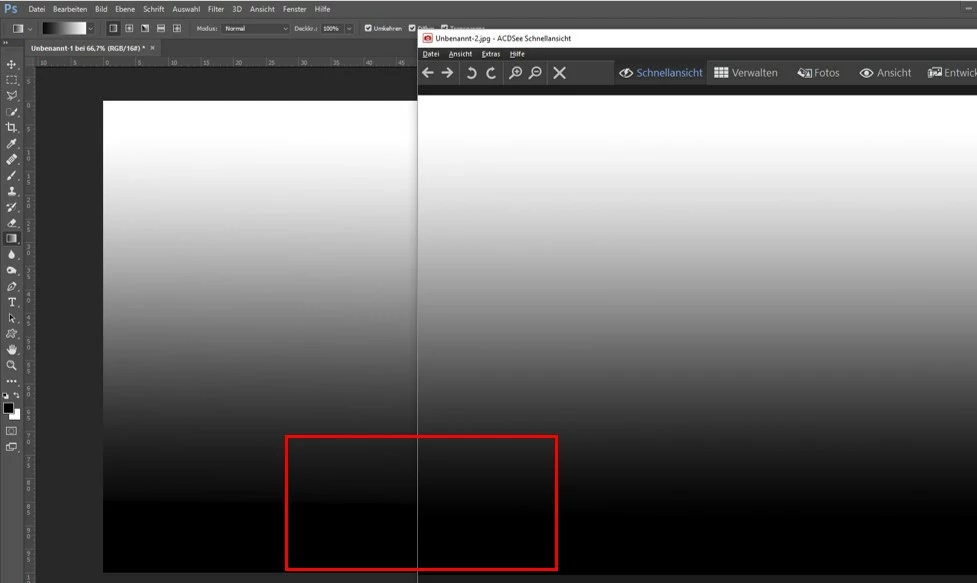
after updating to CC 2018 I see some errors with a B&W-Gradient. The transition just bevor the black area is completely hard. After exporting the image as jpg and viewing it, this transition is perfect. So this should be an indication error of Photoshop. Can somebody help me or have somebody the same issue?

The issue accurse as I made a vignette on an image and it looks just horrible.

Thanks and best Regards

Johannes
This topic has been closed for replies.
Correct answer D Fosse

That's a defective monitor profile. Windows "Photos" is not color managed and does not use the profile, and is therefore unaffected.

Rerun your calibrator, and make sure it's set to produce

  • matrix-based profiles, not LUT-based (table-based)
  • version 2, not version 4.

LUT and/or v4 profiles are more complex and not always written to spec in some calibration software. Still they are often set as default policies.

4 replies

Participating Frequently
October 28, 2017

Hey,

I see Color Management is a very very complex topic.

Just a question: Did anybody see a difference?

I see the right gradiant clipped.

Best Regars

Johannes

D Fosse
Community Expert
Community Expert
October 28, 2017

That's not a solution, the problem is still there. Working space should not have any effect on this. If it does, something's wrong.

Since you have policies set to "convert to working", I'm guessing your original files were ProPhoto. Right? There is a problem with ProPhoto files when you have GPU set to "Normal" or "Advanced" modes in Photoshop Preferences. This is an inherent inaccuracy/bug in the OpenGL engine, and it causes black clipping and shadow banding, sometimes color banding.

This banding/clipping happens in the conversion from ProPhoto to the monitor profile, and the effect varies with different monitor profiles. But it rarely goes away altogether.

The only way to avoid this bug entirely is to either not use ProPhoto, or set GPU to "Basic" mode (which shifts display color management back to the CPU).

------

Another issue is the "convert to working RGB" policy. I would not recommend this unless you are fully aware of the implications! This potentially means clipping/data loss every time you open a file, and that loss is permanent and non-recoverable.

The most sensible and safe setting is "preserve embedded profiles". This will leave all your files as they are, without unintentional damage.

Participating Frequently
October 28, 2017

Hey,

the pictures was taken in AdobeRGB.

I had the same issue with new files (file--create new), where I creating a gradient. If I set the Color Space to AdobeRGB everything is correct, with sRGB I have this clipping.

Thank for the tip with "preserve embedded profiles".

Just another qustion: 8bit or 16bit has no influence on this?

Resetting the calibration also has no influence on this.

Best Regards

Johannes

D Fosse
Community Expert
Community Expert
October 28, 2017

the pictures was taken in AdobeRGB.

If you're referring to the camera setting, it does not apply to raw files, only camera jpegs. The color space is set in Lightroom/ACR.

I had the same issue with new files (file--create new), where I creating a gradient. If I set the Color Space to AdobeRGB everything is correct, with sRGB I have this clipping.

That still suggests a monitor profile problem. Whatever the document color space, files should always display identically in a properly color managed environment. That's the whole point!

What calibrator are you using?

Participating Frequently
October 28, 2017

Hey,

I found a solution! I have to set the Working-Color-Space to Adobe RGB. Now it looks correct. Nevertheless it is confusion because my Monitor do not have AdobeRGB and my Laptop is set to sRGB and don't have this error?!

Best Regrads

Johannes

JJMack
Community Expert
Community Expert
October 26, 2017

You do realize you editing in 16Bit color depth comparing that to decoded Jpeg 8 bit color depth image and there will be loss in image quality decoding the saved jpeg image Jpeg looses some image quality.  Here we only see your capture in  8 bit color depth we do not see what you see.  We see a decoded Jpeg, your screen capture which you may have also scale down in size.  The UI looks small on my display. Additionally you looking at a scaled image in Photoshop you not looking at 100% zoom at the image actual pixels. Photoshop scaling is done for speed of performance not for best image quality. Your looking at Apples and oranges. They should look different.

JJMack
Participating Frequently
October 26, 2017

Thanks for your answer.

But, same issue in 8 bit. The scale also doesn’t matter. May the following picture illustrates what I see?

Just in case: yes, my Monitor is calibrated.

Best Regards

Johannes

D Fosse
Community Expert
D FosseCommunity ExpertCorrect answer
Community Expert
October 26, 2017

That's a defective monitor profile. Windows "Photos" is not color managed and does not use the profile, and is therefore unaffected.

Rerun your calibrator, and make sure it's set to produce

  • matrix-based profiles, not LUT-based (table-based)
  • version 2, not version 4.

LUT and/or v4 profiles are more complex and not always written to spec in some calibration software. Still they are often set as default policies.