


Photoshop CC 2018 - Crash on startup: "ScriptingSupport" plug-in not loading
To whomever might be of assistance...
I've been looking online for hours and haven't found anything, so maybe this can be of use to someone like me with a similar problem.
After starting up Photoshop CC 2018, the normal loading screen appears and quickly gets to the point where it says "Starting-up plug-ins... ScriptingSupport", where it hangs indefinitely and then crashes (picture below).
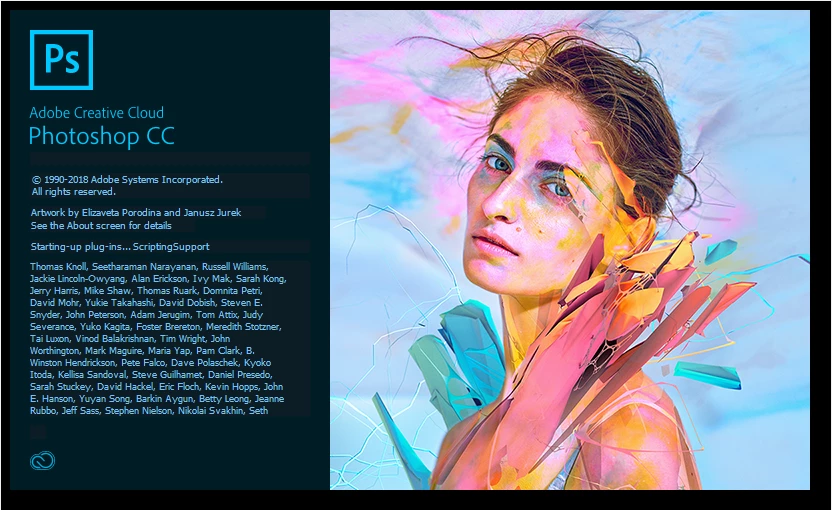
I have tried EVERYTHING: restarting my computer, updating Photoshop in the creative cloud app, running as admin, uninstalling/reinstalling (both creative cloud and the app itself along with creativecloudcleanertool sweeps in-between), changing permissions in the scriptingsupport.8LI file, downloading a separate copy of the file on a random website and replacing the original... Nothing is working, I always come back to the same problem.
If I manually move ScriptingSupport.8LI from C:\Program Files\Adobe\Adobe Photoshop CC 2018\Required\Plug-ins\Extensions to the desktop just to move it out of the program, Photoshop will get past the loading screen but crashes once the GUI loads (which is expected, ScriptingSupport is undoubtedly crucial for the GUI to work properly), so ScriptingSupport.8LI is definitely the problem.
I've attached the event log details from Event Viewer, maybe they can be some help. I'm really at the end of my rope with this one! Any help is tremendously appreciated.
Thank you!!
Log Name: Application
Source: Application Hang
Date: 9/19/2018 7:31:42 PM
Event ID: 1002
Task Category: (101)
Level: Error
Keywords: Classic
User: N/A
Computer: -
Description:
The program Photoshop.exe version 19.1.6.5940 stopped interacting with Windows and was closed. To see if more information about the problem is available, check the problem history in the Action Center control panel.
Process ID: 450
Start Time: 01d45070e1549d03
Termination Time: 11
Application Path: C:\Program Files\Adobe\Adobe Photoshop CC 2018\Photoshop.exe
Report Id: 280b7f50-bc64-11e8-8e6f-00acc7375d92
Event Xml:
<Event xmlns="http://schemas.microsoft.com/win/2004/08/events/event">
<System>
<Provider Name="Application Hang" />
<EventID Qualifiers="0">1002</EventID>
<Level>2</Level>
<Task>101</Task>
<Keywords>0x80000000000000</Keywords>
<TimeCreated SystemTime="2018-09-19T23:31:42.000000000Z" />
<EventRecordID>744491221</EventRecordID>
<Channel>Application</Channel>
<Computer> - </Computer>
<Security />
</System>
<EventData>
<Data>Photoshop.exe</Data>
<Data>19.1.6.5940</Data>
<Data>450</Data>
<Data>01d45070e1549d03</Data>
<Data>11</Data>
<Data>C:\Program Files\Adobe\Adobe Photoshop CC 2018\Photoshop.exe</Data>
<Data>280b7f50-bc64-11e8-8e6f-00acc7375d92</Data>
<Binary>55006E006B006E006F0077006E0000000000</Binary>
</EventData>
</Event>
 AdChoices