


SummerW93
Participant
June 17, 2015
Answered

Photoshop CC Work space too big

  • June 17, 2015
  • 10 replies
  • 87933 views

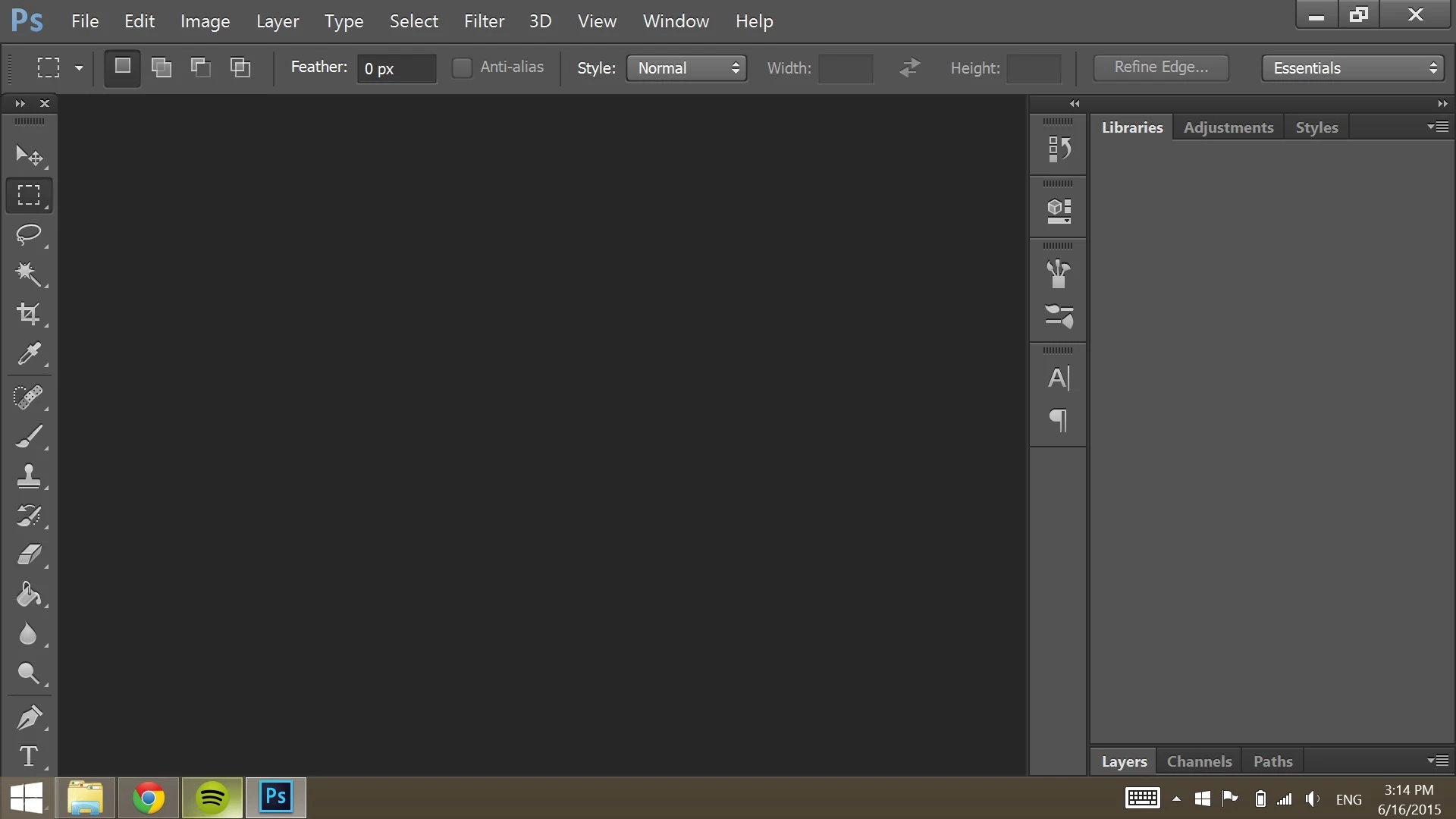
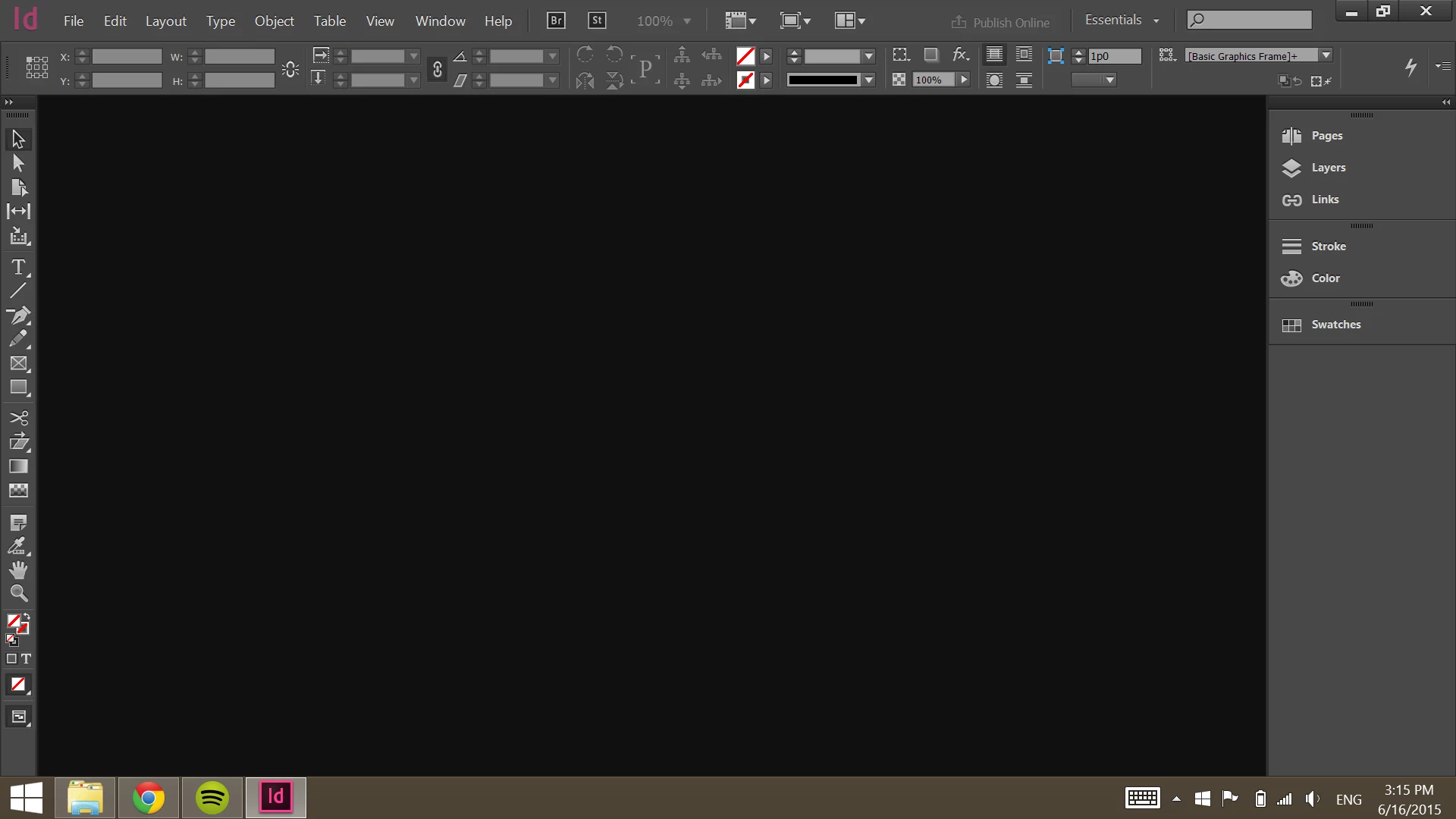
For some reason, my Photoshop work space is huge. All the buttons are way out of proportion, to the point where I cannot see the bottom of the screen. I have tried General Preferences, looking in Work Space, and just about anything I can find online. The only thing I have found that works is changing the screen resolution on my laptop, but if I do that, it screws up the other programs in CC. All the other programs are a normal size. Is there anything I can do to fix the size of Photoshop without changing my laptop's resolution?

Below are images of what it looks like. Photoshop is the top, InDesign is the bottom for comparison.
This topic has been closed for replies.
Correct answer JJMack

Auto is the problem and Adobe default setting. Adobe for some reason scales UI 200% on displays that should not be scaled.  In this case Adobe is scaling  a 1920x1080 display 2x in effect making the display a 960x540 ui display. Photoshop requirement is 1024x768 Photoshop's UI will not fit on a 960x540  display.  They need to set the Photoshop Preference UI Scale from Auto to 100%.set to set 1x..

So if you have a Surface Pro 2 or 3 Adobe knows you have a  high resolution display they should also know you do not have the reqired number of pixels to support 2xUI 3MP 2014x1536.  Surface pro 2 1920x1080 and Surface pro 3 2016x1440 do not have the required  3MP.  While the Surface pro 3 has more then 3MP its aspect ratio is 3:2 not 4:3 so it effectively a 1080x720 2X display the 720 falls short of the required 768.

CC 2015 is even worse Adobe changed ScriptUI and it does its own Dialog Scaling and does not use Photoshop Scale UI setting. Setting 100% does not help some Script dialogs will not fit on screen when scaled and will not be useable.

10 replies

JJMack
Community Expert
Community Expert
February 25, 2018

You Display is only a 1K display 1920x1080 normally these do not need to be scaled unless they are the LCD display on very small laptops. If you like you Photoshop Display when it was not scaling Photoshop. Simply set you Windows scaling to 100%.  You will most likely like the real estate gained by all other application as well.

JJMack
gabor22275943
Participant
June 21, 2018

I also use 125% scaling and I have the same problem. Ubuntu's UI on default roughly looks the same in size as Windows on 125%, so this statement is the point of view, what's normal and what's not.

The problem is that Photoshop independently decides what scaling will be good for me. Why? I can decide which one is good for me. The 100% option inside PS was a good alternative, but now it's broken. It made smaller than other applications, but at the same time, it meant more working space. Now everything is overly big and we can't change back, just with a 'main switch' the Windows scaling. So changing the operating system scaling is not the solution, because there was a reason why we increased the size.

JJMack
Community Expert
Community Expert
June 21, 2018

Adobe added Photoshop UI scaling in Photoshop CC. The feature had/has many issue which is only fixed on Windows 10 creator edition and Photoshop CC 2018 version 19.1 where Photoshop scale its UI according to how you set each of you display's Windows scaling setting.

JJMack
Inspiring
February 24, 2018

I waited for a while to do the recent Photoshop update (just been busy), and now I'm rather disappointed that I finally did it. I'm having this same issue, but no setting I've tried in Photoshop is making any difference. I've changed from Auto to 100% to 200%, to no avail. The only thing that makes a difference is when I scale Windows from 125% to 100% - then Photoshop looks about right, like it did before the update. Unfortunately, everything else is too small then. Not sure what Adobe did in this update, but a correction would be welcome. Any advice in the meantime would also be welcome!

JJMack
Community Expert
Community Expert
February 24, 2018

If You have Windows 10 the problems have been fixed.  The Photoshop preferences UI scaling setting are no longer use Photoshop's scaling is automatic.  Photoshop uses the Windows setting you have set for your Displays  the scaling percent you want windows  to scale your different displays.

JJMack
Inspiring
February 24, 2018

I believe you, but something happened in this update that messed things up. I tried to revert back to the previous version, but it didn't fix anything, so I'm not sure what is going on. All I know is, before I updated, everything looked totally normal. Now, there is some issue. Here's a good example of what I mean:

As you can see, the graphics library from creative cloud is spilling over on the left. That's just one example, but it didn't do that before the update. Another example is that the layer blending mode menu reaches all the way to the top of the screen now. It's not making it unusable, but it's not pleasant. The space feels more cluttered now. I don't understand what changed in the update that is causing this. I am using Windows 10 by the way.

Known Participant
January 29, 2018

What have Adobe done now!

The latest release was supposed to fix the UI scaling problems that have plagued Photoshop for the last 3 years.

Now, with the latest release installed yesterday, I appear to have these choices, neither of which is accptable.

If I leave the Windows 10 Display properties at 125 percent (my custom default for as long as I remember) the Photoshop workspace scales off the screen and is not usable.

If I change the Windows 10 Display settings to 100 percent, the Photoshop workspace displays correctly, but everything else on the monitor is now too small to read.

If I'm missing something here I would be grateful for direction.  I am working on an Eizo 2560x1440px monitor with latest Win10 and Adobe Photoshop CC updates.

I don't understand the post above from JJMack and how it applies - I don't see anything in either Photoshop or Windows about Windows High-Density Monitor Support.

Thanks.

Terri Stevens
Legend
January 29, 2018

As I understand it, now with the Creator Edition of Windows 10, Photoshop picks up on Windows 10s' scaling settings and should not need to be adjusted in Photoshop. However it doesn't appear to be working for you-assuming you have the very latest release of Photoshop. Now I'm not using an UHD display so this is just a suggestion, but try enabling 'align UI according to OS settings' in the preferences.

JJMack
Community Expert
Community Expert
January 29, 2018

On my machines scaling works with that box checked or not checked.  I do not know exactly what alignment its referrint to. It seem to be about UI elements like pop-up menues maybe dialog etc.

JJMack
Known Participant
June 3, 2017

I'm really confused. Just bought myself a 4k monitor and photoshop is acting up. All the other adobe apps seem to scale perfectly, yet photoshop is either too small (on 100%) and way to big on (200%). I don't understand how all the other apps seem to scale perfectly yet photoshop can't. I have set my windows scale to 150% which is recommended by windows.

jbm007
Community Expert
Community Expert
June 3, 2017

Its a issue with the PS UI.

Been like that for over two years when the first 4K monitors came out.

Been complaining for that long with no fix in site.

BTW scaling windows to 150% does not give you a one to one scale ratio.

So a 8 x 10 image does not scale to a 8 x 10 on you monitor.

My suggestion for what is worth is decide if you want to big or two small and then hold a ruler up to screen against PS ruler and scale your monitor that way.

I think you will find 133 ppi a better option

Participant
May 31, 2017

So, i have the same problem with Premiere. Any suggestions how to solve it there?

Participant
January 9, 2017

Thank you. That worked on my Surface Book!

maplewoodlindaa1907
Participant
June 11, 2016

I have the same problem. PS was working just fine a few days ago. I have done nothing to it. But when I opened it today, it is too big to fit on the screen. I went into Preferences > Interface to change the UI Scaling from Auto to 100%, but that item is grayed out. I have also tried restarting PS while holding down Ctrl-Opt-Shift, but UI Scaling is still set to Auto and is grayed out. Anyone have another fix?

maplewoodlindaa1907
Participant
June 11, 2016

I finally fixed it! I closed PS. Then restarted while holding down Cmd-Opt-Shift. Clicked "Yes" in popup window to delete all settings. Hope this helps someone else.

Participant
June 15, 2016

Thank you! This was exactly what happened to me. This fixed the problem.

Terri Stevens
Legend
August 21, 2015

You could also use the F key to toggle the three screen states. Even with a correctly proportioned Photoshop its convenient to be able to free up some of the screen. Pressing tab just hides the toolbox, and the panels

Terri

Terri Stevens
Legend
August 21, 2015

If the above fail to work try resetting the preference file. Hold down ctrl-alt-shift  and start PS. A dialog will appear allowing you to delete all customizations-returning PS back to its state at initial install.

Participant
July 4, 2015

I had the same problem.

Here's what you do to fix it.

Go into Edit, Preferences, Interface and change the 'UI scale' to 100%

Restart Photoshop and your done.

Enjoy!

jbm007
Community Expert
Community Expert
August 21, 2015

You can also try "auto" and see if that works for you as well.

JJMack
Community Expert
JJMackCommunity ExpertCorrect answer
Community Expert
August 21, 2015

Auto is the problem and Adobe default setting. Adobe for some reason scales UI 200% on displays that should not be scaled.  In this case Adobe is scaling  a 1920x1080 display 2x in effect making the display a 960x540 ui display. Photoshop requirement is 1024x768 Photoshop's UI will not fit on a 960x540  display.  They need to set the Photoshop Preference UI Scale from Auto to 100%.set to set 1x..

So if you have a Surface Pro 2 or 3 Adobe knows you have a  high resolution display they should also know you do not have the reqired number of pixels to support 2xUI 3MP 2014x1536.  Surface pro 2 1920x1080 and Surface pro 3 2016x1440 do not have the required  3MP.  While the Surface pro 3 has more then 3MP its aspect ratio is 3:2 not 4:3 so it effectively a 1080x720 2X display the 720 falls short of the required 768.

CC 2015 is even worse Adobe changed ScriptUI and it does its own Dialog Scaling and does not use Photoshop Scale UI setting. Setting 100% does not help some Script dialogs will not fit on screen when scaled and will not be useable.

JJMack
Participant
June 30, 2015

I'm having the same problem. Anyone know how to reduce the size?