


- Home
- Photoshop ecosystem
- Discussions
- Re: Photoshop CC Work space too big
- Re: Photoshop CC Work space too big

Copy link to clipboard
Copied
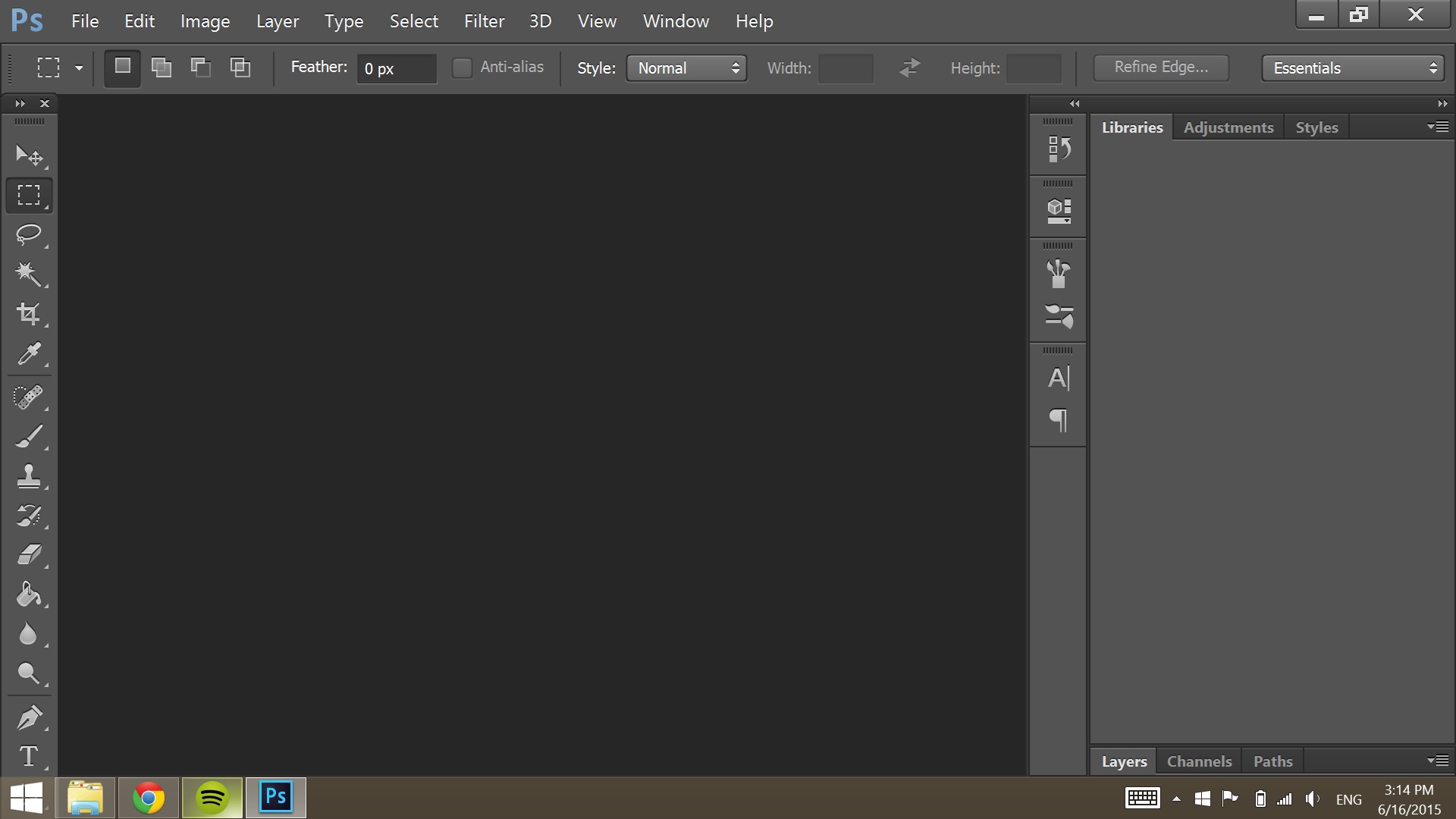
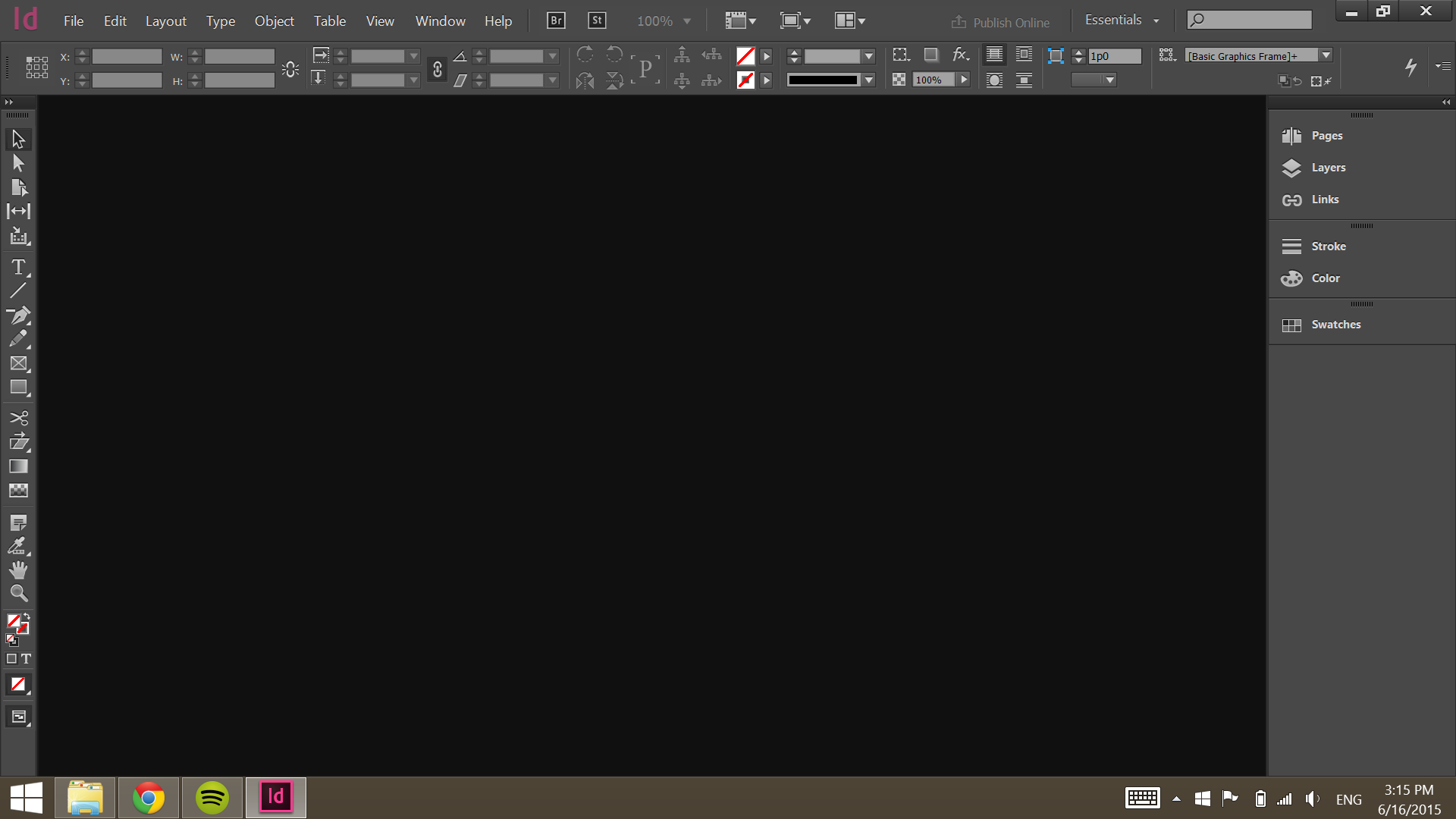
For some reason, my Photoshop work space is huge. All the buttons are way out of proportion, to the point where I cannot see the bottom of the screen. I have tried General Preferences, looking in Work Space, and just about anything I can find online. The only thing I have found that works is changing the screen resolution on my laptop, but if I do that, it screws up the other programs in CC. All the other programs are a normal size. Is there anything I can do to fix the size of Photoshop without changing my laptop's resolution?
Below are images of what it looks like. Photoshop is the top, InDesign is the bottom for comparison.


 1 Correct answer


Auto is the problem and Adobe default setting. Adobe for some reason scales UI 200% on displays that should not be scaled. In this case Adobe is scaling a 1920x1080 display 2x in effect making the display a 960x540 ui display. Photoshop requirement is 1024x768 Photoshop's UI will not fit on a 960x540 display. They need to set the Photoshop Preference UI Scale from Auto to 100%.set to set 1x..
So if you have a Surface Pro 2 or 3 Adobe knows you have a high resolution display they should also
...

Explore related tutorials & articles
 54
Replies
54
54
Replies
54


Copy link to clipboard
Copied
I'm having the same problem. Anyone know how to reduce the size?

Copy link to clipboard
Copied
I had the same problem.
Here's what you do to fix it.
Go into Edit, Preferences, Interface and change the 'UI scale' to 100%
Restart Photoshop and your done.
Enjoy!
Copy link to clipboard
Copied
You can also try "auto" and see if that works for you as well.
Copy link to clipboard
Copied
Auto is the problem and Adobe default setting. Adobe for some reason scales UI 200% on displays that should not be scaled. In this case Adobe is scaling a 1920x1080 display 2x in effect making the display a 960x540 ui display. Photoshop requirement is 1024x768 Photoshop's UI will not fit on a 960x540 display. They need to set the Photoshop Preference UI Scale from Auto to 100%.set to set 1x..
So if you have a Surface Pro 2 or 3 Adobe knows you have a high resolution display they should also know you do not have the reqired number of pixels to support 2xUI 3MP 2014x1536. Surface pro 2 1920x1080 and Surface pro 3 2016x1440 do not have the required 3MP. While the Surface pro 3 has more then 3MP its aspect ratio is 3:2 not 4:3 so it effectively a 1080x720 2X display the 720 falls short of the required 768.
CC 2015 is even worse Adobe changed ScriptUI and it does its own Dialog Scaling and does not use Photoshop Scale UI setting. Setting 100% does not help some Script dialogs will not fit on screen when scaled and will not be useable.
Copy link to clipboard
Copied
Been complaining about this for over a year.
People with 4K and 5K monitors are pulling there hair out and getting high powered reading glasses.

Copy link to clipboard
Copied
Thank you for posting.
Changed Auto to 100% and much happiness poured.
Thanks again.

Copy link to clipboard
Copied
Brilliant! Such a simple solution to an annoying problem, for me at least. One note... if you do change to 100% you may not notice the change immediately when you reopen PS, however just resize the panel (with the cursor having the left/right arrows on the column border) and it should reduce in size no problem.

Copy link to clipboard
Copied
Awesome this is exactly what I needed to fix the problem with my Surface Pro 3

Copy link to clipboard
Copied
That worked a treat, thank you
Copy link to clipboard
Copied
Thank you SO MUCH

Copy link to clipboard
Copied
THANK YOU! It was driving me crazy.

Copy link to clipboard
Copied
Thank you! I got a brand new PC and I couldn't figure out what was going on. This helped out perfectly!

Copy link to clipboard
Copied
Thank You!!!!!
I asked the question simply, yet had to leaf through 3 pages to find this.
God Bless.
I would like to know how it changed on mine. I have been updating & using it for ~6 years, never had this annoyance before.

Copy link to clipboard
Copied
This fixed it for me!

Copy link to clipboard
Copied
Thank you. Perfect solution.

Copy link to clipboard
Copied
thank you so much for this, but the dailbox is still big aswell when I open a new document. is there anything i can do to change this EX: 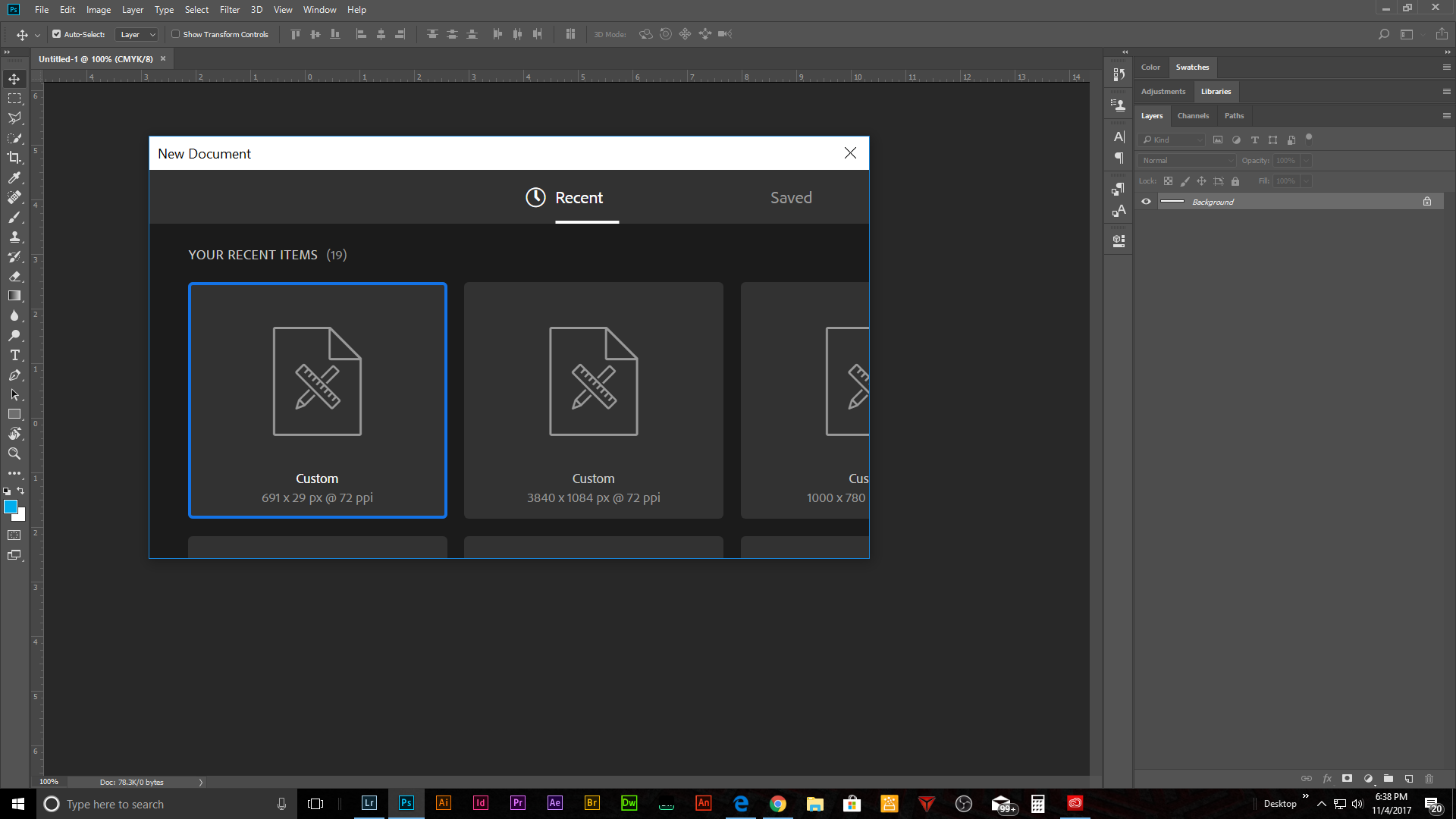

Copy link to clipboard
Copied
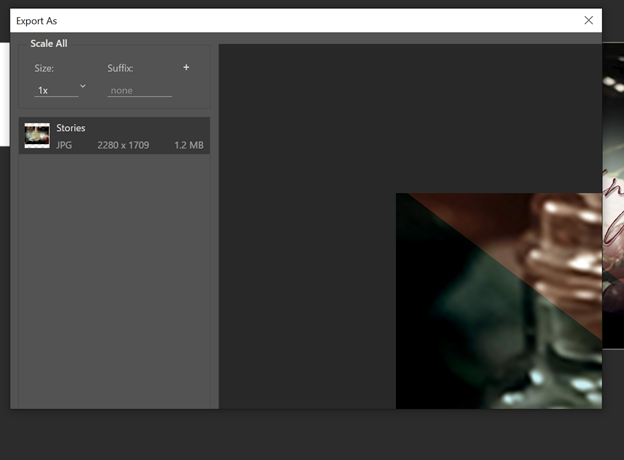
I am having the exact same issue with the dialogue boxes! I've used the 100% trick for some time now - but suddenly the "Create new Document" dialogue and the "Export As" dialogue are all screwed up...."export as" is barely usable...blank at first and then if I try to expand it...goes crazy glitchy. Please help!!


Copy link to clipboard
Copied
^^me too, what the heck adobe. this is preposterous. I can do everything i need to do on photoshop 9.1 from like 1997 how in the heck is it 2017 and you cant even get your app to work on a brand new computer i bought like 3 hours ago. Literally unheard of. Class action inccoming. What am i paying for? An app that doesnt work? Fix your program

Copy link to clipboard
Copied
Got same problem. Dialog box still have 200% zoom. Looks like Adobe decided to make us all UI tester for their beta release.
@adobe
I appreciate you trying new things trying to improve things but please keep your testing to yourself and if you decide to roll out buggy release give us an option to say "NO!" I like the old one better stop changing my UI!!!
Copy link to clipboard
Copied
Did you ever get a fix? Dealing with this right now in PS & Illustrator. So annoying.
Copy link to clipboard
Copied
With the latest CC 2018 update amd latest Windows you show not have a problem set you window scallinf for each display you use. I do not use Illustrator I do not know about it. Or Photoshop scaling on a Mac.
Windows High-Density Monitor Support
With this release, Photoshop on Windows 10 Creator’s Edition now offers a full range of choices for UI scale factors from 100% through 400%, in 25% increments.

Copy link to clipboard
Copied
Works Perfectly now! Thank god

Copy link to clipboard
Copied
This fixed worked perfectly for my surface book 2, with dual monitor display. Display properties: resolution 1920 x 1200 and scaling 100%. Thank you!

Copy link to clipboard
Copied
Thank you! This worked perfectly. It was on Auto and I switched it to 100% and it is normal again.


Get ready! An upgraded Adobe Community experience is coming in January.
Learn more
 AdChoices