Exit
  • Global community
    • Language:
      • Deutsch
      • English
      • Español
      • Français
      • Português
  • 日本語コミュニティ
  • 한국 커뮤니티
0

Photoshop Classroom in a Book (2018 Release) Question on Lesson 8 Vector Drawing Techniques

Participant ,
Apr 14, 2019 Apr 14, 2019

I am on page 201 of lesson 8
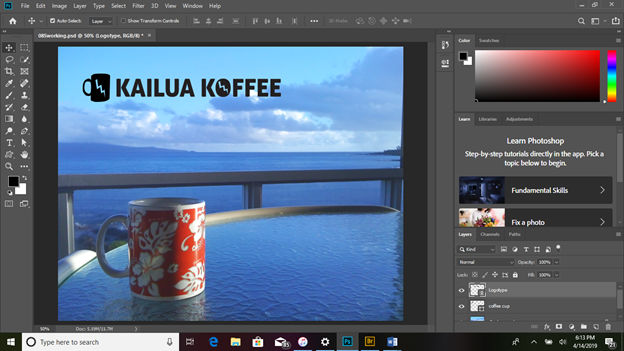
In step 3 it states to “….press Shift and drag a corner to make the text object proportionally larger…..” When I press shift, the hand tool appears and the area selected doesn’t move or change its proportion.  I have reset all tools without correcting the problem.

Thank you for taking the time out of your busy schedule to help me with this challenge.

KTM

[Here is the list of all Adobe forums... https://forums.adobe.com/welcome]

[Comments is to ask about the operation of the Forum, not a specific program]

[Moved from the Comments forum to the specific Program forum... Mod]

1.1K
Translate
Report
Community guidelines
Be kind and respectful, give credit to the original source of content, and search for duplicates before posting. Learn more
community guidelines

correct answers 1 Correct answer

Community Expert , Apr 14, 2019 Apr 14, 2019

Hi Kevin,

You are using the 2018 CiB. Are you using 2018 or 2019 of Photoshop itself?

  • The “text object” is a Smart Object that is an eps file. When you first place it, it looks like this with handles.
  • After you deselect it (as in your screen shot), the handles are gone. To select it after you deselected it, use Cmd + T (CtrL+T on Windows.} Or go to Edit > Free Transform.

  • If you are getting the Hand tool, you may be pressing the spacebar Instead of Shift. Look at your fingers and the keyboard to conf
...
Translate
Adobe
Community Expert ,
Apr 14, 2019 Apr 14, 2019

Hi Kevin,

You are using the 2018 CiB. Are you using 2018 or 2019 of Photoshop itself?

  • The “text object” is a Smart Object that is an eps file. When you first place it, it looks like this with handles.
  • After you deselect it (as in your screen shot), the handles are gone. To select it after you deselected it, use Cmd + T (CtrL+T on Windows.} Or go to Edit > Free Transform.

  • If you are getting the Hand tool, you may be pressing the spacebar Instead of Shift. Look at your fingers and the keyboard to confirm.

  • If you are using Photoshop 2019, the transform behavior has changed. It will be proportional by default, and Shift is used to distort.

Jane

Translate
Report
Community guidelines
Be kind and respectful, give credit to the original source of content, and search for duplicates before posting. Learn more
community guidelines
Participant ,
Apr 14, 2019 Apr 14, 2019

The actual program is dated 2019. It automatically updated.

Translate
Report
Community guidelines
Be kind and respectful, give credit to the original source of content, and search for duplicates before posting. Learn more
community guidelines
Community Expert ,
Apr 14, 2019 Apr 14, 2019

If you're using the 2019 release of Photoshop CC, and you're using the steps from the 2018 release of the book, the last bullet in jane-e's answer is correct.

I have both the 2018 and 2019 editions of the book in front of me. I can confirm that we removed the Shift key instruction from step 3 in the edition for the 2019 release, because Adobe changed how resizing works. In the 2019 release, just drag a corner handle of that Smart Object without holding down any keys, and it will resize proportionally.

Translate
Report
Community guidelines
Be kind and respectful, give credit to the original source of content, and search for duplicates before posting. Learn more
community guidelines
Participant ,
Apr 14, 2019 Apr 14, 2019
LATEST

Okay. Thanks

Translate
Report
Community guidelines
Be kind and respectful, give credit to the original source of content, and search for duplicates before posting. Learn more
community guidelines
Participant ,
Apr 14, 2019 Apr 14, 2019

My mistake 2019

On Sun, Apr 14, 2019, 10:49 PM Bojan Živković <forums_noreply@adobe.com>

Translate
Report
Community guidelines
Be kind and respectful, give credit to the original source of content, and search for duplicates before posting. Learn more
community guidelines
