


Known Participant
September 24, 2012
Answered

Photoshop CS6 Vector Line Tool UI Issues

  • September 24, 2012
  • 1 reply
  • 28101 views

I'm running 13.0.1 right now and am stymied by the line tool UX. The problem stems from the fact that although you feel you are drawing a line, you are actually drawing a box.

Follow these steps running 13.0.1 x64:

  1. Create a new doc
  2. Select the Vector Line tool
  3. Type in a Stroke width (eg: 20px)
  4. Draw your line
  5. Notice that the line is still 1px weight.

Of course, after much fiddling around you realize that you need to set the FILL to your stroke colour, your Stroke to NONE and then specify the WEIGHT over in the far right of the control bar.

This really isn't the right UX for drawing lines, particularly if you're coming from any other vector drawing environment.
This topic has been closed for replies.
Correct answer conroy

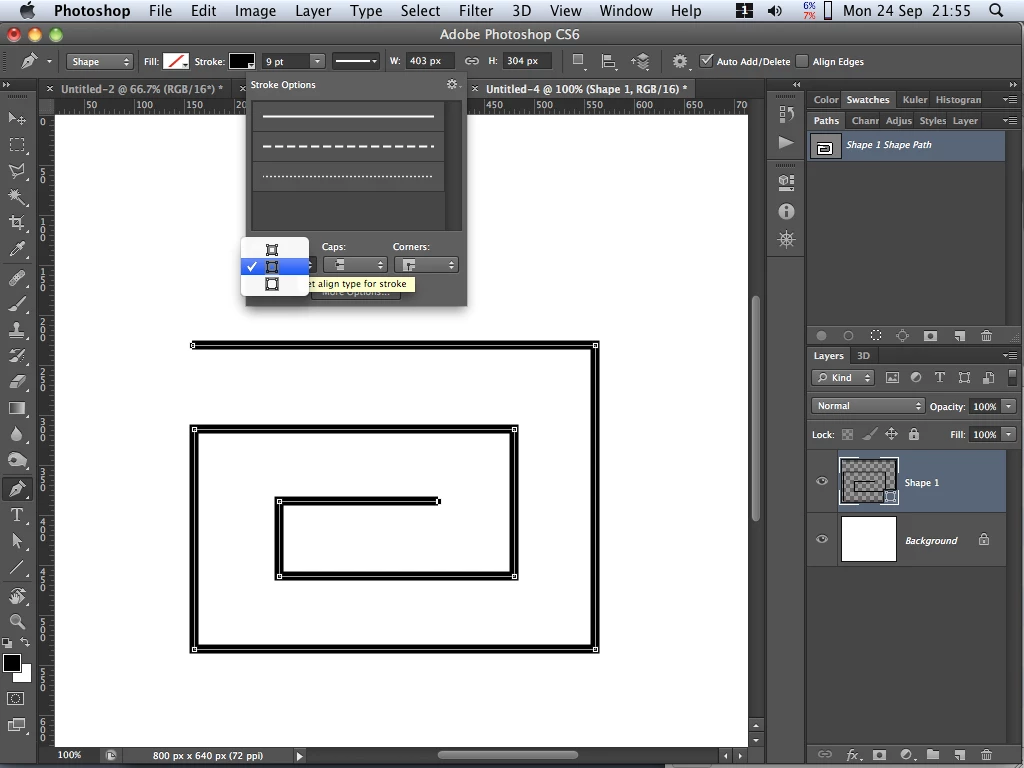
Pen Tool will draw lines with adjustable stroke. Set tool to Shape mode, set Fill to none, set Stroke alignment to centred in the dropdown shown. Click points without dragging, otherwise a curve will be created. Hold down Shift to constrain to horizontal/vertical. Press Esc or Enter, or select another tool to end a line. The stroke properties will remain editable as long as the Shape layer isn't rasterized.

1 reply

conroy
conroyCorrect answer
Participating Frequently
September 24, 2012

Pen Tool will draw lines with adjustable stroke. Set tool to Shape mode, set Fill to none, set Stroke alignment to centred in the dropdown shown. Click points without dragging, otherwise a curve will be created. Hold down Shift to constrain to horizontal/vertical. Press Esc or Enter, or select another tool to end a line. The stroke properties will remain editable as long as the Shape layer isn't rasterized.

Known Participant
September 24, 2012

Outstanding workaround. It still remains to be said that the implementation of the line tool is deceiving at best, probably incorrect. The line tool should create a two-anchor Path segment, exactly as the Pen tool does, now that vector elements can be stroked. This would avoid all confusion, and would behave exactly as you describe for the Pen tool workaround.

Thanks for answering!

JJMack
Community Expert
September 25, 2012

The line tool like the Pen tool can create pixels, Paths and Shapes.  I would create one like Conroys with the Pen tool for its easier to do one like that with the pen tool for segments are connected automaticly. Where each use of the line tool you must click on both line points. Shapes can easly be combined into a single shape layer. So a shape like Conroy's can be created with the line tool.  I'm on Windows so the will be some difference between my screen captures the his.

Switching to the path selection tool you will find each line is an independant path they just happen to have some common end point.

Lines were used not 20 pixel wide boxes since the lines drawn does not close  the are ends and the shape is open not a closed figure you can not stroke on the inside. You can stroke center aligned and outside both side of the line is on the outside.  Here I stroked 20 pixel red center aligned. so the stroke is 20 px wide. Had I aligned it inside there would be no red stroke if I had aligned it outside the strole would be 40 px wide.

JJMack