Participating Frequently
January 21, 2020
Question

Photoshop export/save as PNG causing colours to washout/appear more dull.

  • January 21, 2020
  • 7 replies
  • 20335 views

For some reason, when I try to export or save this as a PNG, the colours get dull. I even tried the sRGB, and the results are the same. Colour mode is RGB.


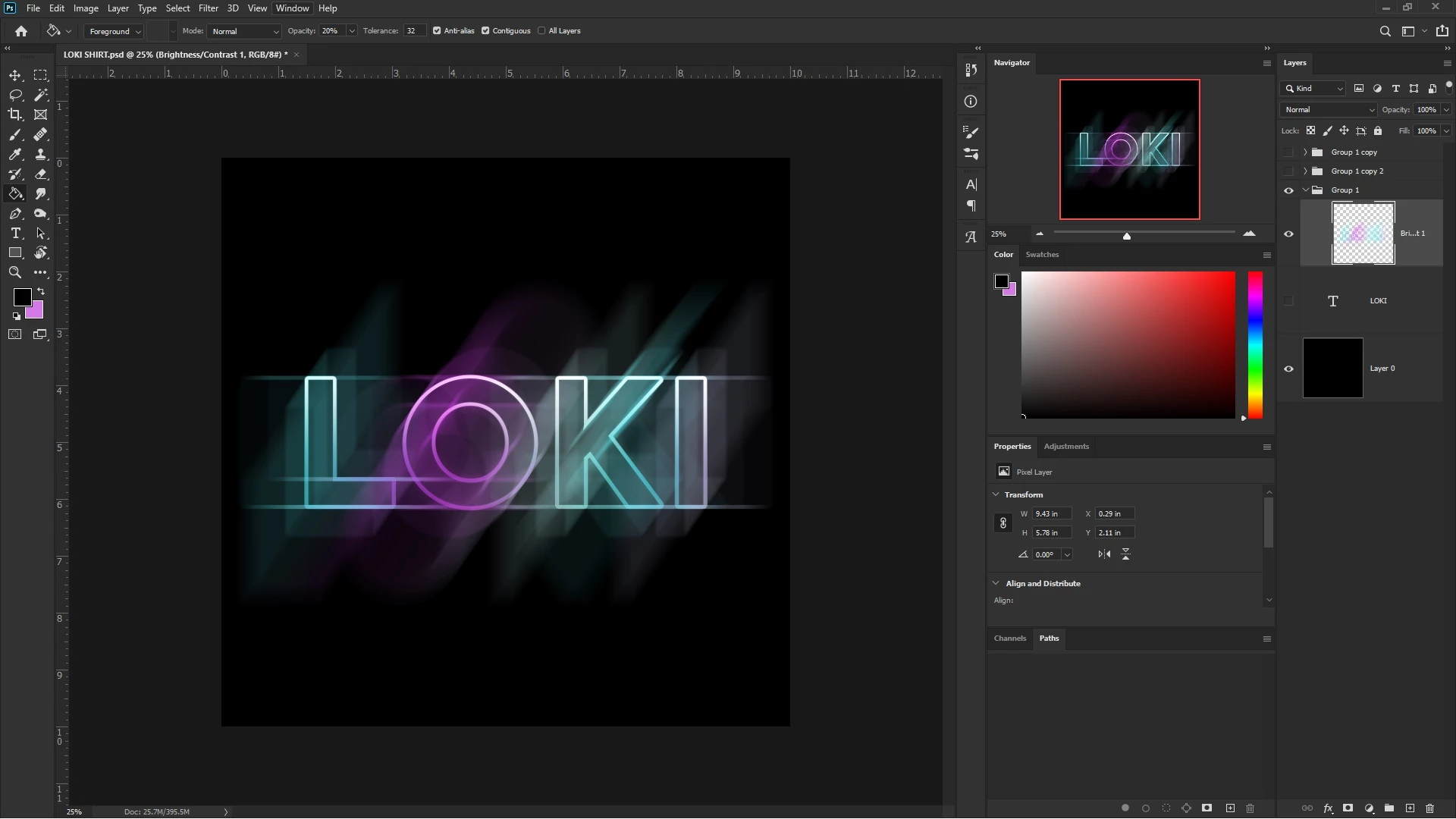
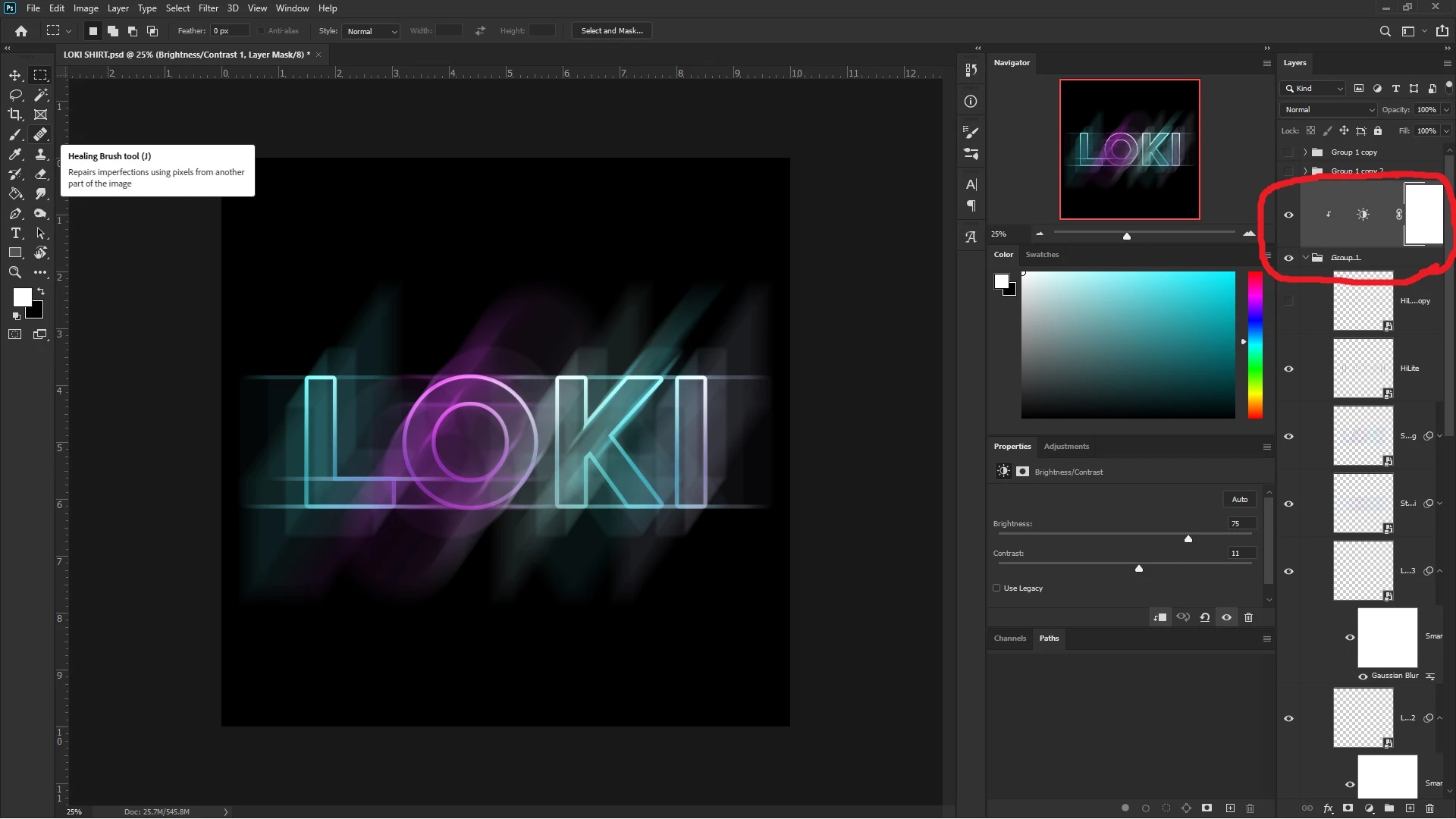
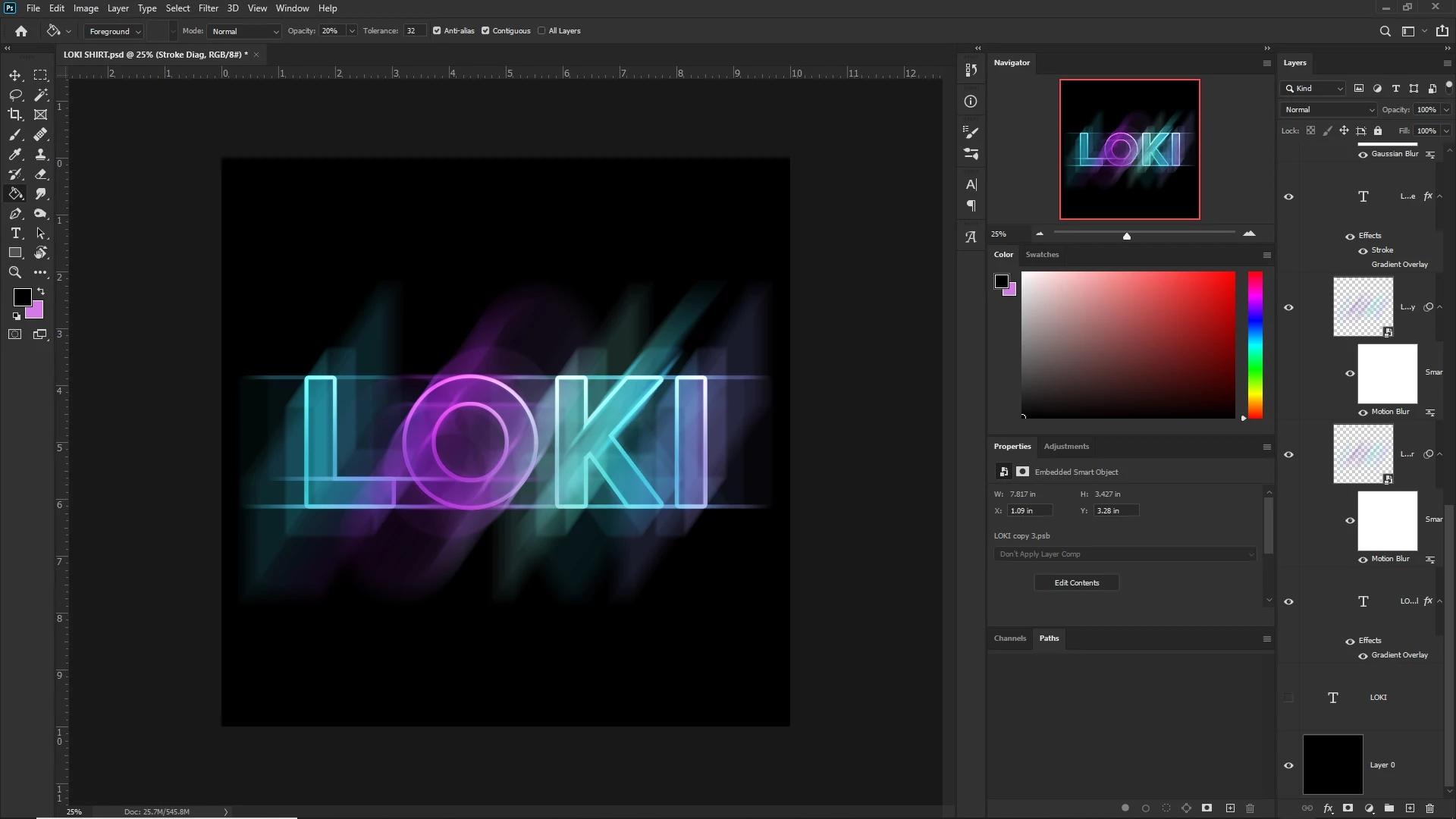
The first image is how I want it to look. The 2nd is how it turns out upon export. I was able to recreate that by merging all the layers. The 3rd is me assigning the adjustment layer to the group using the alt-key method, but it still fades the colours. This problem occurs in both PS2019 & PS2020.


What am I missing here? How do I fix it?


Thanks.
 

This topic has been closed for replies.

7 replies

Participant
October 11, 2024

So i was having the same issue, i was trying to export as a png and it dulled the colors so much!! I did a quick export as png and it worked showing the true colors. Not really a fix but i guess an alternative soloution. 

D Fosse
Community Expert
Community Expert
October 11, 2024

@victor25825442846f 

Did you convert to sRGB and make sure the profile is embedded? You need to check both.

Participating Frequently
January 23, 2020

I tried something else just now.


I turned off the adjustment layer, exported the file as PNG, reimported, added a black background behind the new PNG I just created. It has the same colours as the main PSD. No dullness. When I turned the adjustment layer back on, and did another export, and reimported it, the issue returned.

Now, how do I utilize the adjustment layer in a manner that it doesn't go about doing its own thing during the final save/export?

Participating Frequently
January 23, 2020

@NB__colourmanagement 


I have tested flattening with the black background, and during flattening, it works just fine. However, I'm trying to save/export it as transparent background, so flattening is out of the question because flattening without the black background just gives it a white background.

NB, colourmanagement
Community Expert
Community Expert
January 22, 2020

Hi,

you've had some very helpful suggestioins here,

but just to separate colour profile / file format change and flattening issues why not test by simply flattening first, retaining the same file format. 

When you flatten during save and that’s also to another file format there are too many variables at play to know where the issue arises.


I hope this helps

if so, please "like" my reply

thanks

neil barstow, colourmanagement.net

[please do not use the reply button on a message in the thread, only use the one at the top of the page, to maintain chronological order]

Participating Frequently
January 22, 2020

Bump.

NB, colourmanagement
Community Expert
Community Expert
January 22, 2020

Hi

What's it mean "bump"?

Participating Frequently
January 23, 2020

"Bump" just means that I'm dropping a comment to bump this post back to the top of the forum. We use it if we need something to get attention or need to have a comment made on it.

D Fosse
Community Expert
Community Expert
January 21, 2020

"Screenshots 2 and 3 are what the end result look like outside of PS when I export/save as PNG."


OK, we need to get this out of the way first, because you don't understand: When you Export, it's a new file. It's not the same file anymore. It may have a different color profile, but most likely it doesn't have a profile at all, because Export strips the profile by default.


So already here we have a lot of variables. This isn't trivial. This is important! Don't brush it off. Here's how you check the profile:


Anyway. If you have confirmed that all three are indeed sRGB, and all have that sRGB profile embedded, then we can move on.


The next possibility is that there are overlying layers, or clipped layers, that modify it. Because of the forum software I can't see the details of your Layer panel.


If all this checks out, it could be the new layer compositing engine, which uses the GPU and is vulnerable to driver bugs. This has caused problems for a lot of people. To get around that, go into Photoshop Preferences and check "Legacy Compositing", so that Photoshop uses the old CPU-based layer compositing. Save out a new copy and see if there's still a difference.


There is yet another gotcha that could cause something like this. If you view at any other zoom ratio than 100%, you may get inaccurate adjustment previews. I see you're at 25% here. This happens with noisy or "binary" images (line art, halftone screen, anything with very sharp and crisp pixel-level transitions). It has to do with the way adjustment previews are calculated to keep up performance. I can't see if that applies here, it's not an issue with continuous-tone images.


But to rule that out, go to 100% and check again.

Participating Frequently
January 22, 2020

Both the PSD & PNG are sRGB profiles.


Tried the 100% zoom as well as the Legacy Compositing. No improvements.


I've attached a close up of all the layers on the main PSD. Hopefully they show at your end.


As an extra, the last screenshot is the PNG on a black background after being reimported into Photoshop.

Participant
May 7, 2021

I am having the same problem when I save as a png.
it is fine if I save it as a jpg or tiff, but it washes as a png. 
I need the transparent file, so I guess I will go with transparent tiff


Chuck Uebele
Community Expert
Community Expert
January 21, 2020

What is the color profile of your original? Exporting changes the profile to sRGB rather than Adobe RGB 1998 or some other higher gammut profile.

Participating Frequently
January 21, 2020

I doubt the colour profile is the issue. All 3 screenshots are from within the software. I was able to recreate the issue within PS. The problem seems to stem from the adjustment layer when all layers are merged (which also happens when an image is saved/exported), and moving it out of the group and reassigning to the group folder from the outside won't help either as shown in screenshot #3.


I have tried "Save as" and "Export". Either way, the result is the same.

But for what it's worth, here's the colour profile.

D Fosse
Community Expert
Community Expert
January 21, 2020

"I doubt the colour profile is the issue. All 3 screenshots are from within the software."


Every file has its own color profile, independent from each other. The embedded profile will always override your working space. So yes, you can have three files open and each is color managed differently.


If you don't make sure to embed the profile, you're throwing another wrench into the machine. In that case the result is completely unpredictable. The profile must always be embedded.


For some mysterious reason, Export does not embed the profile at default settings. You need to check the box to embed the profile, and to make matters worse, it doesn't stick. You have to do it every time.


So, once again: What are the color profiles of your three examples? Don't make any assumptions. Check.