Exit
  • Global community
    • Language:
      • Deutsch
      • English
      • Español
      • Français
      • Português
  • 日本語コミュニティ
  • 한국 커뮤니티
1

Photoshop is extremely laggy on high-end system

Participant ,
May 27, 2024 May 27, 2024

Trust me when I say I've tried EVERYTHING.


This includes:

  • clean installing Windows 11
  • installing the latest studio drivers
  • installing older/factory drivers
  • using Creative Cloud Removal Tool and reinstalling Photoshop
  • increasing the Performance settings to max (RAM usage, cache levels etc)
  • laptop's cooling is perfect - vapor chamber heatsink, new thermal paste, doesn't get hot or throttle
  • Windows performance mode
  • turning off hardware acceleration (not a real fix)


For reference: Intel i9-13900H, 64GB RAM, 1TB SSD (7000mb/s, brand new), Nvidia 3500 Ada 12GB 


All of these only for Photoshop to run like a turtle. This is system wide - brush is laggy (it's not the smoothing setting), selections are laggy, creating shapes is laggy, scrolling/zooming is laggy etc.


I have a PC with almost the same specs and same settings, and Photoshop runs fine. No issues there.
TOPICS
Windows
22.7K
Translate
Report
Community guidelines
Be kind and respectful, give credit to the original source of content, and search for duplicates before posting. Learn more
community guidelines

correct answers 1 Correct answer

Community Beginner , Sep 18, 2024 Sep 18, 2024

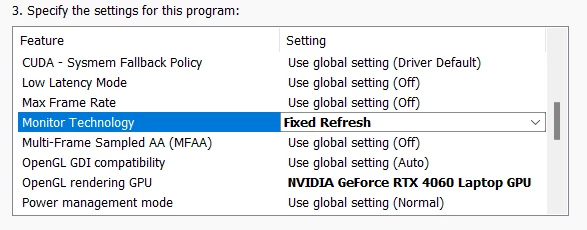
Hey, I don't know you found the answer yet, but i have the same issue and just fixed the problem. what i did is just change the monitor technology from g-sync to fixed refresh. hope this helpimageffdf.png

Translate
Adobe
Community Beginner ,
Sep 18, 2024 Sep 18, 2024

Hey, I don't know you found the answer yet, but i have the same issue and just fixed the problem. what i did is just change the monitor technology from g-sync to fixed refresh. hope this helpimageffdf.png

Translate
Report
Community guidelines
Be kind and respectful, give credit to the original source of content, and search for duplicates before posting. Learn more
community guidelines
Community Beginner ,
Oct 20, 2024 Oct 20, 2024

where is this setting?


Translate
Report
Community guidelines
Be kind and respectful, give credit to the original source of content, and search for duplicates before posting. Learn more
community guidelines
Community Beginner ,
Oct 20, 2024 Oct 20, 2024

NVIDIA Control Panel

Screenshot 2024-10-21 095719.png 

Translate
Report
Community guidelines
Be kind and respectful, give credit to the original source of content, and search for duplicates before posting. Learn more
community guidelines
Community Beginner ,
Oct 20, 2024 Oct 20, 2024

didtn't work.. I'm about to pull my hair out..

Translate
Report
Community guidelines
Be kind and respectful, give credit to the original source of content, and search for duplicates before posting. Learn more
community guidelines
New Here ,
Dec 26, 2024 Dec 26, 2024

This was the issue for me. I'm using a desktop with an RTX 3080ti, and an Alienware AW3423DW monitor that is G-Sync enabled. When I changed this setting alone, I kept seeing my monitor pop up showing I'm using Display Port input. Apparently this is an issue with this monitor when G-Sync is turned off. This makes newer versions of Photoshop basically unusable for me which sucks. If anyone stumbles across this with the same monitor and finds a solution, please let me know. 🙂 

Translate
Report
Community guidelines
Be kind and respectful, give credit to the original source of content, and search for duplicates before posting. Learn more
community guidelines
New Here ,
Apr 21, 2025 Apr 21, 2025

You are my GENIUS !! It's working on my setup, that was my G-SYNC monitor

Translate
Report
Community guidelines
Be kind and respectful, give credit to the original source of content, and search for duplicates before posting. Learn more
community guidelines
Community Beginner ,
Sep 18, 2024 Sep 18, 2024

I'm in them same boat but with a desktop:
Ryzen 9 7950X

192GB of memory

4090 GPU, 10gbit Ethernet


Absolutely nothing else lags on this machine.  Nothing.  But photoshop is slower than molasses in January.  It wasn't like that until relatively recently.

Translate
Report
Community guidelines
Be kind and respectful, give credit to the original source of content, and search for duplicates before posting. Learn more
community guidelines
Community Expert ,
Sep 24, 2024 Sep 24, 2024

@Joeminator 

Perhaps try a thorough reset of Photoshop preferences?

(read this entire post before acting please)

Resetting restores Photoshop's internal preferences, which are saved when Photoshop closes.

If they become corrupt then various issues can occur.


Here’s some info on how to do that:

https://helpx.adobe.com/photoshop/using/preferences.html

Manually removing preferences files is the most complete method for restoring Photoshop to its default state: 

https://helpx.adobe.com/photoshop/using/preferences.html#Manually


Manually removing preferences files is the most complete method for restoring Photoshop to its default state. This method ensures all preferences and any user presets which may be causing a problem are not loaded.

  1. Quit Photoshop.

  2. Navigate to Photoshop's Preferences folder.
    macOS: Users/[user name]/Library/Preferences/Adobe Photoshop [version] Settings
    Windows: Users/[user name]/AppData/Roaming/Adobe/Adobe Photoshop [version]/Adobe Photoshop [version] Settings

     
    Note: The user Library folder is hidden by default on macOS. To access files in the hidden user Library folder, see How to access hidden user library files.
  3. Drag the entire Adobe Photoshop [Version] Settings folder to the desktop or somewhere safe for a back-up of your settings

  4. Open Photoshop.

     New preferences files will be created in their original location.


Note re macOS: The user Library folder is hidden by default.

To access files in the hidden user Library folder, see here for how to access hidden user library files.

https://helpx.adobe.com/x-productkb/global/access-hidden-user-library-files.html


Unexpected behaviour may indicate damaged preferences. Restoring preferences to their default settings is a good idea when trying to troubleshoot unexpected behaviours in Photoshop. check out the video

https://helpx.adobe.com/photoshop/using/preferences.html#reset_preferences


Learn how to access and modify Photoshop preferences and customise per your frequent workflows

https://helpx.adobe.com/photoshop/using/preferences.html


And here’s an earlier forum discussion as an aid to understanding

https://community.adobe.com/t5/photoshop-ecosystem-discussions/quick-tips-how-to-reset-photoshop-pre...


You may want to backup your settings and custom presets, brushes & actions before restoring Photoshop's preferences.

Here is general info about that:  https://helpx.adobe.com/photoshop/using/preferences.html#BackupPhotoshoppreferences


Before you reset your preferences

in case of future issues, I suggest you make a copy as Adobe may need one to check problematic references. 

Quit Photoshop.
Go to Photoshop's Preferences folder

Preferences file locations: https://helpx.adobe.com/photoshop/kb/preference-file-names-locations-photoshop.html\


  [on MacOS see: Users/[user name]/Library/Preferences/Adobe Photoshop [version] Settings

  Note for those on macOS: - be aware that the user Library folder is hidden by default on macOS.

  https://helpx.adobe.com/x-productkb/global/access-hidden-user-library-files.html

  In the Finder, open the “Go” menu whilst holding down the Option (Alt) key.

  Library will now appear in the list - below the current user's “home” directory. ]


Now you can drag the entire Adobe Photoshop [Version] Settings folder to the desktop or somewhere safe as a back-up of your settings.


Note for those on macOS:

Preference preservation is affected by macOS permissions,

you’ll need to allow Photoshop ‘Full Disk Access’ in your Mac OS Preferences/Security and Privacy


If that doesn't fix the issue:

Go to Preferences > Performance... and uncheck Multithreaded Compositing - and restart Photoshop.

Still hanging? 

Go to Preferences > Performance... click Advanced Settings... and uncheck "GPU Compositing" - then restart Photoshop. 

Do you still have problems?


It may even be time to reinstall Photoshop.


It’s recommended that you use the Adobe CC cleaner tool to remove all traces first.

(See above about preserving preferences though! It’s worth preserving them unless they are corrupted.)


https://helpx.adobe.com/creative-cloud/kb/cc-cleaner-tool-installation-problems.html

Uninstall Photoshop BUT make sure to choose the option “Yes, remove app preference”.


Once that process finishes, start the installation process and look into the “Advanced Options”. Uncheck “Import previous settings and preferences” and choose to “Remove old versions”.


I hope this helps

neil barstow, colourmanagement net  - adobe forum volunteer - co-author: 'getting colour right'

google me "neil barstow colourmanagement" for lots of free articles on colour management

Help others by clicking "Correct Answer" if the question is answered.

Found the answer elsewhere? Share it here. "Upvote" is for useful posts.

Translate
Report
Community guidelines
Be kind and respectful, give credit to the original source of content, and search for duplicates before posting. Learn more
community guidelines
Community Beginner ,
Oct 01, 2024 Oct 01, 2024

Listen to this guy and thank him later ❤️ 

Screenshot 2024-10-01 at 10.24.37.png

Translate
Report
Community guidelines
Be kind and respectful, give credit to the original source of content, and search for duplicates before posting. Learn more
community guidelines
New Here ,
Nov 04, 2024 Nov 04, 2024

can you explain more about this please? how to create an empty workbench?

I have the same problem and it's really frustrating.

Translate
Report
Community guidelines
Be kind and respectful, give credit to the original source of content, and search for duplicates before posting. Learn more
community guidelines
Explorer ,
Nov 04, 2024 Nov 04, 2024

It's not the hardware; it's photoshop itself.

I reverted to 2019 and this version is 2x faster in auto subject selection, applying camera raw filter, and more.

RTX 3060Ti, i9-10900, 24GB RAM

Translate
Report
Community guidelines
Be kind and respectful, give credit to the original source of content, and search for duplicates before posting. Learn more
community guidelines
People's Champ ,
Feb 01, 2025 Feb 01, 2025

Please provide a screenshot of the performace tab in your preference file.

Translate
Report
Community guidelines
Be kind and respectful, give credit to the original source of content, and search for duplicates before posting. Learn more
community guidelines
New Here ,
Feb 15, 2025 Feb 15, 2025

I don't know if you are still struggling with this issue on my windows laptop, but I've been dealing with the same issue for a couple of years, and toda I finally figured it out, at least for my machine. I had Parsec installed which had a virtual display driver. As soon as I uninsntalled it, photoshop got butter smooth again. It seems photoshop isn't great at dealing with multiple GPUs, even if they are virtual drivers, it just goes wacky. 

So check if you have any remoted desktop app or similiar, that might have some virtual display drivers. 

Translate
Report
Community guidelines
Be kind and respectful, give credit to the original source of content, and search for duplicates before posting. Learn more
community guidelines
Community Beginner ,
Oct 24, 2025 Oct 24, 2025
LATEST

ENORMOUS UPVOTE.
I have been struggling with this problem for 1 year now on my RTX 4090 laptop and each time I contacted Adobe support all they could do was suggest using an older version of Photoshop. This here was the solution!

Translate
Report
Community guidelines
Be kind and respectful, give credit to the original source of content, and search for duplicates before posting. Learn more
community guidelines