



kathydannelvitcak
Inspiring
April 26, 2023
Answered

Photoshop Settings Gaslighting Me Again

  • April 26, 2023
  • 3 replies
  • 1305 views

Once again, I am humbling asking for your help. In return, you will have my never-ending gratitude and you just might get a baby goat named after you! Here we go...Mac Studio & Display, M1 Max Chip, Ventura 13.3.1 and Photoshop 24.1.1. 804.28 GB. Been using Photoshop since 1996 continuously...and still learn something new every day!

It seems every time I update OR reboot my system I have to update at least some PS preferences and fonts. One issue I have not been able to get the right combo of settings for is this one...

#1PITA This Week Cursor no longer automatically recognizes the layer when I click it to resize, etc. I have to click the layer and go to Edit>Transform. I use a Kensington trackball and have for decades. View>Show> Layer Edges does not work. It shows the layer, but doesn’t allow you to grab it and resize etc.

What I would love to know is the combo of settings required to...

• Have layers always show

• Be able to click on layer and transform/move it as needed by dragging proper edges/sides 


Attached is an image to give a rough idea of my humble request. I have figured it out, got everything set perfectly, screen grabbed it to be I could recreate it and then it doesn't work. 


Thank you!!!

Kathy
This topic has been closed for replies.
Correct answer gener7

Good morning, Kathy. I'm glad I was able to help.

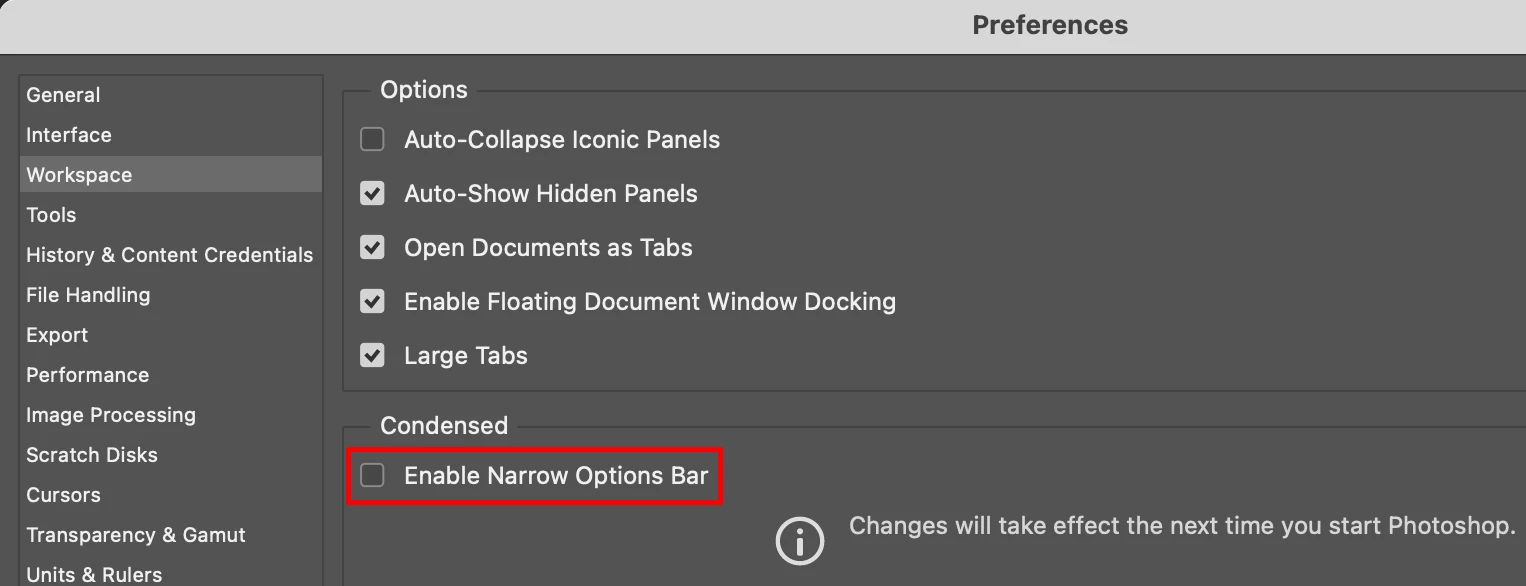
The reason you do not see checkboxes is because you or someone else enabled the "Narrow Options Bar" which removes the checkboxes and replaces them with buttons. Sometimes these buttons do not make clear what they do, so I prefer the regular Options Bar.  Here's how to get it:  Cmd-k shortcut for Preferences, then select Workspace in the left pane.

Uncheck "Enable Narrow Options Bar" and then restart Photoshop. You should see it now.


3 replies

gener7
Community Expert
Community Expert
April 27, 2023

If you want to customize the Toolbar, choose Edit > Edit Toolbar instead. There you can organize your tools by whatever you use the most and save it as a preset so you can come back to it. I prefer the Polygonal Lasso tool for example and it will show up first. This is the Edit Toolbar dialog where you can organize and remove less needed tools when you have time to look into it.  Gene--


gener7
Community Expert
gener7Community ExpertCorrect answer
Community Expert
April 27, 2023

Good morning, Kathy. I'm glad I was able to help.

The reason you do not see checkboxes is because you or someone else enabled the "Narrow Options Bar" which removes the checkboxes and replaces them with buttons. Sometimes these buttons do not make clear what they do, so I prefer the regular Options Bar.  Here's how to get it:  Cmd-k shortcut for Preferences, then select Workspace in the left pane.

Uncheck "Enable Narrow Options Bar" and then restart Photoshop. You should see it now.


gener7
Community Expert
Community Expert
April 27, 2023

Hi Kathy, I helped out with your Finder icon size issue, so let's see if I can help you with this.


If this happened  after a software upgrade, sometimes Restarting your Mac may help. I know that's obvious, but easy to miss.


Do you have the Move Tool Options set like this? I like Auto-Select. If I click on the ear it gets me to the correct Layer.

Unless I'm mistaken you are on the layer with the cat photo in the lower right.


You can also Reset the Move Tool to defaults: Just Control-click or Right-click for the context menu that you see in the screenshot.


Finally if that doesn't work. Try a Preferences Reset, and restart Photoshop.

kathydannelvitcak
Inspiring
April 27, 2023

THANK YOU again! Part of my issue is I am very literal, so I kept looking for my workspace to be just like yours and it isn't. Mine doesn't show the Auto-Select Box, Layer Dropdown or check box for Show Transform Controls. The good news is I selected the box I circled in pink and voila - it works! THANK YOU again and again!

I've never explored the Edit>Menu, but I do reset the Toolbar. I suppose it is time to experiment with Edit>Menu!


Again, you made my day!!!


Kathy