Participant
October 18, 2025
Answered

Photoshop won't start

  • October 18, 2025
  • 1 reply
  • 379 views

Photoshop stopped launching for no apparent reason. The launch window with the pelican appears. I can hear the computer running, but Photoshop does not open. It is also not listed in the Task Manager. I tried completely uninstalling Creative Cloud and Photoshop. I tried installing earlier versions. But nothing happens. Windows 11 is fully updated. Any ideas?

Correct answer Marina34854853qnml

Lightroom version: 8.5.1 x64 [ 20250821-1548-c6398d5 ] (Aug 21 2025)
NGL version: 1.41.0.11
WF version: 7.4 a9dfbad
VF version: 1.0.154
HIL version: 40501
CAI version: c2pa-c/0.6.0 c2pa-rs/0.46.0
PH version: 5.2.3

Operating system: Windows 11
OS version: Windows 11 Home (2009)
Application architecture: x64
System architecture: x64
Computer model: GIGABYTE AORUS 5 SE / 12th Gen Intel(R) Core(TM) i7-12700H
Logical processor count: 20
Processor speed: 2.6 GHz
Available physical memory for Lightroom: 40684.5 MB
Actual memory used by Lightroom: 621.4 MB (1.5%)
Virtual memory used by Lightroom: 606.5 MB
Cache size: 0.0 MB

Camera Raw internal version: 17.5 [ 2318 ]
Maximum number of threads used by Camera Raw: 11
Camera Raw SIMD optimization: SSE2, AVX, AVX2
Camera Raw virtual memory: 0 MB / 18294 MB (0%)

Display: 1920x1080
System DPI setting: 96 dots per inch
Dark mode: No
Composition on PC enabled: Yes
Input types: Multitouch function: No, built-in touch screen: No, built-in pen: No, external touch screen: No, external pen: No, keyboard: No

Graphics processor information: DirectX: NVIDIA GeForce RTX 3070 Laptop GPU (31.0.15.1661) - 8 GB
Graphics processor information: loaded: Yes, supported: Yes, computing resources: Yes, initialization: I4_GPU4, hardware: success, software: success, al: Yes, dl: No
OS media support: true

Application folder: C:\Program Files\Adobe\Adobe Lightroom CC
Settings folder: C:\Users\dlial\AppData\Roaming\Adobe\Lightroom CC
Library folder: C:\Users\dlial\AppData\Local\Adobe\Lightroom CC\Data4
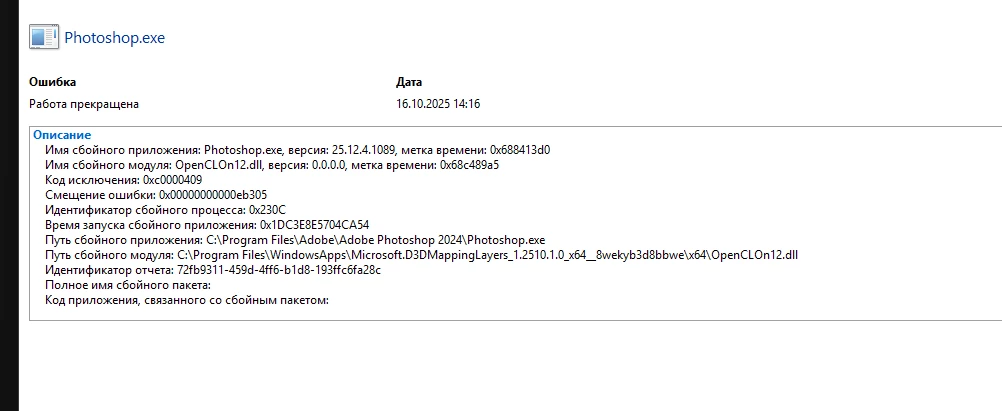
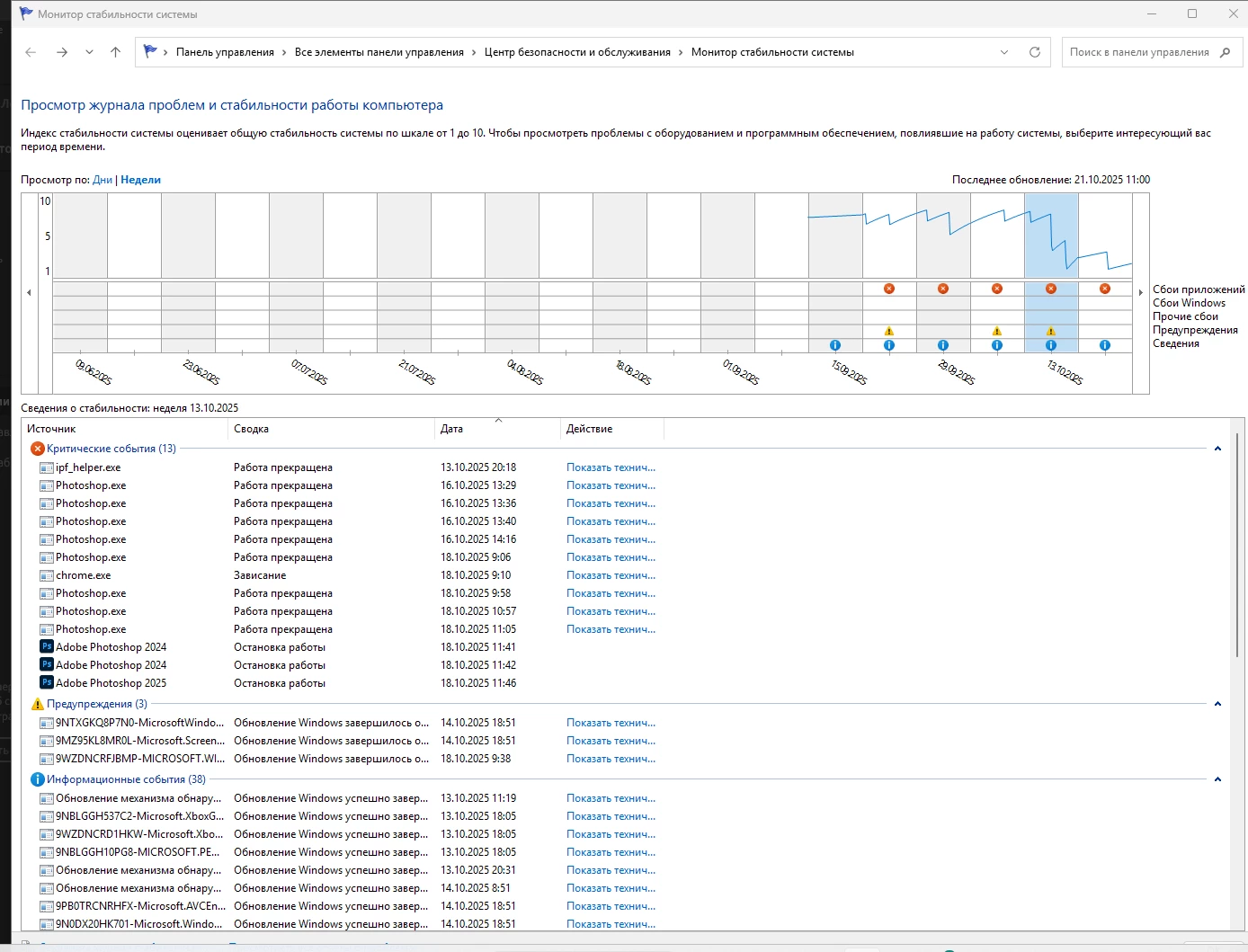

It seems the problem has been solved! I was looking for information about this error in their event log. I found instructions that say that you need to download driver updates, for example, from the video card website. I did it and photoshop opened! Thanks a lot to everyone for the comments here


1 reply

AxelMatt
Community Expert
Community Expert
October 18, 2025

In a first step try to reset the preferences of Photoshop using the steps described here:

https://helpx.adobe.com/photoshop/using/preferences.html#reset-preferences

It's recommended to backup your settings before resetting the preferences.

See here:  https://helpx.adobe.com/photoshop/using/preferences.html#backup-photoshop-preferences


Which version of Photoshop do you use?

What has been change on your system before the error occured?


Is your system up-to-date? Do you have installed all recent updates and patches for the operating system and the device drivers, especially the graphic driver. If you have a NVidia graphic card installed, make sure that you are using the recent Studio version of the driver, not the Game Ready version.


My System: Intel i7-8700K - 64GB RAM - NVidia Geforce RTX 3060 - Windows 11 Pro 25H2 -- LR-Classic 15 - Photoshop 27 - Nik Collection 8 - PureRAW 5 - Topaz Photo
Participant
October 20, 2025

Thank you for your reply! resetting photoshop settings during startup did not help. photoshop still won't start. although sometimes I see the photoshop process in the task manager as active. Surprisingly, the lightroom runs without problems. I updated the graphics card and all Windows settings, but it also did not have the desired effect. I haven't tried changing the user yet and installing photoshop there. maybe this will be the next step.

Kevin Stohlmeyer
Community Expert
Community Expert
October 20, 2025

@Marina34854853qnml before you change users, try right-clicking on the Photoshop exe and choose "run as administrator"
