farshadsadri
Inspiring
January 9, 2021
Answered

PNG export from Photoshop removes transparent background

  • January 9, 2021
  • 19 replies
  • 107603 views

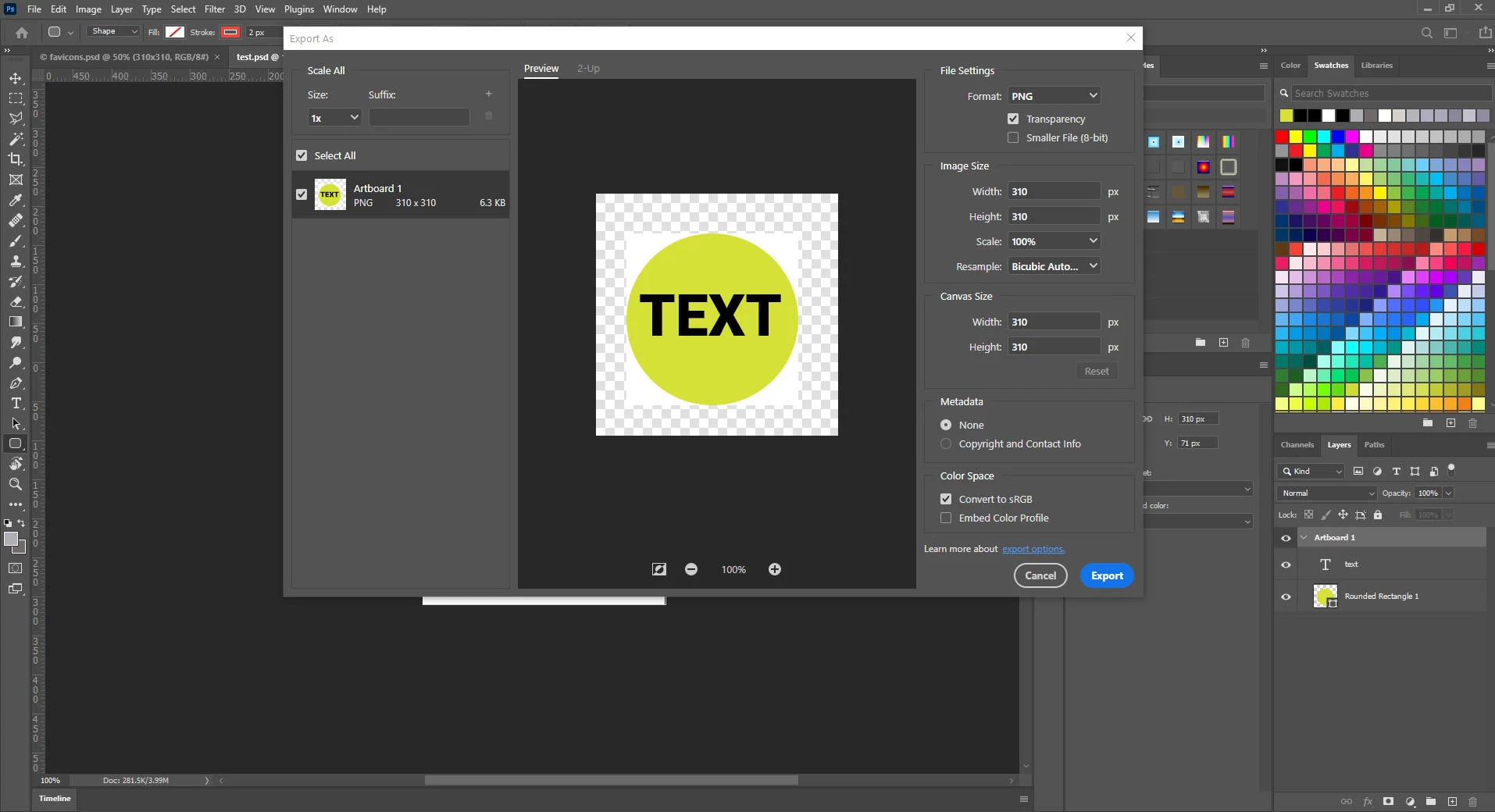
The same happens to me, and it drives me mad! Without any logical reason the transparent export draws a white rectangel around my transparent objects!


Please note the added white rectangle around the transparent objects! This issue just happened as I updated to Photoshop 22.0.1. I experience the same problem even with files I exported correctly with previous versions. This issue just happens when I export from artboards, when I don't use artboards everything is fine and it only happens when I set the artboard background to transparent, i.e. when I choose a color for background transparent objects just work fine.


This problem has frustrated me so much I installed the previous photoshop version to be able to deliver my work!!


PLEASE HELP!
 

Correct answer farshadsadri

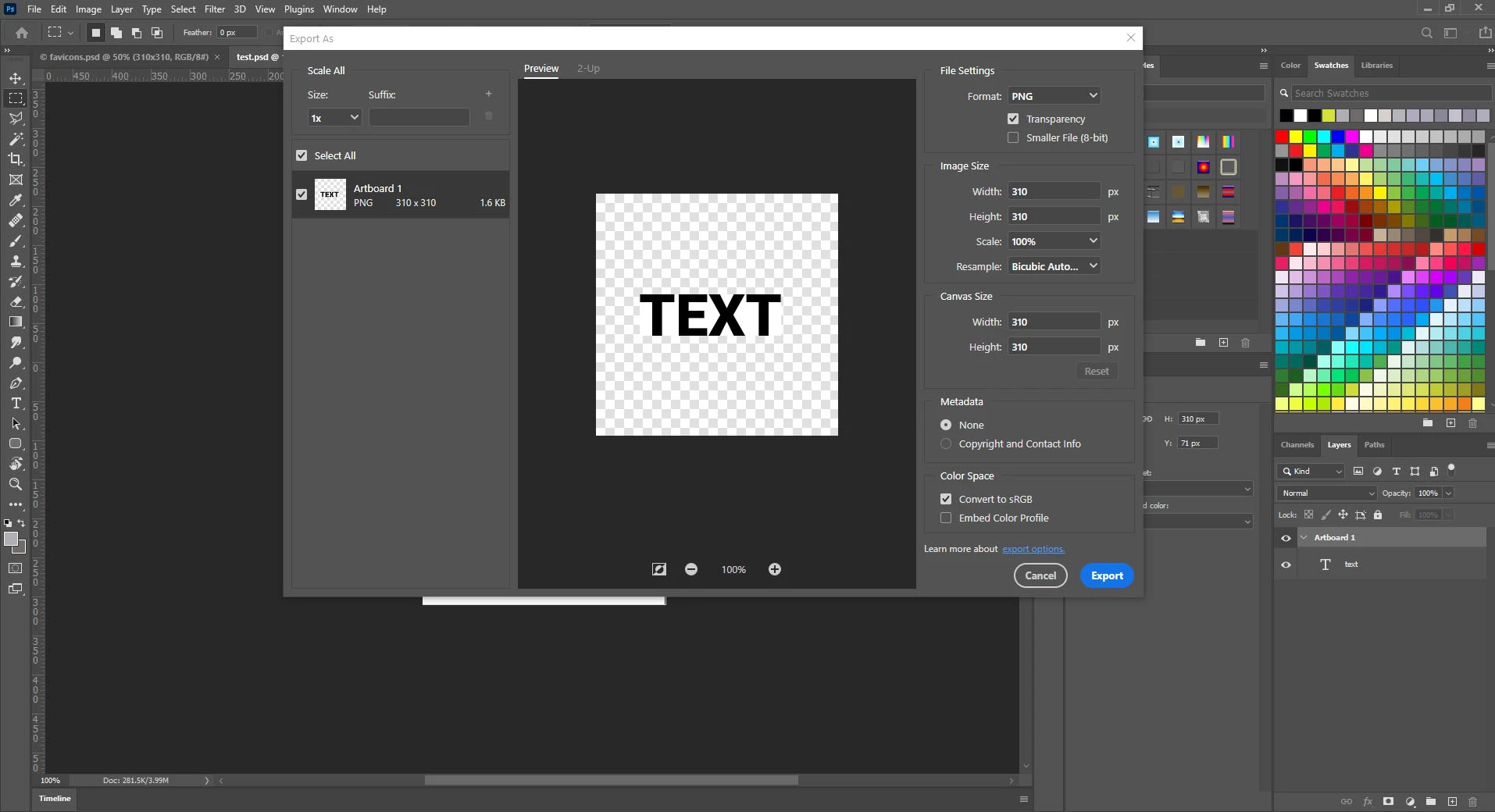
I recently updated to Adobe Photoshop 23.2.2 and the problem has been solved. I no further experience the issue. I recommend to do so for others experiencing the same issue.


I'd like to add that I use the same machine and OS that I used since I initially experienced the issue.


19 replies

Participant
November 3, 2021

Hey! I discovered such a solution for myself, it works
1) File -> export -> Artboards ti file
2) Set the settings and run

Participant
November 20, 2021

Im also having same problem, transparent background is showing in photoshop, but when i export it with png and even the transparency is checked getting white background.

Inspiring
May 17, 2021

This was driving me crazy, but I noticed on mine that the background was locked. I thought I had converted to CMYK color but it was locked in "Indexed" color. I re-converted it to CMYK, unlocked the background, and it exported normally with no issues. Note that the whole time it was showing the transparent background, but wasn't exporting as such. 

Known Participant
August 4, 2021

As the thread has continued, it made me question the files I was trying to File ->> Export ->> Save for Web (Legacy) in a CMYK color mode. I KNOW that in the past, I could use a CMYK and it would be converted to an RGB as a PNG because PNGs are RGB files - yes? As I had mentioned the issue was also happening in Illustrator. Note: I am on the latest versions of Photoshop and Illustrator.

I just went to these logo files and converted them to the color mode RGB, THEN Export ->> Save for Web (Legacy) as a PNG - and they Insert in Word with transparency!

No backgrounds were locked; no Index color involved, but again, I converted my file to an RGB and then exported as a PNG.

Heaven knows what changed along the way, but at least I can now move forward in my work. I hope this is helpful to you as well.

c.pfaffenbichler
Community Expert
Community Expert
April 2, 2021

@kalanperkins , I seem to have no problems with exporting pngs via Safe for Web. 


But you might want to give the layout a once-over, in the yellow parts there are some edges that might be unintentional. 

Participating Frequently
April 2, 2021

That is intentional, I added a stroke to the graphic to make sure I could see all of the outlines after the png transparency failed to export. I go to save as web and I see the transparency but opening up the png there isn't a transparency. I attached what I see.

c.pfaffenbichler
Community Expert
Community Expert
April 2, 2021

Have you tried png-24 instead of png-8? 

Participating Frequently
April 1, 2021

i have a similar thing happening to me with PS transparency on a PNG. come out with a slight opaque background. despite all files and folders registering as no background....


c.pfaffenbichler
Community Expert
Community Expert
April 1, 2021

Can you provide the original image? 

Known Participant
August 4, 2021

I don't know why everyone tries to convince me that the problem occurs because of lack of the knowledge of using Photoshop!


Hello! This is a BUG report!


I personally gave up on expecting a meaningful response out of this thread and ended up installing the older WORKING version of Photoshop that WITH THE SAME STEPS (!) gives me expected transparent PNGs !!!

So at least be descent about it and stop giving nonsense solutions just because you cannot identify the real problem causing this issue for God's sake!


farshadsadri, could you please tell me what version of Photoshop you went back to in order for this to function properly?

I am experiencing the same issue. I can't Export As -> Legacy -> PNG24 with transparency. I even tried a Save As Copy -> PNG and same issue, no transparency. NOTE: The layer in the file I am trying to save IS transparent. I can Duplicate the layer into another Photoshop PSD and it is Transparent, as I need it to be.


I, too, am an experienced Photoshop user (since Photoshop 1.0!) and only experienced this issue now. It IS a bug, Adobe Photoshop team. Please address.


Photoshop Team - I also have this same issue in the latest Illustrator! Please let the Illustrator Team know.

farshadsadri
Inspiring
January 18, 2021
janed5052
Participant
January 29, 2021

I have the same problem.  When I save vector file as PNG or PDF there is a whtie background.  I have tranparent selected as well.


Jumpenjax
Community Expert
Community Expert
March 1, 2023

Check the vector, be sure it does not have a white background.

Lee- Graphic Designer, Print Specialist, Photographer
c.pfaffenbichler
Community Expert
Community Expert
January 18, 2021

As a work-around you could try using File > Export > Save for Web

farshadsadri
Inspiring
January 18, 2021

Thank you for your answer.

However Save for web export the whole file not a single artboard.

c.pfaffenbichler
Community Expert
Community Expert
January 18, 2021

Sorry, I had overlooked that. 

Myra Ferguson
Community Expert
Community Expert
January 17, 2021

You could try reporting it on https://feedback.photoshop.com/ which is where the Photoshop team looks for bugs and feature requests.

farshadsadri
Inspiring
January 18, 2021

Sure. Thank you.

farshadsadri
Inspiring
January 10, 2021

YES, I have set my Artboard background to Transparent, and as I indicated it's not all the artboard that goes opaque but just a opaque rectangle that renders under my transparent layer and the problem only occurs when artboards are used since I updated to Photoshop 22.0.1. I did not have any problem with same files n older versions. I have tested the files on a different computer which I had not updated and it rendered and exported as expected.


It is driving me nuts!


PS: I experienced this problem only when using transparent background and on colored backgrounds layer transparency worked as expected.


Myra Ferguson
Community Expert
Community Expert
January 10, 2021

I tested it with 22.1.0 on Windows 10, and it worked. Because you're on 22.0.1, you might see if updating helps.

farshadsadri
Inspiring
January 17, 2021

I updated as you suggested and I still experience the same problem.


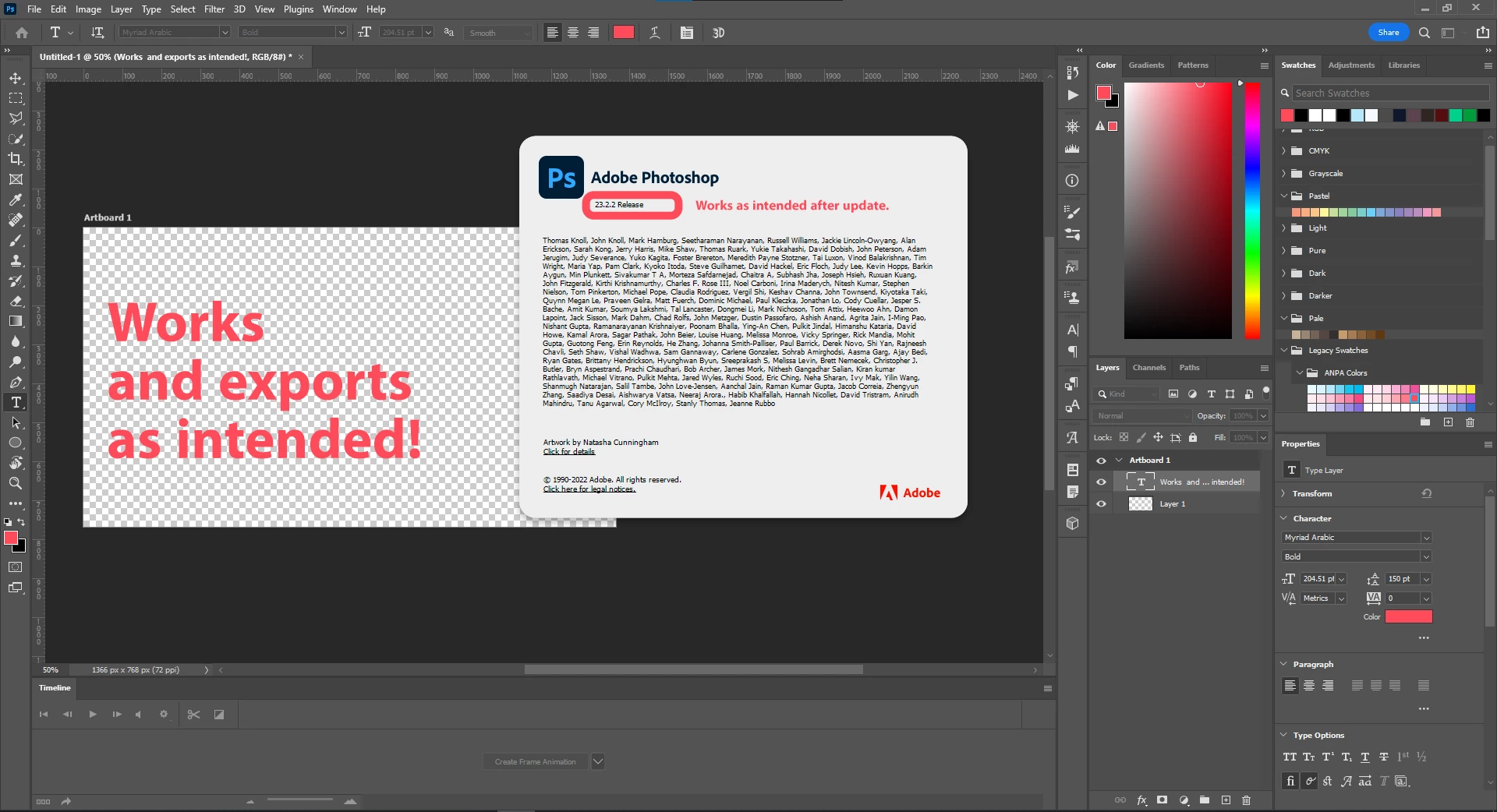
As you see in the following example this is a simple transparent text layer, when I put transparent layers in artboards, I get a white background within the layer parameters.


It works as expected without artboard and in older versions.


I suspect it has something to do with my graphics card driver, however I tested it again with GPU turened off.
My device specs:

Photoshop: Version 22.1.0

OS: Windows 10 Home Edition - x64 - Version 20H2

CPU: Intel Core i7-4700HQ

RAM: 16GB

Display Adapters:

    - Intel HD Graphics 4600
    - NVIDIA GeForce GTX 850M


Myra Ferguson
Community Expert
Community Expert
January 9, 2021

Go to the Properties panel (if it's not open, you can go to Window > Properties), and under Artboard background color, change the dropdown menu to Transparent. Then export.

farshadsadri
Inspiring
January 10, 2021

Thank you Myra,

I did change the artboard background to transparent and it didn't work and this is my main problem, why doesn't it work?


You see, in the attached screenshots the artboard renders transparent and there are the transparent layers INSIDE it that do not render transparent. However the same layers render transparent OUTSIDE the artboards. I have been experiencing this problem since I updated to Photoshop 22.0.1