Participant
December 10, 2016
Answered

Print size too big. Looks good on monitor. Screen Res. already adjusted

  • December 10, 2016
  • 2 replies
  • 14976 views

I need to make a 4Hx6W borderless print of an 8Hx10W image (I know it will have white space on the width ends and that's fine for my purposes)

I have adjusted my screen resolution to 220px based on my monitor resolution and screen width.  I have a 300dpi 8x10 image that I reduced in size to 4x5 at 219 dpi.  I then changed the canvas size to 4x6.  Overlaying a 4x6 pieces of photo paper on the monitor image show a perfect match in size.

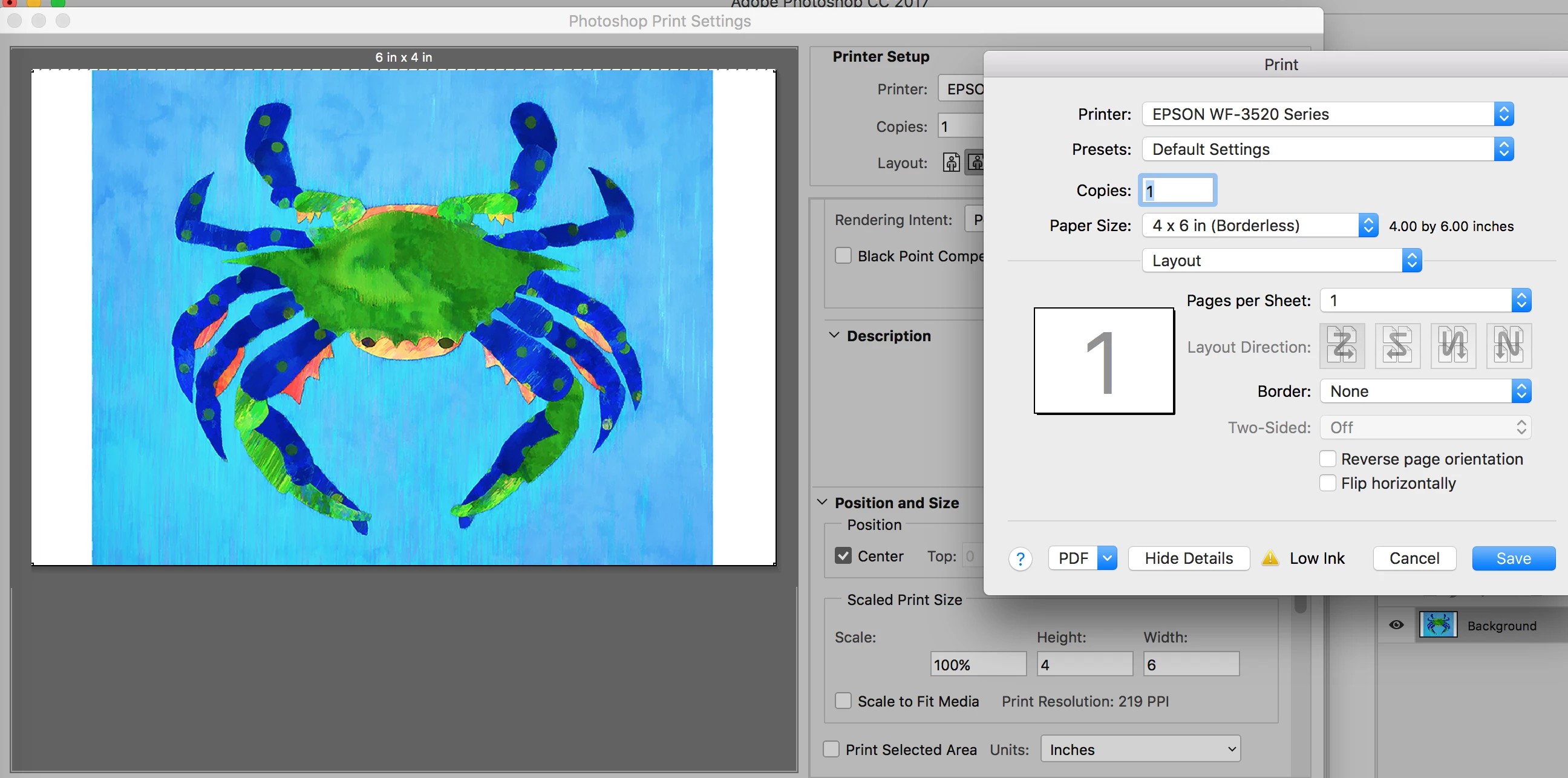
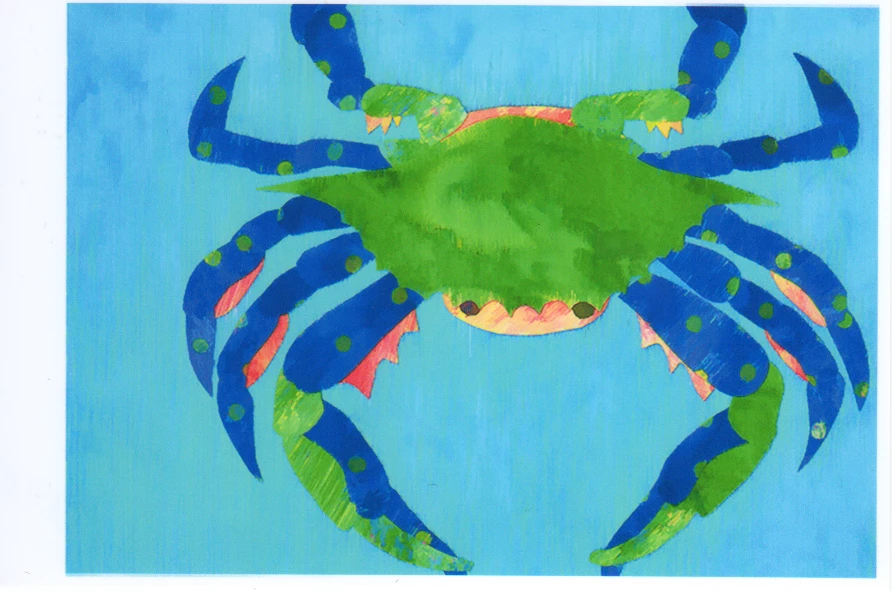
If I print the image on 4x6 (borderless) paper with Scale left at 100% and Scale to Media left unchecked, the printed image is too large for the paper and is "cropped" on the top and bottom. 

This is probably a simple fix but I'm wasting too much ink trying to fix it ! Any ideas would be greatly appreciated.

Print Screen:
Printer Output  (white borders reflect what is on photo paper after printing)
This topic has been closed for replies.
Correct answer Conrad_C

bluemoontug wrote:

If I print the image on 4x6 (borderless) paper with Scale left at 100% and Scale to Media left unchecked, the printed image is too large for the paper and is "cropped" on the top and bottom.

My guess is that the problem is not with Print Size, and that you have measured your screen correctly and entered the numbers correctly.

I think the problem is related to the fact that you are printing borderless on (going by your screen shot) an Epson printer.

If you print a 4-inch image edge-to-edge on 4-inch paper, if the paper is not absolutely perfectly aligned going through the printer, there is always a chance that one side is going to be slightly off and you'll have a white unprinted area where it was misaligned. To make sure the image prints edge to edge without gaps, when you choose a Borderless paper size in the Epson printer driver, it slightly enlarges the image so that it extends past the paper edge. That's why you're seeing a slightly enlarged image.

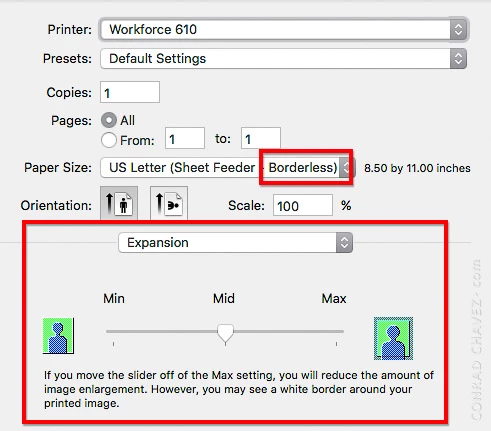
Your Epson printer driver probably has an "Expansion" option that lets you decide how much to enlarge the image to get a seamless borderless print. Right now, yours is probably set up to enlarge the image for borderless. Note that this is separate from, and on top of, the normal "Scale" option; even if "Scale" is set to 100%, choosing a Borderless paper size will enlarge the image.

If you don't want the image to be enlarged, what can you do? In traditional printing, you design your artwork with an overlap on the trim edges of the paper (called a "bleed"), along with crop marks for trimming the paper afterwards. Then you print on a larger piece of paper so that there's something to trim. If you decide to do this, use a non-borderless paper size so that the image is not scaled up.

2 replies

Conrad_C
Community Expert
Conrad_CCommunity ExpertCorrect answer
Community Expert
December 10, 2016

bluemoontug wrote:

If I print the image on 4x6 (borderless) paper with Scale left at 100% and Scale to Media left unchecked, the printed image is too large for the paper and is "cropped" on the top and bottom.

My guess is that the problem is not with Print Size, and that you have measured your screen correctly and entered the numbers correctly.

I think the problem is related to the fact that you are printing borderless on (going by your screen shot) an Epson printer.

If you print a 4-inch image edge-to-edge on 4-inch paper, if the paper is not absolutely perfectly aligned going through the printer, there is always a chance that one side is going to be slightly off and you'll have a white unprinted area where it was misaligned. To make sure the image prints edge to edge without gaps, when you choose a Borderless paper size in the Epson printer driver, it slightly enlarges the image so that it extends past the paper edge. That's why you're seeing a slightly enlarged image.

Your Epson printer driver probably has an "Expansion" option that lets you decide how much to enlarge the image to get a seamless borderless print. Right now, yours is probably set up to enlarge the image for borderless. Note that this is separate from, and on top of, the normal "Scale" option; even if "Scale" is set to 100%, choosing a Borderless paper size will enlarge the image.

If you don't want the image to be enlarged, what can you do? In traditional printing, you design your artwork with an overlap on the trim edges of the paper (called a "bleed"), along with crop marks for trimming the paper afterwards. Then you print on a larger piece of paper so that there's something to trim. If you decide to do this, use a non-borderless paper size so that the image is not scaled up.

davescm
Community Expert
Community Expert
December 10, 2016

Hi Conrad C         

Looks like we were both typing the same thing at the same time

Dave

Conrad_C
Community Expert
Community Expert
December 10, 2016

Well, the nice thing is that between us we've covered it for both Mac and Windows!

JJMack
Community Expert
Community Expert
December 10, 2016

You can not adjust you screen resolution to 220px your display has a fixed ppi resolution and displays the number of  pixels your display is manufactured with. You can set you display's driver to have your display to only display 220px wide.

If you want a print 8" x 10"  that has a 300dpi resolution set your document's canvas size to  8" by 10" with a 300 DPI resolution.   Place your image(s) into this document.   Use Photoshop zooming to fit your work area to on your display the size you wish to work at. If you want  a 4" x 6" 300dip print use that canvas size.

JJMack
Participant
December 10, 2016

Thanks for the reply. You said "You can not adjust you screen resolution to 220px"  Of course you're right - I wasn't clear in what I did..  What I should have said was that I adjusted Photoshops screen resolution so it matched my display (219.5px x 13.125" ~= 2880 which is my display's res.)

I'm not sure I understand your 2nd paragraph and how that helps me get a 4x5 canvas/image to print on a 4x6 sheet of photo paper (borderless).  Thanks for your patience.

davescm
Community Expert
Community Expert
December 10, 2016

Hi

From your screen shot is looks like your image is being scaled. It also looks like you have Photoshop set up not to do any scaling but it could happening be in the printer driver.

Are there any driver scaling options that are not shown on your screenshot?

I use Windows not Mac here and am using an Epson 3800 so not sure if you have the same options - however in my Epson driver if set printing to Borderless the default is for the image to Auto expand beyond the paper edge. It does that to prevent any white edges down a borderless print , if the paper is mis-aligned.  I always set that off i.e. to "Retain Size". If you have such an option it will be worth checking.

Have you tried printing with a border to see if that prevents the scaling?

If it does, and you have no other controls other than those on your screenshot, you may need to scale down your image Photoshop to leave an edge border that can then be chopped off by the print driver when printing borderless.

Dave