The Remove Background feature is trained on typical subject + background photo scenes (“ok that’s a person with buildings behind them, I’ll keep the person”), and probably isn’t trained on this type of non-photographic scan and doesn’t really know what to do.
For this, it might be better to forget about automated/machine-learning methods, and instead use more traditional ways that can select by tone or color.
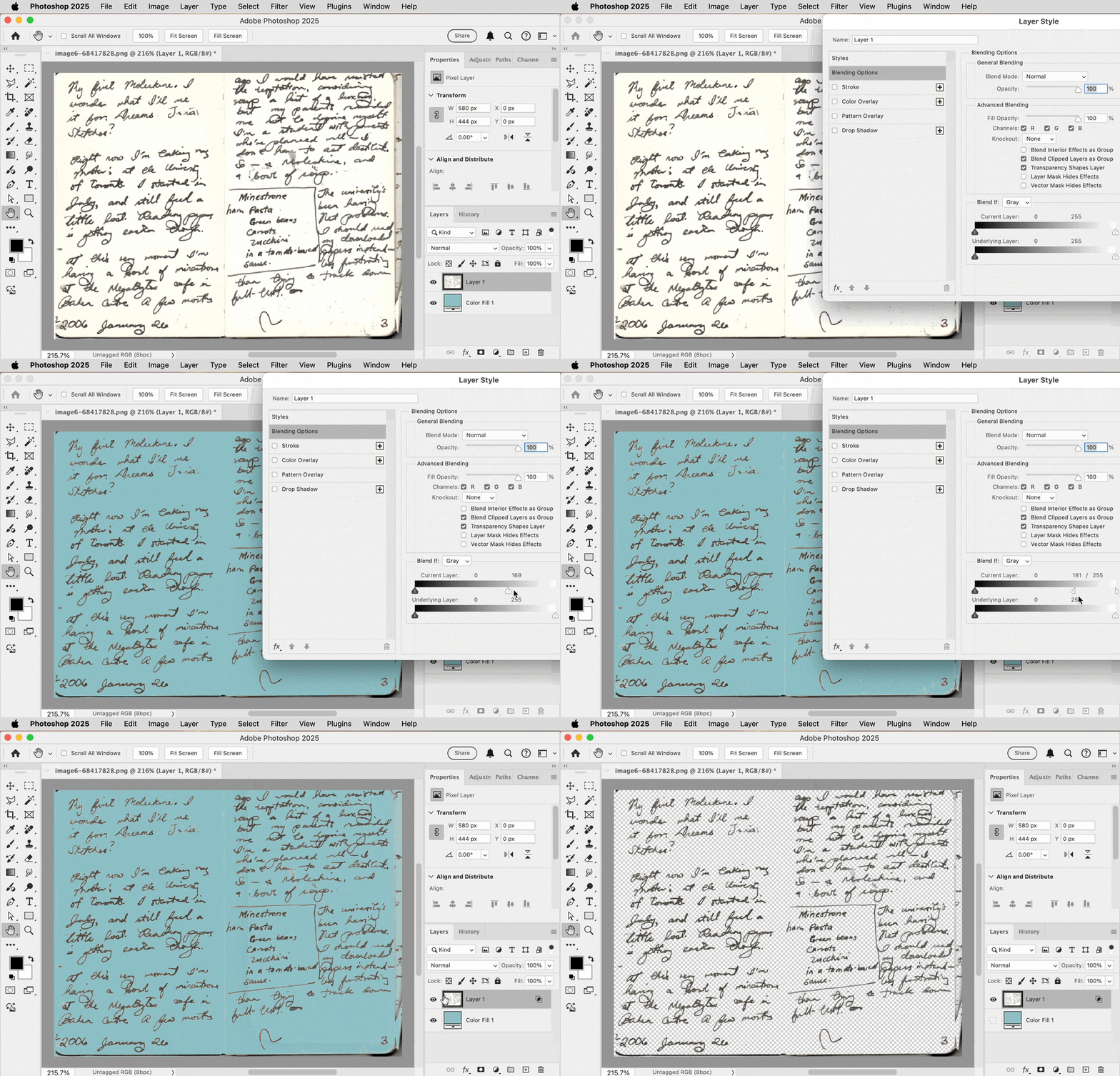
One way is to use the Blend If sliders in Layer Options:
1. In the Layers panel, double-click a non-Background layer (not the layer name). Double-clicking is a shortcut for choosing the command Layer > Layer Style > Blending Options. In there, the Blend If options drop out pixels based on tonal level, so this technique depends on the background being a distinctly lighter or darker tone than the text or line art you want to isolate.
2. In the Blend If section, for the Current Layer option, drag its white point slider to the left until the background is transparent. This is a threshold value.
3. If the break is too harsh, Alt-drag (Windows) or Option-drag (macOS) the slider to split it; this feathers the transition.
The blue color in the demo below is a Solid Fill Color layer that I added so you can more easily see that the background has been dropped out, even though the checkerboard already indicates transparency.
You then export in a format such as PNG that supports an alpha channel to preserve the transparency.




 AdChoices