
Known Participant
April 26, 2019
Question

Q. about printing from Photoshop

  • April 26, 2019
  • 3 replies
  • 1493 views

I'm printing from PS to my in-house inkjet printer. Here is a screen shot from PS - as you can see, I've got transparency.
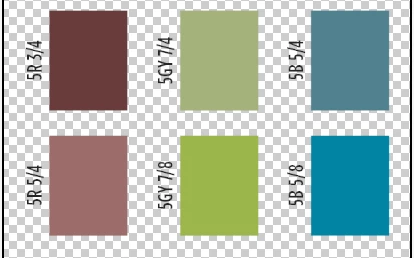
When I print this file using the Absolute rendering intent, those "transparent" areas print as a very light yellow. It doesn't happen when I print using the Relative rendering intent. It is as if the Absolute intent included an instruction to replicate paper color. Can somebody tell me how to fix this?

    This topic has been closed for replies.

    3 replies

    D Fosse
    Community Expert
    Community Expert
    April 27, 2019

    No argument with any of the above, but in this case I go with mark in reply #1. Absolute Colorimetric does not remap the white point. That's what the OP is seeing here - IOW this is normal.

    The main difference between Relative Colorimetric and Absolute Colorimetric is whether the white point is remapped. Normally you want that, so normally you use Relative. Or Perceptual, if you want softer clipping. But not Absolute.

    Community Expert
    April 27, 2019

    Print with color management in Photoshop

    If you have a custom color profile for a specific printer, ink, and paper combination, letting Photoshop manage colors often produces better results than letting the printer manage colors.

    • Choose File > Print.

    • Expand the Color Management section at right.

    • For Color Handling, choose Photoshop Manages Colors.

    • For Printer Profile, select the profile that best matches your output device and paper type. If there are any profiles associated with the current printer, they are placed at the top of the menu, with the default profile selected.

      The more accurately the profile describes the behavior of the output device and printing conditions (such as paper type), the more accurately the color management system can translate the numeric values of the actual colors in a document. (See Install a color profile.)

    • (Optional) Set any of the following options:

      Rendering IntentSpecifies how Photoshop converts colors to the destination color space. (See About rendering intents.)

      Black Point CompensationPreserves the shadow detail in the image by simulating the full dynamic range of the output device.

    • (Optional) Below the print preview, select any of the following:

      Match Print ColorsSelect to view image colors in the preview area as they will actually print.

      Gamut WarningEnabled when Match Print Colors is selected. Select to highlight out-of-gamut colors in the image, as determined by the selected printer profile. A gamut is the range of colors that a color system can display or print. A color that can be displayed in RGB may be out of gamut for your current printer profile.

      Show Paper WhiteSets the color white in the preview to the color of the paper in the selected printer profile. This produces a more accurate print preview if you're printing on off-white paper such as newsprint or art papers that are more beige than white. Since absolute white and black create contrast, less white in the paper will lower the overall contrast of your image. Off-white paper can also change the overall color cast of the image, so yellows printed on beige paper may appear more brown.

    • Access the color management options for the printer driver from the Print Settings dialog box, which automatically appears after you click Print.
      • In Windows, click the Print Settings button to access the printer driver options.
      • In Mac OS, use the pop-up menu from the Print Settings dialog box to access the printer driver options.
    • Turn off color management for the printer, so the printer profile settings won’t override your profile settings.

      Every printer driver has different color management options. If it’s not clear how to turn off color management, consult your printer documentation.

    • Click Print.
    josephlavine
    Community Expert
    Community Expert
    April 27, 2019

    "Turn off color management for the printer, so the printer profile settings won’t override your profile settings.

    Every printer driver has different color management options. If it’s not clear how to turn off color management, consult your printer documentation."

    This is a key step from the above post. Often, people will accidentally have two color management systems running, Photoshop and the printer, and the results are rarely as desired. I too suggest having Photoshop manage the colors and not the printer.

    sharp_hands16B8
    Community Expert
    Community Expert
    April 27, 2019

    For production files (files going to prepress or printer), always keep as RGB and embed the ICC profile and let the printer do the conversion, or convert/build in press ICC profile. These conversions use Relative Colorimetric Intent.

    Absolute Colorimetric Intent is used only in proofing, and not at all times. For instance, if you have a printer capable of really small dots (where you can't see the dots on the proof), then you may want to use Absolute Colorimetric Intent. However, if the printer doesn't have enough nozzles and you see the paper simulation of the press paper as dots on the proofer paper, then you would want to use Relative Colorimetric Intent. If your proofer paper is about the same color as your press paper, then you'll want to use Relative Colorimetric Intent.

    Is there anywhere in your print dialog for simulating paper?

    This page has some good info: https://www.colourphil.co.uk/rendering_intents.shtml