


Known Participant
November 30, 2020
Question

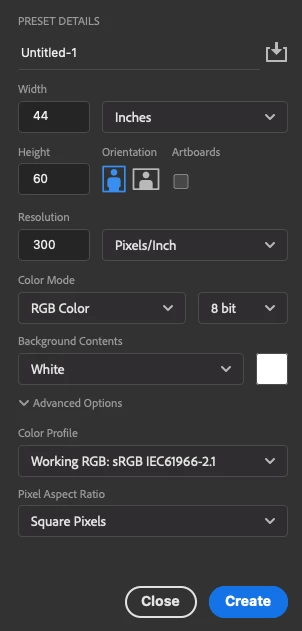
Questions about setting for a large project
  • November 30, 2020
  • 4 replies
  • 847 views


Hello, I usually print a large image up to 60 inch at the longest but I have questions to clear some answers.


1. When do I use 16 bit or higer? Does it affect when I print it?

2. Do you think it's ok to set both color profile and color setting with ProPhoto?

3. What does send a 16-bit data do for printing?

4. For a long term storage, do you recommend higher bit and wider color space?

5. If I want to create a canvas with twice bigger than 60x44, do I still keep 300 PPI?

6. Is there a way to show preview with PSB files on MacOS with Apple Silicon?

7. What's the best way to reduce file size if I have more than 100 layers?


This topic has been closed for replies.

4 replies

Conrad_C
Adobe Expert
November 30, 2020

aiur4 wrote:

1. When do I use 16 bit or higer? Does it affect when I print it?

3. What does send a 16-bit data do for printing?


Use 16 bits per channel if:

  • You are using images captured at more than 8 bits per channel.
  • You plan to make edits that make large changes to tone or color values.
  • Your document has gradients or transitions that need to be very smooth.

If source images are only 8 bits per channel, changing the document to 16 bits per channel won’t improve quality but doubles the file size.


There is not much visual benefit to printing at 16 bits per channel, and there have been some bugs related to it, so I print at 8 bits per channel even though my documents are 16bpc and my printer driver supports 16bpc printing.


aiur4 wrote:

2. Do you think it's ok to set both color profile and color setting with ProPhoto?


It’s OK to use ProPhoto RGB as a document color profile, but only if you understand how it will be converted to the printer profile (if printing) or sRGB (if posting online). ProPhoto RGB and Adobe RGB are very good color spaces for editing and mastering, but are not good to use as typical output color spaces for print or screen.


The display, document, and print/export profiles are typically different, especially for professional work.


The Working Space profile used in Edit > Color Settings is a default, for documents that have no embedded color profile. If a document already has an embedded profile, the Working Space profile doesn’t affect it.


aiur4 wrote:

7. What's the best way to reduce file size if I have more than 100 layers?


You might be able to reduce file size of 100+ layer file by:

  • Saving as TIFF with the ZIP compression option enabled. This takes a lot longer to save, but you can continue to work while Photoshop is saving.
  • Editing at 8 bits per channel instead of 16 bits per channel, if you test 8bpc and find that image quality is acceptable after editing.
  • Using a ppi resolution value no higher than actually needed for the expected viewing distance. Again, testing a small section of the print on the wall will help you determine how high of a ppi value is really necessary for the content in your image.
  • Minimizing the use of Smart Objects, because those can add a lot to the file size.
aiur4Author
Known Participant
November 30, 2020

I used GFX 100 with 16 bit color. Can I justify to use 16 bit?


D Fosse
Adobe Expert
November 30, 2020

Everything Dave said.


Just to give you a quick number - for a 60 inch print, anything between 100 - 150 ppi will work splendidly. Twice the linear size = half the ppi (because you'll be standing at twice the distance to view it comfortably).

aiur4Author
Known Participant
November 30, 2020

Well, actually, it's the opposite. I let people to watch my works very closely to see details.

aiur4Author
Known Participant
November 30, 2020

OK, but 150 should still be enough. You can't see pixels at 150 ppi no matter how close you go. Consider a standard desktop monitor, like a 24 inch at 1920 x 1200. That's roughly 96 ppi. Can you see pixels? No, you can't.


The fact is that the 300 ppi number that everyone thinks of as a "requirement", is purely theoretical. It's based on a standard book/magazine print process, which uses a halftone screen frequency of 150 lines per inch. The theory is that with a pixel density twice that, it is not possible to make out the original pixels. Not even in theory. In other words - that's the upper limit where additional pixels make no difference.


And then this theoretical upper limit has somehow transformed itself into a perceived lower limit.


But the visual resolution is the halftone screen at 150 lpi. That's the level of sharpness and acuity. Whether you can make out individual pixels is not the same as sharpness.


Just to put it in context: if you go to the very top end of current full-frame cameras, a Nikon Z7, Sony a7r or Canon EOS R5, you get around 8000 pixels on the long side. At 60 inches, that's around 125 ppi. Nobody ever complained about resolution in those cameras.


So even the high end printing labs use 150 PPI with 8 bit?

davescm
Adobe Expert
November 30, 2020

Hi

1. When do I use 16 bit or higher? Does it affect when I print it?

16 bits/channel divides the levels between the darkest pixel and brightest pixel value into 65536 steps (actually 32769 in Photoshop for internal processing reasons) whereas 8 bits per channel divides it into 256 steps. This means that gradients are smoother and there is less likelihood of visible stepping (banding) when processing the image.

As for printing, it depends on the printer and its driver. Not all are capable of 16 bit support. In reality that last step is rarely an issue as there is no further processing and the range of values between the darkest black and whitest white is more limited than the screen.


2. Do you think it's ok to set both color profile and color setting with ProPhoto?

Yes, but an image should never leave your PC with that profile. When sending elsewhere then always convert to a more universal profile (sRGB is most common for web use). Also be aware that ProPhoto can contain many more colours than can be displayed on current monitors. Personally I use Adobe RGB which has a good range, is displayable on my monitors.


3. What does send a 16-bit data do for printing?

As mentioned above, it will send the full 16 bits/channel data to the printer, but it relies on a printer and driver that will use it. Not all printers do.


4. For a long term storage, do you recommend higher bit and wider color space?

Yes, although personally I find Adobe RGB big enough for most real world images.


5. If I want to create a canvas with twice bigger than 60x44, do I still keep 300 PPI?

It all depends on viewing distance. There is no magic number. For images in a book 300ppi works well, for a wall poster viewed from further away it a waste as our eyes cannot resolve the pixels.

As a guide use this:

ppi required = 6878/Viewing distance in inches


6. Is there a way to show preview with PSB files on MacOS with Apple Silicon?

I don't know if a codec is available for PSB on the MAC (I use Windows)


7. What's the best way to reduce file size if I have more than 100 layers?

For the master file, don't. Disk space is relatively cheap, going back and recreating a file with lost layers is not. However, as mentioned above, don't work in unnecessarily high pixel dimensions.


Dave

Brainiac
November 30, 2020

What is your printing technology? What is the material produced, and how is it viewed? (The reason for these questions is to find what resolution and quality you may actually need; 300 ppi is almost always not needed for large format work.  By the way, it's far too early to be using Apple Silicon for production work.