



🔎 Quick Tip: Creating text on a path in Photoshop

Creating type effects in Photoshop
Did you know you can create text along a path? You can also create lots of other cool effects with text. Follow the steps below to give it a try and then check out the links at the bottom for more detailed information and some creative ways to work with text.
➊ Create a path
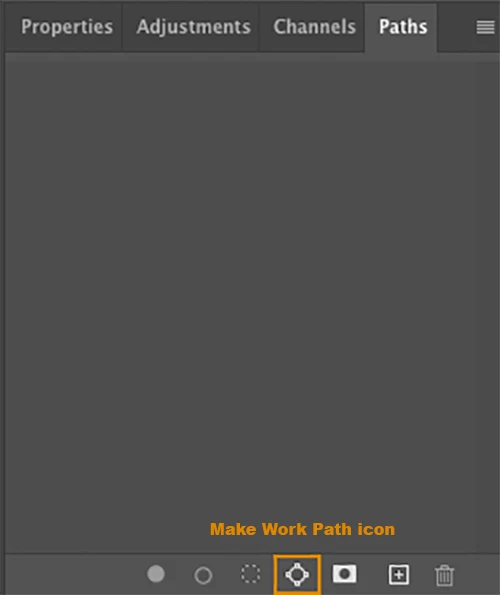
There are many ways to create a path. For this example, I started with an image of a volleyball. I used the Elliptical Marquee Tool (  ) to make a round selection outside of the volleyball, and then converted it to a path by clicking the Make Work Path icon (
  ) in the Paths panel.
The path is shown in blue around the volleyball.

➋ Add some text
Select the Horizontal Type tool (  ) and position the baseline indicator over the path in the location where you want to start your text and click. Now add your text and adjust the properties, such as size, until you are satisfied.

Related Links
How to create type effects in Photoshop
Understanding shapes and paths
Convert between paths and selection borders
 AdChoices