


Quickly changing colors of bitonal scanned drawing
Hello,
I've looked around for a bit but did not find a simple fix to my issue so I'm asking for help here
I've scanned a bunch of drawings and started organizing them in different grids to make a visual loto (resembling the mexican loteria)
Here's a small part of the grid :
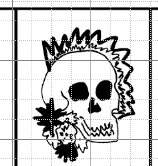
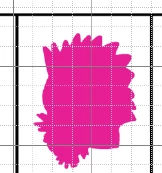
My issue is, I did not detour the drawings individually and now the grids are created and so on, and I would like to make it two colors (it's black and white right now), but of course when I try to use for example a color overlay layer I get something like this since the item is treated as one :
So I found a workaround by turning the image to greyscale then bichromy and setting color to monochromy; here it works perfectly, only changing the color of the dark lines :
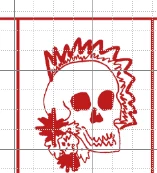
Which means the software can detect only the lines without me going through the hassle of outlining everything manually
But now I also want to change the background color (everything that's white)
Of course if I go back to rgb (side note the text characters for some reason go back to black) and do replace color or color overlay I get this :
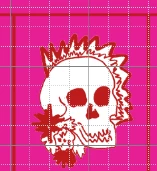
Same issue as before where the white inside the drawing is not considered as background
I've tried the select by color tool but it's not as precise as I'd like it to be and it's still kind of complicated
So my question is; since in bichromy mode I get the exact result I want, and the software has 0 trouble there differentiating the white background from the drawn lines even inside the drawings, how, from there, can I just change the background color easily?
Optionally if I can make that an action/script it would be a plus since I have 36 different files, one per grid
Thanks for any input !
 AdChoices