Participant
July 11, 2024
Question

"Could not Complete the Export As Command" Error on New MAC

  • July 11, 2024
  • 2 replies
  • 994 views

Hi there,


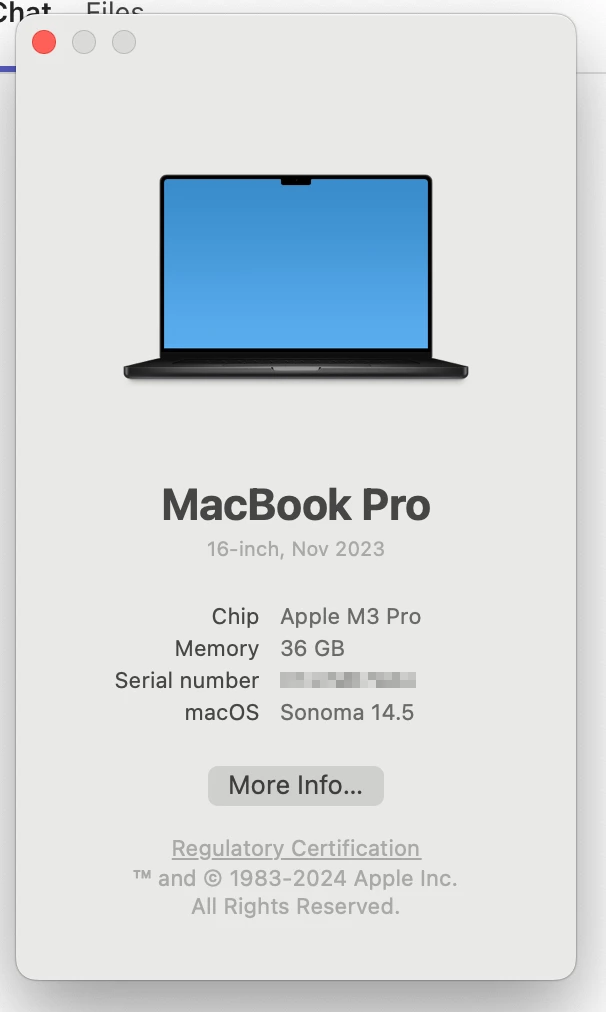
I couple weeks ago got a new MacBook Pro and have encountered an error when using Photoshop.

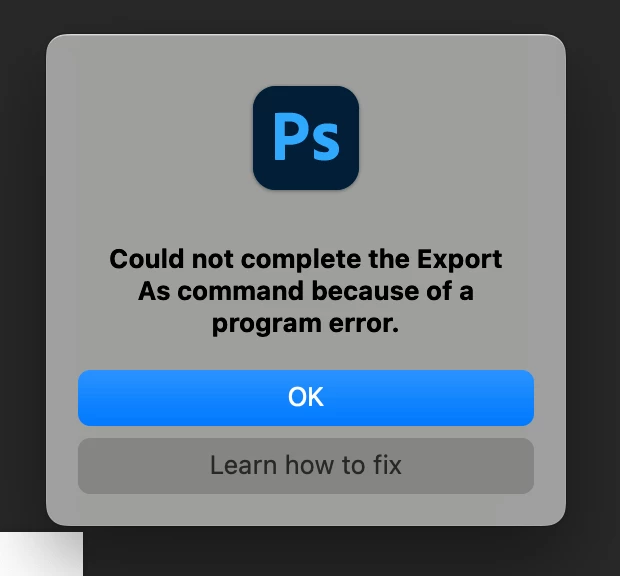
I'll get a "Could not complete the Export As command because of a program error" error when I tried to export images whether it's on the canvas or on artboard(s).

Our IT guys checked on my system but they seems not able to fix it.

We've also tried almost every possible ways that we can find, including update to the newest version, downgrade to the previous version, delete preference settings, disable graphic card driver, checking the permission to access disk, and so on, but none of them work.

So I'm wondering if has there anyone encountered the same issue?


Down below I've attached the snapshots of the error message and the info of my laptop.

Thank you.


Terry
 

2 replies

Stephen Marsh
Community Expert
Community Expert
July 22, 2024

@Terry35567358rw56 


 I still use an Intel Mac, so I'm just curious, in Preferences/Settings (CMD+K) > Export, do you have a Use Legacy "Export As" option and if so, does enabling or disabling this and restarting Photoshop help?

Participating Frequently
December 13, 2024

Hi Terry,


The best solution I found is to save the file as a .jpeg (etc) in Photoshop rather than running the export function. I am still getting the issue with the exporting function and this is the only workaround I have managed to find. 


Literally none of the other suggested menu setting changes/ uninstalls etc worked for me. 


Thanks,

creative explorer
Community Expert
Community Expert
July 31, 2025

@dlavarado_4263 you could just create your an action versus using the 'Quick Export' and when you need to use, click on 'Play' and you sould be good to go! 

m
Sameer K
Community Manager
Community Manager
July 12, 2024

Hey, @Terry35567358rw56. Welcome to the Photoshop Community. I'll need more info to help you figure this out. Please share the system info from Photoshop Help > System info > Copy & paste into a text document > upload & attach here.


Do you have a cloud back-up service, like OneDrive & DropBox, active on your machine? Before troubleshooting, update Photoshop to the latest version (v25.9.1) via the Creative Cloud desktop app & check if the issue exists. 


Try these steps in the given order:

1 - Uninstall Photoshop
2 - Restart the device
3 - Install Photoshop again 
4 - Before the first launch, allow full disk access.


Let me know how it goes. Thanks! 

Sameer K

(Use '@mention' to tag me when you reply)

Participant
July 22, 2024

Thank you @Sameer K, sorry for the late reply, for I was out of office last week.

I've tried your approach again in the given order but it still can't work.

I've attached the system info in Photoshop, hope it can help solving the mystery for both you and I.

Thank you.


Terry