sterne200
Known Participant
February 1, 2017
Answered

"Use Legacy"

  • February 1, 2017
  • 3 replies
  • 2702 views

Is there a way within the Brightness / Contrast, control to always have "Use Legacy" checked ? 

I am running CS6, under Windows 10.

I understand that Adobe has made some improvements within this command that they recommending I use, but I never use the Brightness / Contrast, command for making any adjustments to photos, and only ever use it for turning borders either white or black.

Since that cannot ( seemingly ), be achieved using within the new and improved Brightness / Contrast command ( moving the brighness toggle bar to the extreme left will only turn something that is white a moon gray - and not black ), I would like this function to be set permanently to its Legacy status.

How would I do this ?

Without going back to CS5, and believe me - with all the other improvements ( like the fiasco that is the new cropping system ),  I am tempted.

Thanks for any help / insight,

Sterne
    This topic has been closed for replies.
    Correct answer davescm

    Hi

    Now that I can see what you are trying to do :

    Select the area you want

    Shift + Ctr+ I to invert selection

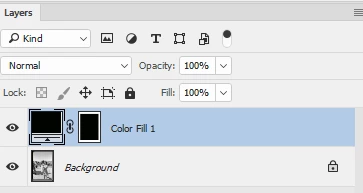
    Layer -  Fill layer with Solid Color set to black

    Doing it this way you can adjust the mask later if required, to resize or reposition it, and you can change the fill from black to white (or any other colour ) later if you wish.

    You could also add an adjustment layer between those layers so you can adjust your image without affecting the border

    Dave

    3 replies

    sterne200
    sterne200Author
    Known Participant
    February 1, 2017

    I like it.

    Especially the Ctrl - I

    I am so slow to utilize those.

    S

    davescm
    Community Expert
    Community Expert
    February 1, 2017

    Remember it is Shift + Ctrl + I to invert the selection,     just Ctrl + I will invert the layer image on the layer within the selection

    Dave

    davescm
    Community Expert
    Community Expert
    February 1, 2017

    I don't know a way to keep legacy checked in Brightness and Contrast.

    Have you thought of using curves - it is very quick to slide and set a  black or white point - or you can even use the eyedropper within curves to click in image and set it.

    Dave

    sterne200
    sterne200Author
    Known Participant
    February 1, 2017

    Dave,

    Thanks, yes, I guess. I also just tried "Exposure" which also seems to achieve what I want.

    Now I just have to retrain myself from a process I have probably done some 25,000 times, to accommodate another "Improvement".

    Too bad there doesn't seem to be any way around the $#!tstorm they made out of the cropping feature.

    What's that saying, if it ain't broke..... ?

    Thanks for our reply in every case,

    S

    February 1, 2017

    sterne200 schrieb:

    ... but I never use the Brightness / Contrast, command for making any adjustments to photos, and only ever use it for turning borders either white or black.

    To achieve pure black or white, have you ever tried Image > Adjustments > Threshold?

    Fenja

    sterne200
    sterne200Author
    Known Participant
    February 1, 2017

    Fenja,

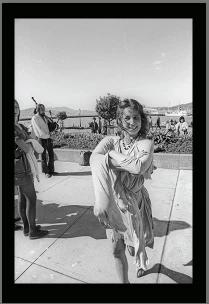
    Thank you. I never did use but just tried. The problem is - with what I am doing ( SEE BELOW )

    Is taking these scannings, and then drawing a rectangle around the live area ( inverting it so everything else but the

    live area is selected ), and then turning it black, so that I wind up with what you see on the right.

    So the problem with Threshold is, that it will only make the black blacker and the white whiter, it will not enable me to turn both the

    white and the black black.

    Of course, Brightness / Contrast no longer will either - unless I remember ( each and everytime I open it ) to check Legacy.

    An annoyance I was hoping to avoid.

    S

    davescm
    Community Expert
    davescmCommunity ExpertCorrect answer
    Community Expert
    February 1, 2017

    Hi

    Now that I can see what you are trying to do :

    Select the area you want

    Shift + Ctr+ I to invert selection

    Layer -  Fill layer with Solid Color set to black

    Doing it this way you can adjust the mask later if required, to resize or reposition it, and you can change the fill from black to white (or any other colour ) later if you wish.

    You could also add an adjustment layer between those layers so you can adjust your image without affecting the border

    Dave