susanl7866380
Inspiring
October 16, 2024
Answered

Raw photos sent from LrC to PS do not go to ACR.

  • October 16, 2024
  • 11 replies
  • 1812 views

Unsure if this is a bug or if I have just missed something.  I have an iMac Pro with M-1 chip Sonoma v 14.6.1.  LrC is v. 14.0.1 Camera Raw v. 17.  PS 2025 v. 26.  

 Before the upgrade yesterday, I would send a photo to PS from LrC and it would go as a tiff.   Now I understand in the new version it goes as a raw file (I shoot Canon so my files are CR3).  This is working but , the files to do not go to ACR but instead they go to the main develop section.  If I go from there to ACR I am unable to use the new Noise reduction.  If I drag and drop the photo into PS from my external HD, the photo goes straight to ACR.  Any ideas why this is happening?  As far as I can tell, there is no difference between the files except one goes to ACR and one doesn't.

Thanks,  Susan

Correct answer Conrad_C

The short summary: For Denoise to be available in Camera Raw in Photoshop, do these three things:

  • Make sure the “New AI Features and Settings Panel” Technology Preview option is enabled in Camera Raw preferences. (This applies to Camera Raw 17.0 and may change)
  • In Lightroom Classic, open a raw image file into Photoshop as a raw Smart Object layer. 
  • Edit its contents with Camera Raw (not by applying the Camera Raw filter). 


If you need more details about each of those three steps, keep reading…


For the first thing, in my testing just now, Camera Raw only offers Denoise for a raw Smart Object in Photoshop if “New AI Features and Settings Panel” is enabled in Camera Raw Settings, Technology Previews panel. Note that how this works will change if Adobe finalizes that option and graduates it out of Technology Previews into a regular feature that’s available by default.
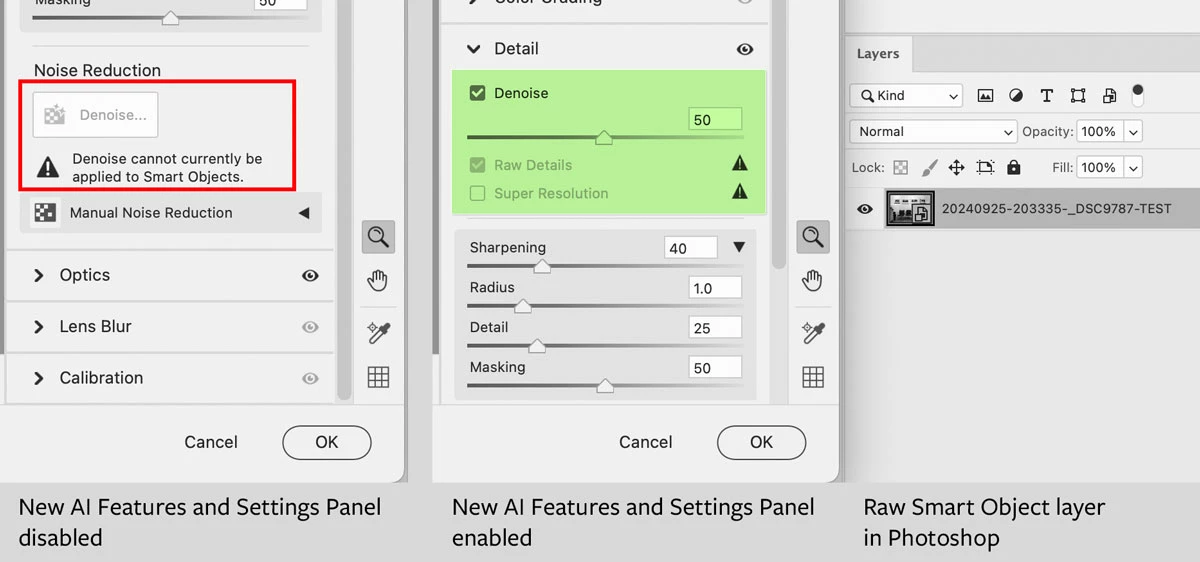


The second thing to get right is to make sure the data is still raw in Photoshop…

quote

 Before the upgrade yesterday, I would send a photo to PS from LrC and it would go as a tiff.   Now I understand in the new version it goes as a raw file (I shoot Canon so my files are CR3).

By @susanl7866380


Actually I don’t think this changed? I think we still have the same options for sending from Lightroom Classic to Photoshop that we had in the previous versions. And, this is important because the way you send it to Photoshop determines whether Denoise will be available in Camera Raw in Photoshop.


You do not want to use either of these two methods, because these will convert the raw image and render it to RGB channels, which does not work with Denoise at this time: 

  • In Lightroom Classic, choose the command Photo > Edit In > Photoshop 2025. 
  • Drag from Lightroom Classic, drop on Photoshop, Camera Raw opens, click Open. 


You do want to use one of these two methods, because these preserve the camera raw data in Photoshop:

  • In Lightroom Classic, choose the command Photo > Edit In > Open as Smart Object in Photoshop. Or…
  • Drag from Lightroom Classic, drop on Photoshop, Camera Raw opens, click Open as Object

Both ways preserve the camera raw data as a Smart Object layer in a new Photoshop document, and Denoise can work with that if “New AI Features and Settings Panel” is enabled..
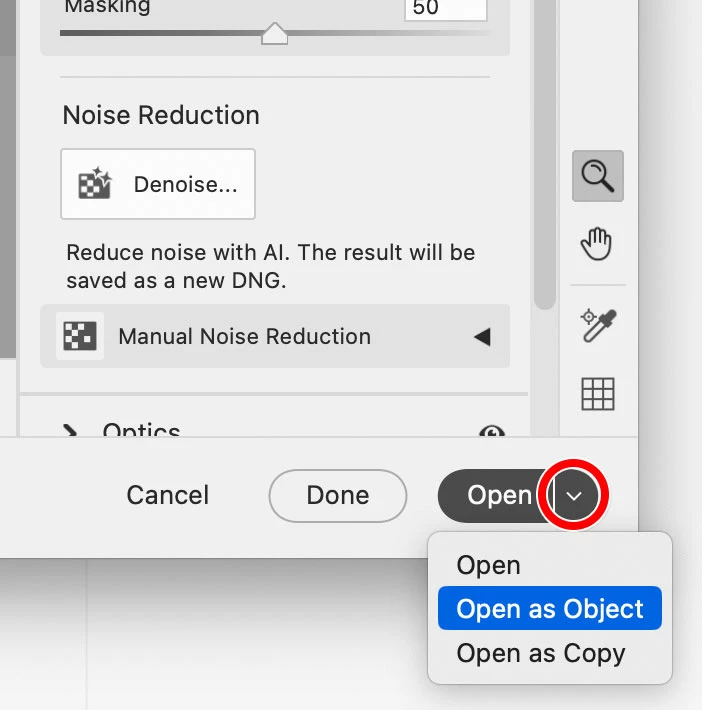


After that’s done correctly, then…


The third thing to get right is how you edit the raw Smart Object layer in Photoshop: 

  • You want to open Camera Raw by double-clicking the raw Smart Object layer. That’s a shortcut for selecting the raw Smart Object layer and choosing Layer > Smart Objects > Edit Contents. If you do it this way, Denoise is available because it’s editing at the raw data level.
  • Do not open Camera Raw by choosing Filter > Camera Raw Filter. That does not actually edit the layer as raw data, because like other filters it just applies its effects to the layer without actually getting inside it. So, Denoise and several other Camera Raw features are not available in Camera Raw Filter. 
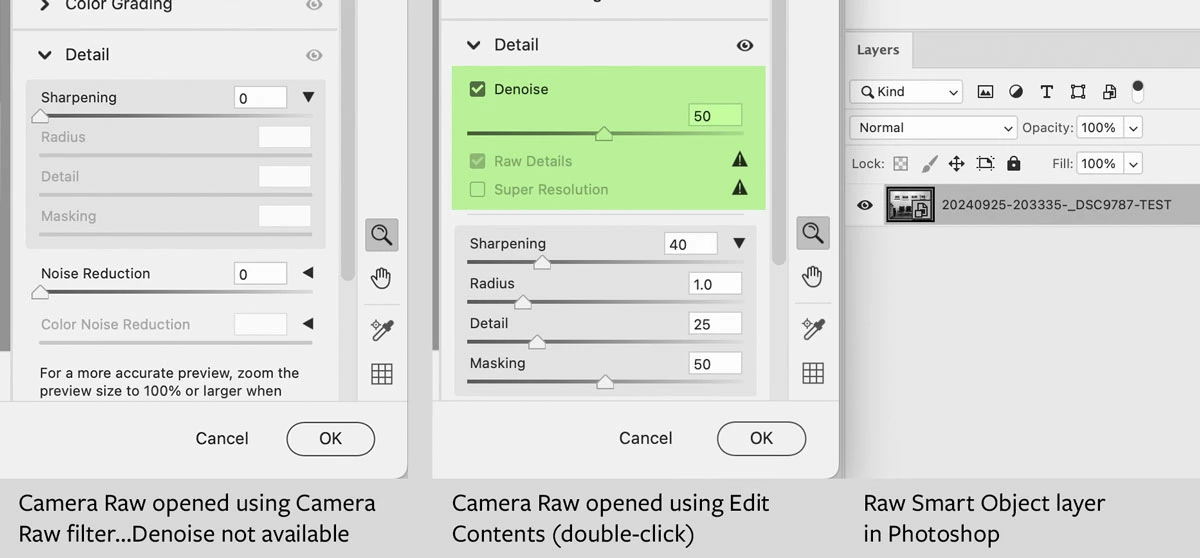


Remember everyone, Camera Raw Filter is only there as a convenience for Photoshop layers that are not actually raw! If a layer is a true raw Smart Object, you just about always want to Edit Contents (double-click) instead.


11 replies

Conrad_C
Community Expert
Conrad_CCommunity ExpertCorrect answer
Community Expert
October 23, 2024

The short summary: For Denoise to be available in Camera Raw in Photoshop, do these three things:

  • Make sure the “New AI Features and Settings Panel” Technology Preview option is enabled in Camera Raw preferences. (This applies to Camera Raw 17.0 and may change)
  • In Lightroom Classic, open a raw image file into Photoshop as a raw Smart Object layer. 
  • Edit its contents with Camera Raw (not by applying the Camera Raw filter). 


If you need more details about each of those three steps, keep reading…


For the first thing, in my testing just now, Camera Raw only offers Denoise for a raw Smart Object in Photoshop if “New AI Features and Settings Panel” is enabled in Camera Raw Settings, Technology Previews panel. Note that how this works will change if Adobe finalizes that option and graduates it out of Technology Previews into a regular feature that’s available by default.


The second thing to get right is to make sure the data is still raw in Photoshop…

quote

 Before the upgrade yesterday, I would send a photo to PS from LrC and it would go as a tiff.   Now I understand in the new version it goes as a raw file (I shoot Canon so my files are CR3).

By @susanl7866380


Actually I don’t think this changed? I think we still have the same options for sending from Lightroom Classic to Photoshop that we had in the previous versions. And, this is important because the way you send it to Photoshop determines whether Denoise will be available in Camera Raw in Photoshop.


You do not want to use either of these two methods, because these will convert the raw image and render it to RGB channels, which does not work with Denoise at this time: 

  • In Lightroom Classic, choose the command Photo > Edit In > Photoshop 2025. 
  • Drag from Lightroom Classic, drop on Photoshop, Camera Raw opens, click Open. 


You do want to use one of these two methods, because these preserve the camera raw data in Photoshop:

  • In Lightroom Classic, choose the command Photo > Edit In > Open as Smart Object in Photoshop. Or…
  • Drag from Lightroom Classic, drop on Photoshop, Camera Raw opens, click Open as Object

Both ways preserve the camera raw data as a Smart Object layer in a new Photoshop document, and Denoise can work with that if “New AI Features and Settings Panel” is enabled..


After that’s done correctly, then…


The third thing to get right is how you edit the raw Smart Object layer in Photoshop: 

  • You want to open Camera Raw by double-clicking the raw Smart Object layer. That’s a shortcut for selecting the raw Smart Object layer and choosing Layer > Smart Objects > Edit Contents. If you do it this way, Denoise is available because it’s editing at the raw data level.
  • Do not open Camera Raw by choosing Filter > Camera Raw Filter. That does not actually edit the layer as raw data, because like other filters it just applies its effects to the layer without actually getting inside it. So, Denoise and several other Camera Raw features are not available in Camera Raw Filter. 


Remember everyone, Camera Raw Filter is only there as a convenience for Photoshop layers that are not actually raw! If a layer is a true raw Smart Object, you just about always want to Edit Contents (double-click) instead.

susanl7866380
Inspiring
October 24, 2024

Conrad, that was a wonderfully detailed answer and I thank you so much.  You have made my life much easier.  

Susan


Conrad_C
Community Expert
Community Expert
October 24, 2024

Thank you, that is a very nice thing to say!


I wish it could be less detailed (simpler), but there are those things we have to watch out for and get just right…

susanl7866380
Inspiring
October 18, 2024

Thanks for the info D Fosse.  That was very clear.  I learn something new everyday and that is a good thing.

Susan

D Fosse
Community Expert
Community Expert
October 17, 2024

This may seem confusing because a lot of the Lightroom > Photoshop interactions are handled by background scripts.


An open file doesn't have a file format. Fila formats are storage containers. So when you save the file, it is encoded into a file format. This is where the script comes in, by telling Photoshop to save it as a TIFF. Or PSD, as the case may be.


As long as it's open, the file is just an image sitting in RAM. The title bar tells where the file is coming from, not where it's going, since that is normally unknown at this point.

susanl7866380
Inspiring
October 17, 2024

Thanks Lumigraphics.  I didn't realize the file name didn't change to the tiff format until it returned to LR from PS.  For some reason I thought it showed up as a tiff when it went to PS.  Technology is killing me.  Appreciate you help.

Legend
October 17, 2024

Your files do not go to Photoshop as CR3, they are demosaiced and sent as TIFF or PSD format.

susanl7866380
Inspiring
October 17, 2024

BrettN, since the upgrade LrC sends my CR3 raw files to PS as CR3 files instead of tiffs. Preferences are set in LrC to send files to PS at a tiff and that is why I thought I should be able to use the denoise feature in PS.  I have been using LrC for years and use it for most everything except for a few of the things PS does better (as you noted).  Not sure why my files are now going to PS as raw files but they do.  Thanks for the response.

seaghost666
Participant
October 23, 2024

Dear Susan, I have the same problem you have, but I found (for the time being) a workaround... with Photoshop open, select an image from Lightroom CC (develop modus works for me), and drag and drop it onto the Photoshop icon. It will open in ACR in Photoshop, with the new features at hand. Succes!

susanl7866380
Inspiring
October 17, 2024

Thanks Lumigraphics.  I knew the feature I wanted wasn't in LR but I did think I could send a raw file from LR to PS and run denoise from ACR there.  Well, it will eventually come out in LrC so I will just have to wait.  Thanks again, Susan

Legend
October 17, 2024

You cannot run your workflow the way you want. The new denoise is a technology preview and only available in ACR, NOT Lightroom. So you have a choice- Lightroom and the older Denoise, or Bridge/Photoshop/ACR and the new (essentially a beta) noise reduction, without Lightroom.

Right now its one or the other.

BrettN
Community Manager
Community Manager
October 17, 2024

Lightroom Classic still sends raw images to Photoshop as TIFF (by default, you can change it to PSD in Preferences > External Editing). Lightroom's Develop module has the exact same toolset as the Camera Raw plug-in in Photoshop (they are essentially the same thing). The general workflow is to complete all Raw edits in Lightroom and then send it to Photoshop to handle all the edits that only PS can do. When you save the file in PS, the TIFF (or PSD) gets imported back into LR and gets stacked with your original raw file.


If you are skipping the editing capabilities in Lightroom, using Brige for organization in your workflow may make more sense. There, you are working directly with your files off the hard drive and would open them directly into PS from there, thus having to process them through Camera Raw first before proceeding to the regular editing environment of PS.


Editing raw files in Photoshop means that the edits you perform in the Camera Raw plug-in will not end up back in Lightroom. This means you won't see the changes you've made without manually import them.

susanl7866380
Inspiring
October 16, 2024

Thank you.  Guess I didn't make my self clear.  I know that LrC doesn't have all the functions of ACR in PS, that is why I would like to send my raw files directly from LrC to PS to make use of those functions.  However, when I do that, the raw file shows up in PS but not ACR and when I send it to ACR the new denoise function is not available.  I can us PS's ACR function if I open a photo directly into PS bypassing LrC completely.  This is annoying as it means I have to send the photo back to its original folder after using ACR in PS and then import it into LrC.  Too many steps.  All I want is to be able to send a raw file from LrC to PS and have that raw file open in Camera Raw.