


Inspiring
November 21, 2018
Answered

Rectangle tool not working like before [2018]

  • November 21, 2018
  • 2 replies
  • 25762 views

Hey all.


How can I simply draw a rectangle, as in previous versions, and have it become its own editable layer?


As it is, I have to create a layer first, then draw the rectangle overtop of it, and then I can't edit its colour anymore. So to be clear: I can't click the layer with the rectangle tool and change the colour in the properties panel like before.


Also, in the previous version, I was able to draw a rectangle right overtop of a smart object photo and it would just create its own layer. Now it won't let me, as it thinks I'm trying to draw it into the smart object.


B.
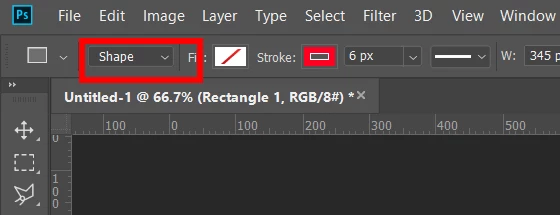
Correct answer Chuck Uebele

Make sure it's set to shape layer.

2 replies

roxannec58393265
Participant
November 4, 2022

Did all which was suggested: reset tool, make sure new layer was selected on tool bar PLUS close and restart PS

PECourtejoie
Community Expert
Community Expert
November 4, 2022

Hi, @roxannec58393265 You get that popup when you double-click on the image.

If you did reset the tool, and are sure not to double click, then try to restore your preferences to the default using this manual method:
https://helpx.adobe.com/photoshop/using/preferences.html#Manually it lets you keep a copy on the desktop that you can use to revert the process.

Chuck Uebele
Community Expert
Chuck UebeleCommunity ExpertCorrect answer
Community Expert
November 21, 2018

Make sure it's set to shape layer.

Inspiring
November 22, 2018

Thanks Chuck!!

B