


Exit
  • Global community
    • Language:
      • Deutsch
      • English
      • Español
      • Français
      • Português
  • 日本語コミュニティ
  • 한국 커뮤니티
0

Reinstall

New Here ,
Jul 31, 2021 Jul 31, 2021

Hi everyone, My PS has been doing weird stuff for a long time and everytime I update it in the hope of a fix, some new weird thing occurs. Currently, whenever I open PS the tool bar appears on screen before I've even opened an image.
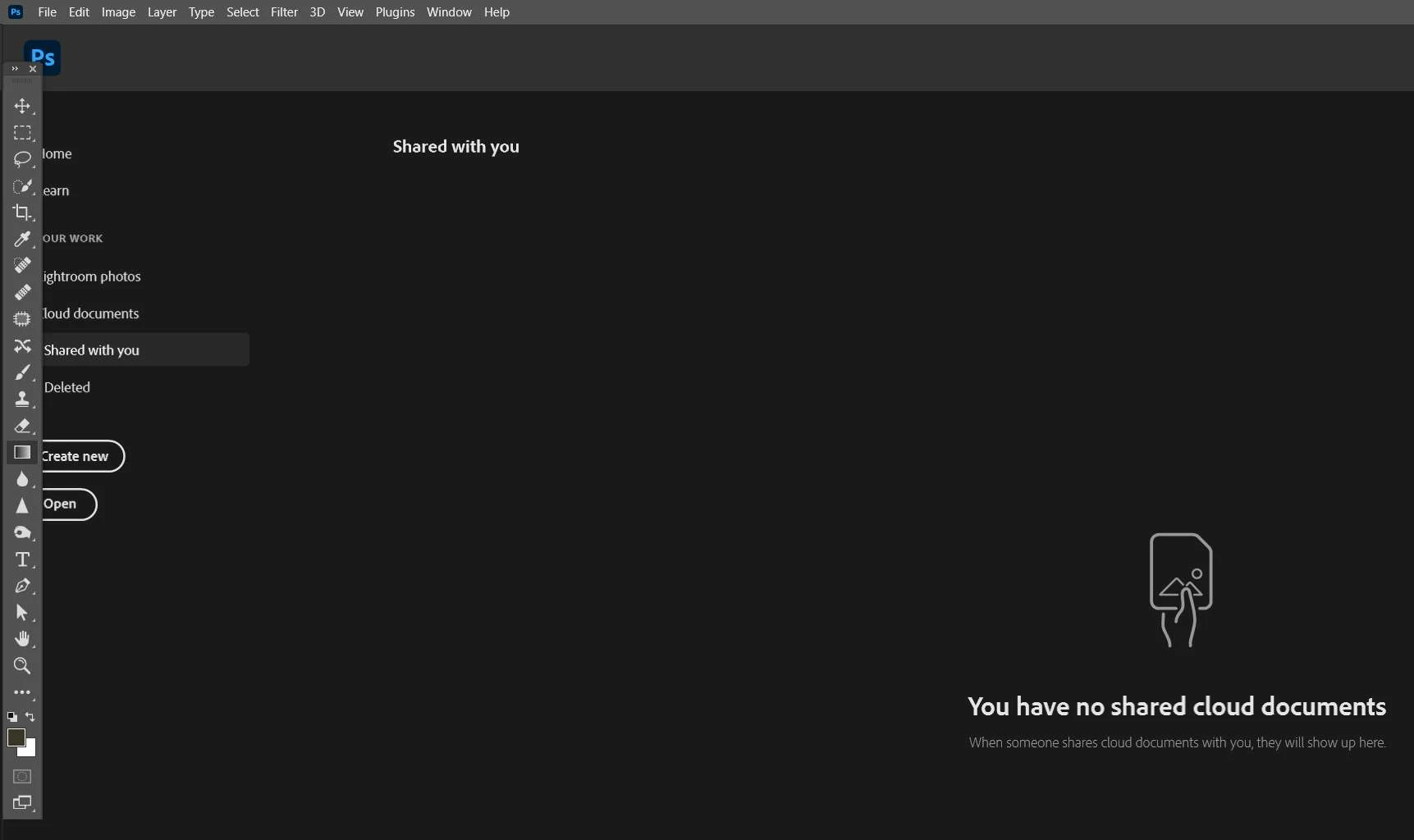
screenshot1.jpg

My second issue relates to when I open an image for editing. All my images open with grid lines active and I have not been able to fix this through the preferences menu or even the View/Show menu.
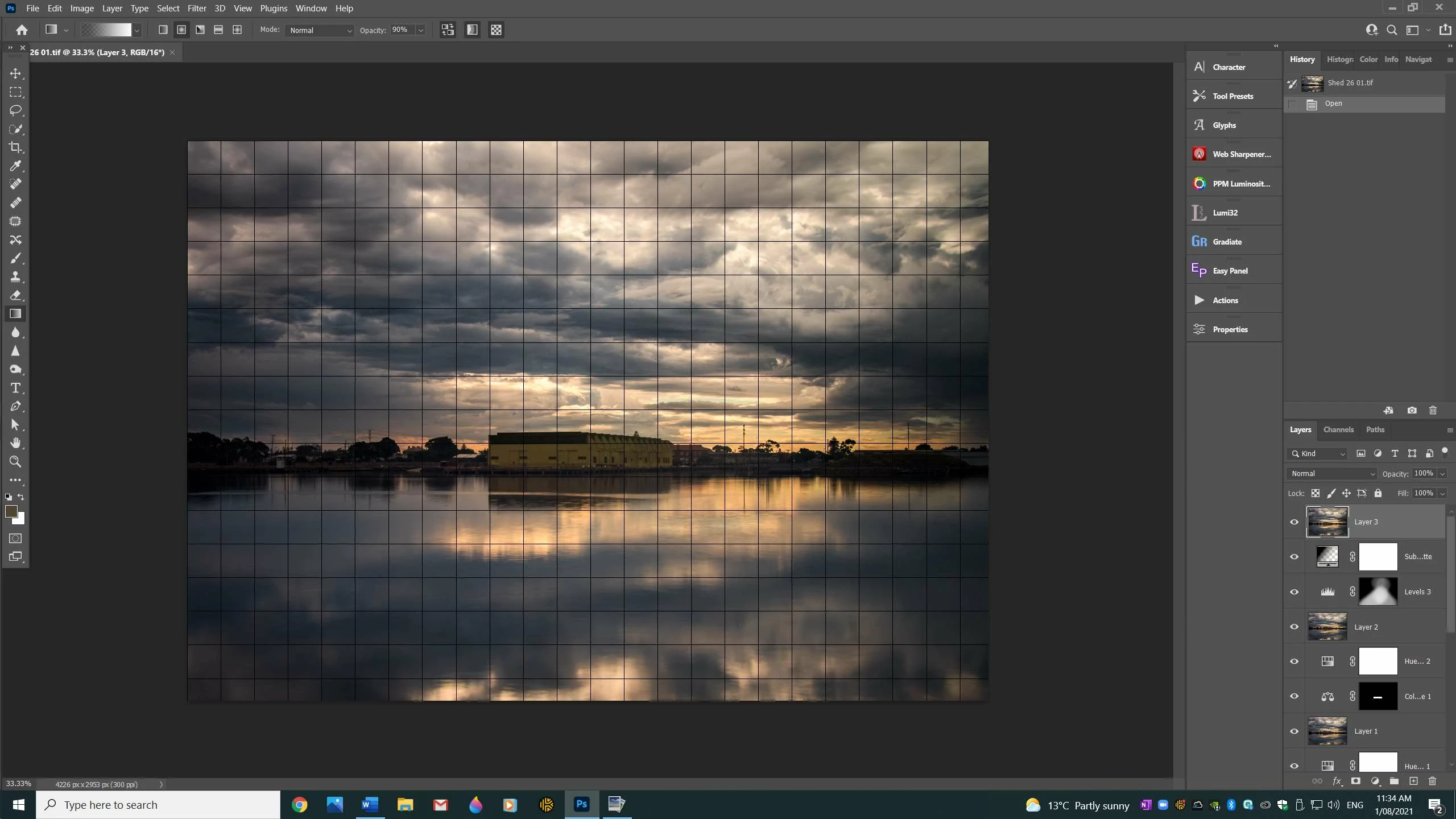
screenshot2.jpg

My thoughts are to either uninstall PS and reinstall it from scratch or alternatively to reset factory default settings. I am worried however what this would mean as far as losing any plugins, presets, filters etc which I have installed. Also, if I was to uninstall/reinstall PS, how would I go about it? I have the latest  subscription version.

Any advice greatly appreciated.


Regards, Graham

TOPICS
Windows
193
Translate
Report
Community guidelines
Be kind and respectful, give credit to the original source of content, and search for duplicates before posting. Learn more
community guidelines
Adobe
Community Expert ,
Jul 31, 2021 Jul 31, 2021

You say you have reinstalled, but did you reset Preferences first?   


Another thing to try is using the Cleaner tool before reinstalling

Use the Creative Cloud Cleaner tool to solve installation problems (adobe.com)


Is it Windows 10 you are using?  Is your OS in good condition?  I think the issue is with Photoshop rather than the OS though, and it is really messed up.  Just try resetting the Preferences before you do anything else, because that would have 100% been my first thought after seeing those screen shots.


Good luck

Translate
Report
Community guidelines
Be kind and respectful, give credit to the original source of content, and search for duplicates before posting. Learn more
community guidelines
Community Expert ,
Jul 31, 2021 Jul 31, 2021

To add to Trevor’s advice, you reset the Photoshop preferences, under the General tab in Photoshop preferences, then close and reopen Photoshop.

Translate
Report
Community guidelines
Be kind and respectful, give credit to the original source of content, and search for duplicates before posting. Learn more
community guidelines
Community Expert ,
Aug 01, 2021 Aug 01, 2021


@grahamh86055948 wrote:

Currently, whenever I open PS the tool bar appears on screen before I've even opened an image.

All my images open with grid lines active


Hi Graham,


Here's how to fix both of these issues:

1. You can see in your second image that your Tools panel is floating. Floating panels always appear on top of the Home Screen. To fix this one, go to Window > Workspace and Reset your current Workspace. When the Tools panel is Docked, it will no longer appear on top.

https://helpx.adobe.com/photoshop/using/workspace-basics.html


2. When you go to View > and check/uncheck "Extras", PS hides or shows everything that is checked in the "Show" menu (just below Extras). Go to the Show menu and uncheck Grid. Once you do, it will no longer be toggled by Extras.

janee_0-1627816245041.gif

Jane

Translate
Report
Community guidelines
Be kind and respectful, give credit to the original source of content, and search for duplicates before posting. Learn more
community guidelines
Community Expert ,
Aug 01, 2021 Aug 01, 2021

Jane, it's the toolbar appearing over the Home Screen that looks wrong to me.  I can't think of any settings that would let that happen, but I've always used the default.  I just tried turning off Auto Show the Home Screen and turning on Use legacy new document and restarting, but that didn't change when the toolbar appears.   It feels messed up to me as if Preferences are corrupted.   I've been finding that I need to reset Preferences more than I ever used to.  It's gone from almost never to maybe once a month.  I do suspect that deliberately trying to tie Photoshop in knots to test answers for this forum might have something to do with it, but on the other hand, we are seeing a lot of 'issues' with recent versions.

TrevorDennis_0-1627819768243.png


Translate
Report
Community guidelines
Be kind and respectful, give credit to the original source of content, and search for duplicates before posting. Learn more
community guidelines
Community Expert ,
Aug 01, 2021 Aug 01, 2021
LATEST

Try it with other panels, @Trevor.Dennis . Open a document and float the Layers panel, then close the document and the floating panel shows in the home screen.


You won't see this much since you have all your panels in your second and third monitors, though. I see it all the time, because I float various panels as I work. Try using Essentials, then float a panel or two.


Look in @grahamh86055948 's second screen shot. The Tools panel is floating.


I can't remember the last time I reset Preferences, but then again, I'm on a different OS. 😊 I don't know why you have to do it once a month!


~ Jane


Translate
Report
Community guidelines
Be kind and respectful, give credit to the original source of content, and search for duplicates before posting. Learn more
community guidelines