Known Participant
December 31, 2019
Answered

Remove Background doesn't appear in the Quick Actions Properties window Photoshop 2020 macOS

  • December 31, 2019
  • 5 replies
  • 65413 views

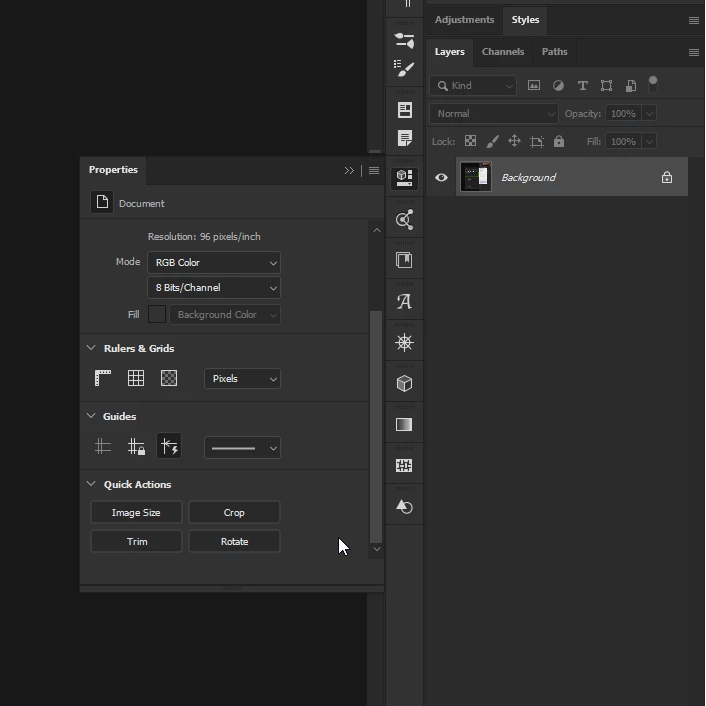
Help. "Remove Background" doesn't appear in the "Quick Actions"Properties window Photoshop 2020 Mac Catalina. This function seems to be missing. I only have Image Size, Crop, Trim and Rotate. Can't see where to add it to the "Quick Actions." Any suggestions greatly received. Thanks


{Thread renamed by moderator}
Correct answer

Hi

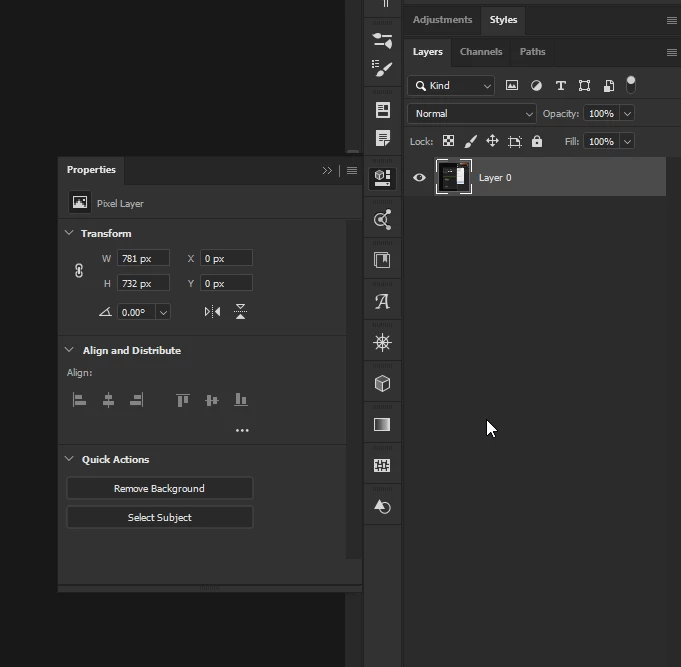
You need to be working on an unlocked layer to see the other options

Locked layer

Unlocked layer


5 replies

Participant
April 3, 2023

Hi friends!
All wht you need is change your work space 


LEFT4LAZY
Known Participant
September 23, 2023

Thank you! @Михаил27645121desq, this one worked.

Participant
February 28, 2023

I'm also having issues with quick actions which don't appear. The layer is unlocked. Was anyone able to resolve this?

Participant
March 4, 2023

why is no one answering this question?  Several people have posted and shown that they are not getting an option in their properties panel for anything like you all are showing.


My layer is unlocked, windows has been reset to essentials,I have doubled checked to be sure software uptodate and still the only thing my properties panel shows is is W, H, X and Y.   same as ren5E15 posted TWO YEARS ago.

Participant
March 11, 2023

I'm having the same issue, and my layers are unlocked.

Participating Frequently
July 2, 2020

Remove Background doesn't appear in the Quick Actions Properties window Photoshop 2020 and background layer is unlock

July 2, 2020

Hi

Your screenshot is tiny, so it's hard to see, but did you click on > arrow to open up the options

Participant
September 17, 2021

same here


Same..


Correct answer
December 31, 2019

Hi

You need to be working on an unlocked layer to see the other options

Locked layer

Unlocked layer


poggs1Author
Known Participant
December 31, 2019
Thanks Ged Traynor, that did the trick. In future I will remember to unlock
the layer or background. Thanks and Happy New Year.
Sahil.Chawla
Adobe Employee
Adobe Employee
December 31, 2019

Hi there,

Would you mind sharing a screenshot of Quick Actions tab?
Also, please have a look at this thread and see if it helps: https://feedback.photoshop.com/photoshop_family/topics/quick_actions_save_your_time_and_your_health


Regards,
Sahil

poggs1Author
Known Participant
December 31, 2019
Hi Sahil,

Unlocking the layer worked. Happy New Year.