Known Participant
September 2, 2018
Question

remove color noise

  • September 2, 2018
  • 8 replies
  • 8433 views

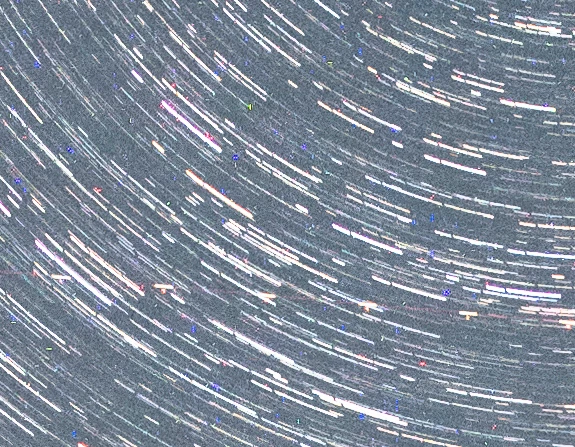
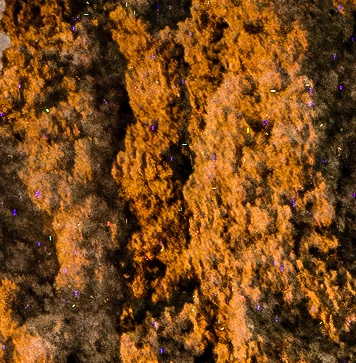
I'm trying to remove color noise from a star trails picture.  The color noise is quite obvious when you blow up the image but I've tried many things to no avail. Using the noise filter/dust and scratches does the most but is far from perfect or even good.  I've included two small sections of the picture one for sky and one for foreground.  If there's a good solution for sky verses foreground that's fine.  Any ideas would be most appreciated.
    This topic has been closed for replies.

    8 replies

    Participating Frequently
    January 19, 2022

    Hey guys, I found the tutorial on Adobe online help:https://helpx.adobe.com/in/lightroom-cc/how-to/reduce-noise-in-photos.html

    It workes like a charm:

    Benjamin Root
    Brainiac
    September 7, 2018

    As the others have already mentioned, these are "dead pixels." When taking exposures longer than 20-30 seconds, these defective pixels become more and more prominent.  There is an easy way to get rid of these dead pixels - unfortunately it may require the "shoot it again filter."

    The idea is to take your main exposure, then immediately take a second "dark frame" of the same exposure time and ISO, with the lens cap on. This works because, generally speaking, those dead pixels are always in the same spot; however their characteristics can change due to exposure settings and sensor temperature.

    Once you have that data, the two files can be loaded into Photoshop as a stack. You'll then have two options:

    1. Set the "dark frame" to "Subtract" blend mode.
    2. Select black of dark frame using Color Range, invert Selection, Content Aware Fill the main image.

    The catch to the first method is all the subtracted areas will be black, so depending on the image this may not yield satisfactory results.

    Here are embellished examples:

    There is a possibility that simply taking another image at this point (with the exact settings as the problem image) may suffice. Worth a try.

    Theresa J
    Community Expert
    September 7, 2018

    This is great Benjamin. I have heard of this process, but never explained this well. I'm curious for myself and Bangert, if he looks at the metadata of his images and sets his camera to the same exact settings, can he accomplish the second "dark shot" after the fact?

    Benjamin Root
    Brainiac
    September 7, 2018

    There is a possibility taking the dark frame now might work. I've never tried it myself so far after the fact, but I have had it work several minutes later. I'd think the main issue that could negatively affect the dead pixels would be the sensor temperature. Depending on how long the sensor had been in use prior to taking the image in question, I think this should work. Or at least get things close!

    Just got done editing that possibility into my previous reply before I saw your post.

    Arnold France
    Known Participant
    September 7, 2018

    Take the Stamp tool and do alt-click to determine the source and paint.

    Stephen Marsh
    Community Expert
    September 7, 2018

    Hi Arnold, if resorting to manual cleanup, I’d suggest the spot healing tool (no need to select a source).

    This reminds me of having to “spot” drum scans, which I had to do 20 years or so ago, before we had healing tools.

    There are two approaches: Perfectionist and Pragmatic.

    If the image warrants perfection, then hit the home key, start in the upper left at say 200% zoom, then manually spot clean each offending dot working away to the far right. Then page down and repeat moving back to the left etc. Eventually you will end up on the bottom right and have a pristine image.

    If you need to be pragmatic, you zoom out, 50% or 25% and only clean the “big dots” knowing that the smaller ones will be averaged out by output and viewing factors and it is not worth spending the time pixel peeping, making busy work. I found that uneven zoom views were actually better as the viewing algorithm would amplify the major spots/blemishes rather than smooth them away as would happen at even zoom views.

    Semaphoric
    Community Expert
    September 6, 2018

    Are you shooting RAW files, or JPEGs? Camera Raw (not the filter) should eliminate the stuck pixels from RAW files when converting.

    Steve NBAuthor
    Known Participant
    September 7, 2018

    Yes the original images were raw.  The image I'm playing with was made by taking my 5 images from lightroom to layers in PS, create a smart object from the 5 layers and stack taking the max value.  This was perhaps not the best way to make a star trail image but it was simple.  So the noise in the pieces of image I've been including is the worst case situation.  When I look and compare the 5 images against each other I see some of the noise is the same across all the images and some is individual.  These images were all in the 6 minute exposure area.  I do not see this noise in the images I took earlier in the night that were shorter.

    Arnold:  I'm not sure what you had in mind using the stamp tool.  Could you elaborate please?

    Stephen: You realize the piece of the image in included was a very small part of the whole image.  How much painting did you need to do?  I'd say there's a good chance painting would be impractical for the whole image.

    Thanks again for the replies.

    Stephen Marsh
    Community Expert
    September 8, 2018

    create a smart object from the 5 layers and stack taking the max value.

    For retouching purposes, you could do the same using median or mean blending in the stack to see if that cancels out most of the stuck pixels, then blend and mask this in to your existing image.

    sharp_hands16B8
    Community Expert
    September 4, 2018

    I shoot Astro Photography long exposures and I find the Color Noise reduction helps a lot in the RAW editor you are using. Whether that is LR or ACR, or Camera Raw Filter. But you won't see it do much unless you are zoomed in to 100% scale int he preview window. Otherwise that color noise just stays looking noisy.

    Steve NBAuthor
    Known Participant
    September 4, 2018

    I agree the dust and scratches works well in some cases.  In my case the foreground was cleaned up pretty well. It's a bit of a balancing act trying to remove the color noise without killing off the detail.  What did not work well was the sky.  The dust and scratches kill off a significant portion of my star trails.  What I finally did was to combine and image with dust and scratches applied with an unaltered version to create a composite of unaltered sky with filtered foreground.  While I can see the color noise in the sky if you pixel peep it's not noticible at a reasonable magnification.  The trails are to busy to notice the noise.

    I'm still trying to play around with the lab suggestion.  I need to work a bit more trying to fine tune the masks from the a and b channels.

    Steve NBAuthor
    Known Participant
    September 6, 2018

    I'm still not happy with what I've been able to do.  I have not been very successful using the lab channels as masks.  It's pretty hard to get just what you want masked without including much more or the opposite of not including what shouldn't be there but excluding what you want to change.  The dust and scratches works pretty well for the foreground but does poorly in the sky.  If you look at this color noise at the pixel level is looks pretty obvious what needs to be removed. If you run the cursor over these areas you see very significant changes reported in the info pane.  The real problem for the sky is that it has these sudden transitions (star trails) like the color noise but they extend for much longer than the noise.  I'm including another screen shot a piece of the sky at a pixel level that has a small part of a star trail and some color noise.  Any more ideas?

    Stephen Marsh
    Community Expert
    September 3, 2018

    This “colour noise” is more like a “dead/stuck pixel”… If you convert a copy of the image to Lab mode, then the A and B channels could be used to isolate the errant pixels and create a mask using curves or filters to increase the contrast etc. The mask could then be used to isolate corrections, content aware fills etc. Good luck!

    Steve NBAuthor
    Known Participant
    September 3, 2018

    Going to lab mode looks interesting.  I can see the possibilities of using the a and b channels to create masks.  I need to read up a bit more on how to use the lab channels.  I also need to find some info on content aware fills.  Looks promising. 

    I'm not sure how I'd classify this noise.  Probably stuck pixels is close as it seems temperature dependent.  These are long exposures and the night this picture was taken was in the low 60's.  The previous two night shooting the temperature was in the high 40's and much much less noise of this sort.

    Again thanks to everyone for taking the time to reply.

    lambiloon
    Community Expert
    September 4, 2018

    in video method one try to increase blur value i tried its working

    Ali Sajjad / Graphic Design Trainer / Freelancer / Adobe Certified Professional
    lambiloon
    Community Expert
    September 3, 2018

    hi check this video i think its very easy to do it...thanks

    Ali Sajjad / Graphic Design Trainer / Freelancer / Adobe Certified Professional
    Steve NBAuthor
    Known Participant
    September 3, 2018

    The video had two suggestions neither of which had much if any effect.  Thanks for the suggestion.

    Theresa J
    Community Expert
    September 3, 2018

    Have you tried color noise reduction in the Camera Raw filter? What version of Photoshop do you use? You’ll find it in the filter menu of Photoshop CC.

    Steve NBAuthor
    Known Participant
    March 1, 2022

    I using version 23.2.1 of photoshop.  I'm not sure which filter option you ment so I used noise/noise reduction.  The main problem is it turns the noise to white which doesn't really help.