


Inspiring
July 11, 2017
Question

Removing the see through effect.

  • July 11, 2017
  • 3 replies
  • 1102 views

Hi,
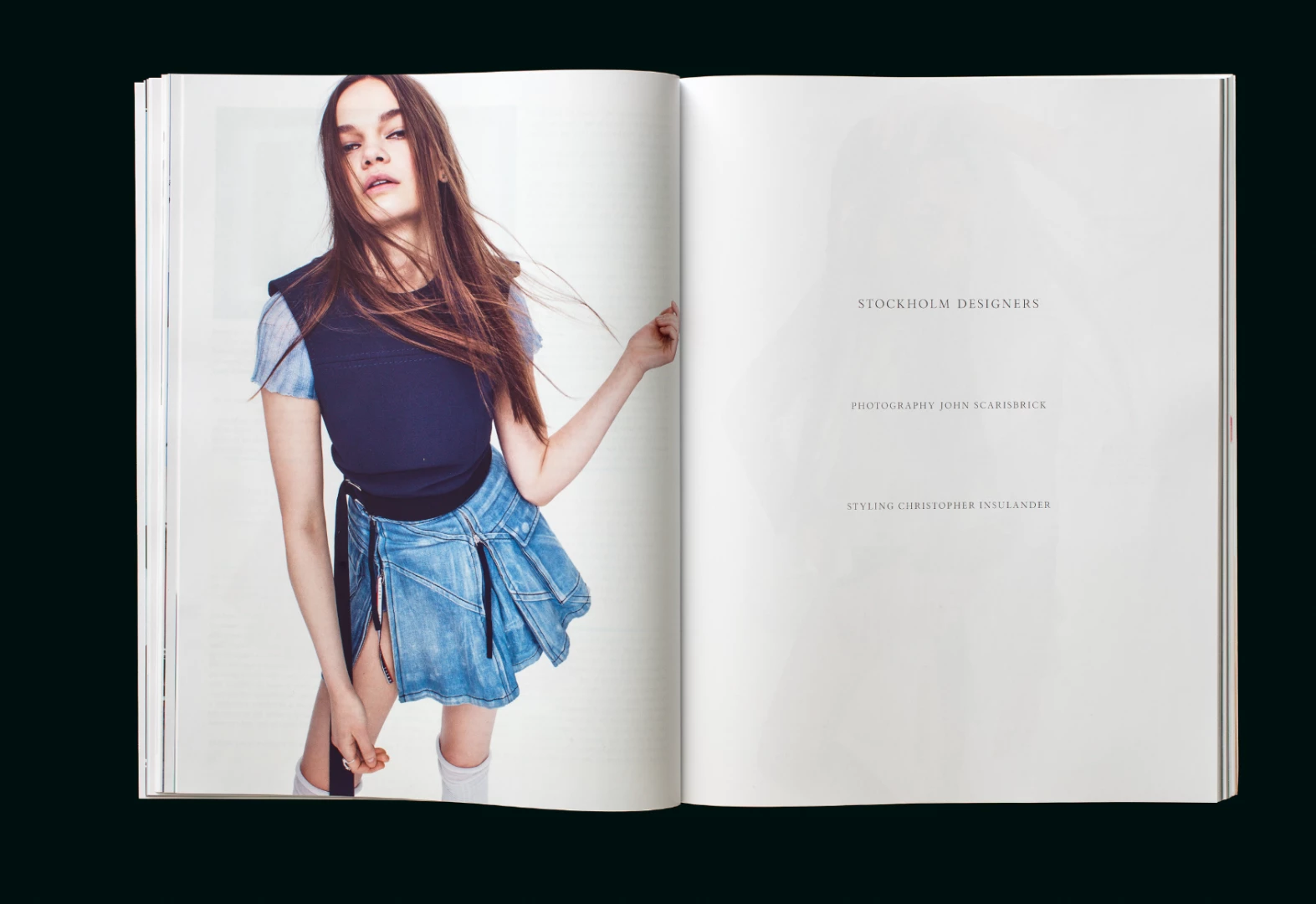
I photographed some magazine spreads and as you see the next page shines through in an unpleasant way.

I tried to pull in the curves a bit but the images become too bright then.
Has anyone had experience with this and could give a tip? Looking primarily for a solution that is not too time consuming.

Thanks.
This topic has been closed for replies.

3 replies

K´mo
Participating Frequently
July 12, 2017

The good old trick used when scanning magazines and papers could help here, too. You have to put black paper behind the paper. That minimizes the see-through effect.

c.pfaffenbichler
Community Expert
July 12, 2017

Second on the black-backing advice of K’mo.

davescm
Community Expert
July 11, 2017

Hi

Two masks (made quickly in Select and Mask)  to separate the pages from the background and the girl.

Then for the white pages, a curve to lift the white and little bit of healing - I repainted the shadow with a quick brush stroke on a layer set to luminosity

For the girl I cloned some of her skin onto the layer above and blurred it, clipping it to the layer below to prevent any blur from extending onto the white.

Not perfect but quick and hides much of the issue.

Dave

Inspiring
July 11, 2017

I think you are trying to rid yourself of the ghosted image on the right page. You need to select only the white of the page. Maybe select the type on the right page, with contiguous off then use the marquee tool to select the remainder of the image that is not the white of the right page. Once you have the selection of the to be masked area, then inverse your selection. With the new selection add a level adjustment layer. Change the properties of the adjustment layer to get to your desired effect. I like adjustment layers since both the layer mask & adjustment properties are changeable.

This picture above I did a little different. I used the blue channel to make my selection.

  1. copy the blue channel
  2. fix the blue channel with levels adjustment (no gray on the page on the right except for the black text)
  3. load the selection. Deselect the remainder of the image that is not the right page. (You could also paint black into the channel before you load the selection, so it will be the masked area)
  4. add the adjustment layer and make the changes. (I tried both a fill layer & a level adjustment layer)
Nexahs1138
Inspiring
July 11, 2017

Have you tried using the spot healing brush to erase the text or creating a mask to place over them?

SmallBearAuthor
Inspiring
July 11, 2017

No.