


mechee55
New Participant
February 22, 2019
Answered

resize image to specific dimentions

  • February 22, 2019
  • 5 replies
  • 959 views

I'm a total newbie here, and I need your help!

I need to resize some images to 377px(W) x 490px(H) without losing the quality.  These will be large thumbnails on a website.

The problem is that those images are in square shapes...

I don't mind them having a white space both on top and bottom.  The most important thing is, they need to be 377px x 490px...

How do I achieve this??

Thanks in advance!
This topic has been closed for replies.
Correct answer Nancy OShea

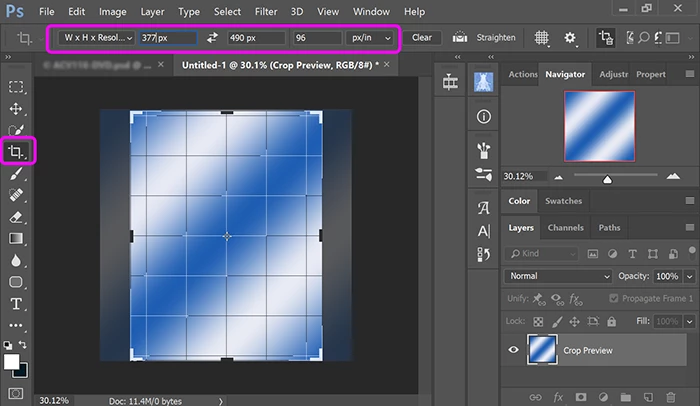
Use the Crop Tool.  Create a preset of required width, height and resolution.  See screenshot. 

Now you can adjust handles to get the best crop  without causing distortion.   BTW, this also works on smaller images.

5 replies

JJMack
Community Expert
February 23, 2019

You can Crop to a size without loosing image quality you will only loose image content. You can change an Image Print resolution to change Print sized without loosing image quality. However if you interpolate an image to resize it you will loose some image quality.

JJMack
Mike_Gondek10189183
Community Expert
February 22, 2019

Record an action that does image size width to the smaller dimension 377, then canvas size to add white to 490.

Recording an action is like using a VCR, you hit a record button, then stop. Your result should look like this.

You can then run as batch on a folder of iimages

mechee55
mechee55Author
New Participant
February 23, 2019

wowwww! I'd love to learn how to do this, but for now this is too advanced for me!

Community Expert
February 22, 2019

I would create a blank document in 377 x 490px first. Then paste your image into it and resize that layer as you like - fill, contain, etc. (I convert the layer to Smart Object first as a habit.)

Nancy OShea
Nancy OSheaCorrect answer
Community Expert
February 22, 2019

Use the Crop Tool.  Create a preset of required width, height and resolution.  See screenshot. 

Now you can adjust handles to get the best crop  without causing distortion.   BTW, this also works on smaller images.

Nancy O'Shea— Product User, Community Expert & Moderator
mechee55
mechee55Author
New Participant
February 23, 2019

thank you! So easy to understand with the attached screenshot! But I need to get the entire image fit into the crop...

Nancy OShea
Community Expert
February 23, 2019

You can pull crop handles beyond your image borders and allow the  background color to fill empty areas.  In my example below, the background fill is white

Nancy O'Shea— Product User, Community Expert & Moderator
Silkrooster
Brainiac
February 22, 2019

Use Image>Image size to scale to the largest size (490 px) then use the crop tool to crop the other dimension (377 px). If don't right you will end up with a 377 px X 490 px image.
Make sure the crop tool is not constrained, otherwise it will cut into the 490 px side.