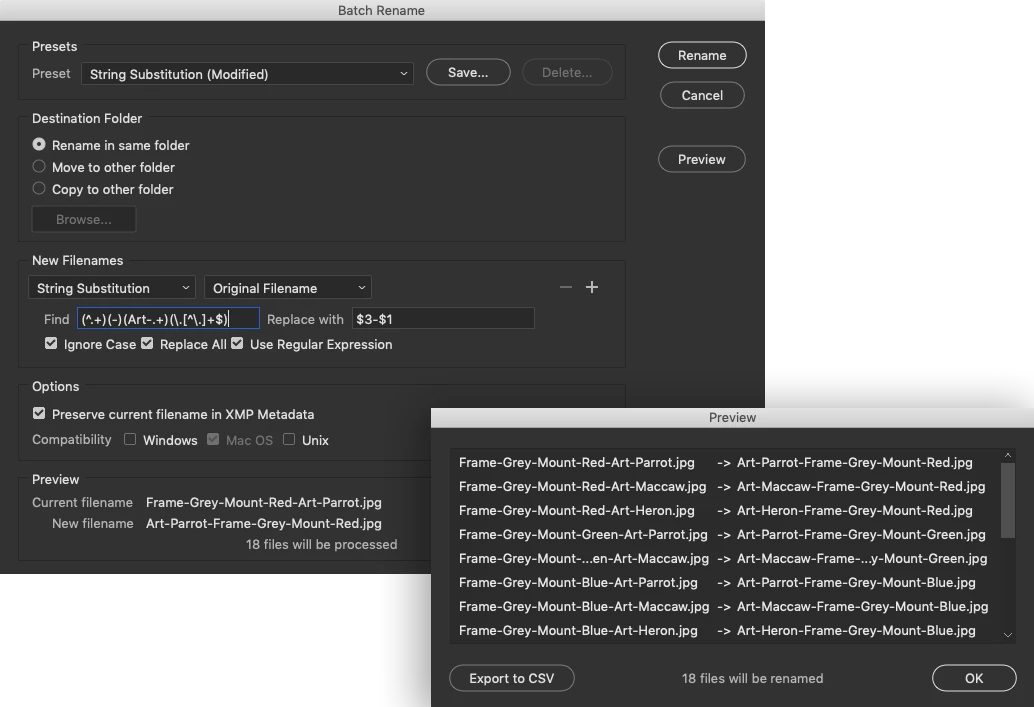
In the short term, you can use Adobe Bridge's Batch Rename command with a Regular Expression:
Find:
(^.+)(-)(.+-.+)(\.[^\.]+$)
Replace:
$3-$1
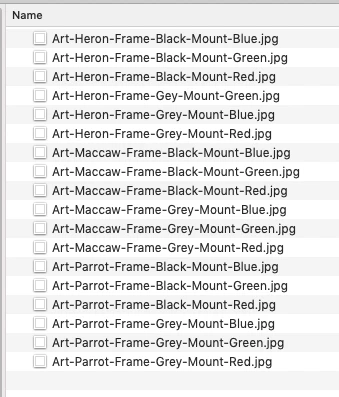
Then they will sort as you wish:
EDIT (new code below): When I have time I'll add this renaming to the current script code so that you don't need to use Bridge to Batch Rename.
Try this revised code:
/*
Composite Combinations From Top Level Layer Sets.jsx
Modified 17th November 2020 by Stephen A Marsh
https://community.adobe.com/t5/photoshop/saving-multiple-files-into-same-folder-from-actions/m-p/11564168

Original Script:
https://github.com/mechanicious/photoshopCompositionComposer

Automatically create variable composite JPEG images based on layer content in top level layer sets/groups.
Final montages are saved to the source directory. Not intended for batch processing.

Example:
- A layer set containing one or more "static" images
- A second layer set containing one or more "variable" backgrounds

Top level layer sets with leading double underscore __ characters are ignored
*/

/* Start Open/Saved Document Error Check - Part A: Try */

main();

function main() {
    try {
        app.activeDocument.path;

        /* Finish Open/Saved Document Error Check - Part A: Try */

        /* Main Code Start */

        var userDisplayDialogsPref = app.displayDialogs;
        app.displayDialogs = DialogModes.ALL;
        app.displayDialogs = DialogModes.NO;

        function getCombinations(arr, n) {
            if (n === 1) {
                var ret = [];
                for (var i = 0; i < arr.length; i++) {
                    for (var j = 0; j < arr[i].length; j++) {
                        ret.push([arr[i][j]]);
                    }
                }
                return ret;
            } else {
                var ret = [];
                for (var i = 0; i < arr.length; i++) {
                    var elem = arr.shift();
                    for (var j = 0; j < elem.length; j++) {
                        var childperm = getCombinations(arr.slice(), n - 1);
                        for (var k = 0; k < childperm.length; k++) {
                            ret.push([elem[j]].concat(childperm[k]));
                        }
                    }
                }
                return ret;
            }
        }

        function hideAllArtLayers() {
            var layerSets = app.activeDocument.layerSets;

            for (var i = 0; i < layerSets.length; i++) {
                if (layerSets[i].artLayers.length) {
                    for (var z = 0; z < layerSets[i].artLayers.length; z++) {
                        layerSets[i].artLayers[z].visible = false;
                    }
                } else {
                    for (var z = 0; z < layerSets[i].layerSets.length; z++) {
                        layerSets[i].layerSets[z].visible = false;
                    }
                }
            }
        }

        function getArtLayerCollectionCollection() {
            var layerSets = app.activeDocument.layerSets,
                artLayerCollectionCollection = [];

            for (var i = 0; i < layerSets.length; i++) {
                var artlayerCollection = [];
                if (layerSets[i].artLayers.length) {
                    for (var z = 0; z < layerSets[i].artLayers.length; z++) {
                        if (layerSets[i].name.indexOf('__') !== 0)
                            artlayerCollection.push(layerSets[i].artLayers[z]);
                    }
                } else {
                    for (var z = 0; z < layerSets[i].layerSets.length; z++) {
                        if (layerSets[i].name.indexOf('__') !== 0)
                            artlayerCollection.push(layerSets[i].layerSets[z]);
                    }
                }
                artLayerCollectionCollection.push(artlayerCollection);
            }

            return artLayerCollectionCollection;
        }

        function combine() {
            var artLayerCollectionCollection = getArtLayerCollectionCollection(),
                artLayerCollectionCollectionCombinations = getCombinations(artLayerCollectionCollection, getLayerSetsCount()),
                continueConfirmation;

            // Error message
            if (!artLayerCollectionCollectionCombinations.length) return alert('Script has aborted. No combinations found. Please make sure no empty groups are present.');

            continueConfirmation = confirm(artLayerCollectionCollectionCombinations.length + " combinations found. Would you like to continue?");

            // Cancel message
            if (!continueConfirmation) return alert('Script has been aborted.');

            // Path to open document
            var savePath = app.activeDocument.path;

            for (var i = 0; i < artLayerCollectionCollectionCombinations.length; i++) {
                hideAllArtLayers();
                var artLayerNames = [];
                for (var z = 0; z < artLayerCollectionCollectionCombinations[i].length; z++) {
                    var artLayer = artLayerCollectionCollectionCombinations[i][z];
                    artLayer.visible = true;
                    // Add hyphen separators between layer set names
                    artLayerNames.push('-' + artLayer.parent.name + '-');
                    artLayerNames.push(artLayer.name);
                }

                var tempFilename = normalizeSaveFileName(artLayerNames.join('')).substr(0, 254);
                // Remove leading hyphen from saved filename retaining the other hyphen separators
                var finalFilename = tempFilename.replace(/^-/, '');
                // Shuffle the filename around a bit...
                var finalFinalFilename = finalFilename.replace(/(^.+)(-)(.+-.+)/, '$3-$1');

                saveDocumentAsJPEG(savePath + '/' + finalFinalFilename);
            }

            // Message on successful script run
            alert(artLayerCollectionCollectionCombinations.length + " JPEG files saved to source directory.");
        }

        function getLayerSetsCount() {
            var layerSets = app.activeDocument.layerSets,
                count = 0;

            for (var i = 0; i < layerSets.length; i++) {
                if (layerSets[i].name.indexOf('__') !== 0) count++;
            }

            return count;
        }

        function normalizeSaveFileName(name) {
            return name;
        }

        function saveDocumentAsJPEG(path) {
            app.activeDocument.saveAs(new File(path + '.jpg'), jpegOptions);
        }

        // JPEG Options
        var jpegOptions = new JPEGSaveOptions();
        jpegOptions.quality = 8; // Quality Level
        jpegOptions.embedColorProfile = true; // or false
        jpegOptions.formatOptions = FormatOptions.STANDARDBASELINE;
        jpegOptions.matte = MatteType.NONE;

        combine();

        app.displayDialogs = userDisplayDialogsPref;

        // Open the destination directory/folder
        var saveDir = Folder(app.activeDocument.path);
        saveDir.execute();

        /* Main Code Finish */
    }

    /* Start Open/Saved Document Error Check - Part B: Catch */

    catch (err) {
        alert("An image must be open and saved before running this script!");
    }
}

/* Finish Open/Saved Document Error Check - Part B: Catch */



 AdChoices